3PL quick start: receive and ship for an owner
3PL add-on For: Administrator Checked on 18.0.0.2.0, 18.0.1.0.0
In this lesson you act as a third-party logistics provider (3PL) for a demo manufacturer, Northwind Generics LLC. You set up what 3PL needs, receive 12 bottles that Northwind bought from a demo supplier, ship 2 of them to Northwind's customer on Northwind's order, and open the DSCSA document the shipment issues in Northwind's name. At the end you have an owner receipt, an owner order that is Shipped, and a T3 report (transaction information, history and statement, as a PDF) and an EPCIS file in the owner's name. It takes about 30 minutes.
EPCIS is the GS1 file format for the transaction data that suppliers send; a GLN (Global Location Number) identifies a company or a site. The glossary explains these abbreviations. Background: a 3PL holds and ships the owner's goods; the modules follow the reading that it is never a party to the owner's sale, so the owner stays the seller on its documents (FD&C Act § 581(6), (22), (24), (26), (27); § 582(a)(1), (a)(7); § 584(d); see Compliance background).
Before you start
- A test Odoo 18 database (Community or Enterprise) created with demo data (the Demo data checkbox of Odoo's database manager), with Rx Tracking (DSCSA), Rx Tracking (DSCSA): 3PL and title model, Sales and Contacts installed. See Install the 3PL add-on. Never do this lesson on the database you work in: it turns 3PL on and creates records that can't be deleted.
- You are logged in as the administrator.
- The two 3PL sample files, downloaded to your computer from Sample files:
epcis_bluepeak_northwind_DEMO-DPZ-20_12ea_NWG-PO-5001.xml(the supplier's EPCIS file for Northwind) anddatamatrix_bluepeak_northwind_DEMO-DPZ-20_12ea_NWG-PO-5001.txt(the 12 bottles' 2D barcodes, as text).
The lesson also works in a database where you did the core quick start first: skip stage 2, and expect other receipt and delivery numbers. Everything in the demo data and the sample files is fictitious.
3PL quick start: receive and ship for an owner on a demo database
The stages below follow the order of a real go-live: your company and facility first, then the switch, then the owner, then its goods.
1. Look at a demo owner
-
Go to Contacts, enter
Northwindin the search bar and pressEnter. -
Open Northwind Generics LLC (the company, not one of its contacts).
-
Select the DSCSA tab.
Result: DSCSA Role is Manufacturer, Authorized Trading Partner is selected, and the license list shows its FDA establishment registration
DEMO-FEI-3009999950, Valid. The form above shows its GLN,0614141000050.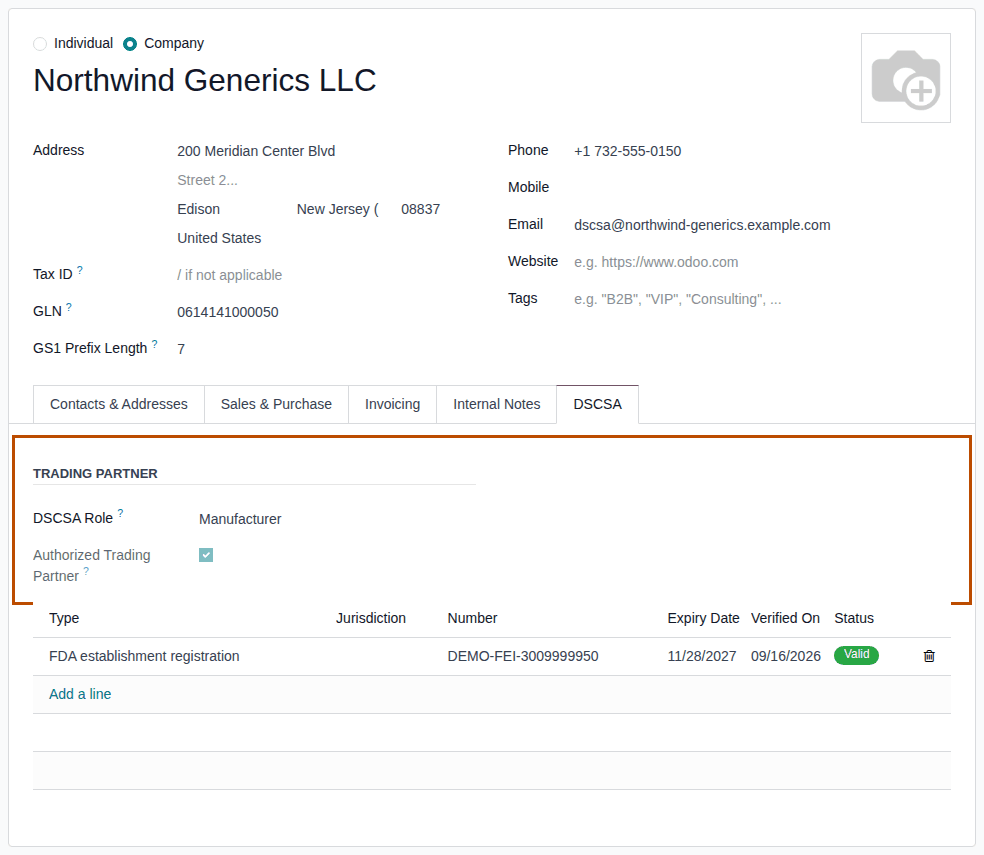
Notice that an owner is set up as an ordinary trading partner first. The demo data has two more owners, Summit Specialty Pharma Inc. and Harborline Pharmaceuticals Inc., but no owner profile and no license of your own company.
2. Set the company GLN
-
Go to Inventory ‣ Configuration ‣ Settings and scroll to the DSCSA (Rx Tracking) block.
-
Under Company GLN, in GLN, enter
0614141005000. -
Select Save.
Result: the settings are saved and GS1 prefix length appears under GLN.

Notice that the sample file names this GLN as the ship-to location: the goods come to your warehouse, but they are bought by Northwind.
3. Record your facility license
-
Go to Inventory ‣ Rx Tracking ‣ Facility Licences (in the 3PL ‣ Configuration section).
Result: the list is empty and says "Record our licence for a facility".
-
Select New.
Result: a license form opens, Unverified, with Trading Partner set to your company, My Company (San Francisco), and Type set to State license.
-
In Number, enter
DEMO-CA-3PL-00001. -
Fill in:
- Activity: Third-party logistics
- Facility: YourCompany (the demo warehouse)
- Jurisdiction: enter
Californiaand choose California (US) (not Baja California (MX), which is listed first) - Expiry Date: a date at least a year ahead, for example
12/31/2027 - Verification Source:
Demo license for the quick start (not a real license)
-
Select the save icon, then select Mark verified.
Result: the status is Valid, and Verified By and Verified On are filled in.
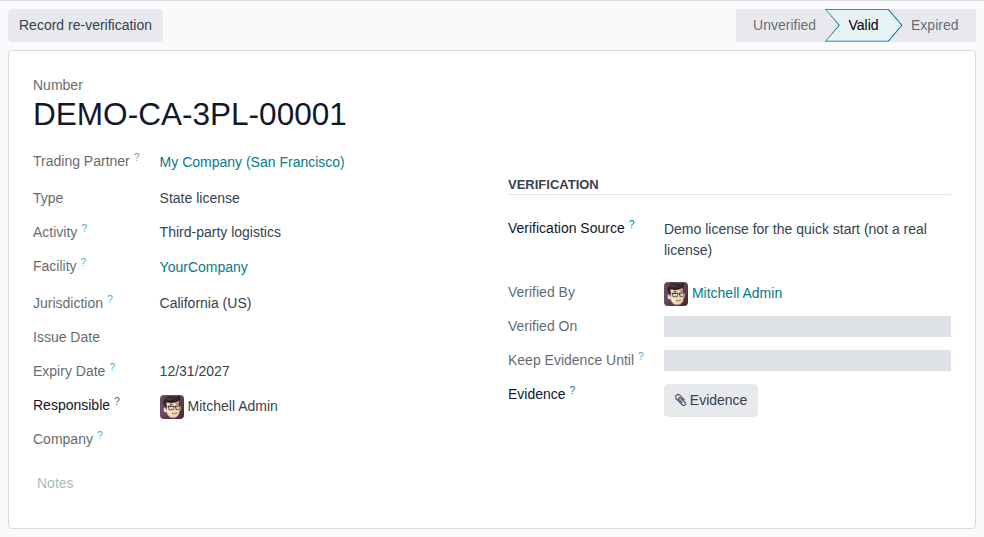
Notice that this license names the warehouse and the activity Third-party logistics: without it, every receipt and shipment of an owner's stock at that warehouse is refused.
4. Turn on 3PL
-
Go to Inventory ‣ Configuration ‣ Settings and scroll to the DSCSA: third-party logistics (3PL) block, at the end of the page.
-
Select Third-party logistics (3PL).
-
Scroll up to the Traceability block and select Consignment ("Set owner on stored products").
-
Select Save.
Result: the settings reload. Under the checkbox, Title location shows Virtual Locations/DSCSA Title Transfer, and the block lists the 3PL policies, each at its default.
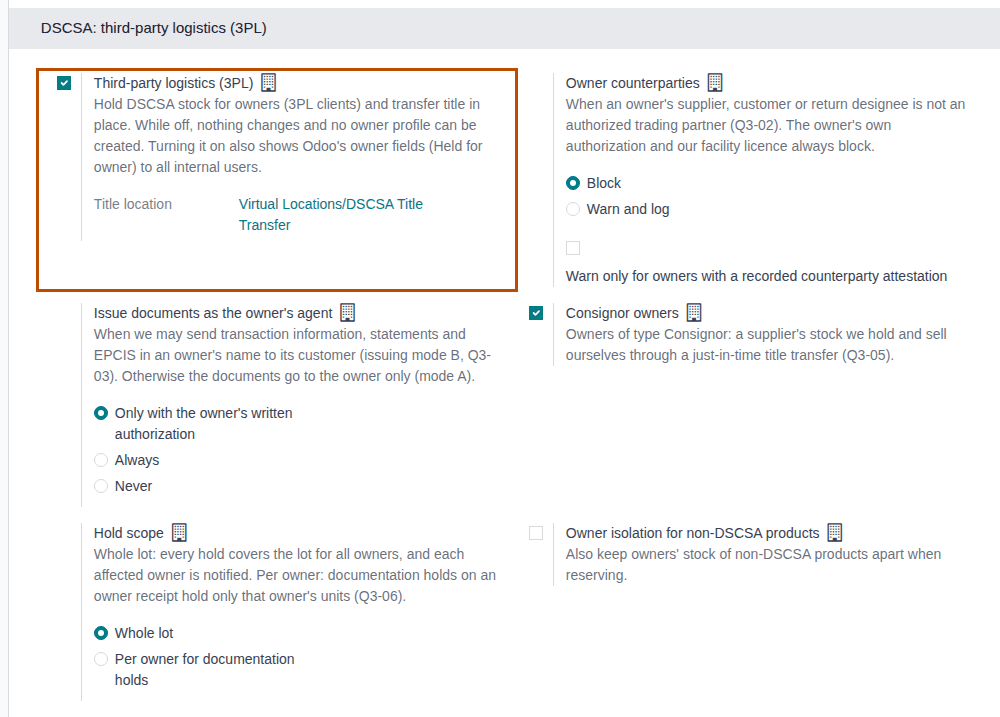
Notice that Consignment is selected in the same save: it shows Odoo's owner field, which the add-on calls Held for Owner, on receipts (Known issue PF-W12-03, in Turn on third-party logistics for a company).
5. Create Northwind's owner profile
-
Go to Inventory ‣ Rx Tracking ‣ Owners (in the 3PL ‣ Configuration section) and select New.
-
In Owner, enter
Northwindand choose Northwind Generics LLC.Result: the Owner as trading partner group fills in: DSCSA Role Manufacturer, GLN
0614141000050, and Authorized Trading Partner selected. -
In Code, enter
NWG. -
In Facilities Served, choose YourCompany.
-
Select the save icon.
Result: the profile is saved as
[NWG] Northwind Generics LLC, and the Grant Owner Portal Access button appears.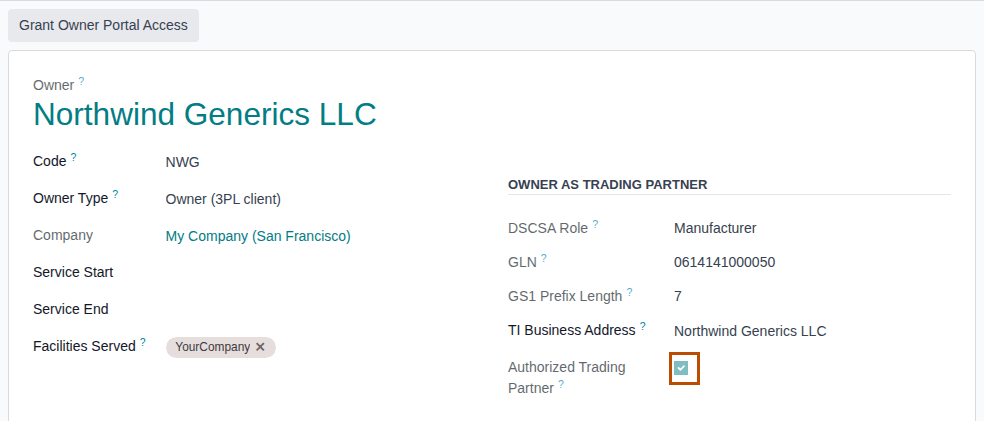
Notice that the code NWG starts every document number issued in Northwind's name. The Documents tab shows Issuing Mode Mode
A: documents go to the owner only: Northwind hasn't authorized you to send its documents to its customers.
6. Create Northwind's receipt
-
Go to Inventory ‣ Operations ‣ Receipts and select New.
-
Fill in:
- Receive From: Bluepeak Pharmaceuticals Inc.
- Held for Owner: Northwind Generics LLC (the company, not one of its contacts)
-
On the Operations tab, select Add a line, choose
[DEMO-DPZ-20] Demoprazole 20 mg Delayed-Release Capsules, 30 countand enter12in Demand. -
Select Mark as Todo.
Result: the receipt gets its number (
WH/IN/00007in a new demo database) and is Ready. The buttons Attach Supplier Data and Record Owner Confirmation appear, under a yellow banner that starts "No supplier data yet for this owner's receipt".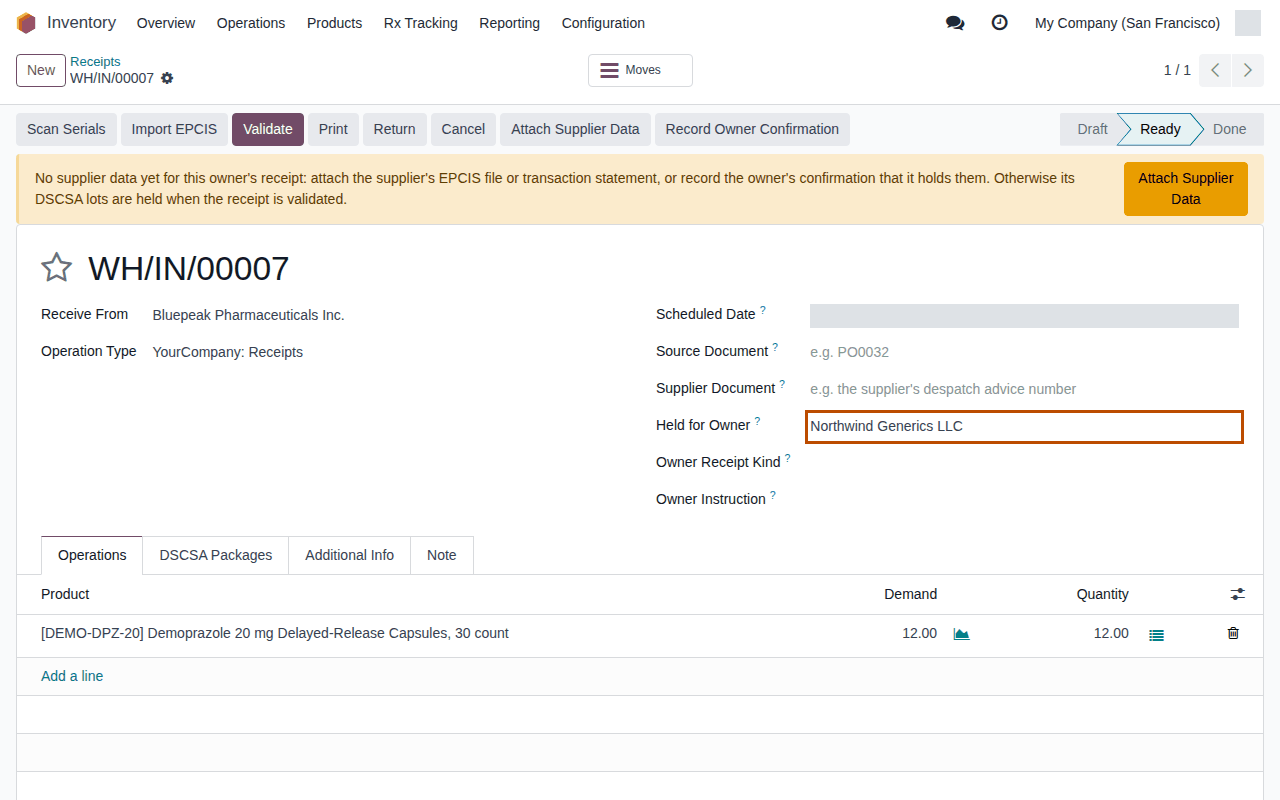
Notice that the receipt has no purchase order: Northwind bought the goods, not you. Held for Owner is what makes it Northwind's receipt.
7. Attach the supplier's EPCIS file
-
Select Attach Supplier Data.
Result: the Attach Supplier Data window opens with your receipt in Receipt, Owner Northwind Generics LLC, and Supplier Data set to Supplier's EPCIS file.
-
Under EPCIS File, select Upload your file and choose
epcis_bluepeak_northwind_DEMO-DPZ-20_12ea_NWG-PO-5001.xml.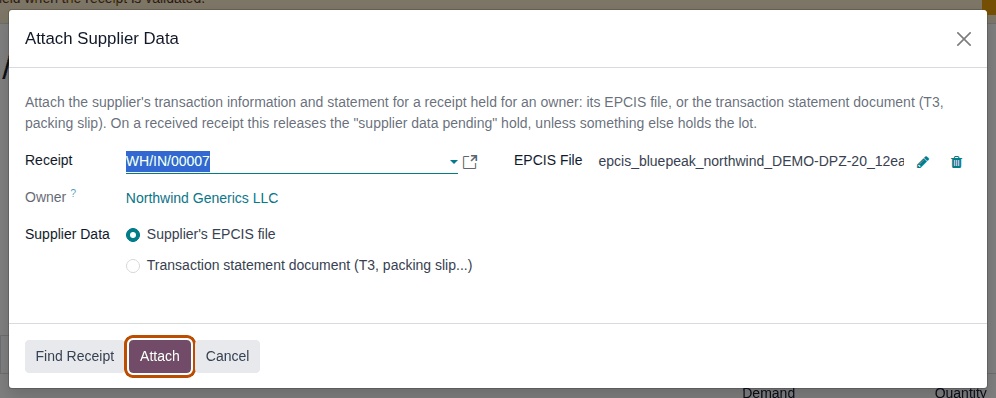
-
Select Attach.
Result: the file opens as a Supplier EPCIS File in the Awaiting Receipt state, with Owner Northwind Generics LLC, Buyer GLN
0614141000050(Northwind), Ship-to GLN0614141005000(you), Packages in File12, and no Warnings tab.
Notice that the file is addressed to Northwind, not to you, and the software accepted it because the receipt is held for Northwind.
8. Scan and validate the receipt
-
In the breadcrumb at the top, select the receipt's number, for example
WH/IN/00007.Result: the yellow banner is gone, and the receipt has an Expected (EPCIS) tab.
-
Select Scan Serials.
-
In the scan box, scan the 12 bottles, or paste the 12 lines of
datamatrix_bluepeak_northwind_DEMO-DPZ-20_12ea_NWG-PO-5001.txt, then select Register.Result: the chatter says "12 DSCSA package(s) scanned.".
-
Select Validate.
Result: the receipt is Done. The chatter says "EPCIS reconciliation: 12 package(s) received." and "Everything matches the supplier's file."; the DSCSA Packages tab lists the 12 bottles, lot
BPDPZ2510A, In Stock; and EPCIS Files and DSCSA Documents smart buttons appear.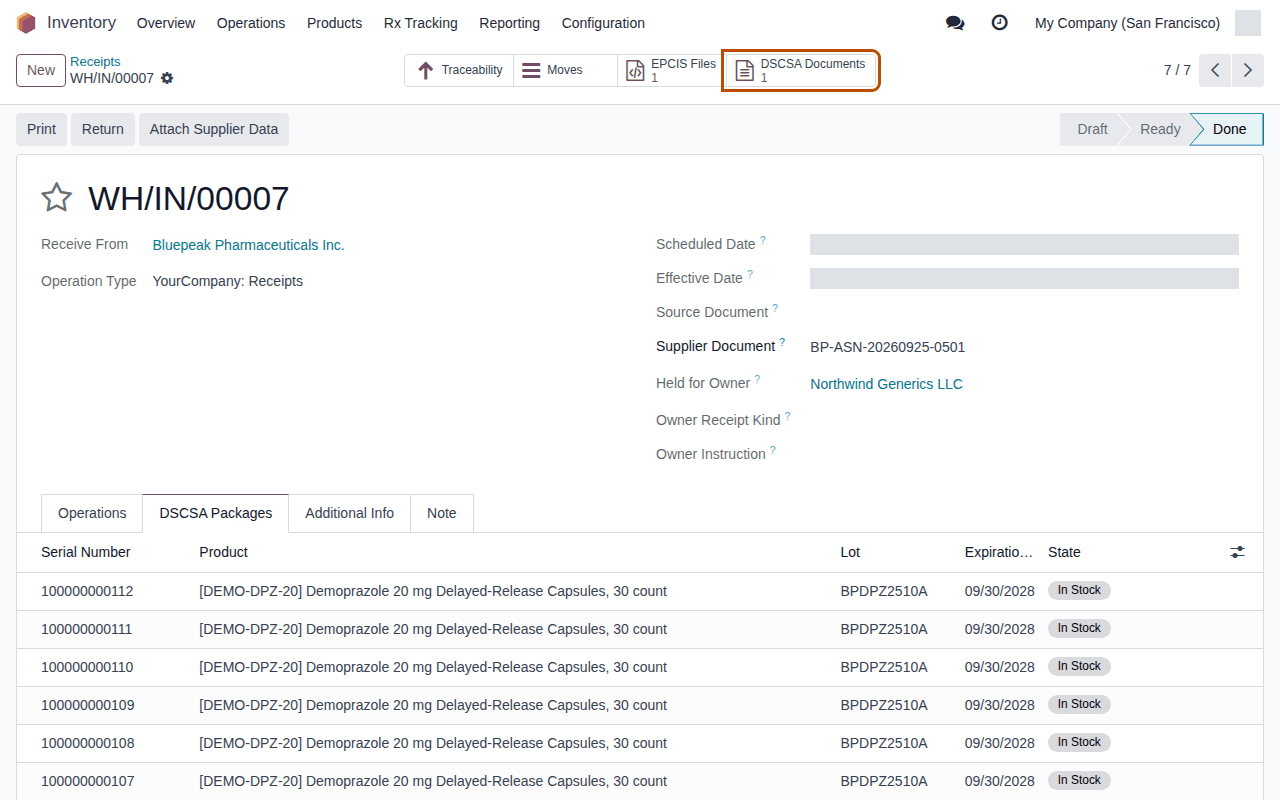
-
Select the DSCSA Documents smart button.
Result: the inbound document
DSCSA/NWG/IN/2026/00001opens, Posted, with Direction Inbound (received), Owner Northwind Generics LLC and Trading Partner Bluepeak Pharmaceuticals Inc.
Notice that the 12 bottles are Northwind's stock, not yours: the document is numbered with Northwind's code, and Odoo books no stock value or vendor bill for them.
9. Record Northwind's order
-
Go to Inventory ‣ Rx Tracking ‣ Owner Instructions (in the 3PL ‣ Operations section) and select New.
-
Fill in:
- Reference:
NWG-SO-0001 - Owner: Northwind Generics LLC
- Instruction: Ship to a customer
- Reference:
-
Select the breadcrumb Owner Instructions above the form. The form has no save icon: leaving it saves the instruction, for good.
Result: the list shows
NWG-SO-0001, Ship to a customer, with Used On empty. -
Go to Inventory ‣ Rx Tracking ‣ Owner Orders (in the 3PL ‣ Operations section) and select New.
-
Fill in:
- Owner: Northwind Generics LLC
- Owner Instruction:
NWG-SO-0001 (Ship to a customer, Northwind Generics LLC) - Sold To: Riverside Community Pharmacy. Ship To fills in with Riverside Community Pharmacy, Receiving.
-
On the Lines tab, select Add a line, choose
[DEMO-DPZ-20] Demoprazole 20 mg Delayed-Release Capsules, 30 countand enter2in Quantity. -
Select the save icon.
Result: the order is numbered
3PL/OUT/2026/00001, in Draft. -
Select Confirm.
Result: the order is Confirmed, and a Transfers smart button appears.
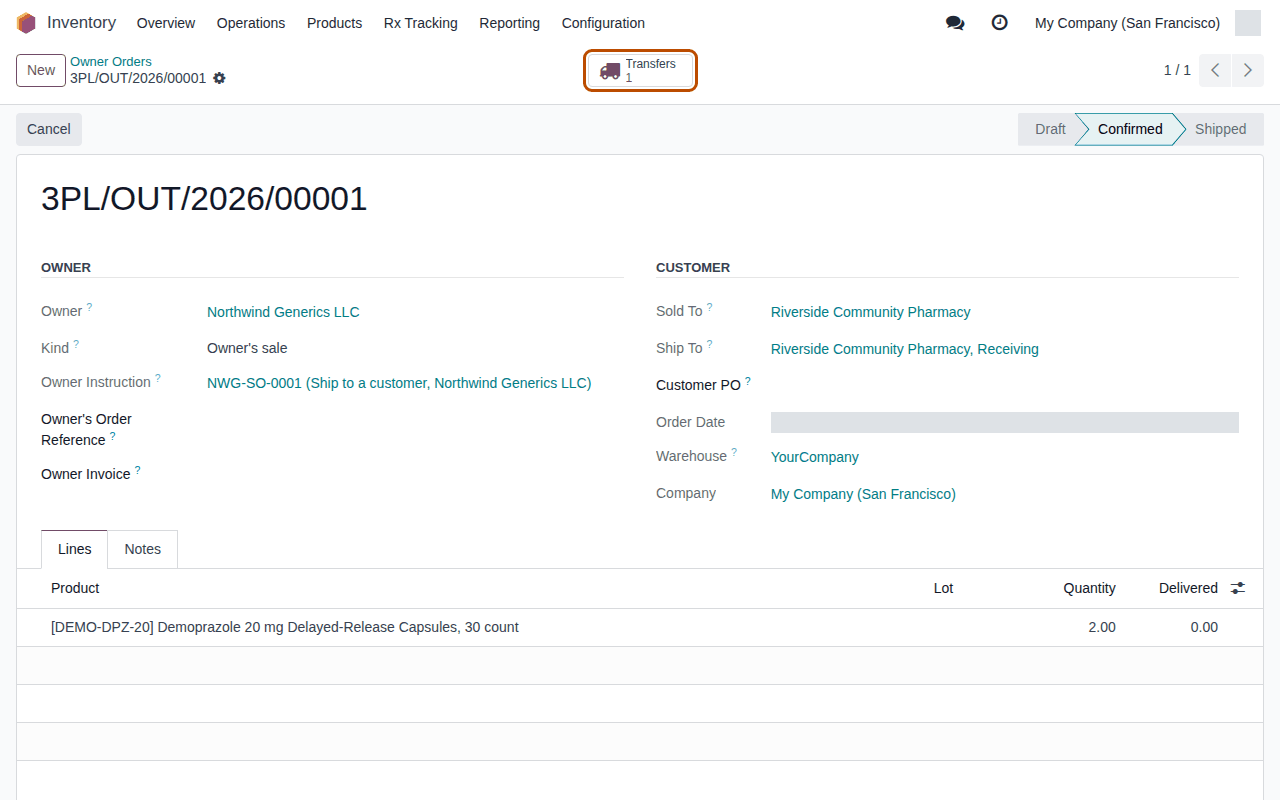
Notice that you record Northwind's sale, not one of yours: there is no sales order and no invoice, and the order needs the owner's instruction to ship.
10. Ship the order
-
Select the Transfers smart button.
Result: the delivery (
WH/OUT/00012in a new demo database) opens, Ready, with Delivery Address Riverside Community Pharmacy, Receiving, Owner Order3PL/OUT/2026/00001and Held for Owner Northwind Generics LLC. -
Select Scan Serials, scan two of the bottles, or paste the first two lines of the DataMatrix file:
(01)00399990101300(21)100000000101(17)280930(10)BPDPZ2510A(01)00399990101300(21)100000000102(17)280930(10)BPDPZ2510A -
Select Register.
Result: the chatter says "2 DSCSA package(s) scanned.".
-
Select Validate.
Result: the delivery is Done, and the chatter says "DSCSA document DSCSA/NWG/OUT/2026/00001 posted for this transfer.".
-
In Owner Order, select
3PL/OUT/2026/00001.Result: the order is Shipped, its line shows Delivered
2.00, and it has a DSCSA Documents smart button and a Send Documents to Owner button.
Notice that only Northwind's units could be reserved and scanned for this delivery: your own stock and other owners' stock are kept apart.
11. Open the owner's document
-
Select the DSCSA Documents smart button, then open
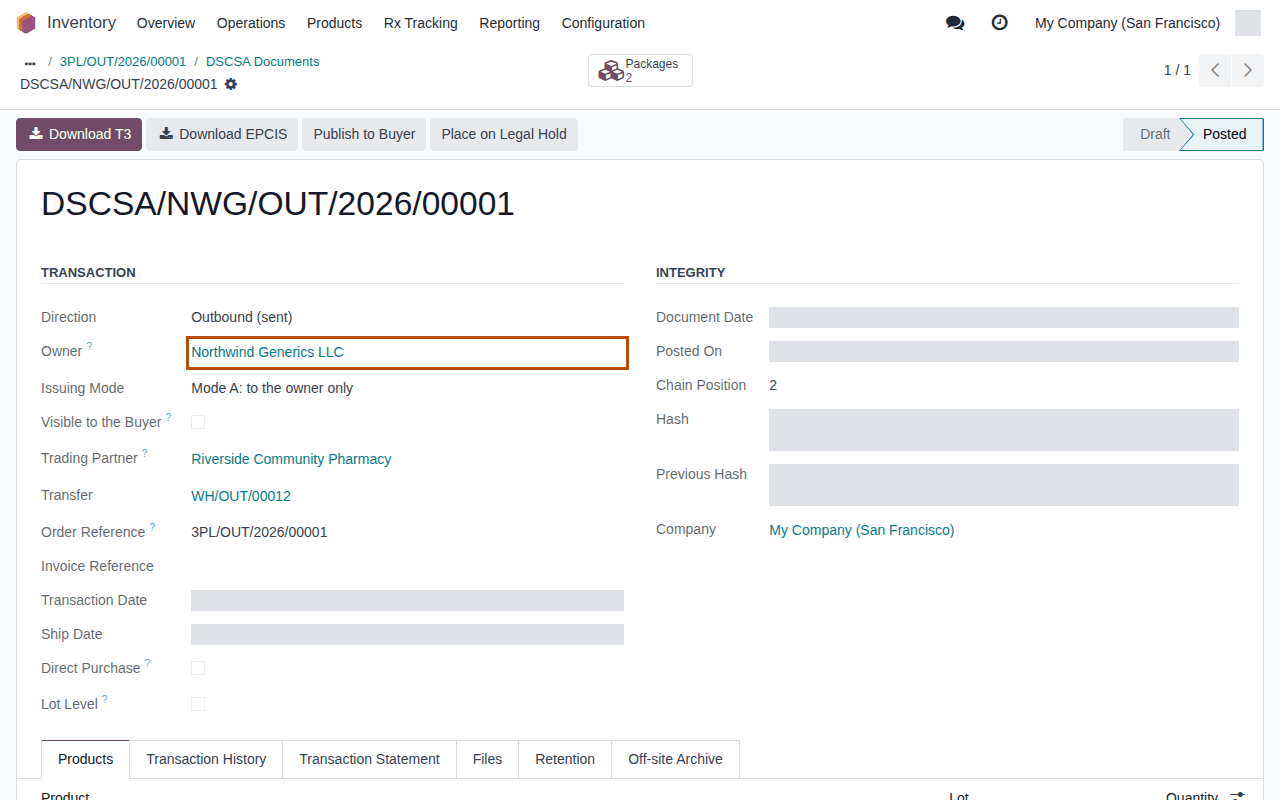
DSCSA/NWG/OUT/2026/00001.Result: the document is Posted, with Direction Outbound (sent), Owner Northwind Generics LLC, Issuing Mode Mode A: to the owner only, and Trading Partner Riverside Community Pharmacy.
-
Select Download T3.
Result: your browser downloads
T3-DSCSA-NWG-OUT-2026-00001.pdf. Its heading says "Issued by My Company (San Francisco) as third-party logistics provider for Northwind Generics LLC", the seller is Northwind, the statement is headed "Transaction Statement of Northwind Generics LLC (seller)", and your licenseDEMO-CA-3PL-00001is listed as the third-party logistics provider's (ship from). -
Select Download EPCIS.
Result: your browser downloads
EPCIS-DSCSA-NWG-OUT-2026-00001.xml, sent in Northwind's name (GLN0614141000050). -
Select the Transaction History tab.
Result: two lines: This Document's Transaction (Northwind to Riverside) and Received from Trading Partner (Bluepeak to Northwind,
NWG-PO-5001). Your company is not a party.
Notice that the document goes to Northwind only (mode A): you would send it with Send Documents to Owner, and Northwind passes it to its customer.
Result: you received and shipped an owner's goods in the owner's name. Records: your facility license (Valid); the owner profile
[NWG] Northwind Generics LLC; the receipt (Done) with 12 packages held for Northwind (10 In Stock, 2 Shipped); the Supplier
EPCIS File (Received); the inbound document DSCSA/NWG/IN/2026/00001; the instruction NWG-SO-0001, used by the order; the owner
order 3PL/OUT/2026/00001 (Shipped) and its delivery (Done); the outbound document DSCSA/NWG/OUT/2026/00001 with its T3 PDF and
EPCIS file; and one row per check in Inventory ‣ Rx Tracking ‣ Gate Log (in the 3PL ‣ Reports section).
What you have done
- You looked at a demo owner: a trading partner with a role, a GLN and a verified license.
- You set your company's GLN and recorded a verified facility license for the activity Third-party logistics.
- You turned 3PL on, with Consignment in the same save.
- You created Northwind's owner profile.
- You received Northwind's goods on a receipt held for Northwind, with the supplier's file addressed to Northwind: 12 packages held for
Northwind and the inbound document
DSCSA/NWG/IN/2026/00001. - You recorded Northwind's instruction and order, and shipped two bottles: the outbound document
DSCSA/NWG/OUT/2026/00001, in Northwind's name, with its T3 PDF and EPCIS file.
If something looks different
- There is no Held for Owner on the receipt: Consignment wasn't selected when you saved the settings in stage 4. Select it and select Save again. See Held for Owner doesn't show although 3PL is on.
- The DSCSA: third-party logistics (3PL) block isn't in the settings: the 3PL add-on isn't installed, or you aren't the administrator. See The 3PL settings block is missing.
- Validate in stage 8 is refused with "WH/IN/00007 can't be validated: it moves DSCSA products (…) to or from a trading partner." and "Facility YourCompany has no valid 3PL licence: record our state 3PL licence for it (activity Third-party logistics) and verify it.": stage 3 was skipped, or the license isn't Valid, or names another Activity or Facility. Do stage 3 (or correct the license), then select Validate again. See Error: "Facility … has no valid 3PL licence …".
- The delivery of stage 10 shows a yellow banner "The DSCSA document of this shipment will have no EPCIS file: our company My Company (San Francisco) has no GLN. …": stage 2 was skipped. Do it now, before you select Validate: a posted document can't get its EPCIS file later. Attaching the file in stage 7 gives no warning about it (Known issue PF-W30-01).
- The supplier file opens with a Duplicates tab and the banner "12 serial(s) in this file are already in the package ledger (suspect product). …": the sample was already received in this database. Select Cancel Import on the file, and use a new demo database (see Sample files).
- Confirm in stage 9 is refused with "3PL/OUT/2026/00001 can't be confirmed:" and "Northwind Generics LLC's instruction (Ship to a customer) is required for 3PL/OUT/2026/00001: record the owner's order or approval first.": Owner Instruction is empty, or the instruction wasn't saved (leaving its form with Instruction empty doesn't save it). Record it, select it and confirm again. See Error: "OWNER's instruction (KIND) is required for …".
- Confirm is refused with "… it ships DSCSA products for Northwind Generics LLC." and "Sold-to: … has no valid state license: …": the demo licenses are dated from the day the demo data was loaded and expire after 10 to 24 months. Use a new demo database. See Error: "… can't be confirmed: it ships DSCSA products for …".
Where to go next
- Go live as a 3PL: the setup order, and owner stock you already hold, on your real database.
- The procedures behind each stage:
- Set the company GLN and GS1 prefix length
- Record and verify our facility licenses
- Turn on third-party logistics for a company and choose the company's 3PL policies
- Create an owner profile and set how the owner's documents are issued
- Create a receipt held for an owner, attach the supplier's EPCIS file and scan and validate it
- Record an owner's instruction
- Record an owner order, confirm it and ship it
- Read an owner's outbound document and send an owner its documents
- Give Northwind's people the owner portal, where they see their stock and documents and upload supplier files: Give an owner's contacts the owner portal, then the handout Sign in to the owner portal for the first time and Upload your supplier's EPCIS file before the goods arrive.
- Title and consignment: Get ready for title transfers in place, Set up an owner for just-in-time buying and Take in and sell consignment stock.
- Owner stock and The title model, for the ideas behind the lesson.