Install the Rx Tracking modules
Core module Odoo Enterprise: Barcode app Odoo Enterprise: Quality app 3PL add-on For: Administrator Checked on 18.0.0.2.0, 18.0.1.0.0
Install the Rx Tracking modules from the Apps screen of an Odoo 18 database. The core module, Rx Tracking (DSCSA), is all you need to start; the 3PL add-on and the two Enterprise add-ons are optional. Install and try the modules on a test database before you install them on the database you work in.
Which modules you need
| Module (as shown in Apps) | Edition | Install it when | Procedure |
|---|---|---|---|
| Rx Tracking (DSCSA) | Community or Enterprise | always: it is the core, and every other module needs it | Install Rx Tracking (DSCSA) |
| Rx Tracking (DSCSA): 3PL and title model | Community or Enterprise | you also hold DSCSA stock for other companies (owners) as a third-party logistics provider (3PL) | Install the 3PL add-on |
| Rx Tracking (DSCSA) - Barcode | Enterprise only | your warehouse scans in Odoo's Barcode app | Install the Enterprise add-ons |
| Rx Tracking (DSCSA) - Suspect Product Investigations | Enterprise only | you want suspect-product investigations and Form FDA 3911 data in Odoo's Quality app | Install the Enterprise add-ons |
| Rx Tracking (DSCSA): 3PL Barcode bridge | Enterprise only | never by hand: it installs itself | What installs automatically |
| Rx Tracking (DSCSA): 3PL Quality bridge | Enterprise only | never by hand: it installs itself | What installs automatically |
The full matrix (what each module needs from Odoo and which guide covers it) is in Editions and modules. The module names use two separators (" - " and ": "); this page quotes them exactly as Apps shows them.
Put the modules on the server
This part is done on the Odoo server by whoever runs it (your IT staff or hosting provider), not in the browser.
- Your own server: copy the six module folders (
aglow_rx_tracking,aglow_rx_tracking_3pl,aglow_rx_tracking_barcode,aglow_rx_tracking_quality,aglow_rx_tracking_3pl_barcode,aglow_rx_tracking_3pl_quality) into a folder that is on the server's addons path (theaddons_pathoption of the Odoo configuration file). Keep the folder names as they are. - Restart the Odoo server.
- The modules need no Python packages beyond Odoo's own.
- For the Transaction Statement (T3) PDF, install
wkhtmltopdf0.12.6 with patched Qt on the server, as Odoo recommends for its PDF reports. With another build the PDF has no page-number footer. - On Odoo Community, you may copy all six folders: the Enterprise add-ons are listed in Apps but can't be installed (On Odoo Community).
- Odoo.sh: the six folders go into your project's Git repository, on the branch of the database, instead of onto a server you run; Odoo.sh builds the branch after each push, and you then install from Apps as below. See Odoo's Odoo.sh branches documentation. A staging branch is a neutralized copy of production: its scheduled actions are off, and Rx Tracking switches the off-site archive off in it (Keep a staging or restored copy from writing to the archive).
- Odoo Online: the modules can't be used there. Odoo Online runs only Odoo's standard apps, not modules added by a buyer (Odoo's hosting documentation). Use Odoo.sh or your own server.
The modules are in English (US) only: users who work in another language see the Rx Tracking screens, messages, reports and emails in English, and these docs quote the English labels.
If the database was created before the folders were copied, update the Apps list once (If the modules aren't listed).
Find the modules in Apps
-
The Apps filter hides them. The Apps screen opens with the Apps filter in the search bar. It shows applications only, and none of the Rx Tracking modules is an application, so a search for
Rx Trackingwith the filter on finds "No module found!". Remove the filter first (select the × on the Apps facet). -
Learn More on a card opens the vendor's website in a new tab.
-
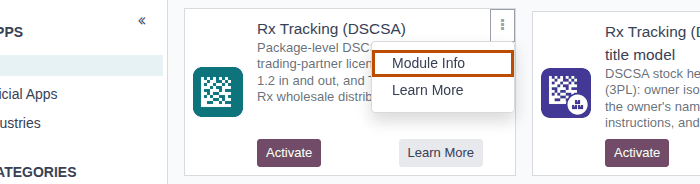
Module Info is in the card's ⋮ menu. It opens the module's page: its name, author, website, the Activate button (or Upgrade and Uninstall once installed), and the module's README, which has the installation notes and first configuration steps.
-
List view: the list icon at the top right of the Apps screen shows the modules as a list with their Latest Version (the version of the files on the server) and Status (Installed or Not Installed).
Install Rx Tracking (DSCSA)
Install the core module once per database. It adds the package ledger, the trading-partner license checks, the DSCSA documents and the Rx Tracking menu in Inventory. It also installs the Odoo apps it builds on: Inventory, Purchase, Invoicing and the sales engine.
Who: Administrator (Administration: Settings)
Requires: Odoo 18, Community or Enterprise.
Before you start:
- The module folders are on the server and the server was restarted. See Put the modules on the server.
- You work on a test database, or you have a backup of the database you install on.
Steps 1–3 install Odoo's Sales and Contacts apps: the core module doesn't install the Sales app itself (see the Known issue below), and Contacts is where you manage trading partners. Skip a step if the app is already installed: its card shows no Activate button. Steps 4–6 install the core module, and step 7 checks the result.
-
Go to Apps.
Result: the Apps screen lists Odoo's applications, with the Apps filter in the search bar.
-
Enter
Salesin the search bar and pressEnter. On the Sales card, select Activate.Result: Odoo installs the app and reloads the page. The Sales app is on the home screen.
-
Go to Apps again, enter
Contacts, pressEnter, and on the Contacts card select Activate.Result: the Contacts app is on the home screen.
-
Go to Apps. In the search bar, select the × on the Apps facet to remove the filter.
Result: the search bar is empty and the screen lists every module, not only applications.
-
Enter
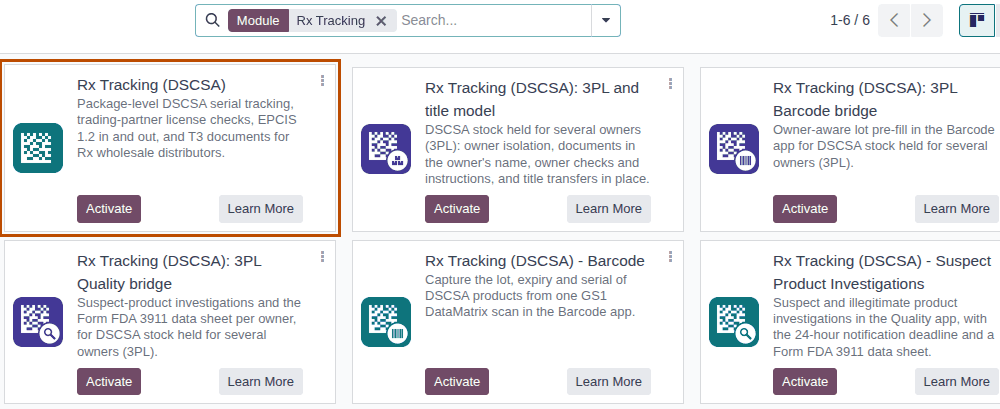
Rx Trackingand pressEnter.Result: six cards, one per Rx Tracking module. Each module that isn't installed shows Activate.
-
On the Rx Tracking (DSCSA) card, select Activate. Wait for the page to reload; don't close it. It can take a minute or more.
Result: the home screen shows Inventory, Purchase, Sales and Invoicing (on Enterprise also Odoo's Barcode app, which Odoo installs with Inventory).
-
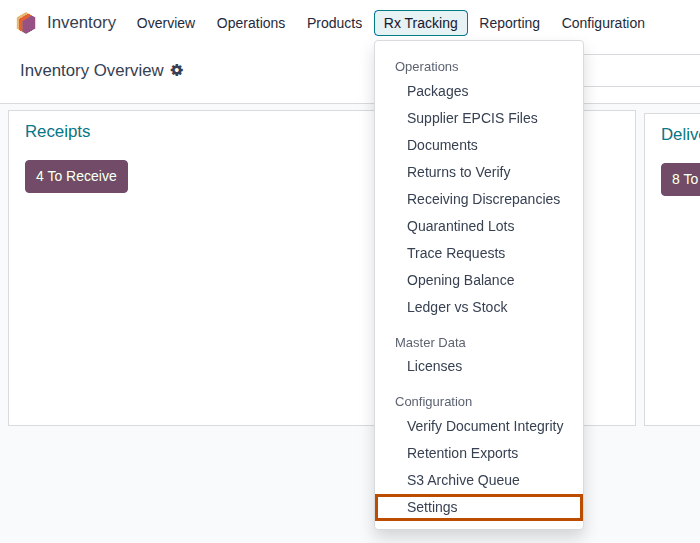
Go to Inventory ‣ Rx Tracking.
Result: the dropdown shows three sections: Operations, Master Data and Configuration.
Result: Rx Tracking (DSCSA) is installed. Nothing is checked yet: no product is a DSCSA product and no partner is refused until you configure them. Records:
- the access category Rx Tracking with the levels User and Manager on the user form (Settings ‣ Users & Companies ‣ Users, Access Rights tab, section Other); the administrator is a Manager;
- the menu Inventory ‣ Rx Tracking, and the DSCSA (Rx Tracking) block in Inventory ‣ Configuration ‣ Settings;
- three scheduled actions: DSCSA: license expiry reminders (every day), DSCSA: monthly retention export (every month) and DSCSA: send S3 archive queue (every hour), see Scheduled jobs;
- five activity types (License expiring, GLN missing, Trace request due, Lot still quarantined, S3 archive failed)
and the numbering of receiving discrepancies (
DISC/YYYY/…) and trace requests (DSCSA/TR/YYYY/…); - company defaults: the Transaction Statement text and EPCIS legal notice, and the small-dispenser exemption end date 2027-11-27;
- Lots & Serial Numbers turned on in Inventory, for every internal user.
Known issue (PF-T02-01): the core module installs Odoo's sales engine but not the Sales app, so without steps 1–2 there is no Sales app on the home screen and sales staff can't create quotations. Install Sales (step 2) at any time, before or after the core module.
If it doesn't work
- "No module found!" after searching
Rx Tracking: the Apps filter is still in the search bar. Remove it (step 4). If the six cards still don't appear, update the Apps list (If the modules aren't listed) and ask whoever runs the server to check that the folders are on the addons path and that Odoo was restarted. See The Rx Tracking modules aren't in Apps. - There is no Activate button on a card: you don't have Administration: Settings. Ask an administrator.
- There is no Rx Tracking menu under Inventory for a user: that user has no Rx Tracking access. See Give staff the right Rx Tracking access and A user has no Rx Tracking menu.
- There is no Sales app on the home screen: install it (step 2; Known issue above). See There is no Sales app after installing Rx Tracking.
Next: The first 30 minutes: configure Rx Tracking, and give your staff their access (Give staff the right Rx Tracking access).
On a database with demo data
On a test database created with demo data (Demo Data selected when the database is created), the install also adds fictitious master data to try the module with: suppliers and pharmacy customers with verified licenses (one customer is a small dispenser), three DSCSA products and one product that isn't a DSCSA product. It changes no company setting. Create a database with demo data only for testing; the Quick start uses one.
From the command line
A server administrator can install the modules without the browser, with the database name in place of DATABASE:
odoo-bin -d DATABASE -i sale_management,contacts,aglow_rx_tracking --stop-after-init
Then start Odoo as usual. The result is the same as steps 1–6.
If the modules aren't listed: update the Apps list
Odoo reads the list of modules on the server when a database is created. If the module folders were copied to the server afterwards, the Apps screen doesn't show them until you update the list once.
-
Go to Settings, scroll to Developer Tools, and select Activate the developer mode.
Result: the page reloads in developer mode.
-
Go to Apps ‣ Update Apps List.
Result: the Module Update dialog opens.
-
Select Update.
Result: the dialog closes. Searching
Rx Trackingwithout the Apps filter now shows the six cards (step 5 above).
Install the 3PL add-on
Install the 3PL add-on when you also hold DSCSA stock for other companies (owners). Installing it changes nothing for your own stock, documents and checks: the add-on stays inactive until an administrator turns third-party logistics on for a company.
Who: Administrator (Administration: Settings)
Requires: Rx Tracking (DSCSA): 3PL and title model. Works in Odoo Community and Enterprise.
Before you start:
- Rx Tracking (DSCSA) is installed. See Install Rx Tracking (DSCSA).
-
Go to Apps, remove the Apps filter, enter
Rx Trackingand pressEnter.Result: the six Rx Tracking cards.
-
On the Rx Tracking (DSCSA): 3PL and title model card, select Activate, and wait for the page to reload.
Result: the home screen.
-
Go to Inventory ‣ Rx Tracking.
Result: the dropdown now also has a 3PL block with its own Operations, Reports and Configuration sections.
Result: the 3PL add-on is installed and switched off. Records:
- the 3PL block in the Rx Tracking dropdown;
- the block DSCSA: third-party logistics (3PL) in Inventory ‣ Configuration ‣ Settings, showing only the Third-party logistics (3PL) checkbox (cleared) until 3PL is on;
- the access group DSCSA Owner Portal for owners' portal users;
- the daily scheduled action DSCSA 3PL: FDA annual report reminders and the activity types FDA annual report due and Report to FDA within 30 days (they act only on companies with 3PL on);
- the fields Activity and Facility on licenses.
With the Enterprise add-ons installed, the 3PL bridges install themselves at the same time (What installs automatically).
If it doesn't work
- "Turn on third-party logistics (Inventory settings, DSCSA 3PL) for COMPANY before creating owner profiles." when you save an owner: 3PL is still off for that company. Turn it on first. See Turn on third-party logistics and 3PL is off.
Next: Turn on third-party logistics for a company
Install the Enterprise add-ons, and what installs automatically
With Odoo Enterprise, install Rx Tracking (DSCSA) - Barcode so that one scan of a GS1 DataMatrix code fills in the lot and the serial in the Barcode app, and Rx Tracking (DSCSA) - Suspect Product Investigations for suspect-product investigations and Form FDA 3911 data in the Quality app. Install either one, or both, in any order.
Who: Administrator (Administration: Settings)
Requires: Odoo Enterprise, and Rx Tracking (DSCSA). The Barcode add-on needs Odoo's Barcode app and the Suspect Product add-on needs Odoo's Quality app; Odoo installs them with the add-on if they aren't installed yet.
Before you start:
- Rx Tracking (DSCSA) is installed. See Install Rx Tracking (DSCSA).
- If you hold stock for owners: the 3PL add-on is installed, before or after the Enterprise add-ons. See Install the 3PL add-on.
-
Go to Apps, remove the Apps filter, enter
Rx Trackingand pressEnter.Result: the six Rx Tracking cards.
-
On the Rx Tracking (DSCSA) - Barcode card, select Activate, and wait for the page to reload.
Result: the home screen. The Barcode app is on it.
-
Repeat step 1. On the Rx Tracking (DSCSA) - Suspect Product Investigations card, select Activate, and wait for the page to reload.
Result: the home screen shows the Quality app.
-
Repeat step 1.
Result: the cards of the modules you installed show no Activate button. With the 3PL add-on installed, the two bridge cards show no Activate button either: they installed themselves.
Result: the Enterprise add-ons are installed. Records:
- Barcode add-on: the GS1 nomenclature's rule for the serial (AI 21) now has the type Serial number, so the Barcode app keeps the serial and the lot from one scan;
- Suspect Product add-on: the menu Inventory ‣ Rx Tracking ‣ Suspect Investigations (in the Operations section), the settings Open an investigation on quarantine (on) and D-U-N-S number in the DSCSA (Rx Tracking) settings block, the activity type Notify FDA (Form 3911), and the rule that every Rx Tracking User is also a Quality user (the Quality app appears on their home screen).
Next: Switch the company to the GS1 barcode nomenclature and Set up investigations.
What installs automatically
The two bridges have no settings and no menus of their own. Odoo installs each one as soon as both modules it connects are installed, whichever you install last:
| Bridge (as shown in Apps) | Installs itself when both are installed | What it adds | Guide |
|---|---|---|---|
| Rx Tracking (DSCSA): 3PL Barcode bridge | Rx Tracking (DSCSA): 3PL and title model and Rx Tracking (DSCSA) - Barcode | the owner of the stock in the Barcode app | Scan owner stock in the Barcode app |
| Rx Tracking (DSCSA): 3PL Quality bridge | Rx Tracking (DSCSA): 3PL and title model and Rx Tracking (DSCSA) - Suspect Product Investigations | investigations and Form FDA 3911 per owner | Investigate owners' stock |
On Odoo Enterprise, Odoo's own Barcode app also installs itself with Inventory, so it is already there after Install Rx Tracking (DSCSA). The Rx Tracking Barcode add-on doesn't: activate it (step 2).
On Odoo Community: the Enterprise add-ons don't install
A Community database lists all six Rx Tracking modules, and the two Enterprise add-ons show Activate, but they can't be installed: Odoo's Barcode and Quality apps show Upgrade instead of Activate (it opens Odoo's pricing page). Use the Community procedures instead: Without the Barcode app and Without the Quality app.
-
Rx Tracking (DSCSA) - Barcode: Activate opens the Invalid Operation dialog and installs nothing:
You try to install module "aglow_rx_tracking_barcode" that depends on module "stock_barcode_product_expiry".But the latter module is not available in your system.
-
Rx Tracking (DSCSA) - Suspect Product Investigations: Activate shows no message. The page reloads, nothing is installed, and the card shows Cancel Install.
Known issue (PF-W01-01): on Odoo Community, activating Rx Tracking (DSCSA) - Suspect Product Investigations fails without a message and leaves the module waiting to be installed; if the 3PL add-on is installed or installed later, Rx Tracking (DSCSA): 3PL Quality bridge waits too. Nothing breaks, but both cards show Cancel Install. On each of these cards, select Cancel Install: the card shows Activate again.
Known issue (PF-V02a-01): on Odoo Community, activating Rx Tracking (DSCSA): 3PL Quality bridge shows no message either, but it installs Rx Tracking (DSCSA): 3PL and title model and leaves the Suspect Product add-on and the bridge waiting to be installed. Select Cancel Install on each card that shows it. The 3PL add-on's checks apply only once 3PL is turned on for a company; to remove the add-on, uninstall it (see Uninstall a module, and what is deleted with it).
If it doesn't work
- "You try to install module "aglow_rx_tracking_barcode" that depends on module "stock_barcode_product_expiry". But the latter module is not available in your system.": the database runs on Odoo Community, or the server has no Enterprise modules on its addons path. Select Close; nothing was installed. See An Enterprise add-on won't install.
- A card shows Cancel Install after you activated it: see the Known issue above.