Quick start: receive, ship and trace DSCSA product
Core module For: Administrator Checked on 18.0.0.2.0
In this lesson you buy a sealed case of 24 bottles from a demo supplier, receive it with the supplier's EPCIS (Electronic Product Code Information Services) file and one scan, sell and ship two bottles to a demo pharmacy, open the DSCSA document the shipment creates, and trace one bottle from supplier to customer. At the end you have a received case, a shipped order, a T3 PDF (transaction information, history and statement) and an EPCIS file you can download. It takes about 30 minutes.
EPCIS is the GS1 file format for the transaction data that suppliers send and that the software writes for your customers; a GLN (Global Location Number) identifies a company or a site. The glossary explains these abbreviations.
Before you start
- A test Odoo 18 database (Community or Enterprise) created with demo data (the Demo data checkbox of Odoo's database manager), with Rx Tracking (DSCSA), Sales and Contacts installed. See Install Rx Tracking (DSCSA). Never do this lesson on the database you work in: it creates records that can't be deleted.
- No purchase order was created in that database yet, so the one you create is
P00012, the order the sample file names. - You are logged in as the administrator.
- The sample files, downloaded to your computer from Sample files:
epcis_bluepeak_DEMO-DPZ-20_24ea_P00012.xml(the supplier's EPCIS file) anddatamatrix_bluepeak_DEMO-DPZ-20_24ea_P00012.txt(the 24 bottles' 2D barcodes, as text).
Everything in the demo data and the sample files is fictitious.
1. Look at the demo trading partners
-
Go to Contacts.
-
Open the search options (the ▾ at the right of the search bar) and select Authorized Trading Partners.
-
Select the list view (the ☰ icon at the top right).
Result: the list shows the five demo companies the software lets you buy from and sell to: Bluepeak Pharmaceuticals Inc., Cedar Valley Drug Distributors LLC, Hillcrest Family Pharmacy, Mercy Valley Hospital Pharmacy and Riverside Community Pharmacy, plus Riverside's Receiving delivery address.
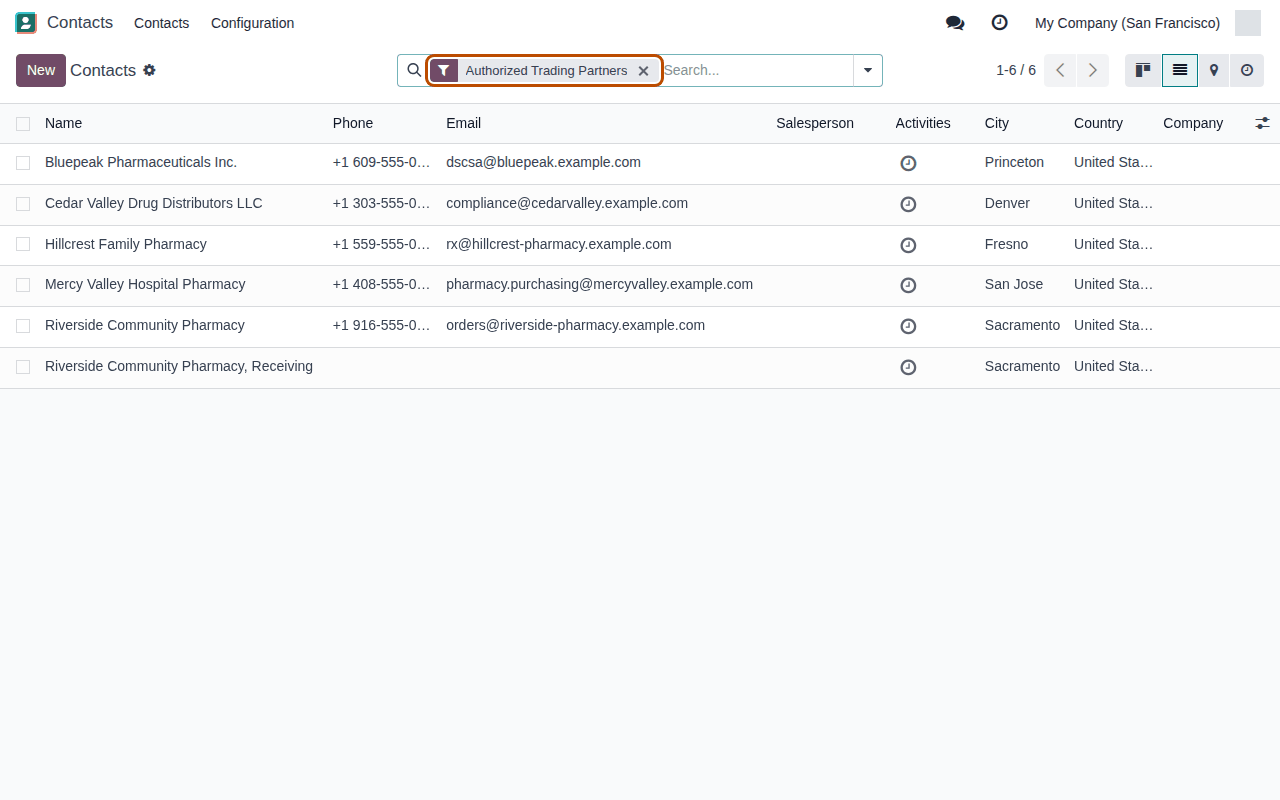
Notice that each of them has a DSCSA role and a verified license; open one and look at its DSCSA tab and its Licenses smart button (under More). Without them, confirming an order for a DSCSA product is refused.
2. Set the company GLN
-
Go to Inventory ‣ Configuration ‣ Settings and scroll to the DSCSA (Rx Tracking) block.
-
Under Company GLN, in GLN, enter
0614141005000. -
Select Save.
Result: the settings are saved and GS1 prefix length appears under GLN.

Notice that the demo data leaves your company without a GLN: the sample file is addressed to this GLN, and your outgoing documents name it.
3. Buy a case from Bluepeak
-
Go to Purchase ‣ Orders ‣ Requests for Quotation and select New.
-
In Vendor, choose Bluepeak Pharmaceuticals Inc.
-
On the Products tab, select Add a product, choose
[DEMO-DPZ-20] Demoprazole 20 mg Delayed-Release Capsules, 30 countand enter24in Quantity. -
Select Confirm Order.
Result: the order is
P00012, in the Purchase Order state, with a Receipt smart button.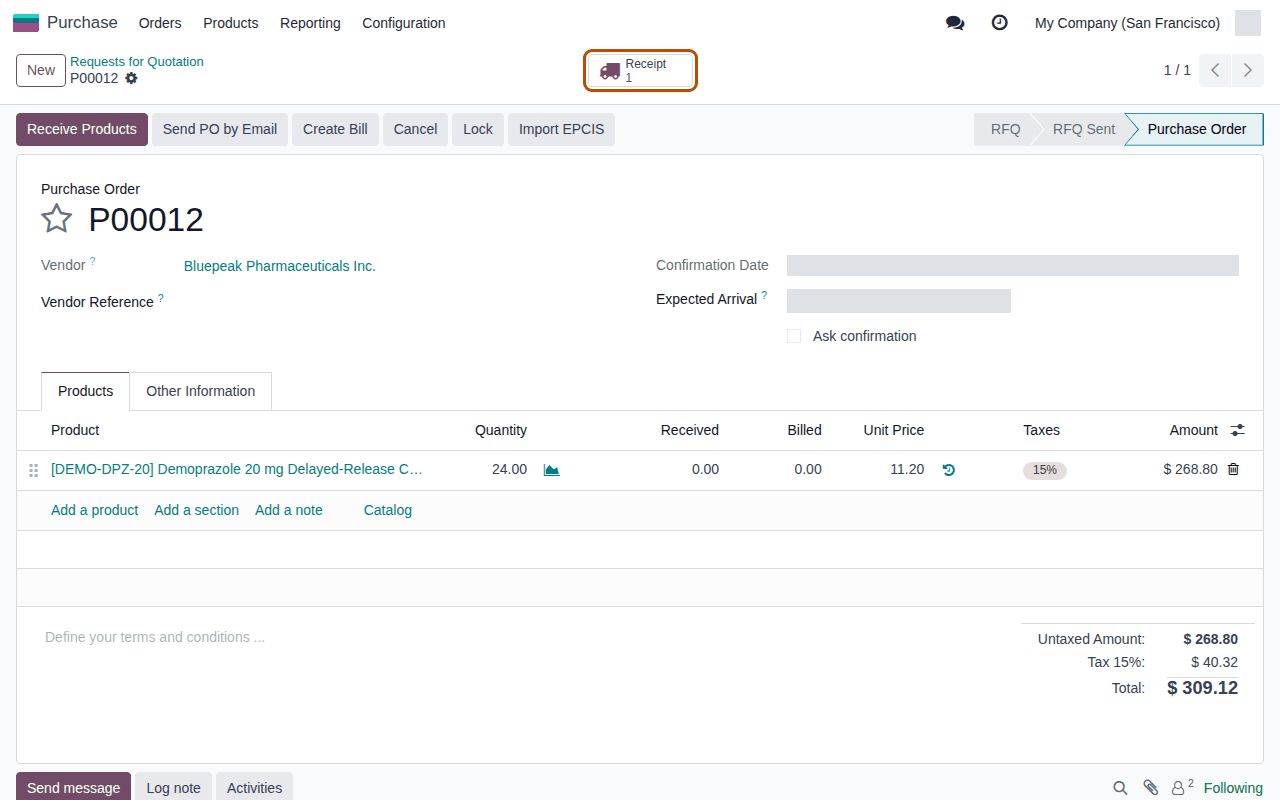
Notice that the order confirmed without a message: Bluepeak is an authorized trading partner.
4. Import the supplier's EPCIS file
-
Select the Receipt smart button.
Result: the receipt
WH/IN/00007opens, Ready, with the buttons Scan Serials and Import EPCIS. -
Select Import EPCIS.
Result: the Import Supplier EPCIS File dialog opens, with the receipt in Receipt.
-
Select Upload your file, choose
epcis_bluepeak_DEMO-DPZ-20_24ea_P00012.xml, then select Import.Result: the new Supplier EPCIS File
epcis_bluepeak_DEMO-DPZ-20_24ea_P00012.xmlopens in the Awaiting Receipt state. Its Received / Expected smart button shows0 / 24, and Buyer GLN and Ship-to GLN show your GLN,0614141005000.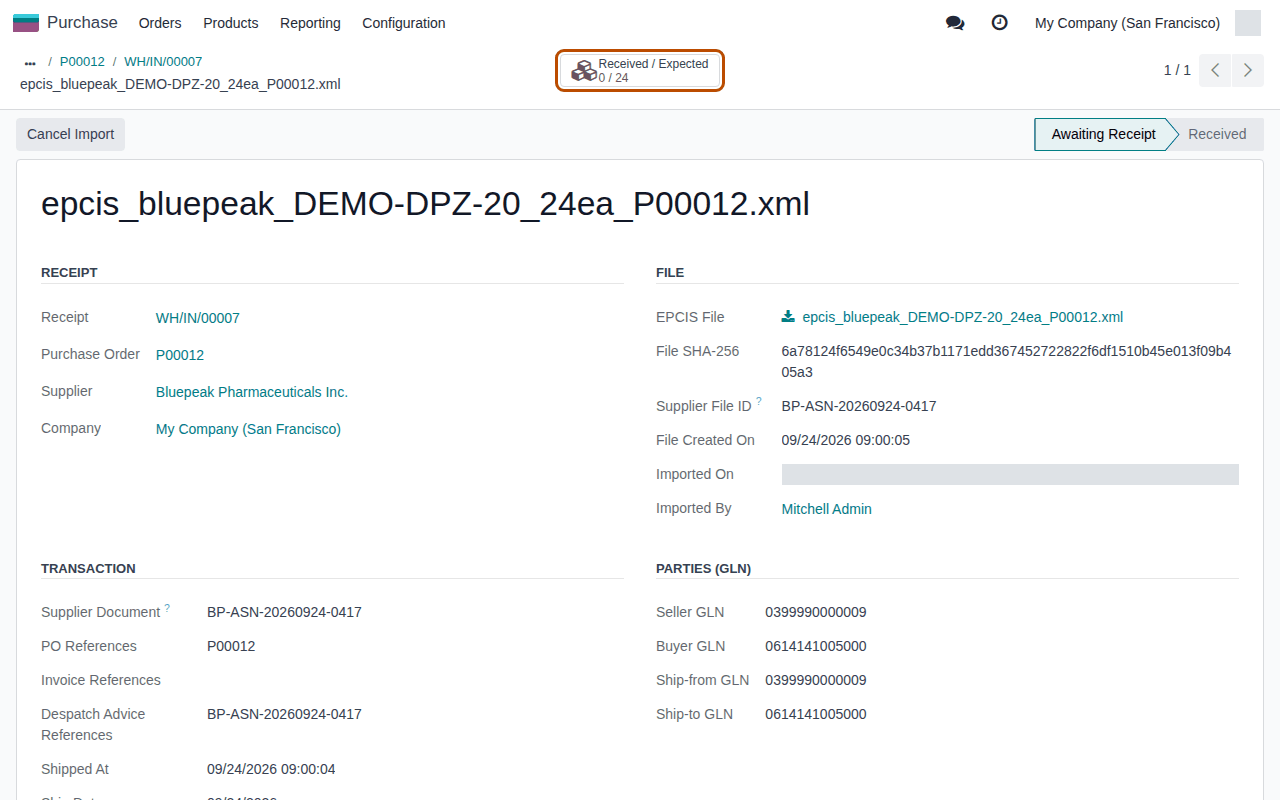
Notice that the file has no Warnings tab: it names your company, your order number and the product the receipt expects. Its Packages list shows the 24 serial numbers the supplier announced, all Expected.
5. Scan the sealed case
-
In the breadcrumb at the top, select
WH/IN/00007.Result: the receipt has the smart buttons EPCIS Files and Expected (
24), and an Expected (EPCIS) tab. -
Select Scan Serials.
Result: the Scan DSCSA Serials dialog opens.
-
In the scan box (under Product for an unknown GTIN), scan the case label, or enter its number:
00003999900000004175.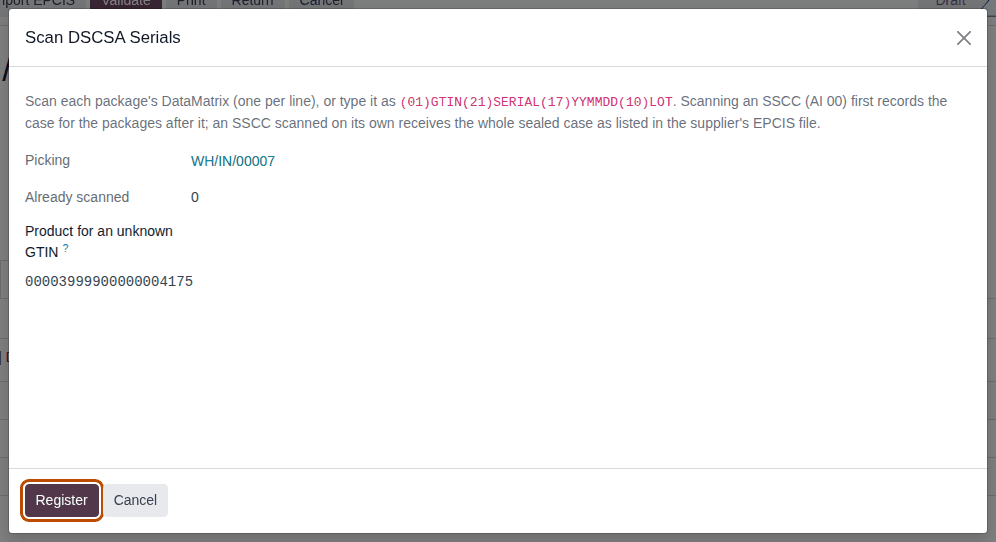
-
Select Register.
Result: the dialog closes and the chatter says "24 DSCSA package(s) scanned.". The Expected smart button and the Expected (EPCIS) tab are gone, and the DSCSA Packages tab lists the 24 bottles as Received.
Notice that one scan of the case label received all 24 bottles, because the supplier's file lists what is inside the sealed case. Without the file, you scan each bottle: the DataMatrix file has one line per bottle.
6. Validate the receipt
-
Select Validate.
Result: the receipt is Done. On the DSCSA Packages tab the 24 bottles are In Stock, and a DSCSA Documents smart button (
1) appears.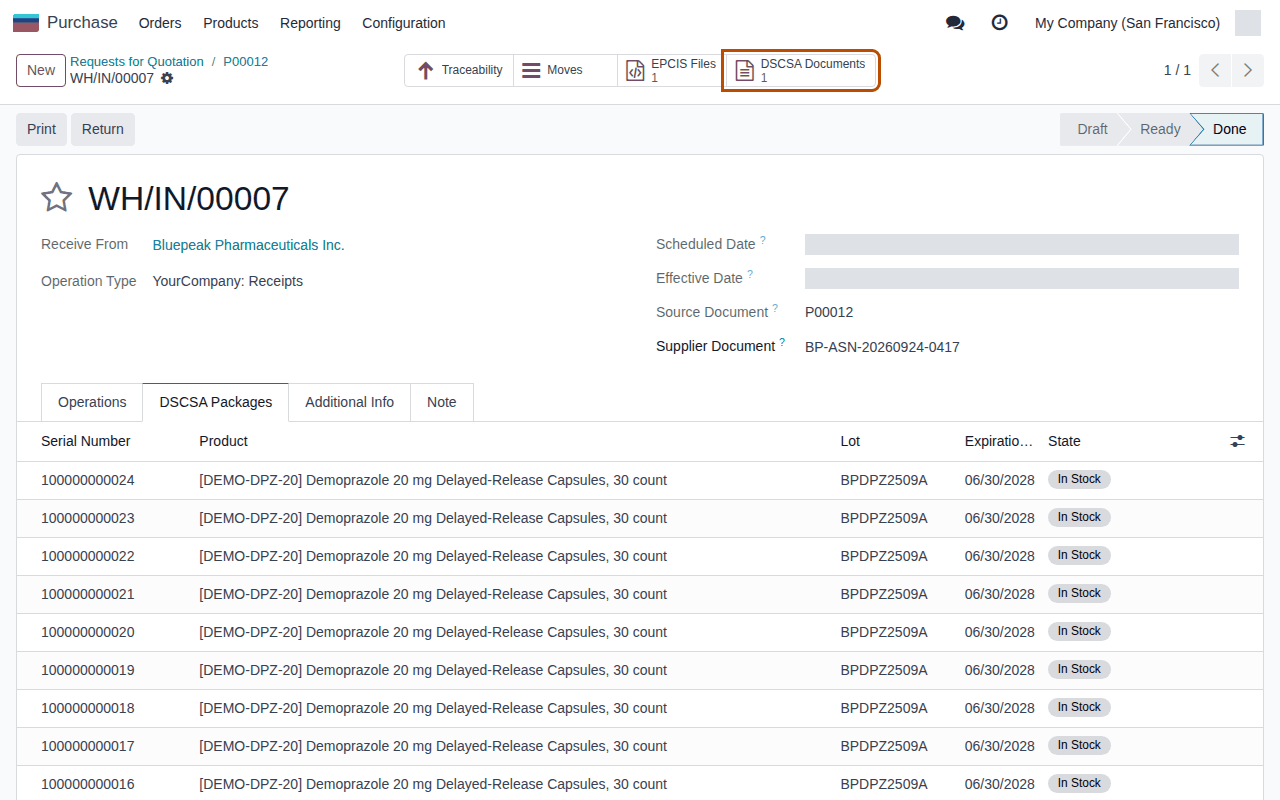
-
Select the DSCSA Documents smart button.
Result: the inbound document
DSCSA/IN/2026/00001opens, Posted, with Direction Inbound (received) and Trading Partner Bluepeak Pharmaceuticals Inc.
Notice that the supplier's file is now kept as a posted record: Chain Position 1 and a Hash show that it is the first link of
the document chain.
7. Sell and ship two bottles to Riverside
-
Go to Sales ‣ Orders ‣ Quotations and select New.
-
In Customer, choose Riverside Community Pharmacy.
-
On the Order Lines tab, select Add a product, choose
[DEMO-DPZ-20] Demoprazole 20 mg Delayed-Release Capsules, 30 countand enter2in Quantity. -
Select Confirm.
Result: the quotation becomes a Sales Order (for example
S00025) with a Delivery smart button. -
Select the Delivery smart button.
Result: the delivery (for example
WH/OUT/00012) opens, Ready, with Delivery Address Riverside Community Pharmacy, Receiving. -
Select Scan Serials, scan two bottles, or paste the first two lines of
datamatrix_bluepeak_DEMO-DPZ-20_24ea_P00012.txt:(01)00399990101300(21)100000000001(17)280630(10)BPDPZ2509A(01)00399990101300(21)100000000002(17)280630(10)BPDPZ2509A -
Select Register, then select the DSCSA Packages tab.
Result: the chatter says "2 DSCSA package(s) scanned." and the tab lists serials
100000000001and100000000002.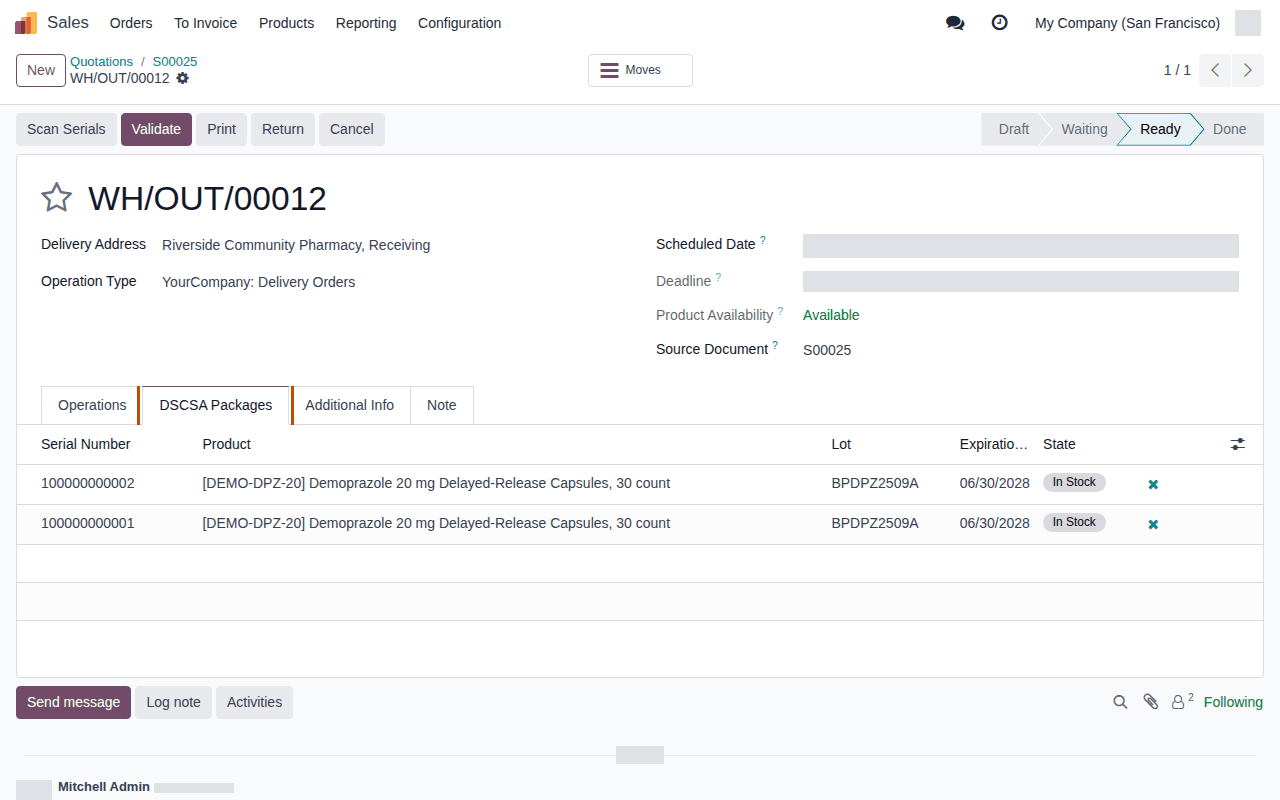
-
Select Validate.
Result: the delivery is Done, the two bottles are Shipped, and a DSCSA Documents smart button appears.
Notice that the software checked each scanned bottle against the package ledger: it must be in stock, of the ordered product and of the reserved lot.
8. Open the DSCSA document
-
Select the DSCSA Documents smart button.
Result: the outbound document
DSCSA/OUT/2026/00001opens, Posted, with Direction Outbound (sent), Trading Partner Riverside Community Pharmacy, and the buttons Download T3 and Download EPCIS.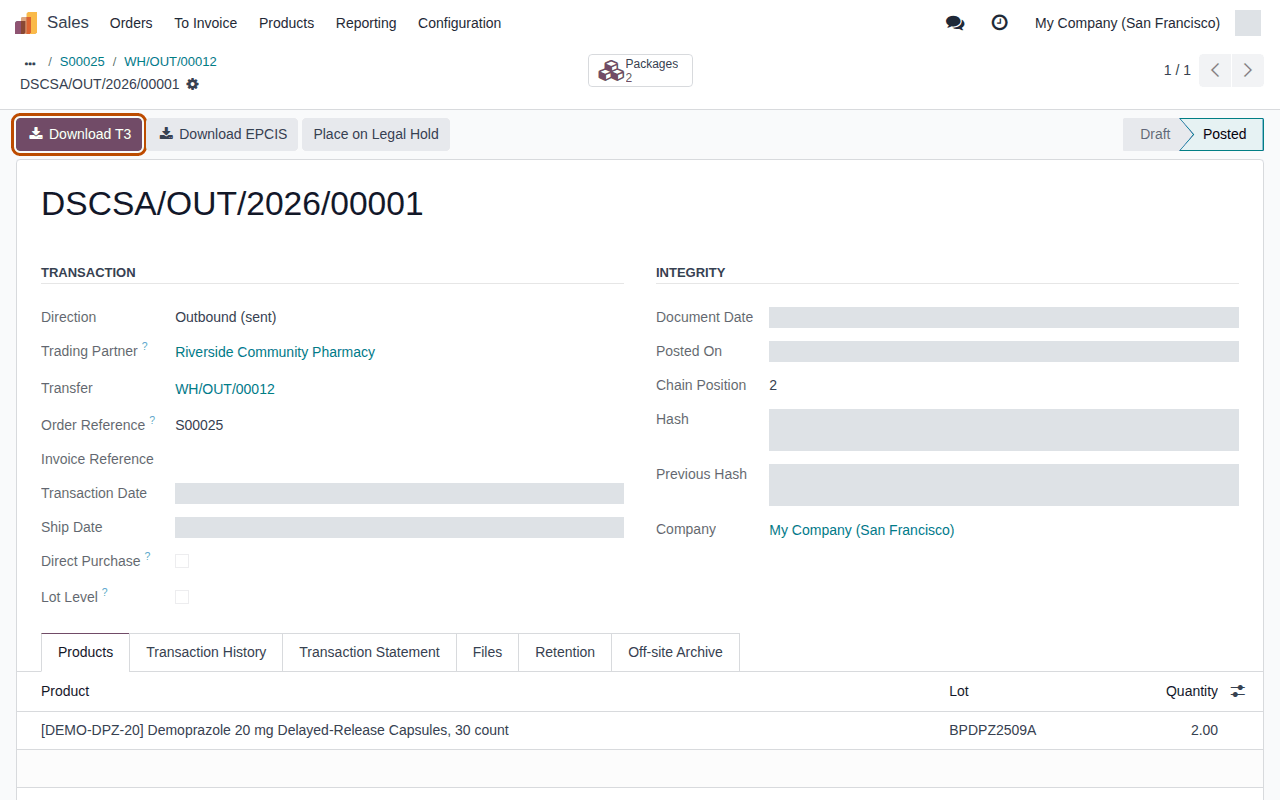
-
Select Download T3.
Result: your browser downloads
T3-DSCSA-OUT-2026-00001.pdf, the transaction information, transaction history and Transaction Statement for Riverside. -
Select Download EPCIS.
Result: your browser downloads
EPCIS-DSCSA-OUT-2026-00001.xml. -
Select the Transaction History tab.
Result: two lines: This Document's Transaction (your company to Riverside,
S00025) and Received from Trading Partner (Bluepeak to your company,P00012).
Notice that you never typed the history: the software built it from the receipt of step 6.
9. Trace a bottle
-
Go to Inventory ‣ Rx Tracking ‣ Packages.
-
In the search bar, remove the In Stock filter (the × on its facet): a shipped bottle is not in stock.
-
Enter
100000000001in the search bar and pressEnter.Result: one package, Shipped, with Shipped To Riverside Community Pharmacy.
-
Open it.
Result: the package form shows the bottle's GTIN (Global Trade Item Number), lot
BPDPZ2509A, expiry, case SSCC (Serial Shipping Container Code) and supplier file, and its Movement History:WH/IN/00007from Bluepeak andWH/OUT/00012to Riverside.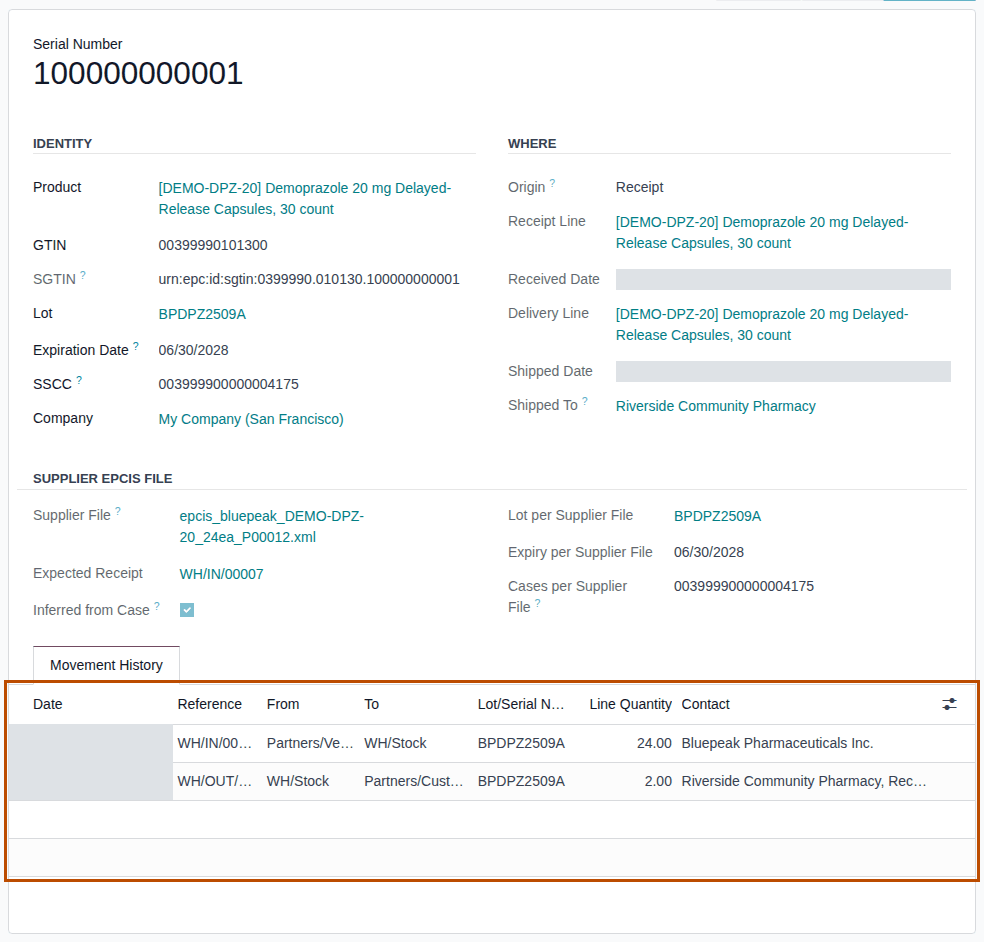
Notice that one serial number takes you from the supplier's file to the customer's delivery.
What you have done
- You saw the demo partners the software treats as authorized trading partners.
- You set your company's GLN.
- You bought a case from an authorized supplier and imported its EPCIS file (a Supplier EPCIS File record).
- You received the case with one scan and completed the receipt with Validate: 24 packages In Stock and the inbound document
DSCSA/IN/2026/00001. - You sold and shipped two bottles with their serials: the outbound document
DSCSA/OUT/2026/00001, with its T3 PDF and EPCIS file. - You traced a bottle from supplier to customer in the package ledger.
If something looks different
- Your purchase order isn't
P00012, and the supplier file has a Warnings tab with "The file's purchase order number (P00012) is not ours (…).": the database already had purchase orders. Start again on a new demo database (see Sample files). - The supplier file has a Warnings tab with "My Company (San Francisco) has no GLN in Odoo, so the buyer in the file (GLN
0614141005000) could not be checked. Record the GLN so later files are checked.": stage 2 was skipped or not saved. The warning
doesn't stop the receipt: do stage 2 now, then go to Inventory ‣ Operations ‣ Receipts, open
WH/IN/00007and continue with stage 5, step 2. See Read the warnings of an imported supplier EPCIS file. - Validate says "… can't be validated: scan one DSCSA serial for each unit being validated.": a bottle wasn't scanned. Select Scan Serials and scan it. See Error: "… can't be validated: scan one DSCSA serial for each unit being validated".
- Confirming the sales order is refused with "… has no valid state license: license … expired on …": the demo licenses are dated from the day the demo data was loaded and expire after 10 to 24 months. Use a new demo database. See Error: "… has no valid state license: license … expired on …".
- The Packages list says "No serialized packages yet" for
100000000001: the In Stock filter is still on (step 9.2).
Where to go next
- The first 30 minutes: configure Rx Tracking on your real database, then go live with the stock you already have.
- The procedures behind each stage:
- Check whether a partner is an authorized trading partner, and why not
- Set the company GLN and GS1 prefix length
- Confirm a purchase of DSCSA product from an authorized supplier
- Import the supplier's EPCIS file on the receipt
- Receive a sealed case by scanning its SSCC label
- Validate a DSCSA receipt
- Confirm a sales order for DSCSA products
- Scan the serials of a delivery and validate it
- Open the DSCSA document a delivery posted
- Look up a unit in the package ledger
- Packages and the serial ledger and DSCSA documents, for the ideas behind the lesson.
- With the 3PL add-on: the 3PL quick start.