Update or uninstall the modules
Core module Odoo Enterprise: Barcode app Odoo Enterprise: Quality app 3PL add-on For: Administrator Checked on 18.0.0.2.0, 18.0.1.0.0
Update the modules when you receive a new release, so that the database runs the new version and keeps its records. Uninstall a module only on a test database, or when you have decided to stop using it and have kept what you need: uninstalling deletes its records.
Update the modules to a new version
Replace the module folders on the server, then update the modules from Apps. One update of the core module updates every installed Rx Tracking module, because they all depend on it.
Who: Administrator (Administration: Settings)
Requires: Rx Tracking (DSCSA). Works in Odoo Community and Enterprise.
Before you start:
- You have the new release's module folders, and you have read its release notes. See Release notes.
- You have a backup of the database with its file store (in Odoo's database manager, Backup with the format zip (includes filestore), or your hosting provider's backup).
- Ideally, you have tried the update on a copy of the database first.
-
On the server, replace each Rx Tracking module folder with the new release's folder, and restart Odoo. (Whoever runs the server does this; see Put the modules on the server.)
-
Go to Apps, select the × on the Apps facet to remove the filter, enter
Rx Trackingand pressEnter.Result: the six Rx Tracking cards.
-
On the Rx Tracking (DSCSA) card, open the ⋮ menu and select Upgrade. Wait for the page to reload; don't close it.
Result: Odoo updates the core module and every installed Rx Tracking add-on, reloads the page and shows the home screen.
Result: the modules run the new version. Every record is kept. Records: none created; what an update keeps and what it sets back is listed below. Then run the smoke test once: Prove the whole chain once.
You can also select Upgrade on the module's page: ⋮ ‣ Module Info ‣ Upgrade. Developer mode is not needed for either.
Known issue (PF-W01-03): every update gives the administrator (and Odoo's internal OdooBot user) the Rx Tracking Manager right again, even if you removed it. If your procedure keeps the administrator out of DSCSA work, remove the right again after each update: Give staff the right Rx Tracking access.
What an update keeps and what it sets back
| Kept as you left them | Set back to the new release's version |
|---|---|
| all records: packages, documents, licenses, supplier files, trace requests, owners and the rest | screens (views) and menus |
| company settings (Inventory ‣ Configuration ‣ Settings) and system parameters | access rules and record rules of the Rx Tracking modules, and the definition of their access groups |
| your changes to the scheduled actions (for example their interval), email templates, activity types and record numbering | the administrator's and OdooBot's Rx Tracking Manager right (see the Known issue above) |
| users' access rights (except the administrator's and OdooBot's Rx Tracking right) | the Barcode add-on's rule for the serial (AI 21) in the default GS1 nomenclature: type Serial number |
From the command line
A server administrator can update without the browser, with the database name in place of DATABASE, then start Odoo as usual:
odoo-bin -d DATABASE -u aglow_rx_tracking --stop-after-init
As in the browser, -u aglow_rx_tracking also updates every installed Rx Tracking add-on.
If it doesn't work
- The Upgrade item isn't in the card's ⋮ menu: the module isn't installed (its card shows Activate), or you don't have Administration: Settings.
- Latest Version in the list view of Apps (list icon, top right) shows the version of the files on the server. If it still shows the old number, the new folders aren't on the addons path or Odoo wasn't restarted (step 1). See After an update, Apps still shows the old version.
Uninstall a module, and what is deleted with it
Uninstalling a module deletes every record it created, with their stored files, and uninstalls every module that depends on it. Uninstalling Rx Tracking (DSCSA) removes all six Rx Tracking modules and every DSCSA record. Odoo's own apps (Inventory, Sales, Purchase, Invoicing, Barcode, Quality) and their records stay.
Your procedure decides which records you export and keep before you uninstall and how long you keep them; the software doesn't refuse the uninstall. Background: DSCSA sets record-keeping periods for transaction records (FD&C Act § 582, record-keeping provisions; see Compliance background).
Uninstalling can't be undone. The only way back is to restore a backup made before it. Try it on a copy of the database first.
Who: Administrator (Administration: Settings)
Requires: the module to uninstall. Works in Odoo Community and Enterprise.
Before you start:
- You have a backup of the database with its file store, and you know how to restore it (Odoo's database manager: Backup with the format zip (includes filestore), or your hosting provider's backup).
- If you are leaving the modules for good, you have kept what you need outside Odoo:
- the retention export of the DSCSA records. See Get the monthly retention export.
- with the 3PL add-on, one export per owner. See Export everything we keep about one owner.
- with the off-site archive, every record archived. See Watch the archive queue.
-
Go to Apps, select the × on the Apps facet to remove the filter, enter
Rx Trackingand pressEnter.Result: the six Rx Tracking cards.
-
On the card of the module to uninstall, open the ⋮ menu and select Uninstall.
Result: the Uninstall module dialog opens with the warning "Uninstalling modules can be risky, we recommend you to try it on a duplicate or test database first.", an empty Apps to Uninstall list, and Documents to Delete with the number of records of each kind.
-
Select Show All.
Result: Apps to Uninstall lists every module that is uninstalled: the one you chose and every module that depends on it.
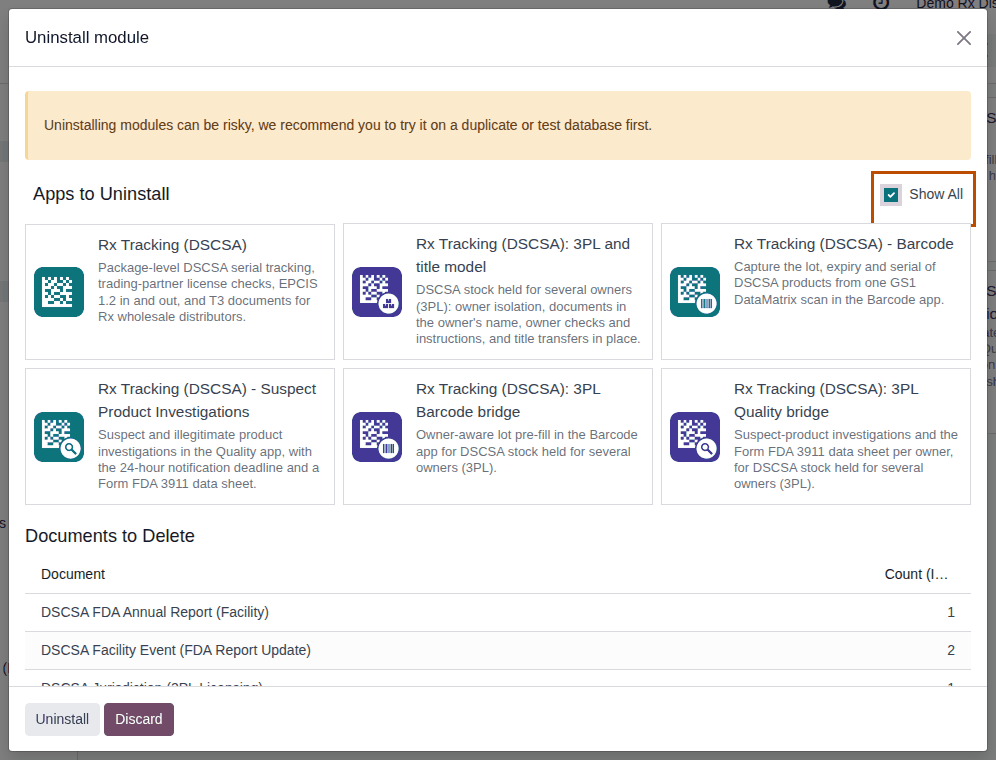
-
Check the list. To stop, select Discard; nothing changes. To go on, select Uninstall, and wait for the page to reload.
Result: the home screen. In Apps, the cards of the uninstalled modules show Activate again.
Result: the module and the modules that depend on it are uninstalled. Records: every record listed below for them is deleted, together with its chatter, activities and attached files; nothing refuses. Installing the module again doesn't bring them back.
Known issue (PF-A12-01): no Rx Tracking module refuses to be uninstalled, even while it holds DSCSA documents that the software otherwise never lets anyone delete. Keep uninstall rights (Administration: Settings) to the people your procedure names, and always make the backup first.
Known issue (PF-W01-02): the dialog lists only some kinds of records under Documents to Delete. The package ledger (every serial and its history), document lines and the other DSCSA records are deleted too, although they aren't listed. Use the table below, not the dialog, to see what goes.
Known issue (PF-A12-02): after the 3PL add-on is uninstalled, owners' documents that were issued to the owner only become visible to the buyer they name, on that buyer's customer portal. Before uninstalling the 3PL add-on, remove the portal access of those buyers' contacts, or don't uninstall it.
What is deleted, module by module
| Uninstalling | Also uninstalls | Deletes | Stays |
|---|---|---|---|
| Rx Tracking (DSCSA) | all five other Rx Tracking modules | every DSCSA record: packages and their history, DSCSA documents with their frozen T3 PDFs and EPCIS files, licenses and their evidence, supplier EPCIS files, receiving discrepancies, trace requests, retention exports, off-site archive jobs; the DSCSA fields on products, partners, companies, warehouses, lots and transfers; the Rx Tracking menu, rights, jobs and activity types | products, partners, stock, lots, purchase and sales orders, receipts and deliveries, invoices; the copies already in the off-site archive and in your backups |
| Rx Tracking (DSCSA): 3PL and title model | both 3PL bridges | owner profiles, owner instructions, notices and holds, title transfers, owner orders, owner exports, the gate log, jurisdictions, FDA annual report records and facility events, with their evidence files; the owner fields on DSCSA documents | the DSCSA documents themselves (as core documents, see PF-A12-02 above) and everything the core keeps |
| Rx Tracking (DSCSA) - Barcode | the 3PL Barcode bridge | no records; the GS1 rule for the serial (AI 21) goes back to type Lot, and the Barcode app reads DataMatrix codes as in standard Odoo | Odoo's Barcode app; the package ledger |
| Rx Tracking (DSCSA) - Suspect Product Investigations | the 3PL Quality bridge | the DSCSA fields of investigations, the Suspect Investigations menu, its two settings, the Notify FDA (Form 3911) activity type and the Form FDA 3911 output | the investigations themselves, as Odoo quality alerts in the Quality app |
On a database with demo data, uninstalling a module also deletes the demo records it created (for example its demo partners and licenses), unless other records still use them. The bridges delete only their own additions. If you later uninstall Odoo's Quality app as well (for example to move to Odoo Community), every quality alert is deleted with it, including every investigation.
To stop holding stock for owners, you don't have to uninstall the 3PL add-on: turn third-party logistics off instead, and keep its records. See Turn third-party logistics off again.
If it doesn't work
- The Uninstall item isn't in the card's ⋮ menu: the module isn't installed, or you don't have Administration: Settings.
- Apps to Uninstall is empty: select Show All (step 3). The Rx Tracking modules aren't applications, so Odoo hides them from this list by default.