Read and send owner notices
3PL add-on For: Compliance manager, Warehouse staff Checked on 18.0.0.2.0, 18.0.1.0.0
When a hold, a release, a recall, a loss or a verified return touches units that you keep for a 3PL owner, the software writes that owner a notice and emails it to the owner's notice contacts. Every notice is kept, with the email that went out, so you can show an owner or an auditor what you told the owner and when. Which operations send which notice: Owner notices and holds.
Background: the add-on is built so that every hold touching owner units notifies each affected owner at the contact in its profile, and so that the notice is recorded (FD&C Act § 582(c)(4); FDA suspect-product guidance (June 2021); Form FDA 3911; see Compliance background).
Find and read the notices sent to an owner
Look up what an owner was told: when an owner asks why its units don't ship, when you check that a hold or a recall was reported, or for an audit. Nobody writes or edits a notice: the operations create them, and they never change.
Who: Rx Tracking User or Manager
Requires: Rx Tracking (DSCSA): 3PL and title model, with 3PL switched on.
Before you start:
- The owner has an owner profile. See Create an owner profile.
-
Go to Inventory ‣ Rx Tracking ‣ Owner Notices (in the 3PL ‣ Operations section).
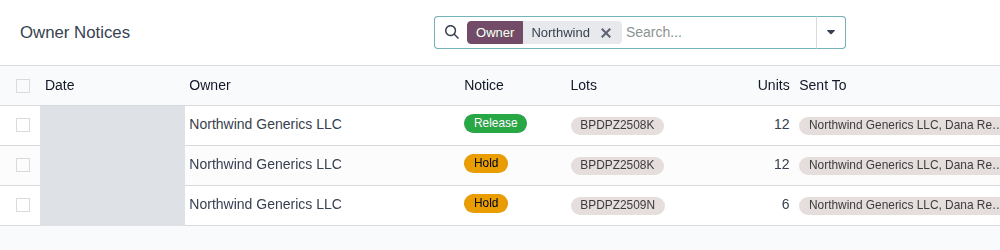
Result: the list shows every notice, newest first, with Date, Owner, Notice (a coloured badge: Hold, Release, Recall…), Lots, Units, Sent To and Sent On. A notice that could not be emailed has an empty Sent On and its row is shown in orange.
-
In the search bar, enter the owner's name, for example
Northwind, and select Search Owner for: Northwind.Result: only that owner's notices are listed.
-
Open a notice, for example the Hold notice of lot
BPDPZ2508K.Result: the form's title says what it is, for example "Hold notice to Northwind Generics LLC (lot BPDPZ2508K)". It shows the Owner, the Notice kind, Created On and the Related Record (here the lot), and on the right Sent On, Sent To (each contact as "OWNER, CONTACT", for example "Northwind Generics LLC, Dana Reyes") and Email.
-
Read the Notice tab.
Result: the text the owner received, for example:
Lot BPDPZ2508K ([DEMO-DPZ-20] Demoprazole 20 mg Delayed-Release Capsules, 30 count) was put on hold at Demo Rx Distribution LLC on 2026-09-27.Reason: Bluepeak's quality notice QN-2026-114: possible label mix-up on bottles of lot BPDPZ2508K. Hold every unit until Bluepeak confirms.12 of your units of this lot in our custody are held: they will not be shipped, returned to a supplier or change title until the hold is released.To release your units we need your written release instruction for lot BPDPZ2508K (your order or approval reference).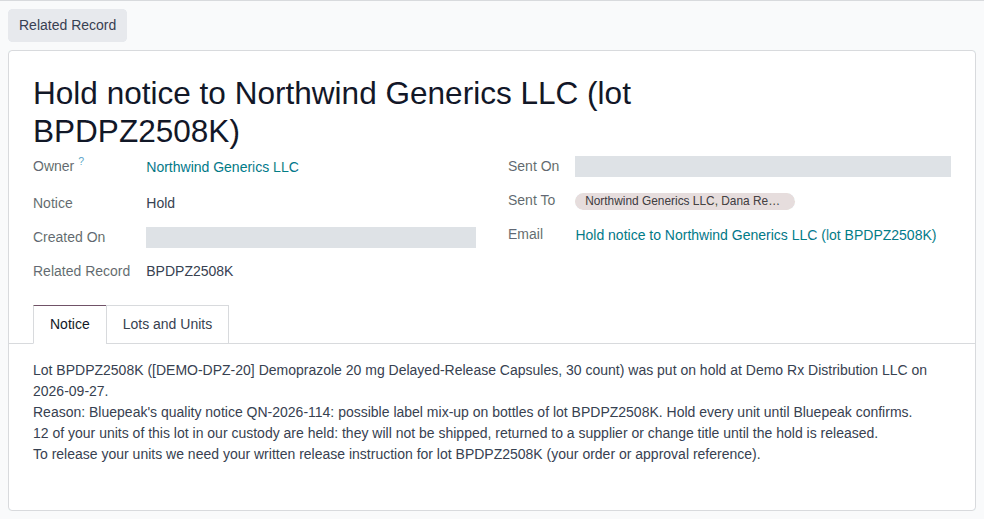
-
To see the lots and the owner's serials the notice covers, select the Lots and Units tab. A recall notice also has a Files tab with the consignee list that was attached to the email.
-
To open the lot, owner hold, transfer, scrap or instruction the notice is about, select Related Record.
Result: you know what the owner was told, when, and at which address. Nothing is changed. Records: the notice itself, kept for good; its chatter holds the email as sent (subject "COMPANY: TITLE", "Dear OWNER,", the notice text, the lots with their expiry, "Your units (N)" with the serials, and "This notice is kept in our DSCSA records.").
The Lots and Units tab shows the lots and units as they are now (a unit may have shipped since), while the Notice text records the counts at the time of the notice. The list has no filter for Return verified notices: select Group By ‣ Notice in the search options (the ▾ at the end of the search bar) instead.
Other ways to search:
- The search options have the filters Not Sent, Holds (hold and suspect-product notices), Releases, Recalls and Losses, and Group By Owner or Notice.
- Enter a lot name and select Search Lots for: …, or a serial number and select Search Serial for: …, to find every notice about a lot or a unit.
If it doesn't work
- The menu or the list isn't there, or an Access Error names "DSCSA Owner Notice (3PL)": you have no Rx Tracking right. Ask an administrator for Rx Tracking User. See Error: "You are not allowed to access … (3PL) records".
- "The related record no longer exists.": the record the notice is about was deleted (for example a draft transfer). The notice itself is kept. See Error: "The related record no longer exists.".
- The owner says it received nothing: see The owner says it got no notice.
- An import that tries to create, change or delete notices is refused ("Owner notices are created by the operations they report …"). See Error: "Owner notices are created by the operations they report …".
Known issue (PF-A07-04): the Notice kind Exception appears in the list's colours, the group-by and the profile's Notice Contacts help, but no operation sends it. Don't look for exception notices.
Send a notice that could not be emailed
A notice is recorded but not emailed when the owner's profile has no notice contact with an email address and the owner company has no email address either. Give the owner a recipient, then send the notice from its form.
Who: Rx Tracking User or Manager (to send); an Rx Tracking Manager who can edit contacts (Contact Creation) to fix the recipient, as the examples' compliance manager can.
Requires: Rx Tracking (DSCSA): 3PL and title model, with 3PL switched on.
Before you start:
- You know who at the owner should receive its notices, and their email address. Your procedure decides who that is; agree it with the owner.
Give the owner a recipient
-
Go to Contacts, search for the owner's contact, for example
Gary Holtof Pinecrest Drug Distributors, and open it. -
In Email, enter the address, for example
gary.holt@pinecrest.example, and select the save icon. -
Go to Inventory ‣ Rx Tracking ‣ Owners (in the 3PL ‣ Configuration section), open the owner's profile and select the Policies tab.
-
If the contact isn't listed in Notice Contacts yet, add it there, then select the save icon. See Set the owner's policies (step 4).
Result: Notice Contacts lists the contact, for example Pinecrest Drug Distributors Inc., Gary Holt.
Send the notice
-
Go to Inventory ‣ Rx Tracking ‣ Owner Notices (in the 3PL ‣ Operations section).
-
Open the search options (the ▾ at the end of the search bar) and select Not Sent.
Result: only the notices that were never emailed are listed, for example the Hold notice to Pinecrest Drug Distributors Inc. for lot
BPSMS2509P. -
Open the notice.
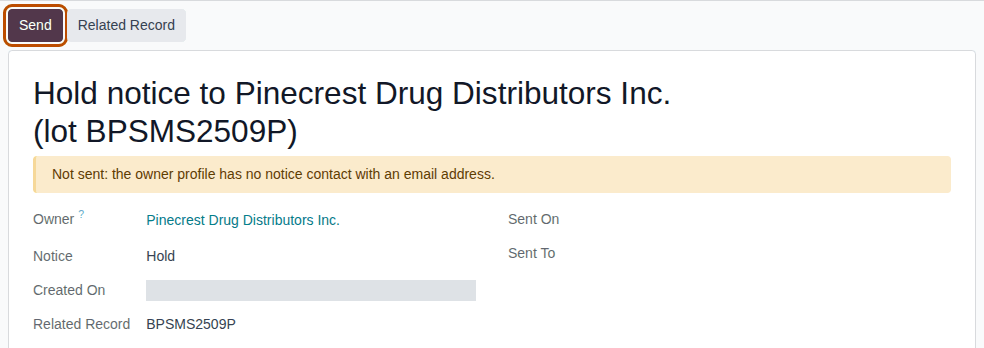
Result: a banner says "Not sent: the owner profile has no notice contact with an email address." Sent On and Sent To are empty. The chatter has the note "Not emailed: the owner profile of Pinecrest Drug Distributors Inc. has no notice contact with an email address, and the owner has none either. Add one, then press Send."
-
Select Send.
Result: the banner and the Send button disappear; Sent On shows the date and time, Sent To the contact (Pinecrest Drug Distributors Inc., Gary Holt) and Email the message. The chatter shows the email with the subject "Demo Rx Distribution LLC: Hold notice to Pinecrest Drug Distributors Inc. (lot BPSMS2509P)".
Result: the notice is emailed once, to the owner's notice contacts that have an email address. Records: the notice (now with Sent On, Sent To and Email) and the email in its chatter; the earlier "Not emailed" note stays. The email is queued and leaves with Odoo's next run of its outgoing mail job; the notice's text never changes, so it still gives the date of the hold.
Later notices to this owner are emailed as soon as they are created.
If it doesn't work
- "… still no notice contact with an email address in the owner profile.": the owner's profile still has no notice contact with an email address, and the owner company has none. Do the steps of "Give the owner a recipient", then repeat step 4 of "Send the notice". See Error: "… still no notice contact with an email address in the owner profile.".
- There is no Send button: the notice was already sent (Sent On is filled), or you have no Rx Tracking right.
- "These notices were already sent.": someone sent it after you opened it. Reload the page. See Error: "These notices were already sent.".
Known issue (PF-A07-05): Notice Contacts accepts any contact, also one of another owner, who would then receive this owner's lots and serials. Before you add a contact to Notice Contacts, check that it belongs to the owner.