Receive an owner's goods before their data
3PL add-on For: Warehouse staff, Compliance manager Checked on 18.0.0.2.0, 18.0.1.0.0
Sometimes an owner's goods reach your dock before anyone has the supplier's transaction information and statement: no EPCIS file, no statement document and no confirmation from the owner. You can still receive them. The software then holds their lots under a Supplier Data Pending discrepancy until the data or the owner's confirmation is recorded.
Background: the add-on is built for "goods before data": the owner's goods go into its stock under a data-pending hold, released by the supplier's data or by the owner's recorded confirmation (FD&C Act § 582(c)(1)(A)(i), § 582(g)(1); FDA interoperable exchange guidance (September 2023); see Compliance background).
The usual order: receive the goods (3PL-GBD-01), follow the item on the list (3PL-GBD-05), then release the hold with whichever arrives first: the supplier's late EPCIS file (3PL-GBD-02), the supplier's statement document (3PL-GBD-03) or the owner's confirmation (3PL-GBD-04). When the owner sends the data through its portal, see Record supplier data the owner uploaded through its portal.
This path exists only for receipts held for an owner. A receipt of your own purchase has no late-file path: it is received with the supplier's file, and a missing Transaction Statement is recorded as in Record a missing Transaction Statement after validation and release the lots.
Receive an owner's goods before their data
Receive the goods as usual and validate. Because nothing of the supplier's data is recorded, the received lots are held.
Your procedure decides whether goods may be received before their data at all; the software lets them in and holds them.
Who: Rx Tracking User or Manager
Requires: Rx Tracking (DSCSA): 3PL and title model, with 3PL switched on.
Before you start:
- The owner's receipt is Ready, with Owner Receipt Kind empty or Owner's purchase, and shows the yellow banner "No supplier data yet for this owner's receipt: …". See Create a receipt held for an owner.
- The company's Hold scope is known, because it decides what is held. See Choose the hold scope: whole lot or per owner.
- If the supplier's file, its statement document or the owner's confirmation is already available, record it first instead: see Record the owner's confirmation or the supplier's statement before validating.
-
Go to Inventory ‣ Operations ‣ Receipts and open the owner's receipt, for example
WH/IN/00040(held for Northwind Generics LLC, source documentNWG-PO-2720). -
Select Scan Serials, scan every unit, then select Register, as in Scan units onto a receipt with Scan Serials.
Result: the chatter says "4 DSCSA package(s) scanned.". The yellow banner is still there.
-
Select Validate.
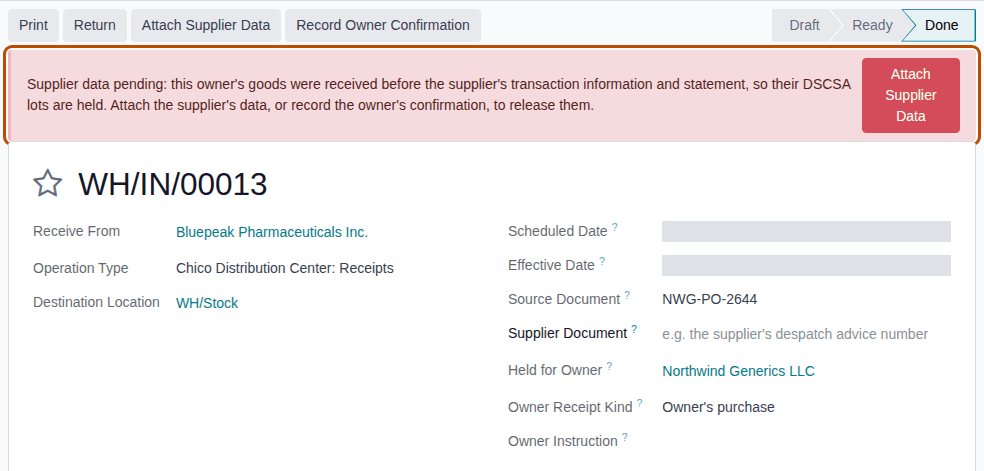
Result: the receipt is Done. A red banner replaces the yellow one: "Supplier data pending: this owner's goods were received before the supplier's transaction information and statement, so their DSCSA lots are held. Attach the supplier's data, or record the owner's confirmation, to release them." The header keeps Attach Supplier Data and Record Owner Confirmation, and a Discrepancies smart button shows
1.
-
Optional: select the Discrepancies smart button and open the discrepancy.
Result: a Supplier Data Pending discrepancy, Open, with Owner
Northwind Generics LLC, Supplier File Says "supplier's transaction information and statement", Found "not received", Resolve By 10 business days ahead and the lot under Lots Put on Hold.
Result: the owner's units are in stock, held for the owner, and their lots are Quarantined, so nobody can reserve or ship them.
Records: the receipt, Done; the Supplier Data Pending discrepancy DISC/YYYY/NNNNN; the lot's quarantine; the chatter note
"Supplier data pending (DISC/YYYY/NNNNN): received for Northwind Generics LLC without the supplier's transaction information and
statement. 1 lot(s) held until it is attached or the owner confirms it: BPDPZ2510W."; a hold notice to each owner with units in the lot
(see Find and read the notices sent to an owner). No DSCSA document is posted.
With the default Hold scope Whole lot, the hold covers every unit of the lot in your warehouse: your own units and every other owner's units too, and each of those owners gets a hold notice. With Per owner for documentation holds, only this owner's units are held (an owner hold). See Choose the hold scope: whole lot or per owner and Follow an owner hold placed by an owner receipt.
Only non-DSCSA products on the receipt
A receipt held for an owner that carries only products that are not DSCSA products shows no banner, holds nothing and creates no discrepancy at Validate.
A backorder received later
If you validate only part of the goods and create a backorder, the backorder received later without data gets its own Supplier Data Pending discrepancy. Record the data or the confirmation on the backorder: that resolves both discrepancies. Recorded on the first receipt, it resolves only the first receipt's, and the lot stays held by the backorder's.
If it doesn't work
- The owner's units can't be reserved or shipped after the receipt (an owner delivery reserves nothing): that is the hold. Release it (3PL-GBD-02, 3PL-GBD-03, 3PL-GBD-04). See The owner's units can't be shipped after the receipt.
- "WH/IN/NNNNN can't be validated: it moves DSCSA products (…) to or from a trading partner." or "DSCSA owner isolation (3PL):": the receipt fails the owner, counterparty and facility checks, or an isolation rule, as any owner receipt. See Scan and validate an owner receipt.
Next: Work the Supplier Data Pending list
Release a data-pending hold with the supplier's late EPCIS file
When the supplier's EPCIS (Electronic Product Code Information Services) file arrives after the goods were received, attach it to the done receipt. The file is compared with what was received, the owner's inbound document is posted, and the hold is released when nothing else holds the lot.
Who: Rx Tracking User or Manager
Requires: Rx Tracking (DSCSA): 3PL and title model, with 3PL switched on.
Before you start:
- The receipt is Done with its red "Supplier data pending: …" banner. See Receive an owner's goods before their data.
- The supplier's EPCIS 1.2 XML file for this shipment is on your computer. It names the owner as the buyer and your warehouse as the ship-to location, as for an open receipt (see Attach the supplier's EPCIS file to an owner's open receipt).
-
Go to Inventory ‣ Operations ‣ Receipts and open the done receipt, for example
WH/IN/00013(held for Northwind Generics LLC, source documentNWG-PO-2644). -
Select Attach Supplier Data (in the header or in the red banner).
Result: the Attach Supplier Data window opens with Receipt already filled in, the Owner, and Supplier Data set to Supplier's EPCIS file.
-
Under EPCIS File, select Upload your file and choose the file, for example
3pl_nwg_late-file_differences.xml. -
Select Attach.
Result: the file opens as a Supplier EPCIS File in the Received state. Under Receipt it shows Owner
Northwind Generics LLCand Imported On Done receipt (late file) (the second Imported On, under File, is the import date, PF-W14-01), with the smart buttons Received / Expected (for example5 / 0: the units were already received), Discrepancies and Inbound Document. This example file also lists a serial already in your records, so it shows the yellow banner "1 serial(s) in this file are already in the package ledger (suspect product). …" (see Warning: "… They become discrepancies when the receipt is validated." on a late file).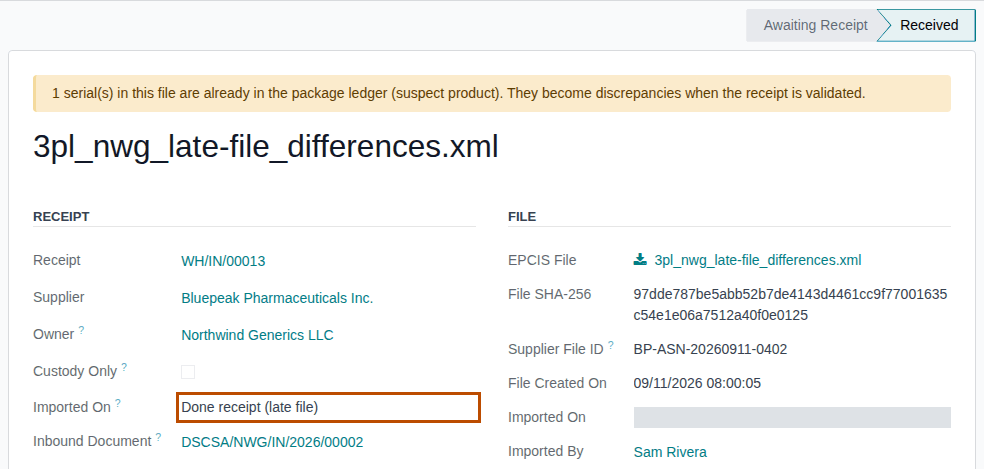
-
Select the receipt's name in the Receipt field to go back to the receipt.
Result: the red banner and Record Owner Confirmation are gone. The chatter says "Supplier data received: EPCIS file … imported on the done receipt by … (inbound document DSCSA/NWG/IN/YYYY/NNNNN)." and "Late supplier EPCIS file …: N received package(s) matched.", followed by "N discrepancy(ies): see the receipt." when the file doesn't match (this example file finds 4: 3PL-GBD-06).
Result: the supplier's data is recorded and the lot is Released, unless something else still holds it. Records: the Supplier
EPCIS File, kept for good; the owner's inbound DSCSA document DSCSA/<OWNER-CODE>/IN/YYYY/NNNNN, Posted, for the received units the
file lists (none for a custody file); the Supplier Data Pending discrepancy, Resolved, with the file as its Supplier EPCIS
File; a release notice to each owner with units in the lot.
When the file doesn't match what was received
Units the file lists but you didn't receive, units you received that it doesn't list, another lot or expiry, or a serial already in your records become discrepancies of their own, and they keep the lot held. See Resolve the differences a late supplier file finds.
When the file doesn't affirm the Transaction Statement
The import warns "The seller has not affirmed the DSCSA Transaction Statement in this file: the received lots stay on hold until it is recorded.", the Supplier Data Pending discrepancy is resolved, and a Transaction Statement Missing discrepancy holds the lot instead. The receipt shows the core banner "Transaction Statement missing: …" with Record Transaction Statement: record it as in Record a missing Transaction Statement after validation and release the lots. No owner release instruction is needed for that release.
From the discrepancy or the list
On the Supplier Data Pending discrepancy (its form, or a row of the list), select Attach Supplier Data: the same window opens for its receipt.
If it doesn't work
- "A supplier file is already recorded for WH/IN/NNNNN (FILE-NAME).": the receipt already has its supplier file. Nothing more is needed; a corrected file can't replace it. See Error: "A supplier file is already recorded for …".
- "FILE-NAME was not imported: - None of the packages the file lists was received on WH/IN/NNNNN: is it the right file?": the file belongs to another shipment. See Error: "None of the packages the file lists was received on …".
- "The buyer in the file has GLN …" or "The file ships the goods to location GLN …": the file is addressed to another owner, to you, or to another warehouse. See Error: "The buyer in the file has GLN …" and Error: "The file ships the goods to location GLN …".
- The red banner is gone but the lot is still Quarantined: something else holds it. See The lot stays quarantined after the data is recorded.
Known issue (PF-A06-02, PF-W14-02): the menu Inventory ‣ Rx Tracking ‣ Attach Supplier Data (in the 3PL ‣ Operations section) and its Find Receipt button look for open receipts only. For a late file, Find Receipt either proposes an unrelated open receipt of the same owner (attaching it there is accepted, and the done receipt stays held) or says "No open receipt held for an owner matches this file. Create the owner's receipt first.". Don't create a second receipt. Start from the done receipt or its discrepancy as above, or choose the done receipt by hand in Receipt. See Find Receipt proposes the wrong receipt, or none.
Release a data-pending hold with the supplier's transaction statement document
When the supplier sends its transaction information and statement as a document instead of an EPCIS file (a T3 or packing-slip PDF, a page of its portal, an email or an EDI message), record it on the done receipt. The supplier's document is accepted whatever the owner's Goods Before Data policy.
Your procedure decides who checks the document before it is recorded; the software requires the source, the date, evidence (or a reference for EDI and Other) and your confirmation that the statement is affirmed.
Who: Rx Tracking User or Manager
Requires: Rx Tracking (DSCSA): 3PL and title model, with 3PL switched on.
Before you start:
- The receipt is Done with its red "Supplier data pending: …" banner. See Receive an owner's goods before their data.
- The document (for example the T3 PDF) is on your computer.
-
Go to Inventory ‣ Operations ‣ Receipts and open the done receipt, for example
WH/IN/00014(held for Pinecrest Drug Distributors Inc., source documentPINE-PO-0712). -
Select Attach Supplier Data.
-
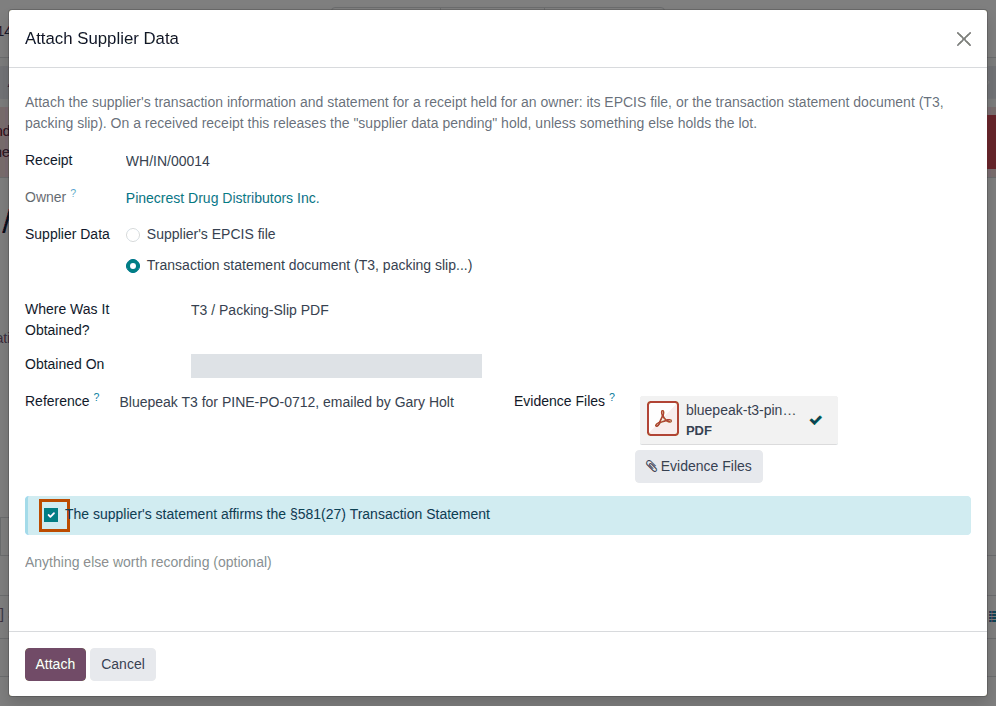
Under Supplier Data, select Transaction statement document (T3, packing slip...).
Result: the window shows Where Was It Obtained?, Obtained On (today), Reference, Evidence Files and the checkbox "The supplier's statement affirms the §581(27) Transaction Statement".
-
Fill in:
- Where Was It Obtained?: T3 / Packing-Slip PDF, Supplier Portal, Email, EDI or Other
- Obtained On: the date you received it, if not today
- Reference: where it can be found again, for example
Bluepeak T3 for PINE-PO-0712, emailed by Gary Holt - Evidence Files: select it and upload the document, for example
bluepeak-t3-pine-po-0712.pdf
-
Select the checkbox "The supplier's statement affirms the §581(27) Transaction Statement", once you have checked that the document contains the statement.
-
Select Attach.
Result: the window closes. The red banner and Record Owner Confirmation are gone. The chatter says "Supplier's transaction information and statement recorded by … on …. Source: T3 / Packing-Slip PDF; obtained on …; reference: …. Evidence: …. The supplier's statement affirms the §581(27) Transaction Statement."
Result: the supplier's statement is recorded and the lot is Released, unless something else still holds it. Records: the Supplier Data Pending discrepancy, Resolved, carrying the source, date, reference, who recorded it and the evidence files (kept for good; they can't be deleted); the same note on the discrepancy and the receipt; a release notice to each owner with units in the lot. No DSCSA document is posted, because no supplier file was received.
If it doesn't work
- "Confirm that the supplier's statement affirms the §581(27) Transaction Statement. If it doesn't, the discrepancy stays open: ask the supplier for it.": the checkbox is cleared. See Error: "Confirm that the supplier's statement affirms …".
- "Attach the evidence file(s) …", or an error about the source or the date: see Error: "Attach the evidence file(s) …", the source entry and the date entry.
- "WH/IN/NNNNN has no supplier data pending.": the data, the confirmation or a Mark Resolved already closed the discrepancy. See Error: "… has no supplier data pending." and, if it was Mark Resolved, The Supplier Data Pending item was closed without data.
- "WH/IN/NNNNN is a custody receipt (the owner's own goods): it needs no transaction information or statement.": custody receipts are never held for data. See Receive the owner's own goods as a custody receipt.
Release a data-pending hold with the owner's confirmation
When the owner tells you (by email, letter or ticket) that it holds the supplier's transaction information and statement for the shipment, record its confirmation on the done receipt. This works only when the owner's profile allows it.
Your procedure decides what counts as the owner's confirmation and who may take it; the software requires a contact of the owner, a date that isn't in the future and a reference. Background: the modules accept the owner's recorded confirmation as evidence that releases the hold (FD&C Act § 582(c)(1)(A)(i), § 582(g)(1); FDA interoperable exchange guidance (September 2023); see Compliance background). This is how the modules read the law; it has not been reviewed by counsel. See the disclaimer.
Who: Rx Tracking User or Manager
Requires: Rx Tracking (DSCSA): 3PL and title model, with 3PL switched on.
Before you start:
- The receipt is Done with its red "Supplier data pending: …" banner. See Receive an owner's goods before their data.
- The owner profile's Goods Before Data is Supplier file, or the owner's recorded confirmation (the default). See Set the owner's policies.
- The person who confirmed it is a contact of the owner company in Odoo, for example
Northwind DSCSA Desk. - The owner's email or letter, if you want to keep it as evidence, is on your computer.
-
Go to Inventory ‣ Operations ‣ Receipts and open the done receipt, for example
WH/IN/00042(held for Northwind Generics LLC, source documentNWG-PO-2731). -
Select Record Owner Confirmation.
Result: the Record Owner Confirmation window opens with the Receipt, the Owner and Confirmed On (today).
-
Fill in:
- Confirmed By: who at the owner confirmed it, for example
Northwind DSCSA Desk - Confirmed On: the date of the confirmation
- Reference: where the confirmation can be found again, for example
Email "NWG-PO-2731 TI/TS on file" - Evidence Files (optional): select it and upload the owner's email or letter
- Confirmed By: who at the owner confirmed it, for example
-
Select Record.
Result: the window closes; the red banner and Record Owner Confirmation are gone. The chatter says "Owner confirmation recorded by … on …", followed by who confirmed it, on which date, the reference and the evidence.
Result: the owner's confirmation is recorded and the lot is Released, unless something else still holds it (a manager's own quarantine, for example, stays). Records: the Supplier Data Pending discrepancy, Resolved, with its Owner Confirmation group (Confirmed By (Owner), Owner Confirmed On, Owner Confirmation Reference, Owner Confirmation Recorded On, Owner Confirmation Recorded By, Owner Confirmation Evidence), the evidence kept for good; a release notice to each owner with units in the lot. No DSCSA document is posted.
From the discrepancy
On the open Supplier Data Pending discrepancy, select Record Owner Confirmation: the same window opens for its receipt. After Record, the discrepancy shows Resolved.
If it doesn't work
- "Northwind Generics LLC's profile releases goods received before their data only with the supplier's data (EPCIS file or transaction statement document), not with the owner's confirmation.": the owner's Goods Before Data is Supplier file only. Use the file (3PL-GBD-02) or the statement document (3PL-GBD-03). See Error: "… releases goods received before their data only with the supplier's data …".
- "The date of the owner's confirmation can't be in the future.", "Choose who at … confirmed it (a contact of the owner).", or "Invalid fields:" with Confirmed By and Reference: correct the field and select Record again. See Errors when recording the owner's confirmation.
- "Choose open 'Supplier data pending' discrepancies (DISC/YYYY/NNNNN).": the discrepancy was resolved meanwhile (someone else recorded the data). Reload the page. See Error: "Choose open 'Supplier data pending' discrepancies …".
- There is no Record Owner Confirmation button: you don't have an Rx Tracking right, or the discrepancy is closed. See Error: "Only DSCSA users can record the supplier's data or the owner's confirmation.".
Known issue (PF-A06-04): Record Owner Confirmation is shown even for an owner whose Goods Before Data is Supplier file only, where it can only end with the refusal above. Check the owner's profile (Policies tab) before you fill in the window.
Work the Supplier Data Pending list
Check every day which owners' goods are still waiting for their data, chase the owners and suppliers, and release each item from the list. Items are due 10 business days after the goods were received.
Who: Rx Tracking User or Manager
Requires: Rx Tracking (DSCSA): 3PL and title model, with 3PL switched on.
-
Go to Inventory ‣ Rx Tracking ‣ Supplier Data Pending (in the 3PL ‣ Operations section).
Result: the list opens with the Open filter. It shows only Supplier Data Pending discrepancies: Reference, Type, Receipt, Supplier, Product, Lot, Serial Number (these three are empty for these items), Supplier File Says, Found, Resolve By, Responsible and State. Overdue rows are red. With nothing open, the list says "No owner receipt is waiting for its supplier's data".

-
The list has no owner column (PF-W15-03). To see one owner's items, enter the owner's name in the search box and select Search Owner for: …. To group them, open the search options (the ▾ Toggle Search Panel button), select Add Custom Group and choose Owner. The filters Overdue, Resolved and My Discrepancies work as on the Receiving Discrepancies list.
-
Open a row.
Result: the discrepancy form shows Attach Supplier Data, Record Owner Confirmation and Mark Resolved. An overdue item shows the banner "This discrepancy is past its 10-business-day resolution deadline.".
-
Contact the owner (its Notice Contacts or document contact) or the supplier for the data.
-
When it arrives, select Attach Supplier Data (the file: 3PL-GBD-02; the document: 3PL-GBD-03) or Record Owner Confirmation (3PL-GBD-04). Don't select Mark Resolved (Known issue below).
Result: the discrepancy is Resolved and leaves the list's default Open view.
Result: every open item has a follow-up, and resolved items drop off the list. Records: nothing new until you release an item; each release is recorded as in its procedure.
The same items also appear in Inventory ‣ Rx Tracking ‣ Receiving Discrepancies (filter Supplier Data Pending) and in the owner report Inventory ‣ Rx Tracking ‣ Owner Discrepancies (in the 3PL ‣ Reports section). See Review the receiving discrepancies of owners' receipts.
If it doesn't work
- An item is red and has the overdue banner: its Resolve By date has passed; nothing else happens automatically. See A discrepancy is overdue.
- An item disappeared from the list, but the lot is still held: someone selected Mark Resolved. See The Supplier Data Pending item was closed without data.
Known issue (PF-A06-05): the core Mark Resolved button is also on Supplier Data Pending discrepancies. With a Resolution Note, it closes the item without any data and the lot stays Quarantined. Attach Supplier Data and Record Owner Confirmation disappear from the discrepancy, and the receipt loses its red banner and Record Owner Confirmation; Attach Supplier Data stays in the receipt's header, but recording the data from it is refused with "WH/IN/NNNNN has no supplier data pending.". Release items only with the data or the confirmation. If it happened, an Rx Tracking Manager selects Reopen on the discrepancy, and the buttons and the banner come back.