Handle late supplier files and owner uploads
3PL add-on For: Warehouse staff, Compliance manager Checked on 18.0.0.2.0, 18.0.1.0.0
A supplier's file that arrives after the goods can disagree with what you received, and an owner can send you its supplier's data through the owner portal instead of by email. This page covers what the software records in both cases and what you do next.
Resolve the differences a late supplier file finds
When you attach a late EPCIS file to a done owner receipt, the file is compared with the units you received. Each difference becomes a receiving discrepancy with the owner on it, and its lot stays held even though the Supplier Data Pending item is resolved. You work them as on your own receipts; the lot's release then needs the owner's release instruction.
Who: Rx Tracking User or Manager to resolve the discrepancies. Rx Tracking Manager to release the lot.
Requires: Rx Tracking (DSCSA): 3PL and title model, with 3PL switched on.
Before you start:
- The late file is attached and the receipt's chatter says "Late supplier EPCIS file …: N received package(s) matched. N discrepancy(ies): see the receipt.". See Release a data-pending hold with the supplier's late EPCIS file.
- To release the lot: the owner's release instruction, recorded or at hand. See Record an owner's instruction.
What a late file can find, with the owner's receipt as example (WH/IN/00013, Northwind, source document NWG-PO-2644, after the file
3pl_nwg_late-file_differences.xml):
| Type | When | Example | Lots held |
|---|---|---|---|
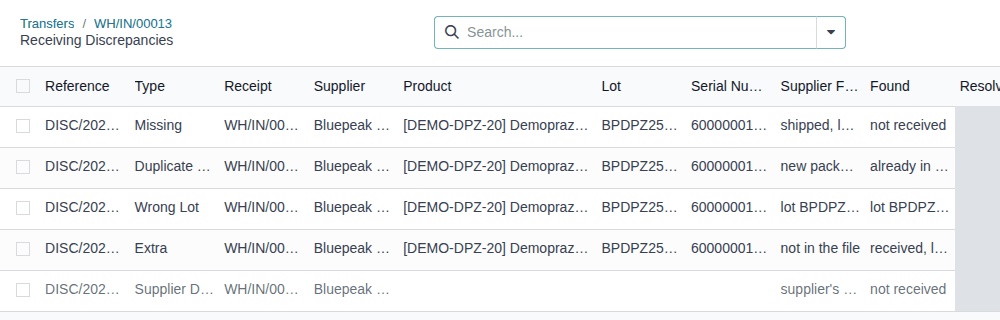
| Missing | the file lists a serial that wasn't received on the receipt | 600000016007: "shipped, lot BPDPZ2509N" / "not received" | the file's lot |
| Extra (Wrong Product when the file has nothing of that product) | a unit was received that the file doesn't list | 600000016006: "not in the file" / "received, lot BPDPZ2509N" | the received lot |
| Wrong Lot | the file gives another lot for a received serial | 600000016005: "lot BPDPZ2509Q" / "lot BPDPZ2509N" | both lots |
| Wrong Expiry | the file gives another expiry date for a received serial | the lot | |
| Duplicate Serial | the file lists a serial that is already in your records, received on another receipt (yours or another owner's) | 600000012001 (Summit's unit): "new package, lot BPDPZ2508K" / "already in the ledger (In Stock, lot BPDPZ2508K)" | the file's lot and the lot of the unit already recorded |
-
Go to Inventory ‣ Operations ‣ Receipts, open the receipt and select the Discrepancies smart button.
Result: the Receiving Discrepancies list shows the receipt's discrepancies: the resolved Supplier Data Pending item and one open row per difference, each with Supplier File Says and Found.
-
Open each row, find out with the supplier (and the owner) what happened, enter the outcome in Resolution Note and select Mark Resolved, as in Work a receiving discrepancy to resolution. For a Duplicate Serial, follow Handle a duplicate serial at receipt.
Result: each discrepancy is Resolved. The lots stay Quarantined.
-
When no open discrepancy or other hold is left on a lot, ask an Rx Tracking Manager to release it with the owner's release instruction: see Release a lot that holds owner units, with each owner's release instruction.
Result: the differences are explained and the lot can be released. Records: one discrepancy DISC/YYYY/NNNNN per difference, each with
the Owner, the supplier file, the owner's inbound document and its resolution note (kept; they can't be deleted); the lot's
quarantine reasons in its chatter; a hold notice to each owner with units in a held lot (for a duplicate, often a second owner).
A Duplicate Serial holds the lot of the unit that is already in your records, whoever owns it. In the example, Northwind's late file lists one of Summit's units, so lot BPDPZ2508K is quarantined for everyone: your own units, Northwind's and Summit's, whatever the Hold scope, and Summit gets a hold notice. Two packages with one serial number are treated as suspect product.
When the file also lacks an affirmed Transaction Statement
A Transaction Statement Missing discrepancy holds every DSCSA lot of the receipt too. Record the statement with Record Transaction Statement (on the receipt's banner or the discrepancy): see Record a missing Transaction Statement after validation and release the lots.
If it doesn't work
- The data-pending item is Resolved but the lot is still Quarantined: that is by design while other discrepancies are open. The lot's chatter says "The Transaction Statement for DISC/YYYY/NNNNN was recorded, but lot … stays quarantined: still held by …". See The lot stays quarantined after the data is recorded.
- The supplier file's form still says "N serial(s) in this file are already in the package ledger (suspect product). They become discrepancies when the receipt is validated.": on a late file the Duplicate Serial discrepancies already exist. See Warning: "… They become discrepancies when the receipt is validated." on a late file.
- Release on the lot ends with "Validation Error" naming "Owner Release Instruction (Release Window)" and "Field: Lot (lot_id)": see the Known issue below.
Known issue (PF-W15-01): the Release Lot window of a lot that holds owner units can't be saved in the web client. Whether you pick the owner's Recorded Instruction, type a Reference or leave the owner row as it is, Release ends with "Validation Error The operation cannot be completed: - Create/update: a mandatory field is not set. … Model: Owner Release Instruction (Release Window) (dscsa.lot.quarantine.owner.line) Field: Lot (lot_id)" and the lot stays Quarantined. Affected: every Rx Tracking Manager releasing such a lot. There is no workaround in the screens: resolve the discrepancies, keep the owner's release instruction on file (Record an owner's instruction) and report the lot to your implementer. Releases that the software makes by itself (a late file, a statement document or the owner's confirmation that clears the last hold) are not affected.
Record supplier data the owner uploaded through its portal
An owner's portal user can upload its supplier's EPCIS file (.xml) or statement document (.pdf) on its receipts, before or after the
goods arrive. An EPCIS file is imported at once with your own rules; a PDF waits for you to check it and record it. Either way the
receipt's chatter says who uploaded what, and a to-do tells you when there is something to do.
Background: this "owner-forward path" is how supplier data usually reaches a 3PL: suppliers send their files to the owner, which forwards them to the 3PL (FD&C Act § 582(c)(1)(A)(i), § 582(g)(1); FDA interoperable exchange guidance (September 2023); see Compliance background).
Who: Rx Tracking User or Manager
Requires: Rx Tracking (DSCSA): 3PL and title model, with 3PL switched on, and the owner's owner portal access.
Before you start:
- The owner has a portal user with owner portal access. See Give an owner's contacts the owner portal.
- The receipt is open (Ready), or Done with its supplier data pending: the owner portal lists only those, as "Supplier data needed" (open, no supplier data yet), "Expected" (open, supplier data already recorded) or "Received, supplier data pending". What the owner does is in Upload your supplier's EPCIS file before the goods arrive and the handout's next sections.
What you find after an upload:
| The owner uploaded | On a receipt that is | What the software did | Chatter note | To-do |
|---|---|---|---|---|
| an EPCIS file | Ready | imported it, as Attach Supplier Data does: the units it lists are Expected | "Supplier EPCIS file FILE-NAME uploaded by the owner's portal user … and imported (FILE-NAME)." | "Review the supplier file uploaded by the owner", only if the import has warnings |
| an EPCIS file | Done, supplier data pending | imported it as a late file: the hold is released as in 3PL-GBD-02 | the same, plus "Supplier data received: …" | the same |
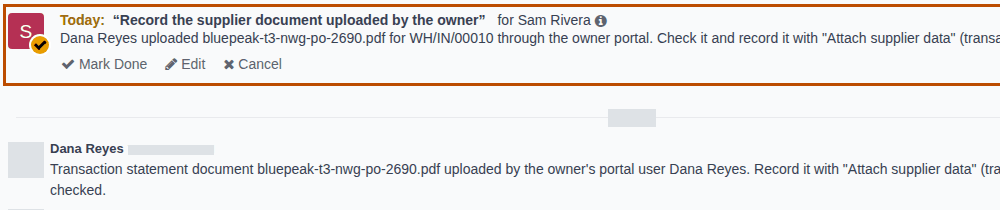
| a PDF | either | kept it on the receipt, under the chatter's Files (the paperclip icon, Attach files, at the top of the chatter), not on the note (PF-V02h-01) | "Transaction statement document FILE-NAME uploaded by the owner's portal user …. Record it with "Attach supplier data" (transaction statement document) once checked." | "Record the supplier document uploaded by the owner" |
| a file that was refused | either | nothing | "The owner's portal user … uploaded supplier file FILE-NAME; it was refused: …" (the reason follows) | none |
The to-do goes to the receipt's Responsible, if that user has an Rx Tracking right, otherwise to the company's first Rx Tracking Manager.
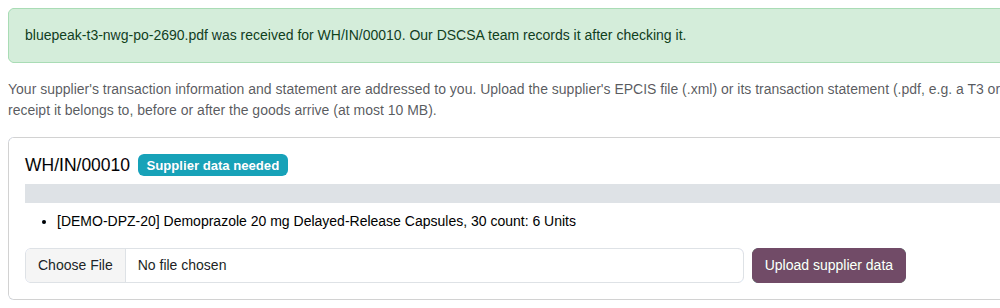
-
Open the receipt: select the clock icon (Activities) in the top bar, select Transfer and then the receipt in the list, or open the receipt from Inventory ‣ Operations ‣ Receipts.
Result: the receipt's chatter shows the upload note from the owner's portal user and, under Planned Activities, the to-do with the uploaded file's name.
-
Choose by what was uploaded:
If Then an EPCIS file with the to-do "Review the supplier file uploaded by the owner" open the file from the receipt's EPCIS Files smart button, read its warnings (Read the warnings of an imported supplier EPCIS file) and handle each one; a statement not affirmed is recorded as in 3PL-GBD-02 a PDF select the paperclip icon (Attach files) at the top of the chatter and, under Files, the PDF's download icon; check that it is the supplier's statement for this shipment, then go to step 3 a refused file read the reason in the note, and ask the owner for the right file; see The owner's upload was refused -
For a PDF: select Attach Supplier Data, select Transaction statement document (T3, packing slip...), and record it as in Release a data-pending hold with the supplier's transaction statement document steps 3–6, uploading the PDF you downloaded under Evidence Files (the copy in the chatter can't be picked). On a Ready receipt it is recorded ahead of validation, as in Record the owner's confirmation or the supplier's statement before validating.
Result: the banner is gone, and the chatter says "Supplier's transaction information and statement recorded by … on …".
-
On the to-do, select Mark Done, then Done. The software doesn't close it for you.
Result: the to-do leaves Planned Activities, and the chatter says "To-Do done : Record the supplier document uploaded by the owner".
Result: the owner's upload is recorded as the supplier's data, and nothing is left on your to-do list. Records: the chatter note of the upload and the PDF in the chatter's Files, or the owner's Supplier EPCIS File (imported by the owner's portal user); for a PDF, the resolved Supplier Data Pending discrepancy with your statement record; the done to-do in the chatter.
If it doesn't work
- The note says the upload was refused ("… it was refused: …", "… refused because these serials are already expected on another receipt: …", "… it was refused: N files were already uploaded to this receipt in the last 24 hours …"): see The owner's upload was refused.
- The owner says it can't find the receipt on its portal: the portal lists only open receipts ("Supplier data needed", or "Expected" once the data is recorded) and done receipts with supplier data pending ("Received, supplier data pending"). Create the receipt (Create a receipt held for an owner), or receive the file by email and attach it yourself.
- Evidence Files doesn't accept the PDF from the chatter: download it and upload it again in the window. See Error: "Upload the evidence files …".
Known issue (PF-V02h-01): the upload note in the receipt's chatter carries no attachment. The owner's PDF is under the chatter's
Files: select the paperclip icon (Attach files, with the count 1) at the top of the chatter, and download it from there.
Known issue (PF-A09-02): an owner whose profile was archived still sees upload forms on its portal, but every upload ends on an "Error 404" page ("We couldn't find the page you're looking for!"). Nothing reaches the receipt. Ask the owner to email you the file and attach it yourself (3PL-GBD-02 or 3PL-GBD-03).
Known issue (PF-A09-06): a file far over 10 MB ends on a bare "413 Request Entity Too Large" page, and nothing reaches the receipt. Ask the owner to email you the file and attach it yourself.