Check and export an owner's records
3PL add-on For: Administrator, Compliance manager, Warehouse staff Checked on 18.0.0.2.0, 18.0.1.0.0
Check that every serial's recorded owner matches the owner of the unit on your shelf, and export everything you keep about one owner as a single zip file, for example when the relationship ends or when the owner or an inspector asks for its records.
Check every serial's recorded owner against the stock (Ledger vs Stock per Owner)
Run this check every month, and after a title transfer, an owner opening balance or a count. It lists the lots where the packages recorded for an owner don't match that owner's quantity on hand. The list should be empty.
Background: the add-on's ledger-versus-stock check compares each package's owner with its unit's owner and lists the mismatches.
Who: Rx Tracking User or Manager
Requires: Rx Tracking (DSCSA): 3PL and title model, with 3PL switched on.
-
Go to Inventory ‣ Rx Tracking ‣ Ledger vs Stock per Owner (in the 3PL ‣ Reports section).
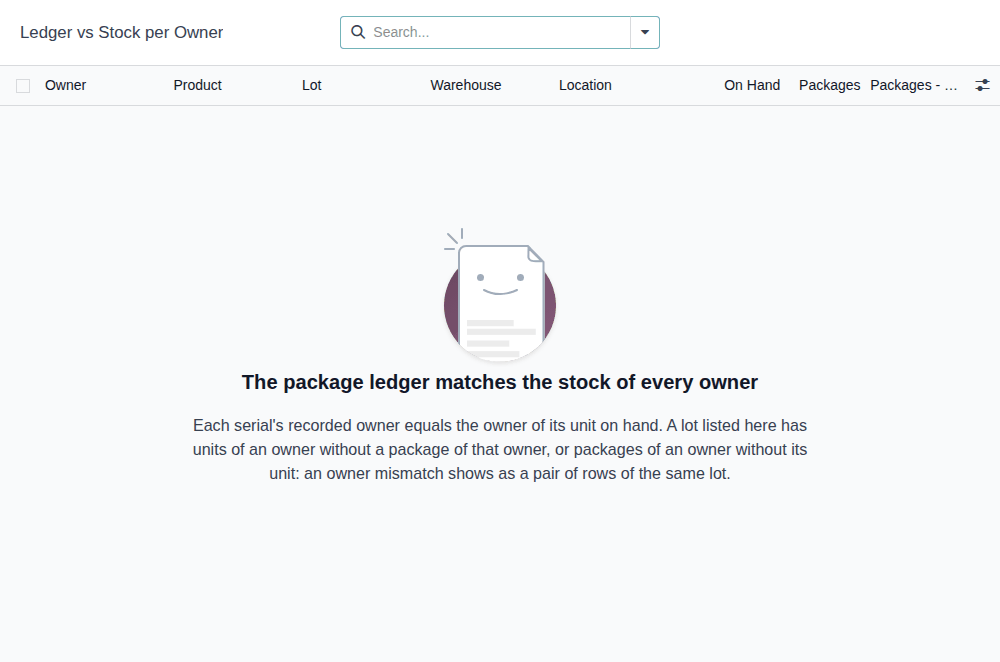
Result: when everything matches, the page says "The package ledger matches the stock of every owner", with the explanation "Each serial's recorded owner equals the owner of its unit on hand. …".
-
If rows are listed, read each one. A row is one company, owner, product, lot and warehouse (or a location outside any warehouse): Owner (empty for your own stock), Product, Lot, Warehouse, Location, On Hand, Packages and Packages - On Hand. A negative difference is red (units of that owner without a package of that owner), a positive one orange (packages of that owner without its unit).
Owner Lot On Hand Packages Packages - On Hand Northwind Generics LLC BPDPZ2508K11.00 10 -1.00 Summit Specialty Pharma Inc. BPDPZ2508K10.00 11 1.00 A pair like this one, −1 for one owner and +1 for another in the same lot, means one package is recorded for Summit while its unit is Northwind's. The core Ledger vs Stock report doesn't see it, because the lot's total count is right.
-
To narrow the list, open the search options and select Owners' Stock, Our Own Stock, Units Without Package or Packages Without Unit, or Group By Owner, Product or Lot.
-
For each lot listed, investigate with Owner Serials searched on the lot, Owner Movements and the package forms.
Result: the list is empty, or you know which lots to investigate. Nothing is changed. Records: none.
There is no button to correct a row, and nobody can edit a package's owner by hand. A package's owner changes only through the flows that set it: a title transfer (Check and validate a title transfer), an owner opening balance (Register an opening balance of units held for an owner) or a count (Count an owner's stock and record the units that are gone). Rows with an empty Owner repeat the differences of the core report for your own stock: see Check the package ledger against the stock (Ledger vs Stock). Your procedure decides how often the check is run and who investigates a pair.
Known issue (PF-A09-09): this report is open to every Rx Tracking User, while the core Ledger vs Stock report is for Rx Tracking Managers only. With its Our Own Stock filter, a User sees here the own-stock differences that the core report hides from them.
If it doesn't work
- A pair of rows stays after you have checked the lot's movements: see Ledger vs Stock per Owner lists a lot.
Export everything we keep about one owner as one zip
Make one zip of an owner's records in your company: its documents and their files, the package ledger of its units, its serials and stock, its instructions, gate checks, discrepancies, notices, holds, owner orders and title transfers. The export is kept for good with its SHA-256, so you can later prove what you handed over.
Background: the add-on gives a complete export per owner for when an owner relationship ends, and owner-stock records fall under the core's retention and immutability rules, with nothing deleted when the relationship ends (FD&C Act § 582, record-keeping provisions; see Compliance background).
Who: Rx Tracking Manager creates and generates exports; an Rx Tracking User can open and download them.
Requires: Rx Tracking (DSCSA): 3PL and title model, with 3PL switched on.
Before you start:
- The owner has an owner profile in your company; an archived profile counts. See Create an owner profile.
- When the relationship ends, end it first: Change, end or re-open an owner relationship.
- The owner's posted documents still match their frozen files. If in doubt, run Verify the integrity of the DSCSA documents first.
-
Go to Inventory ‣ Rx Tracking ‣ Owner Exports (in the 3PL ‣ Reports section).
Result: the list of exports: Name, Owner, From, To, Generated On, Generated By, Documents, Ledger Rows and State, for example "NWG, first record to 2026-09-27", Northwind Generics LLC, Generated.
-
Select New.
Result: a new export opens in the Draft state, with the fields Owner, From and To and a note "Why the export is made, e.g. the relationship ended."
-
Fill in:
- Owner: the owner company, for example Summit Specialty Pharma Inc. The list also offers companies that aren't owners (known issue below).
- From and To: the period, or leave both empty for everything from the first record to today. The days are UTC days, both included.
- the note: why you export, for example
Summit asked for a copy of its records (email of 2026-09-27).
-
Select the save icon.
Result: the draft is saved, named "/".
-
Check the owner and the period, then select Generate. A generated export can't be changed, deleted or generated again.
Result: the export is Generated and named after the owner's code and the period, for example "SSP, first record to 2026-09-27". It shows Generated On, Generated By, File Name (
owner_export_SSP_20000101_20260927.zip), Size (bytes), SHA-256, the counts Documents (5), Ledger Rows (26), Packages (20) and Files (18), and each file of the zip with its SHA-256.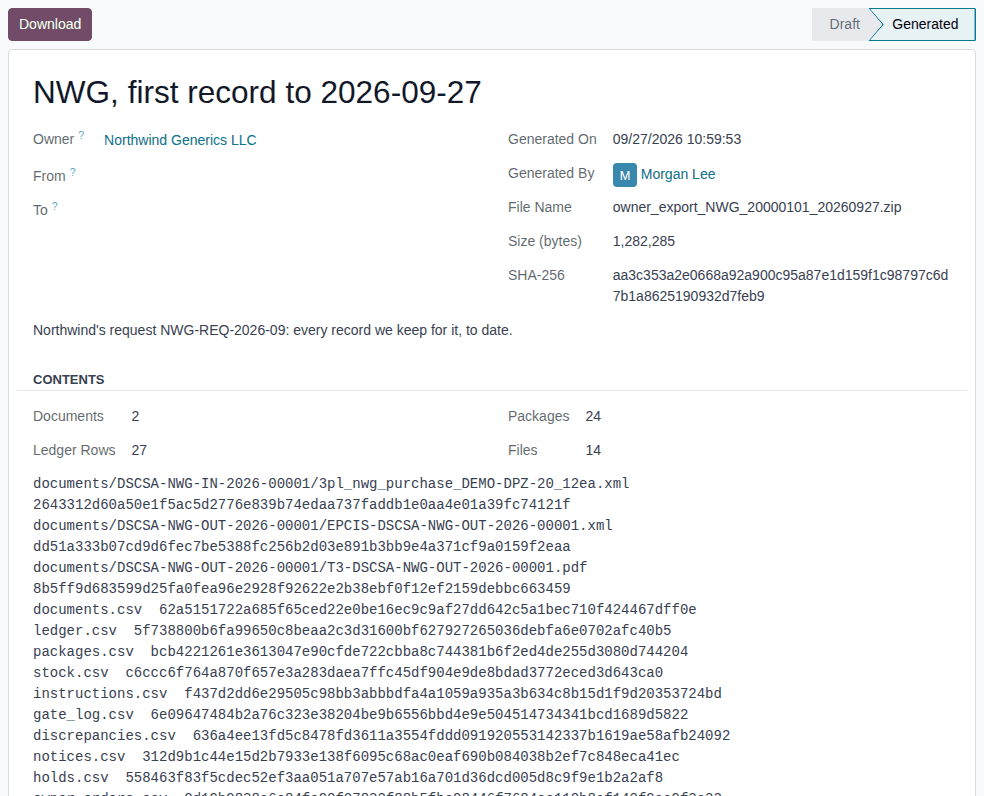
-
Select Download.
Result: your browser downloads the zip.
Result: you have the owner's records as one zip. Records: the owner export, Generated, with its zip attached and its SHA-256, kept for good: nobody can change or delete it. What the zip contains and how to check it: What the owner export zip contains, and how to verify it.
Without a period, the file name uses 20000101 as its first day. The period limits the documents, ledger rows, instructions, gate checks,
discrepancies, notices, holds, owner orders and title transfers; the serial list (packages.csv) and the stock (stock.csv) are always
complete and current. The zip is made from the export's company only, while you wait: a large owner can take a while. Your procedure
decides when an export is made, who receives it and how it is sent; the software only makes and keeps it.
For a former owner
The owner's profile may be archived: the export works the same. For example Cedar Ridge Pharmaceuticals Inc., from 01/01/2026 to
09/27/2026, gives "CEDAR, 2026-01-01 to 2026-09-27", named owner_export_CEDAR_20260101_20260927.zip.
Another export later
Each export is a separate record. For another period or a later copy, make a new export (steps 2–6); the earlier exports stay as they are.
Known issue (PF-A09-08): the Owner field offers every company, customers and suppliers included; choosing one is refused only when you save. A draft saved by mistake can't be deleted (the ⚙ Actions menu offers Duplicate only) and stays in the list, named "/". Leave it as a draft, and use the Generated or Draft filter to hide it.
If it doesn't work
- There is no New button, and an export has no Generate button: you are an Rx Tracking User. Ask an Rx Tracking Manager. See Error: "Only DSCSA managers can export an owner's records.".
- "… is not an owner of …: exports are made for partners with an owner profile (archived ones included).": you chose a company without an owner profile. See Error: "… is not an owner of …".
- "The export period ends before it starts.": To is before From. See Error: "The export period ends before it starts.".
- "The stored files of these DSCSA documents don't match their checksums; run Verify Integrity before exporting: …": nothing is generated. See Error: "The stored files of these DSCSA documents don't match their checksums …".