Report on owner stock
3PL add-on For: Compliance manager, Warehouse staff, Sales and purchasing Checked on 18.0.0.2.0, 18.0.1.0.0
See what you hold for each 3PL client (owner): its stock by lot and location, its serial numbers and its movements, and send any of these lists as a CSV file. The last procedure explains how your own stock figures leave the owners' units out.
Background: the add-on gives internal reports and exports per owner: stock by lot, serial and location, movements, documents, discrepancies, returns and holds.
The reports list owners' records only: a record held for your own company never appears in them. They are read-only lists in the 3PL ‣ Reports section of the Rx Tracking menu. What the owner itself sees is on its portal (See the stock your 3PL holds for you).
See the stock we hold for each owner (Owner Stock)
Answer "what do you hold for us?", prepare a monthly reconciliation with an owner, or check stock before an owner order.
Who: Rx Tracking User or Manager
Requires: Rx Tracking (DSCSA): 3PL and title model, with 3PL switched on.
Before you start:
- The owner has stock in your warehouse, received on an owner receipt or registered as its opening balance. See Scan and validate an owner receipt and Register an opening balance of units held for an owner.
-
Go to Inventory ‣ Rx Tracking ‣ Owner Stock (in the 3PL ‣ Reports section).
Result: the list is grouped by owner (the Owner facet in the search box). Each group row shows the owner, its number of lines in brackets, and its total Quantity and Reserved Quantity, for example Northwind Generics LLC (4), 23.00 and 4.00.
-
Select an owner's group row, for example Northwind Generics LLC (4).
Result: one line per product, lot and location: Owner, Product, Lot/Serial Number, Expiration Date, Location, Quantity, Reserved Quantity and Unit of Measure. Northwind's lines are lot
BPDPZ2508KinWH/Stock(10.00, 2.00 reserved) and inWH/Returns to Verify(1.00), lotBPDPZ2507C(6.00, 2.00 reserved) and lotBPDPZ2509N(6.00).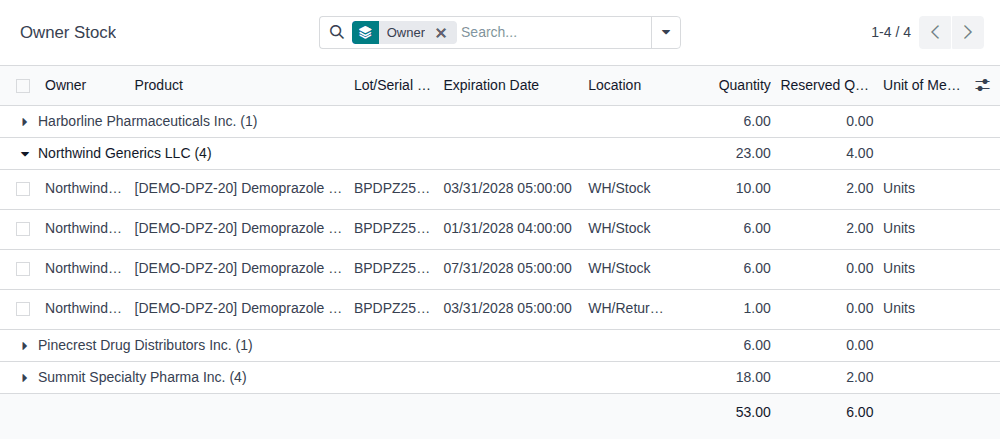
-
To see one owner only, enter its name in the search box, for example
Northwind, and select Search Owner for: Northwind.Result: only that owner's lines are listed.
Result: you know the quantities you hold for each owner, now. Nothing is changed. Records: none (the report reads the stock).
What the list holds:
- stock held for a partner other than your company, in internal and transit locations (a unit on its way between two of your warehouses counts), whatever the product: non-DSCSA products held for an owner are listed too;
- your own stock never, even with every facet removed;
- lines you can't open: the report has no form.
Other ways to read it: remove the Owner facet for a flat list; the search options have the filter Reserved and Group By Owner, Product, Lot or Location; the optional columns (the icon at the right of the column titles) add Package. With several companies, the list follows the company switcher and can show a Company column.
If it doesn't work
- There is no Owner Stock menu item, or no 3PL block in the Rx Tracking menu: you don't have an Rx Tracking right. Ask an administrator. See The owner reports aren't in the menu, or an Access Error opens.
- The list says "No stock held for owners", or an owner is missing: see An owner report is empty or leaves an owner out.
Known issue (PF-A09-05): an owner's stock is counted in three slightly different ways. Owner Stock and the owner export's
stock.csv count internal and transit locations; the owner's portal counts internal locations only. The portal also lists units counted
as Missing "in our custody", which Owner Serials leaves out, and its home card counts lines, not units. When the numbers differ
during a reconciliation, check for units in transit and for Missing units first.
List the serial numbers we hold for an owner (Owner Serials)
List every serialized unit you hold for an owner, with its state, for example to answer a question about one serial or to send the owner its serial list.
Who: Rx Tracking User or Manager
Requires: Rx Tracking (DSCSA): 3PL and title model, with 3PL switched on.
-
Go to Inventory ‣ Rx Tracking ‣ Owner Serials (in the 3PL ‣ Reports section).
Result: one row per serial held for an owner and in your custody: Owner, Product, Serial Number, Lot, Expiration Date, State and Received Date. Quarantined rows are orange.
-
Enter the owner's name in the search box, for example
Northwind, and select Search Owner for: Northwind.Result: Northwind's 23 serials: 6 Quarantined of lot
BPDPZ2509N, 6 In Stock of lotBPDPZ2507C, and 11 of lotBPDPZ2508K(10 In Stock, 1 Returned).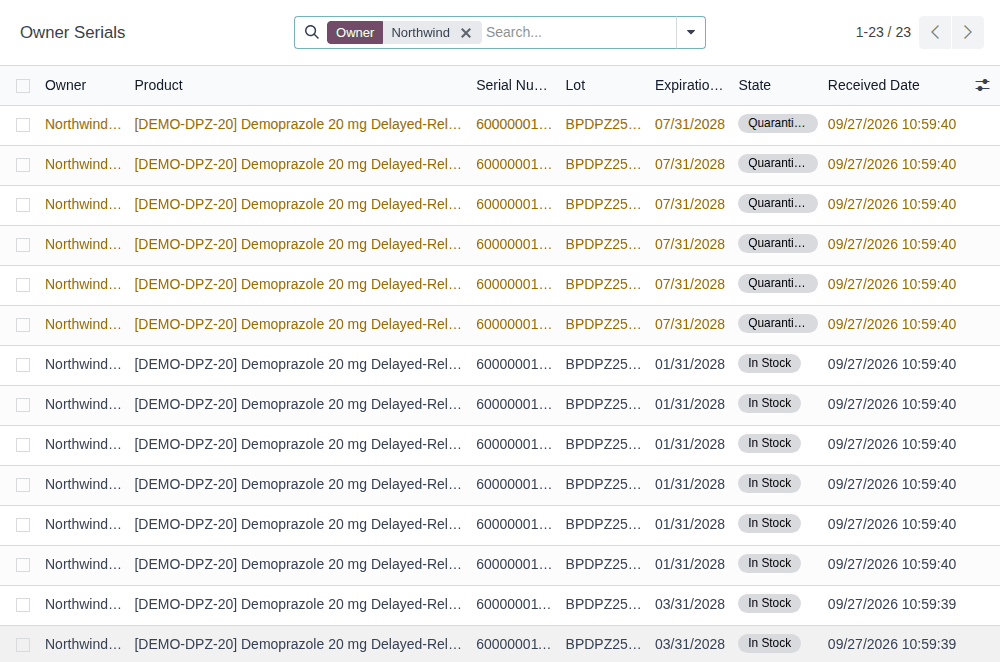
-
To see one unit's details, open its row, for example serial
600000011004.Result: the unit's package form opens, with its state bar (Received, In Stock, Shipped …), its Product, GTIN, SGTIN, Lot and Expiration Date, its Origin (Receipt), Receipt Line and Received Date, Held for Owner (Northwind Generics LLC), and the Supplier File it was announced in with its Expected Receipt (
WH/IN/00007). Your own units have no Held for Owner.
Result: you have the owner's serial list and each unit's history. Nothing is changed. Records: none.
The list shows the states In Stock, Returned and Quarantined: units that are shipped, destroyed or counted Missing are no longer in your custody and aren't listed. Search by Owner, Serial Number, Product, Lot or SSCC; the search options have the filter Quarantined and Group By Owner, Product, Lot or Status. How to read a package form: Look up a package and its history.
If it doesn't work
- A serial you hold for an owner isn't listed: it may be Missing after a count, or held for another owner. Search it in Inventory ‣ Rx Tracking ‣ Packages without filters. See An owner report is empty or leaves an owner out.
Follow an owner's stock movements (Owner Movements)
See every done movement of an owner's units: its receipts, its shipments, customer returns, moves inside the warehouse and the legs of a title transfer.
Who: Rx Tracking User or Manager
Requires: Rx Tracking (DSCSA): 3PL and title model, with 3PL switched on.
-
Go to Inventory ‣ Rx Tracking ‣ Owner Movements (in the 3PL ‣ Reports section).
Result: one row per done movement of an owner's units: Date, Reference, Owner, Product, Lot/Serial Number, From, To, Contact, Quantity and Unit of Measure. For example:
Reference Owner From To Contact Quantity WH/IN/00007Northwind Generics LLC Partners/Vendors WH/Stock Bluepeak Pharmaceuticals Inc. 12.00 WH/OUT/00012Northwind Generics LLC WH/Stock Partners/Customers Riverside Community Pharmacy 2.00 WH/IN/00017Northwind Generics LLC Partners/Customers WH/Returns to Verify Riverside Community Pharmacy 1.00 WH/TT/00001Summit Specialty Pharma Inc. WH/Stock Virtual Locations/DSCSA Title Transfer 1.00 -
To follow one owner, enter its name in the search box and select Search Owner for: NAME.
Result: only that owner's movements are listed.
Result: you can follow each movement of the owner's units, by date. Nothing is changed. Records: none.
A title transfer shows the leg that leaves the seller owner (to Virtual Locations/DSCSA Title Transfer); the leg into your own stock is yours and isn't listed. The search options have the filters Incoming, Outgoing and Date, and Group By Owner, Product, Lot or Date; you can also search by Owner, Reference, Product, Lot/Serial Number, From or To. Your own receipts and deliveries are never listed.
If it doesn't work
- The list says "No movements of owners' units": nothing held for an owner has moved yet, or a filter hides it. See An owner report is empty or leaves an owner out.
Export the selected rows of an owner report as a CSV file
Send an owner its stock, serials or movements, give an inspector a list, or reconcile in a spreadsheet. Every owner report except Ledger vs Stock per Owner has an Export CSV button.
Who: Rx Tracking User or Manager. Odoo's Access to export feature right isn't needed.
Requires: Rx Tracking (DSCSA): 3PL and title model, with 3PL switched on.
-
Open the owner report, for example Inventory ‣ Rx Tracking ‣ Owner Stock (in the 3PL ‣ Reports section). The others are Owner Serials, Owner Movements, Owner Documents, Owner Discrepancies, Owner Returns and Owner Holds (in the 3PL ‣ Reports section).
-
Select the rows to export. Choose one:
- select the checkbox of each row (in a grouped list, open the group first);
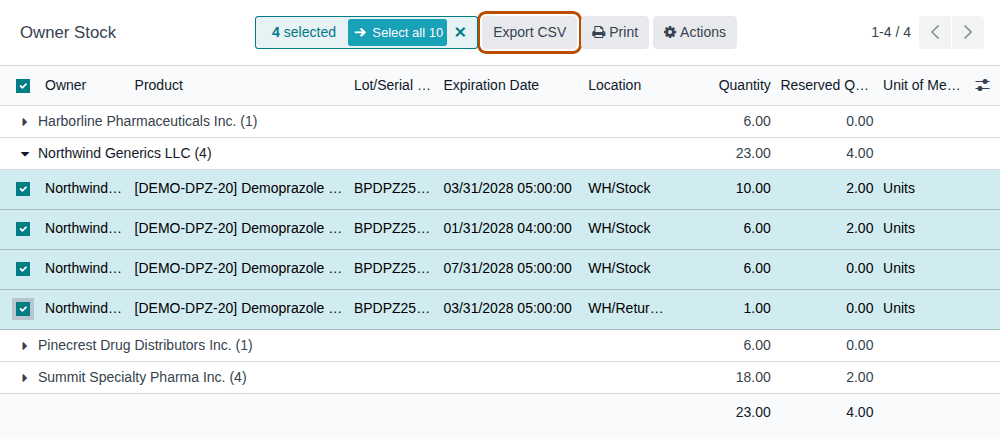
- select the checkbox in the column titles: every row of the list is selected, also in closed groups ("All 10 selected"). In a flat list longer than one page, select Select all next to the counter as well.
Result: the control panel shows the number of rows selected and the Export CSV button.
-
Select Export CSV.
Result: your browser downloads the file, for example
owner_stock_20260927_1509.csv.
Result: a CSV file of the rows you selected, one line per row. Records: none; the file is not kept in Odoo.
What the files contain. UTF-8, comma-separated, with a header row. The first two columns are always owner and owner_gln. The name
ends with the date and time of the download in your time zone (_YYYYMMDD_HHMM); dates and times inside the file are UTC. Linked records
are written by name, states by their label (In Stock, Done), yes/no values as true or empty.
| Report | File name starts | Columns after owner, owner_gln |
|---|---|---|
| Owner Stock | owner_stock_ | product, ndc, gtin14, lot, expiry_date, location, odoo_package, quantity, reserved_quantity, uom, company |
| Owner Serials, Owner Holds | owner_serials_ | product, gtin14, serial, sgtin, lot, expiry_date, sscc, state, lot_quarantine_reason, received_date, shipped_date, seller_of_record, company |
| Owner Movements | owner_movements_ | date_utc, reference, product, lot, quantity, uom, source_location, destination_location, partner, state, company |
| Owner Documents | owner_documents_ | document, direction, state, date, partner, partner_gln, transfer, order_ref, invoice_ref, issue_mode, in_place, buyer_visible, posted_on, document_hash, company |
| Owner Discrepancies | owner_discrepancies_ | reference, type, state, receipt, supplier, product, lot, serial, supplier_file_says, found, detected_on, date_due, resolved_on, company |
| Owner Returns | owner_returns_ | transfer, operation_type, partner, return_of, source_document, scheduled_date, date_done, state, company |
The file holds exactly the rows you selected, and only records you are allowed to read. Before you send a file to an owner, check that only that owner's rows are selected: search on the owner first (step 3 of Owner Stock).
If it doesn't work
- There is no Export CSV button: select at least one row first; the button appears with the selection.
- An Access Error says "You are not allowed to create 'DSCSA Owner Report CSV (3PL)' (dscsa.owner.report.csv) records." or "You are not allowed to access 'Lot/Serial' (stock.lot) records.": you don't have an Rx Tracking right. See The owner reports aren't in the menu, or an Access Error opens.
Read our own stock figures while we hold owners' stock
With 3PL switched on, the quantities your staff read for a DSCSA product are your own: the owners' units in your warehouse are left out of On Hand, Forecasted, the availability on a quotation and replenishment. The lists of units in your locations still show every unit, with its owner.
Background: your own quantities, forecasts, availability and reordering rules leave out owner stock, and owner quantities are shown per owner.
Who: any internal user who reads quantities: Inventory User or above for the product's buttons and the Forecasted report, Sales User (any level) for a quotation's availability, Inventory Administrator for Replenishment; no Rx Tracking right needed
Requires: Rx Tracking (DSCSA): 3PL and title model, with 3PL switched on.
Before you start:
- An owner holds stock of the product in your warehouse. Until then, nothing changes.
On the product
-
Go to Inventory ‣ Products ‣ Products and open the product, for example Demoprazole 20 mg Delayed-Release Capsules, 30 count.
Result: On Hand shows your own units only: 59.00 for Demoprazole, while Northwind and Summit hold 33 more units of it in the same warehouse. Forecasted and the Min / Max button of a reordering rule leave the owners' units and moves out too.

-
Select On Hand.
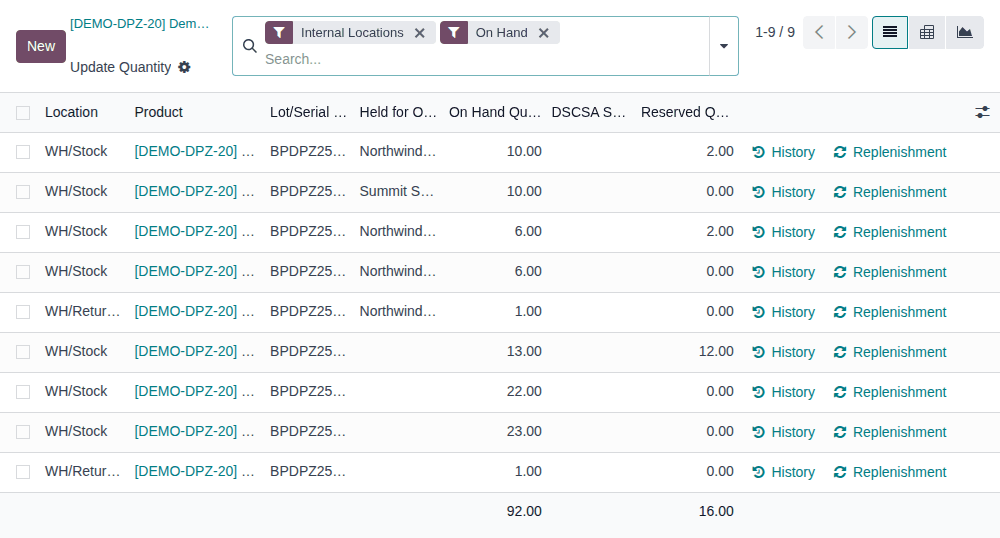
Result: the list of units in your internal locations opens (filters Internal Locations and On Hand). It lists every unit, the owners' included, with a Held for Owner column: empty for your own lines, the owner's name for the others. Its total is 92.00: your 59 and the owners' 33.
-
Go back to the product (the breadcrumb) and select Forecasted.
Result: the Forecasted Report opens for the warehouse. Its header counts your own stock only, for example On Hand 59.00
- Incoming 204.00 − Outgoing 12.00 = 251.00 Forecasted.
Result: you read your own figures: the owners' units never make a product look available for your sales, and owners' stock never stops you buying. Records: none.
Known issue (PF-A09-04, PF-A09-03): the list that On Hand opens includes the owners' units, so its total is larger than the
number you selected, with nothing on screen to say why; read the Held for Owner column. In the Forecasted Report, the lines list
the owners' open receipts and deliveries (for example Northwind's WH/IN/00010 and WH/OUT/00014) although the totals above them leave
them out. For an owner's quantities, use Owner Stock.
On a quotation
-
Open the quotation in Sales, for example the draft quotation to Lakeview Apothecary for 6 Demoprazole, and select the chart icon at the end of the product's line.
Result: the Availability window shows Forecasted Stock and Available for your own units only, for example 47 (your 59 on hand less the 12 reserved for an open sale).
In replenishment
-
Go to Inventory ‣ Operations ‣ Replenishment.
Result: a reordering rule's On Hand, Forecast and To Order count your own units only. For Demoprazole's rule at
WH/Stock(Min 30.00, Max 60.00): On Hand 58.00 (your units inWH/Stock; the one inWH/Returns to Verifyis outside that location), Forecast 252.00, To Order 0.00.
Products that aren't DSCSA products
Non-DSCSA products keep Odoo's figures: an owner's units of, for example, bandages count in your On Hand, unless the company has Owner isolation for non-DSCSA products switched on. See Choose the company's 3PL policies. A company with 3PL switched off keeps Odoo's figures for every product.
If it doesn't work
- The product shows no On Hand button: you don't have an Inventory right (sales users without one see Sold and Purchased only). Read the availability on a quotation line instead.
- On Hand looks too low compared with the shelves: the rest is the owners'. See Our On Hand is lower than the units on the shelf.