Count, scrap and register owner stock
3PL add-on For: Administrator, Compliance manager, Warehouse staff Checked on 18.0.0.2.0, 18.0.1.0.0
Counts, scrap and the opening balance work on owner stock as they do on your own (Count stock, Scrap DSCSA units, Register the opening balance), with one more rule: each stock line and each package has one owner, and an operation never mixes owners. Units an owner loses are reported to it with a Loss notice, and scrapping its units needs its instruction.
Background: the add-on is built so that scrap, counts and opening balances record the owner of the units involved, and so that confirmed losses and missing units are reported to the owner (FD&C Act § 582(c)(4); FDA suspect-product guidance (June 2021); Form FDA 3911; see Compliance background). The modules also follow the reading that the owner directs every destruction (FD&C Act § 581(6), (22), (24), (26), (27); § 582(a)(1), (a)(7); § 584(d); see Compliance background). This is how the modules read the law; it has not been reviewed by counsel. See the disclaimer.
| What happened | Procedure | Needs the owner's instruction | Owner notice |
|---|---|---|---|
| owner units are gone and nobody saw them destroyed | 3PL-ADJ-01: a count, units Missing | no | Loss |
| owner units turn up again, or were never recorded | 3PL-ADJ-02: a count gain | no | none |
| owner units are damaged or must be destroyed | 3PL-ADJ-03: a scrap, units Destroyed | Scrap or Destroy | Loss |
| owner units are in Odoo without packages at go-live | 3PL-ADJ-04: the opening balance | no | none |
Count an owner's stock and record the units that are gone
With 3PL on, Physical Inventory has a Held for Owner column: an owner's units of a lot are on their own line, next to yours and other owners'. Count each line separately, and scan the units that are gone on the owner's line. The owner is told which units went missing.
With Odoo Enterprise's Barcode app, see Scan owner stock in the Barcode app.
Your procedure decides when to count, who counts, and what to investigate when owner units are missing; the software requires the Rx Tracking User right and one serial per missing unit.
Who: Rx Tracking User or Manager
Requires: Rx Tracking (DSCSA): 3PL and title model, with 3PL switched on.
Before you start:
- You have the DataMatrix (or the serial numbers) of the owner's units that are gone. Destroyed units belong in a scrap (3PL-ADJ-03).
- The owner's notice contacts are set, so the notice can be emailed. See Find and read the notices sent to an owner.
-
Go to Inventory ‣ Operations ‣ Physical Inventory.
-
Remove the My Counts filter, search for the product, for example
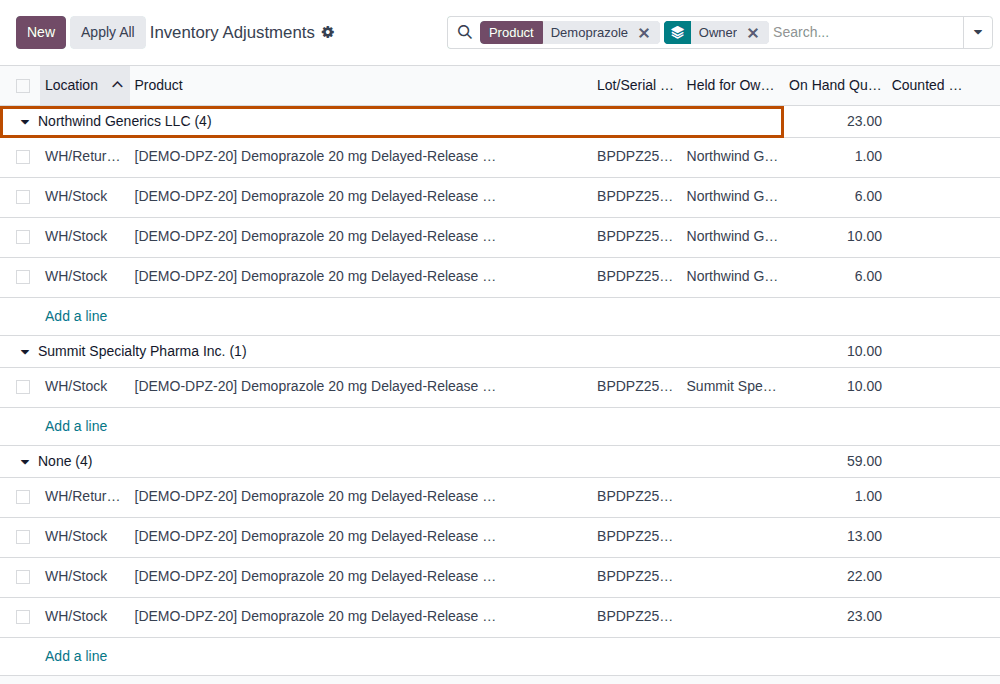
Demoprazole, and pressEnter.Result: one line per location, lot and owner. Held for Owner names the owner; your own lines have it empty. To see each owner's lines together, open the search options (the ▾ next to the search box) and select Owner under Group By.
-
On the owner's line, select the Counted Quantity cell and enter what you counted, for example
9on Northwind Generics LLC's line of lotBPDPZ2508KatWH/Stockwhere10.00are on hand.Result: Difference shows
-1.00. -
At the end of that line, select Apply.
Result: the DSCSA Serials dialog opens with the line's Product, Lot/Serial Number, Location, On Hand, Counted and Difference. It doesn't show the owner (PF-W19-02): check that you applied the owner's line.
-
Select the Serials cell and scan each of the owner's units that is gone, for example
(01)00399990101300(21)600000011012(17)280331(10)BPDPZ2508K. -
Select Apply.
Result: the dialog closes; the owner's line shows the new On Hand Quantity (
9.00).
Result: the owner's stock is lowered and the named packages are Missing, still held for the owner; a later count can find them (3PL-ADJ-02). Records: the inventory move held for the owner; the packages, Missing; the lot's chatter note; and one Loss notice to the owner in Inventory ‣ Rx Tracking ‣ Owner Notices (in the 3PL ‣ Operations section), emailed to its notice contacts:
Inventory count at WH/Stock on DATE: N of your units were not found and are recorded as missing.
Missing serials: SERIAL, ….
They stay on record as missing: a later count can find them again. Tell us if this is a theft or a loss you report yourself.
Your own lines are counted as in core, without a notice. Lines of products that aren't DSCSA products need no serials. What each notice holds: Owner notices and holds.
If it doesn't work
- "The inventory adjustment can't be applied:" with "Line N: Serial … is held for OWNER, not for OWNER: count it on that owner's line." ("our own stock" for yours): the scanned unit belongs to another line of the same lot. Cancel, and count it on its owner's line. See Error: "Serial … is held for …, not for …: count it on that owner's line.".
- "… serial(s) named for … unit(s) counted as gone." or another core count message: see Troubleshooting: records.
Record owner units found in a count
When units of an owner turn up again (units recorded as Missing) or were never in the ledger, raise the count on the owner's line and scan them. The same applies to an owner that has no line yet at that location or lot: add a line held for the owner.
Your procedure decides how found units are investigated before they are recorded; the software requires the Rx Tracking Manager right for any count that raises DSCSA stock.
Who: Rx Tracking Manager
Requires: Rx Tracking (DSCSA): 3PL and title model, with 3PL switched on.
Before you start:
- The partner the units are held for is an owner: a company with an owner profile. Its profile may be archived (a count records what is there). See Create an owner profile.
- You have the DataMatrix of each unit found.
-
Go to Inventory ‣ Operations ‣ Physical Inventory, remove the My Counts filter and search for the product.
-
Choose one:
- The owner has a line for that lot and location: on that line, enter the higher Counted Quantity, for example
10where9.00are on hand. - It has none: select New, then fill in Location (for example
WH/Stock), Product, Lot/Serial Number (for exampleBPDPZ2509B), Held for Owner (the owner company, for exampleNorthwind Generics LLC, never one of its contacts) and Counted Quantity, and select the save icon.
Result: Difference is positive.
- The owner has a line for that lot and location: on that line, enter the higher Counted Quantity, for example
-
At the end of the line, select Apply.
-
In the DSCSA Serials dialog, scan each unit found in the Serials cell, for example
(01)00399990101300(21)600000011012(17)280331(10)BPDPZ2508K, and select Apply.Result: the line shows the new On Hand Quantity.
Result: the units are In Stock, held for the owner. Units that were Missing go back In Stock; units the ledger had never seen get a new package held for the owner, with Origin Found in Inventory Count. Records: the inventory move held for the owner; the packages; the lot's chatter note. No notice is sent.
This is also the fallback for bringing an owner's units already on your shelves under the ledger at go-live, when 3PL-ADJ-04 can't be used. See Go live as a 3PL.
If it doesn't work
- Access Error "Only DSCSA managers can apply a count that raises the stock of a DSCSA product: it adds packages to the ledger without a receipt.": you don't have the Rx Tracking Manager right. See Error: "Only DSCSA managers can apply a count that raises the stock …".
- "The inventory adjustment can't be applied:" with "… count DSCSA stock held for the owner company OWNER, not for its contact CONTACT." or "… PARTNER is not an owner of COMPANY (no owner profile), so DSCSA stock can't be counted as held for it.": Held for Owner names a contact or a partner that isn't an owner. The message opens over the DSCSA Serials dialog: select Close, then Cancel in the dialog, then Clear on the line, and add the line again with the owner company. See Error: "… count DSCSA stock held for the owner company …".
- "Line N: Serial … is held for OWNER, not for OWNER: count it on that owner's line.": the unit found belongs to another owner (or to you). See Error: "Serial … is held for …, not for …: count it on that owner's line.".
- "Line N: Serial …: the scan says expiry … but lot … expires …": the unit isn't of that lot. See Troubleshooting: records.
A new line for an owner that already has a line of that lot and location isn't a second line: Odoo puts the counted quantity on the existing line. Count the whole quantity there.
Scrap an owner's units on its scrap or destroy instruction
Scrap owner units only when the owner tells you to. Choose the owner's Scrap or Destroy instruction on the scrap form; the scrap is then held for the owner, takes the owner's units, and the owner is told which units were destroyed.
Who: Rx Tracking User or Manager
Requires: Rx Tracking (DSCSA): 3PL and title model, with 3PL switched on.
Before you start:
- The owner's Scrap or Destroy instruction is recorded and unused. See Record an owner's instruction.
- The units are In Stock, Returned or Quarantined, and aren't on an open transfer. Returned owner units are usually destroyed from Returns to Verify instead: 3PL-RET-03.
-
Go to Inventory ‣ Operations ‣ Scrap and select New.
-
In Product, choose the product, for example Demoprazole.
Result: Lot/Serial, Owner Instruction and the DSCSA Serials block appear (Held for Owner is on the form from the start).
-
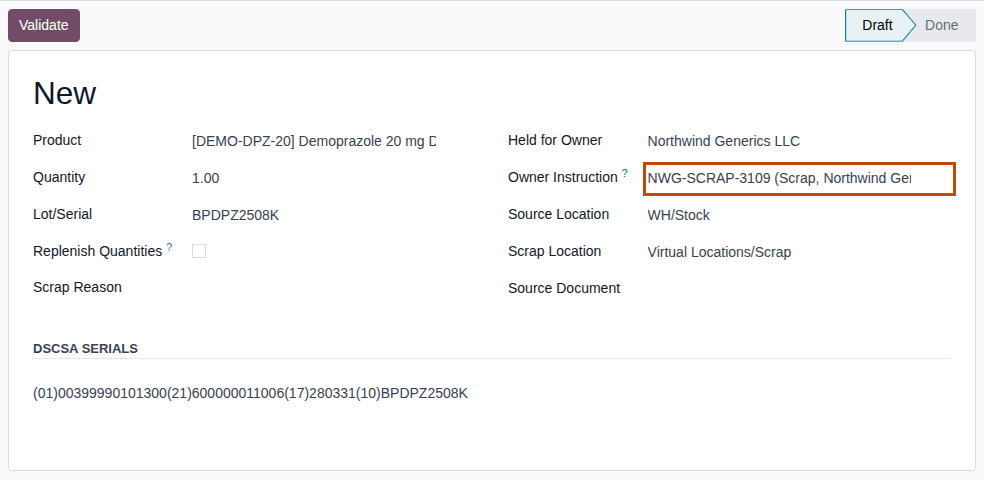
In Owner Instruction, choose the owner's instruction, for example
NWG-SCRAP-3109 (Scrap, Northwind Generics LLC).Result: Held for Owner shows the owner, if it was empty.
-
In DSCSA Serials, scan each of the owner's units you scrap, one per line, for example
(01)00399990101300(21)600000011006(17)280331(10)BPDPZ2508K.Result: Quantity equals the number of serials, and Lot/Serial shows the lot.
-
Optional: choose a Scrap Reason.
-
Select Validate.
Result: the scrap
SP/NNNNNis Done; the DSCSA Serials block lists the units as Destroyed.
Result: the owner's units are out of stock and recorded as destroyed. Records: the scrap SP/NNNNN (Done), held for the owner, with
its instruction; the packages, Destroyed; the move to Virtual Locations/Scrap, held for the owner; the instruction, Used On the
scrap; and a Loss notice to the owner:
Scrap SP/NNNNN at WH/Stock on DATE: N of your units were destroyed.
Reason: REASON (only when a Scrap Reason is chosen)
Destroyed serials: SERIAL, ….
A done scrap keeps its owner and instruction. With Held for Owner empty and no instruction, your own units are scrapped as in core. Products that aren't DSCSA products show no Owner Instruction and no serials, even when held for an owner. If the owner's profile sets Owner Instructions to Optional, the scrap validates without an instruction.
Known issue (PF-A07-08): the Owner Instruction list offers the unused scrap and destroy instructions of every owner, not only the owner whose units you scan. Choosing another owner's instruction fills Held for Owner with that owner, and Validate is refused (see below). Check the owner's name in the instruction before you choose it.
If it doesn't work
- "… can't be scrapped: the serials are held for several owners (OWNER, OWNER). Scrap each owner's units separately.": make one scrap per owner (and one for your own units). See Error: "… can't be scrapped: the serials are held for several owners …".
- "… can't be scrapped:" with "OWNER's instruction (Scrap / Destroy) is required for New: record the owner's order or approval first.": Owner Instruction is empty ("New" is the unsaved scrap, PF-W19-03). Choose the instruction and validate again. See Error: "OWNER's instruction (KIND) is required for …".
- "… can't be scrapped:" with "The serials are held for OWNER, but the scrap is for OTHER." and "Instruction … is from OTHER, not from OWNER.": the instruction or Held for Owner is another owner's. See Error: "The serials are held for …, but the scrap is for …".
- "Instruction … is an owner's instruction, but the serials are our own stock: remove it.": the units are yours. Clear Owner Instruction and Held for Owner. Same entry.
- "… has no active owner profile, so DSCSA stock can't be held for it (Rx Tracking > 3PL).": the owner's profile is archived (Known issue PF-A07-01). See Error: "… has no active owner profile, so DSCSA stock can't be held for it …".
- Other scrap messages (a unit not available, a wrong lot, a case label): see Troubleshooting: exceptions.
Register an opening balance of units held for an owner
Register the serials of an owner's units that are in Odoo, held for the owner, but have no package yet: typically a product you stored for the owner before it became a DSCSA product. The Opening Balance dialog has a Held for Owner field; its figures count only that owner's units and packages.
Who: Rx Tracking Manager; the product flag (step 2 of the first part) also needs Inventory Administrator, for example the administrator
Requires: Rx Tracking (DSCSA): 3PL and title model, with 3PL switched on.
Before you start:
- 3PL is on and the owner has an active owner profile. See Create an owner profile.
- Every unit carries a DataMatrix with GTIN (Global Trade Item Number), serial, expiry and lot.
- The go-live order: Go live as a 3PL. Units the owner sends after go-live arrive on an owner receipt, not here.
Enter the owner's quantities, then make the product a DSCSA product
-
While the product is not yet a DSCSA product, go to Inventory ‣ Operations ‣ Physical Inventory, select New, and fill in Location (
WH/Stock), Product (for example Placebrin), Lot/Serial Number (BPPLB2507A), Held for Owner (Northwind Generics LLC) and Counted Quantity (for example4). Select the save icon, then Apply on the line.Result: the line shows On Hand Quantity
4.00, held for the owner. No serials are asked: the product isn't a DSCSA product yet.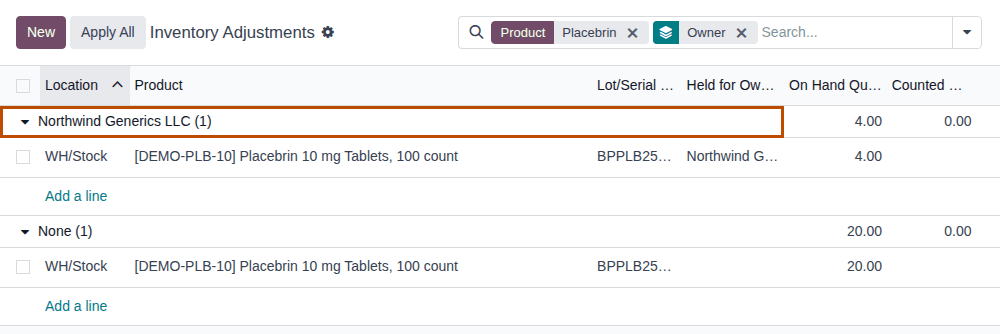
-
As an administrator, open the product (Inventory ‣ Products ‣ Products), select DSCSA Product on its DSCSA tab, and select the save icon. See Set up a DSCSA product.
Register the owner's units
-
Go to Inventory ‣ Rx Tracking ‣ Opening Balance.
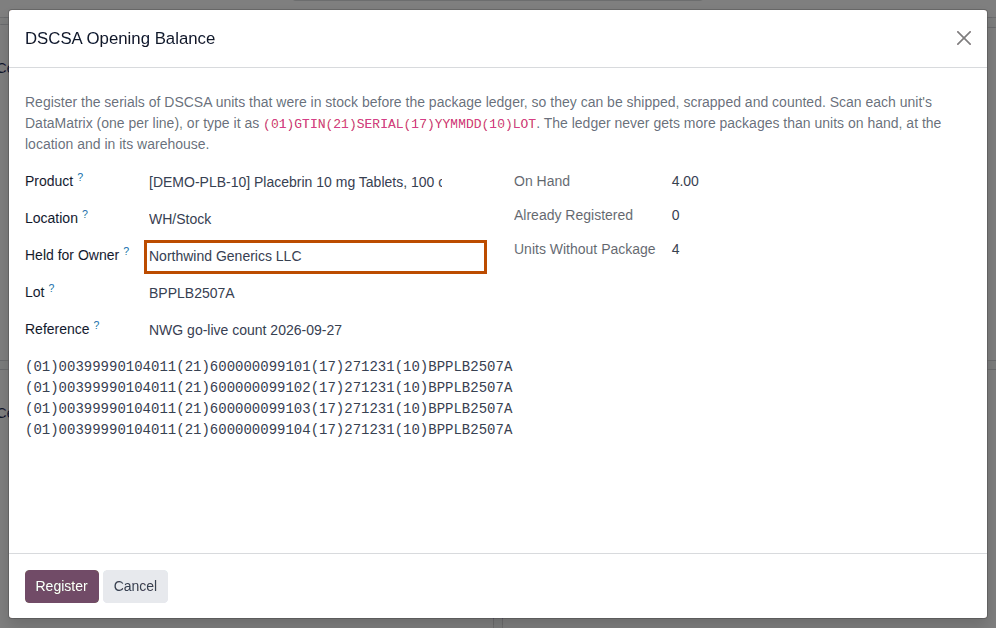
Result: the DSCSA Opening Balance dialog opens, with Held for Owner under Location (placeholder "Our own stock").
-
In Product, choose the product, for example Placebrin.
-
In Held for Owner, choose the owner, for example
Northwind Generics LLC. The list offers the owners with an active profile. -
In Lot, choose the lot, for example
BPPLB2507A.Result: On Hand, Already Registered and Units Without Package count only the owner's units, for example
4.00,0and4. With Held for Owner empty they count only your own (20.00,0,20for Placebrin's own stock). -
Optional: in Reference, enter where the count comes from, for example
NWG go-live count 2026-09-27. -
In the scan box, scan the DataMatrix of each of the owner's units, one per line.
-
Select Register.
Result: the dialog closes and a notification says "4 DSCSA package(s) of lot BPPLB2507A registered as opening balance.".
Result: each scanned unit has a package In Stock, held for the owner, with Origin Opening Balance. Records: the packages (Registration Note = your reference, Registered At, Registered By, Registered On); the lot's chatter note "Opening balance: 4 DSCSA package(s) registered at WH/Stock by Morgan Lee.", with the reference and the serials. Then check Ledger vs Stock per Owner (in the 3PL ‣ Reports section): see Go live as a 3PL.
The owner's room is usually 0. Owner receipts and count gains always create packages, and 3PL can't be switched on while DSCSA stock is
held for an owner, so the dialog registers only units entered for the owner while the product was not yet a DSCSA product (step 1 above).
Owner units already recorded as your own stock can't be moved to the owner by editing the stock line: only a title transfer changes
the owner. When the room is 0, use a count gain on a line held for the owner (3PL-ADJ-02).
If it doesn't work
- "Nothing was registered. Fix these scans and try again:" with "N serial(s) scanned, but only N unit(s) of … have no package yet (N on hand there, N already registered; the warehouse as a whole is checked too).": more scans than the owner's units without a package, even if your own room would allow them. Check Held for Owner, the lot and the location. See Error: "… serial(s) scanned, but only … unit(s) … have no package yet".
- The owner isn't offered in Held for Owner: its profile is archived, or it has none. See Error: "… has no active owner profile, so DSCSA stock can't be registered as held for it".
- Other opening-balance messages (scan mismatch, already registered): see Troubleshooting: records.