Give owners access to the owner portal
3PL add-on For: Administrator, Compliance manager Checked on 18.0.0.2.0, 18.0.1.0.0
The owner portal lets an owner's people see, online and read-only, the stock you hold for it, its documents, its receipts (where they can upload the supplier's file), its holds and its receiving discrepancies, and nothing of other owners. You give and take away that access per person, from the owner's profile.
Background: the owner portal is read-only, and each owner's users see only that owner's stock and documents, so that each owner's transaction information and statements stay confidential. This is how the modules read the law; it has not been reviewed by counsel. See the disclaimer.
Give an owner's contacts the owner portal
Give access when the owner asks for it for one of its people. A person without a portal login gets one, with Odoo's portal invitation email; a person who already has a portal login (for example as one of your customers' buyers) gets the owner portal on the same login. Your procedure decides who at the owner may have access and how the owner asks for it; the software requires the person to be a contact of the owner company.
Who: Rx Tracking Manager. To give access to a person who has no portal login yet, also Odoo's Contact Creation right (listed under Extra Rights on the user form in developer mode), which users made from Odoo's default user template have.
Requires: Rx Tracking (DSCSA): 3PL and title model, with 3PL switched on.
Before you start:
- The owner's profile is active. See Create an owner profile.
- Each person is a contact under the owner company (Individual, with the owner as Company), with an email address that no other user has as login. See Onboard a trading partner: DSCSA role, GLN and address.
- An outgoing mail server is set up in Odoo, so that the invitation email goes out.
-
Go to Inventory ‣ Rx Tracking ‣ Owners (in the 3PL ‣ Configuration section) and open the owner, for example [NWG] Northwind Generics LLC.
-
Select Grant Owner Portal Access above the form.
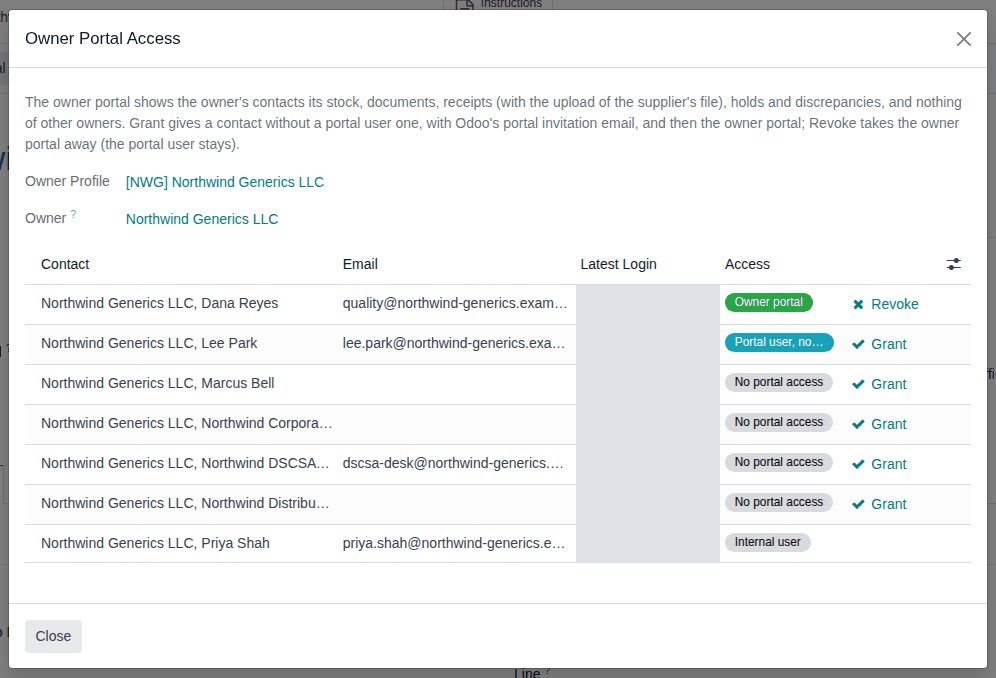
Result: the Owner Portal Access window lists the owner's contacts (its people and its other addresses) with Email, Latest Login and Access:
Access What it means Button No portal access the contact has no login Grant creates a portal login and sends the invitation Portal user, no owner access the contact has a portal login, for example as a customer's buyer Grant adds the owner portal to that login Owner portal the contact sees the owner portal Revoke (Take the owner portal away from a contact) Internal user the contact is one of your employees' logins none: the owner portal is for the owner's portal users only -
On the person's line, select Grant, for example on Northwind Generics LLC, Northwind DSCSA Desk.
Result: the window stays open, the line's Access shows Owner portal, and the line now offers Revoke.
-
Repeat step 3 for each person, then select Close.
Result: the profile's chatter has one line per person, for example "Owner portal access granted to Northwind Generics LLC, Northwind DSCSA Desk (login dscsa-desk@northwind-generics.example.com) by Morgan Lee."
Result: each person can sign in to the owner portal. Records: for a person who had no login, a new portal user whose login is its email address, in the profile's company, and Odoo's portal invitation email to it; for everyone, the DSCSA Owner Portal access on the login and a line in the profile's chatter. What the person does next (accept the invitation, set a password, open the pages) is in the owner's handout: Sign in to the owner portal for the first time.
If it doesn't work
- 'The contact "NAME" does not have a valid email.' or 'The contact "NAME" has the same email as an existing user': correct the email on the contact, then select Grant again. See Error: "The contact … does not have a valid email.".
- An access error when you select Grant for a person without a login: you lack Odoo's Contact Creation right. Ask an administrator. See Error: "Only DSCSA managers grant or revoke the owner portal.".
- The window says "This owner profile is archived: its contacts' access can be revoked, not granted." and shows no Grant: re-activate the profile first (Change, end or re-open an owner relationship). See Error: "The owner profile of … is archived …".
- The window says "The owner has no contacts yet: add its people as contacts of the owner company first.", or the person isn't listed: the person isn't a contact under the owner company (or is under another company). Add it there (Onboard a trading partner: DSCSA role, GLN and address). See Error: "… is not a contact of …".
- The line shows Internal user and no Grant: the person is one of your employees' logins. See Error: "… is an internal user …".
- There is no Grant Owner Portal Access button: you have the Rx Tracking User right. Ask an Rx Tracking Manager.
- The person got no invitation: see An email or a reminder never arrived.
Known issue (PF-A09-01): a new owner's person who signs in sees no owner card on My Account until the owner has stock,
documents, a receipt waiting for supplier data, a hold or an open discrepancy, and no menu leads to the owner pages. Send the person the
owner portal's address, your Odoo address followed by /my/dscsa/owner (for example https://erp.example.com/my/dscsa/owner).
Next: give the person the owner's handout, Owner portal.
For an owner group (a parent company and its subsidiaries)
When companies of one group each have their own owner profile, each is a separate owner, and the owner portal matches the owner exactly: the parent's people see none of a subsidiary's stock, documents, receipts, holds or discrepancies, and a subsidiary's people see none of the parent's. Give access from each owner's own profile, to that owner's own contacts (steps 1 to 4 on each profile). A person is a contact of one company only, and a portal login is an email address, so a person who must see two owners of the group needs a contact under each owner company, each with its own email address. Background: the modules treat every owner as a separate party, with no exemption for affiliates, and keep each owner's portal users to that owner's records (FD&C Act § 581(6), (22), (24), (26), (27); § 582(a)(1), (a)(7); § 584(d); see Compliance background). This is how the modules read the law; it has not been reviewed by counsel. See the disclaimer.
Take the owner portal away from a contact
Take the access away when a person leaves the owner, or when the relationship has ended and the former client should stop reading its records. The person keeps its portal login, and any customer pages it had.
Who: Rx Tracking Manager
Requires: Rx Tracking (DSCSA): 3PL and title model, with 3PL switched on.
Before you start:
- The person has the owner portal (Access shows Owner portal). See Give an owner's contacts the owner portal.
-
Go to Inventory ‣ Rx Tracking ‣ Owners (in the 3PL ‣ Configuration section) and open the owner. For a former owner, first select the Archived filter in the search options.
-
Select Grant Owner Portal Access.
-
On the person's line, select Revoke.
Result: the line's Access shows Portal user, no owner access. On an active profile, the line offers Grant again.
-
Select Close.
Result: the profile's chatter says, for example, "Owner portal access of Northwind Generics LLC, Northwind DSCSA Desk (login dscsa-desk@northwind-generics.example.com) revoked by Morgan Lee."
Result: the person can no longer open the owner pages: they show Odoo's Error 404 page ("We couldn't find the page you're looking for"). Records: the DSCSA Owner Portal access removed from the login, and the chatter line. The login itself stays, with any customer pages it had.
To remove the login altogether, open the person's contact, select the ⚙ (Actions) menu, then Grant portal access, and in the Portal Access Management window select Revoke Access. That is Odoo's own portal window: it closes every portal page of the person, including customer pages.
If it doesn't work
- There is no Revoke on the line: the person doesn't have the owner portal (its Access isn't Owner portal). See Error: "… has no owner portal access.".
- There is no Grant Owner Portal Access button: you have the Rx Tracking User right. Ask an Rx Tracking Manager.