Set up an owner profile
3PL add-on For: Administrator, Compliance manager Checked on 18.0.0.2.0, 18.0.1.0.0
An owner is a company whose DSCSA stock you hold as its third-party logistics provider (3PL): your 3PL client. Its owner profile says how you issue documents in its name, which of its instructions you need, who receives its notices and whether you may buy its stock. Until a company has an owner profile, no stock can be held for it.
Background: the software keeps what it must know about each owner (its role and addresses, its Transaction Statement, how its documents are issued, its contacts, policies and title options) in one profile per owner (FD&C Act § 581(6), (22), (24), (26), (27); § 582(a)(1), (a)(7); § 584(d); see Compliance background). This is how the modules read the law; it has not been reviewed by counsel. See the disclaimer.
Create an owner profile
Create the profile when you sign a new 3PL client, before its first receipt. The profile takes the owner's DSCSA role, Global Location Number (GLN) and licenses from its contact record, so set those up first.
Who: Rx Tracking Manager
Requires: Rx Tracking (DSCSA): 3PL and title model, with 3PL switched on.
Before you start:
- 3PL is on. See Turn on third-party logistics for a company.
- The owner exists as a company contact with its DSCSA role, GLN and address, and its people are contacts under it. See Onboard a trading partner: DSCSA role, GLN and address.
- The owner's licenses are recorded and verified. See Record and verify a trading partner's license.
- You know the owner's code: 2 to 12 capital letters, digits or hyphens, without four digits in a row. It starts every document number
issued in the owner's name, for example
DSCSA/BLUE/OUT/2026/00001.
-
Go to Inventory ‣ Rx Tracking ‣ Owners (in the 3PL ‣ Configuration section) and select New.
Result: an empty owner form opens. Until you choose the owner, Authorization Issue shows "No owner partner." in red; it isn't an error (known issue PF-W13-08).
-
In Owner, enter the owner's company name and choose it, for example Bluepeak Pharmaceuticals Inc. Only companies (and contacts without a parent company) are offered.
Result: the Owner as trading partner group fills in from the owner's contact record: DSCSA Role (Manufacturer), GLN, GS1 Prefix Length, TI Business Address (the owner itself) and Authorized Trading Partner (selected when every license the owner's role needs is verified and in force).
-
Fill in:
- Code:
BLUE. Lower-case letters are turned into capitals when you save. - Owner Type: Owner (3PL client). Choose Consignor only for a supplier's consignment stock that you sell yourself; see Allow title transfers or just-in-time transfers, or make the owner a consignor.
- Service Start: the first day of the service agreement, for example
10/01/2026. Leave Service End empty. - Facilities Served: the warehouses that hold the owner's stock, for example Chico Distribution Center. The facility client list and the FDA annual report reminders use them.
- Code:
-
If the owner's transaction information must show another of its addresses as its business address, choose it in TI Business Address. Only the owner and its own addresses are offered.
-
Optionally, on the Agreement tab, enter the Service Agreement reference, select Agreement Files to add the signed agreement, and add notes.
-
Select the save icon.
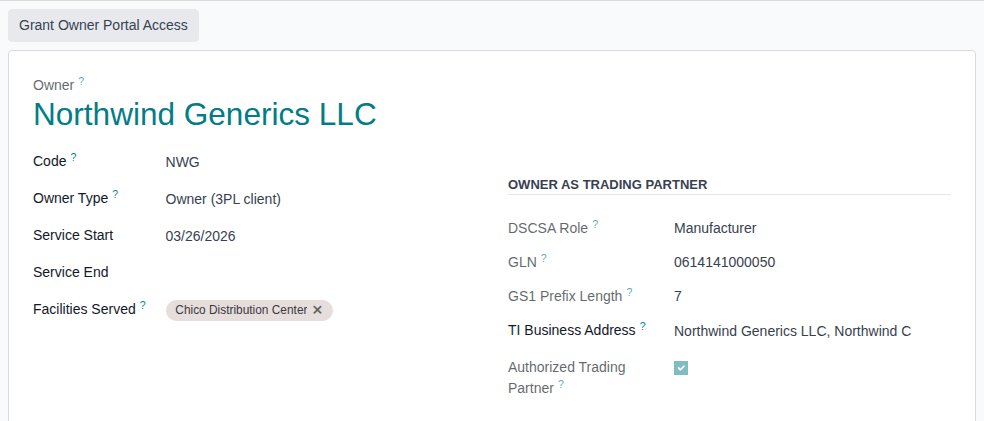
Result: the profile is saved as
[BLUE] Bluepeak Pharmaceuticals Inc.and Code showsBLUE. The Grant Owner Portal Access button appears above the form, and the chatter says "DSCSA Owner Profile (3PL Client) created".
Result: the owner profile exists and is active. Records: the profile [CODE] OWNER, listed under Inventory ‣ Rx Tracking ‣ Owners
(in the 3PL ‣ Configuration section). Its tabs start at these defaults, which you review in the next procedures:
- Documents: Issuing Mode Mode A: documents go to the owner only (unless the company setting Issue documents as the owner's agent is Always); Direct-Purchase Basis Manufacturer or repackager for a manufacturer or repackager owner, otherwise Wholesaler (transaction history); EPCIS Header Sender Owner; the Transaction Statement and TS Legal Notice (EPCIS) prefilled with the software's default text.
- Policies: Owner Instructions Required; Goods Before Data Supplier file, or the owner's recorded confirmation.
- Title Transfer: nothing selected.
The company's first owner profile also marks the company as holding owner data for good (see Turn third-party logistics off again). The owner can now have stock held for it, instructions and owner portal access, and it appears on the facility client list.
If it doesn't work
- "Owner code CODE: use 2 to 12 capitals, digits or hyphens, without four digits in a row (document numbers put the year after it).":
enter a code such as
BLUEorNW-2. See Error: "Owner code … use 2 to 12 capitals …". - "The operation cannot be completed: Another owner of this company already uses this document code.": choose another code. See Error: "Another owner of this company already uses this document code.".
- "The operation cannot be completed: This partner already has an owner profile in this company (it may be archived).": the owner has a profile already, perhaps archived. Find it with the Archived filter and re-activate it. See Error: "This partner already has an owner profile …".
- "The company's own stock needs no owner profile.": you chose your own company. See Error: "The company's own stock needs no owner profile.".
- "The service end date is before its start date.": correct Service End or Service Start. See Error: "The service end date is before its start date.".
- "Turn on third-party logistics (Inventory settings, DSCSA 3PL) for COMPANY before creating owner profiles.": 3PL is off. An administrator turns it on. See Error: "Turn on third-party logistics …".
- There is no New button: you have the Rx Tracking User right, which reads owner profiles only. Ask an Rx Tracking Manager.
- Authorized Trading Partner stays cleared, with a reason in red: see Check whether an owner is an authorized trading partner, and fix it.
Known issue (PF-A05-03): you can change Code later, but once the owner has a document, its document numbers keep the old code, also in later years. Choose the code carefully before the owner's first shipment.
Next: Set how the owner's documents are issued
Set how the owner's documents are issued
The Documents tab decides who receives the transaction information, Transaction Statements and EPCIS files you issue in the owner's name, and what they contain. In issuing mode A the documents go to the owner only; in issuing mode B you also send them to the owner's customer. Your procedure decides whether you accept to issue an owner's documents to its customers; the software requires the owner's written authorization, recorded here by an Rx Tracking Manager.
Background: the modules follow the reading that mode B is allowed only when the owner profile records the owner's authorization, and that the Transaction Statement on owner documents is always the owner's, never yours (FD&C Act § 582(c)(1)(A)(ii)–(iii), § 582(g)(1)(A)–(B); § 581(22), (24), (26), (27); see Compliance background). This is how the modules read the law; it has not been reviewed by counsel. See the disclaimer.
Who: Rx Tracking Manager. Users with the Rx Tracking User right see the tab without the authorization fields.
Requires: Rx Tracking (DSCSA): 3PL and title model, with 3PL switched on.
Before you start:
- The owner profile exists. See Create an owner profile.
- For mode B: the owner's signed written authorization is on your computer, with its reference.
- The owner's Transaction Statement text and legal notice, as the owner and its counsel wrote them.
-
Go to Inventory ‣ Rx Tracking ‣ Owners (in the 3PL ‣ Configuration section), open the owner and select the Documents tab.
-
If the owner authorized you in writing to issue its documents to its customers, select Authorized Us to Issue Its Documents.
Result: Authorization Reference (required, in red while empty), Authorization Date and Authorization Evidence appear, and Issuing Mode shows Mode B: we send the owner's documents to its customer.
-
Fill in Authorization Reference, for example
BLUE-AGENCY-2026-10, and Authorization Date, then select Authorization Evidence and choose the signed authorization. The file is kept for good once saved. -
Choose the emails:
- Email Documents to the Customer (mode B): the customer's delivery confirmation email carries the owner's documents.
- Email Documents to the Owner (mode A): each new owner document is emailed to the Document Contacts.
- Document Contacts: the owner's people who receive its documents, for example its DSCSA desk.
-
Under Content, check the options:
- Direct-Purchase Basis: Manufacturer or repackager (no direct-purchase statement on the owner's documents), Manufacturer's exclusive distributor (the statement), or Wholesaler (transaction history) (the core rule on the owner's own purchase).
- "Shipped on Behalf Of" Line: prints "Shipped by YOUR-COMPANY on behalf of OWNER" on the owner's Transaction Information document (the T3 report).
- EPCIS Header Sender: Owner (the default) or Us (3PL), the sender named in the header of the owner's EPCIS files.
- Possessing Party in EPCIS: names you as the possessing party in the owner's EPCIS files.
-
Under Transaction Statement (the owner's), check TS Legal Notice (EPCIS) and Transaction Statement. They are prefilled with the software's default text; replace them with the owner's wording if the owner gives you one. The docs don't propose a wording. The default texts are the publisher's wording of how the modules read the law; they have not been reviewed by counsel. Whether they fit your business is your decision; have a qualified advisor review them before you go live. See the disclaimer.
-
Select the save icon.
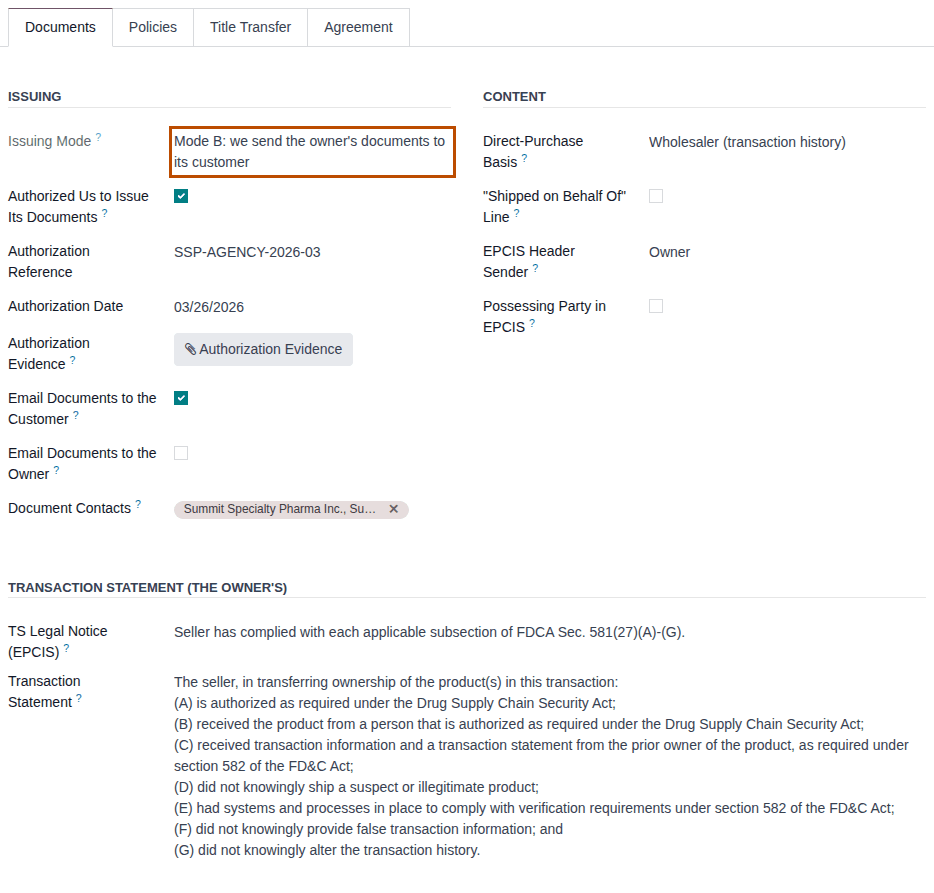
Result: the profile is saved. The chatter lists each tracked change, for example "Mode A: documents go to the owner only → Mode B: we send the owner's documents to its customer (Issuing Mode)" and the new Authorization Reference.
Result: documents issued in the owner's name from now on follow the new mode and options; documents already posted keep theirs. Records: the profile's changes in its chatter, and the authorization evidence file, kept for good. What each mode means for the buyer and the owner: Know who receives an owner's documents: issuing mode A or B.
How Issuing Mode follows the company setting Issue documents as the owner's agent (see Choose the company's 3PL policies):
| Company setting | Authorized Us to Issue Its Documents cleared | selected, with its reference |
|---|---|---|
| Only with the owner's written authorization (the default) | Mode A | Mode B |
| Always | Mode B | Mode B |
| Never | Mode A | Mode A |
If it doesn't work
- The profile doesn't save and Authorization Reference is red: the authorization needs its reference. Enter it, or clear Authorized Us to Issue Its Documents. See Error: "Record the reference of … written authorization …".
- "Just-in-time transfers for OWNER need issuing mode B: …" when you clear the authorization: the owner buys from you just in time. Clear Just-in-Time Transfers first. See Error: "Just-in-time transfers for … need issuing mode B …".
- Issuing Mode stays Mode A although the authorization is recorded: the company setting is Never. An administrator changes it in Choose the company's 3PL policies.
- You don't see Authorized Us to Issue Its Documents: you have the Rx Tracking User right. Ask an Rx Tracking Manager. See Error: "Only DSCSA managers record an owner's authorization …".
Next: Set the owner's policies
Set the owner's policies
The Policies tab says which of the owner's instructions you need before you move its stock, how a receipt that arrived without its supplier data is released, and who receives notices and nonsaleable returns. Your procedure decides each policy with the owner, usually in the service agreement; the software applies them from the next operation.
Background: the modules follow the reading that, under the definition of a third-party logistics provider, the owner, not you, directs every sale or disposition of its stock, which is why its instruction is required by default (FD&C Act § 581(6), (22), (24), (26), (27); § 582(a)(1), (a)(7); § 584(d); see Compliance background). This is how the modules read the law; it has not been reviewed by counsel. See the disclaimer.
Who: Rx Tracking Manager
Requires: Rx Tracking (DSCSA): 3PL and title model, with 3PL switched on.
Before you start:
- The owner profile exists. See Create an owner profile.
- The people who receive notices, and any return designee (for example a reverse distributor), exist as contacts; a return designee also has its DSCSA role and verified license. See Onboard a trading partner: DSCSA role, GLN and address.
-
Open the owner's profile and select the Policies tab.
-
Under Owner Instructions, select one:
- Required (the default): every shipment, return, scrap or destruction, hold release, recall, title transfer and Publish to Buyer of the owner's stock needs the owner's instruction. See Which owner instruction each operation needs.
- Optional: an operation may go ahead without one. An instruction you do give is still checked, and Publish to Buyer of a mode-A document always needs one.
-
Under Goods Before Data, select one:
- Supplier file, or the owner's recorded confirmation (the default): the "data pending" hold on an owner receipt that arrived without its supplier data is released by the supplier's file or by the owner's confirmation.
- Supplier file only: only the supplier's file releases it.
-
In Notice Contacts, add the owner's people who receive its hold, release, suspect-product, recall, loss and exception notices, for example Northwind Generics LLC, Dana Reyes. Add only the owner's own contacts (known issue PF-A07-05, below).
-
In Return Designees, add the partners that may receive the owner's nonsaleable returns, for example Clearwater Reverse Distribution LLC.
-
If the owner attested in writing that it checks its own trading partners, enter its reference in Counterparty Attestation and its date in Attestation Date. They count only while the company setting Warn only for owners with a recorded counterparty attestation is selected (see Choose the company's 3PL policies); the field's tooltip calls that setting "Owner counterparty attestation" (known issue PF-W13-09).
-
Select the save icon.
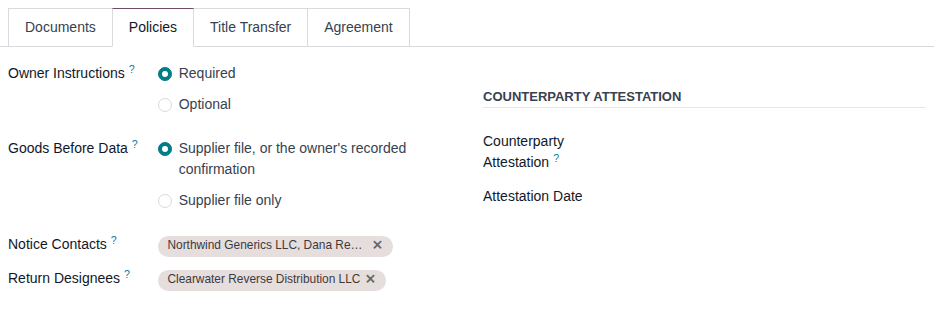
Result: the profile is saved. The chatter records changes of Owner Instructions, Goods Before Data, Counterparty Attestation and Attestation Date, for example "Required → Optional (Owner Instructions)".
Result: the policies apply to the owner's next operations; nothing already done changes. Records: the profile's tracked changes in its chatter. Where each policy takes effect: Fix an operation refused for its owner instruction, Receive an owner's goods before their data, Find and read the notices sent to an owner, Send an owner's nonsaleable units to the owner or one of its return designees and Get an owner transfer through the owner, counterparty and facility checks.
If it doesn't work
- An owner's notice isn't emailed: no notice contact (or no email address on it). See Send a notice that could not be emailed.
- The counterparty attestation has no effect: the company setting Warn only for owners with a recorded counterparty attestation is cleared, or Owner counterparties is Warn and log already. See Choose the company's 3PL policies.
Known issue (PF-A07-05, PF-W13-06): Notice Contacts accepts any partner, so a contact of another company would receive this owner's lots and serials. Choose only the owner's own people. Changes to Notice Contacts, Return Designees and Document Contacts are not recorded in the chatter: note them in your own records if you need their history.
Next: Allow title transfers or just-in-time transfers, or make the owner a consignor
Allow title transfers or just-in-time transfers, or make the owner a consignor
Select these options only when you have agreed with the owner to buy its stock: in place (a title transfer), just in time (your own sale takes its units and buys them at the delivery), or as a consignor's stock that you sell yourself. Each is off by default. Your procedure decides which owners you buy from and at what price; the software requires the settings below.
Who: Rx Tracking Manager
Requires: Rx Tracking (DSCSA): 3PL and title model, with 3PL switched on.
Before you start:
- The owner profile exists. See Create an owner profile.
- For just-in-time transfers or a consignor: the owner is in issuing mode B. See Set how the owner's documents are issued.
- For a consignor: the company setting Consignor owners is selected (the default). See Choose the company's 3PL policies.
- What title transfers need beyond the profile (your wholesale facility license, the title location): see Get ready for title transfers in place.
-
Open the owner's profile and select the Title Transfer tab.
-
Select Title Transfers Allowed to let you buy the owner's units in place.
-
To let your own deliveries take the owner's units and buy them when you validate the delivery, also select Just-in-Time Transfers.
Result: Transfer Price appears, set to Vendor pricelist.
-
In Transfer Price, select Vendor pricelist (the owner's vendor price on the product, when it has one) or Manual.
-
For a consignor, go back to the header and set Owner Type to Consignor. A consignor is bought just in time by its type, without Just-in-Time Transfers, but it needs Title Transfers Allowed and issuing mode B like a just-in-time owner.
-
Select the save icon.

Result: the profile is saved and the chatter records the changes, for example "No → Yes (Title Transfers Allowed)".
Result: the owner can be bought from in place, just in time or as a consignor from the next operation. Records: the profile's tracked changes. What just-in-time buying changes in your own warehouse work (read it before you select it): Set up an owner for just-in-time buying. Consignment stock: Take in and sell consignment stock.
If it doesn't work
- "Just-in-time transfers for OWNER need issuing mode B: we generate the owner's transaction information and statement at the transfer, so we must be authorized to issue them.": the owner is in mode A. Record its written authorization first (Set how the owner's documents are issued). See Error: "Just-in-time transfers for … need issuing mode B …".
- "Consignor owners are turned off for COMPANY (Inventory settings, 3PL).": the company doesn't allow consignors. An administrator selects Consignor owners. See Error: "Consignor owners are turned off …".
Known issue (PF-W13-01, PF-A08-09, PF-A08-02): Just-in-Time Transfers without Title Transfers Allowed, and a consignor without Title Transfers Allowed or in mode A, are saved without a message, but the owner is then not bought from just in time: your sales simply never take its units. Always select Title Transfers Allowed with them, and check Issuing Mode. A consignor's Transfer Price is hidden and stays Vendor pricelist.