Choose the 3PL policies
3PL add-on For: Administrator Checked on 18.0.0.2.0, 18.0.1.0.0
The 3PL settings hold five company-wide policies: what a failed check of an owner's trading partner does, when documents may be issued in an owner's name, whether owners may be consignors, how far a documentation hold reaches, and whether owners' non-DSCSA stock is kept apart. Each has a default, and each applies to every owner of the company.
Background: each of these choices is a business decision, and the software uses a safe default for each until you choose. This is how the modules read the law; it has not been reviewed by counsel. See the disclaimer.
Choose the company's 3PL policies
Set the policies right after switching 3PL on, and again whenever the business changes one. Your procedure decides which policy the company follows and who approves a change; the software requires the rights in the Who line below, so a compliance manager without administrator rights can't change them.
Who: Administrator with Administration: Settings, who is also Inventory Administrator and Rx Tracking Manager
Requires: Rx Tracking (DSCSA): 3PL and title model, with 3PL switched on.
Before you start:
- 3PL is on. See Turn on third-party logistics for a company.
-
Go to Inventory ‣ Configuration ‣ Settings and scroll down to the DSCSA: third-party logistics (3PL) block.
Result: the policies are listed under the Third-party logistics (3PL) checkbox.
-
Choose each policy:
Setting Choices (default first) What it does Where it takes effect Owner counterparties Block, Warn and log What happens when an owner's supplier, customer or return designee is not an authorized trading partner: Block refuses the receipt, delivery or return; Warn and log lets it through and records a Warning in the gate log. The owner's own authorization and our facility license are always checked and always block. Get an owner transfer through the owner, counterparty and facility checks Warn only for owners with a recorded counterparty attestation (under Owner counterparties) cleared, selected With Block: owners whose profile has a Counterparty Attestation reference get the warning instead of the refusal; every other owner is still blocked. Set the owner's policies Issue documents as the owner's agent Only with the owner's written authorization, Always, Never When we may send the transaction information, statements and EPCIS files issued in an owner's name to its customer (issuing mode B). Otherwise the documents go to the owner only (mode A). Set how the owner's documents are issued Consignor owners selected, cleared Whether an owner profile may be of type Consignor: a supplier's stock we hold and sell ourselves through a just-in-time title transfer. Allow title transfers or just-in-time transfers, or make the owner a consignor Hold scope Whole lot, Per owner for documentation holds How far a documentation hold on an owner receipt reaches. See Choose the hold scope. What an owner hold blocks Owner isolation for non-DSCSA products cleared, selected Also keep owners' stock of non-DSCSA products apart when reserving. DSCSA products are always kept apart. Owner stock and own stock -
Select Save.
Result: the settings reload with your choices. A change of Issue documents as the owner's agent recomputes every owner's Issuing Mode at once: with Always, Inventory ‣ Rx Tracking ‣ Owners (in the 3PL ‣ Configuration section) shows every owner as Mode B: we send the owner's documents to its customer; with the default, only owners with a recorded written authorization are in mode B, and the others show Mode A: documents go to the owner only.
Result: the policies apply to every owner of the company from the next operation on. Documents already posted keep the issuing mode they were posted with. Records: the company's settings (no change history is kept on the settings page, so record a policy change in your own procedure).
If it doesn't work
- "Consignor owners can't be turned off while … is an active consignor: archive its profile or change its type first.": an owner profile is of type Consignor. Change its type or archive it, then clear Consignor owners again. See Error: "Consignor owners can't be turned off …".
- "This document-issuance setting would put … in issuing mode A, but just-in-time title transfers need mode B: turn JIT off on its profile first.": an owner with Just-in-Time Transfers would lose mode B. Clear it on the owner's profile first, or keep a setting under which that owner stays in mode B. See Error: "This document-issuance setting would put … in issuing mode A …".
- The policies aren't shown: 3PL is off. See Turn on third-party logistics for a company.
- The block isn't there at all: see The 3PL settings block is missing.
Known issue (PF-A05-06): a warned check in the gate log has a detail that ends with "Let through: the counterparty check for this owner is set to warn (Q3-02)." The code refers to the developer's internal list of design questions: it stands for the Owner counterparties setting above.
Next: Choose the hold scope: whole lot or per owner
Choose the hold scope: whole lot or per owner
The hold scope decides whether a documentation problem on one owner's receipt holds the whole lot, including our own units and every other owner's units of that lot, or only that owner's units. Your procedure decides which scope the company uses.
Background: every hold that touches owner units notifies each affected owner, and the reach of a hold is left to the business (FD&C Act § 582(c)(4); FDA suspect-product guidance (June 2021); Form FDA 3911; see Compliance background).
Who: Administrator with Administration: Settings, who is also Inventory Administrator and Rx Tracking Manager
Requires: Rx Tracking (DSCSA): 3PL and title model, with 3PL switched on.
Before you start:
- 3PL is on. See Turn on third-party logistics for a company.
-
Go to Inventory ‣ Configuration ‣ Settings and scroll down to the DSCSA: third-party logistics (3PL) block.
-
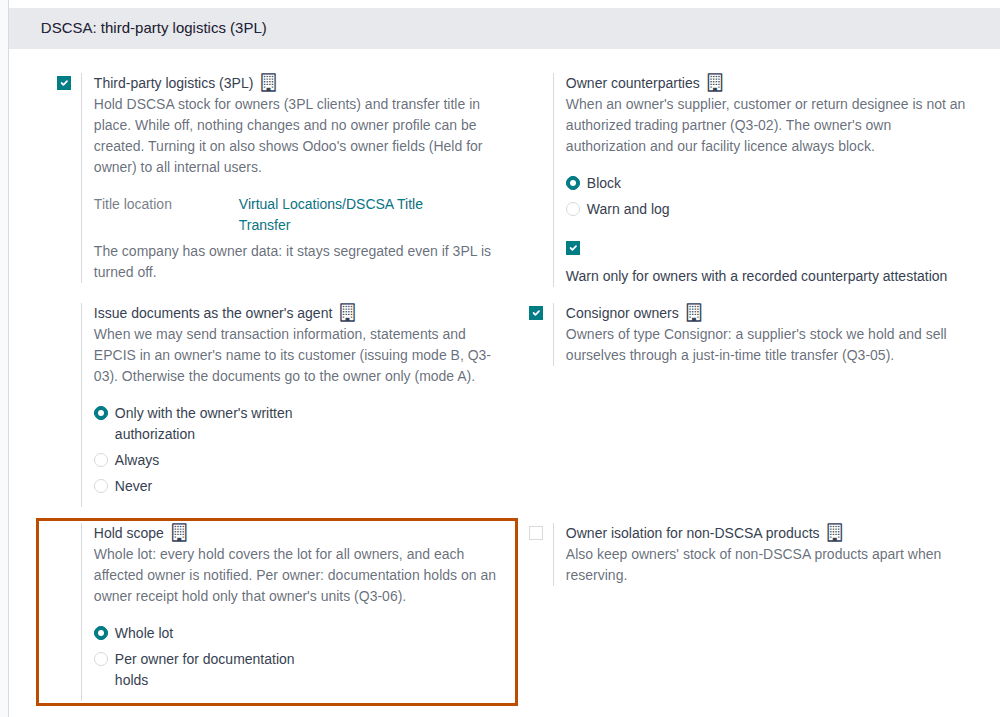
Under Hold scope, select one:
- Whole lot (the default): every hold covers the lot for everyone, as without 3PL, and every owner with units of that lot in your custody gets a notice.
- Per owner for documentation holds: a documentation hold raised on an owner receipt holds only that owner's units of the lot.
-
Select Save.
Result: the settings reload, and the option you chose is selected under Hold scope.
Result: new holds follow the scope; holds that are already active stay as they are and are released as before. Records: the company's setting.
What Per owner for documentation holds changes, and what it doesn't:
| Hold | Whole lot | Per owner for documentation holds |
|---|---|---|
| On an owner receipt: missing Transaction Statement, supplier data pending, or a transaction-information mismatch (extra unit, wrong lot, wrong expiry, missing unit) | the whole lot, for us and every owner | an owner hold on that owner's units only; the lot stays free for us and the other owners |
| On an owner receipt: a duplicate serial or a wrong product (suspect signals) | the whole lot | the whole lot |
| A manager's quarantine, an investigation, a recall; any hold raised on our own receipts | the whole lot | the whole lot |
How owner holds are followed and released: Follow an owner hold placed by an owner receipt and What an owner hold blocks.
If it doesn't work
- Hold scope isn't shown: 3PL is off. See Turn on third-party logistics for a company.
- With Per owner for documentation holds, a hold still covers the whole lot: it isn't a documentation hold on an owner receipt (see the table), or it was raised before the setting changed.
- "Only DSCSA managers can change the third-party logistics (3PL) settings." (when importing company settings): ask an Rx Tracking Manager. See Error: "Only DSCSA managers can change the third-party logistics (3PL) settings.".