Read, send and publish owner documents
3PL add-on For: Administrator, Compliance manager, Warehouse staff Checked on 18.0.0.2.0, 18.0.1.0.0
When you ship an owner's units, the DSCSA document of the shipment is issued in the owner's name, not yours: the owner is the seller, its Transaction Statement is printed, and your warehouse appears as the ship-from third-party logistics provider. Who receives the document depends on the owner's issuing mode: in mode A only the owner, in mode B also the owner's customer. Read the documents, send the owner its copies, and publish a mode-A document to the buyer when the owner asks you to.
Background: the modules follow the reading that documents about an owner's stock are the owner's, with the owner's Transaction Statement, and that the owner's customer receives them from you only with the owner's authorization (FD&C Act § 582(c)(1)(A)(ii)–(iii), § 582(g)(1)(A)–(B); § 581(22), (24), (26), (27); see Compliance background). This is how the modules read the law; it has not been reviewed by counsel. See the disclaimer.
The examples use the examples' two owner shipments: Northwind Generics LLC's order 3PL/OUT/2026/00001 to Riverside Community Pharmacy
(issuing mode A, document DSCSA/NWG/OUT/2026/00001) and Summit Specialty Pharma Inc.'s order 3PL/OUT/2026/00002 to Mercy Valley
Hospital Pharmacy (mode B, document DSCSA/SSP/OUT/2026/00001).
Read an owner's outbound document
Open the document an owner shipment posted and check what it says: the owner as seller, the owner's customer as buyer, your warehouse as ship-from, and the owner's references. The document is frozen when the delivery becomes Done, like your own documents.
Who: Rx Tracking User or Manager
Requires: Rx Tracking (DSCSA): 3PL and title model, with 3PL switched on.
Before you start:
- The owner's shipment is Done. See Pick, scan and ship an owner order.
-
Go to Inventory ‣ Rx Tracking ‣ Documents.
Result: the DSCSA Documents list shows your documents and the owners' documents together.
-
Open the search options (the ▾ at the end of the search box) and select the filter Owner documents. To see one owner only, type its name in the search box and choose Search Owner for: ….
Result: only documents issued in an owner's name or received for one are listed. Their numbers carry the owner's code, for example
DSCSA/NWG/OUT/2026/00001(outbound) andDSCSA/NWG/IN/2026/00001(inbound). -
Open the outbound document, for example
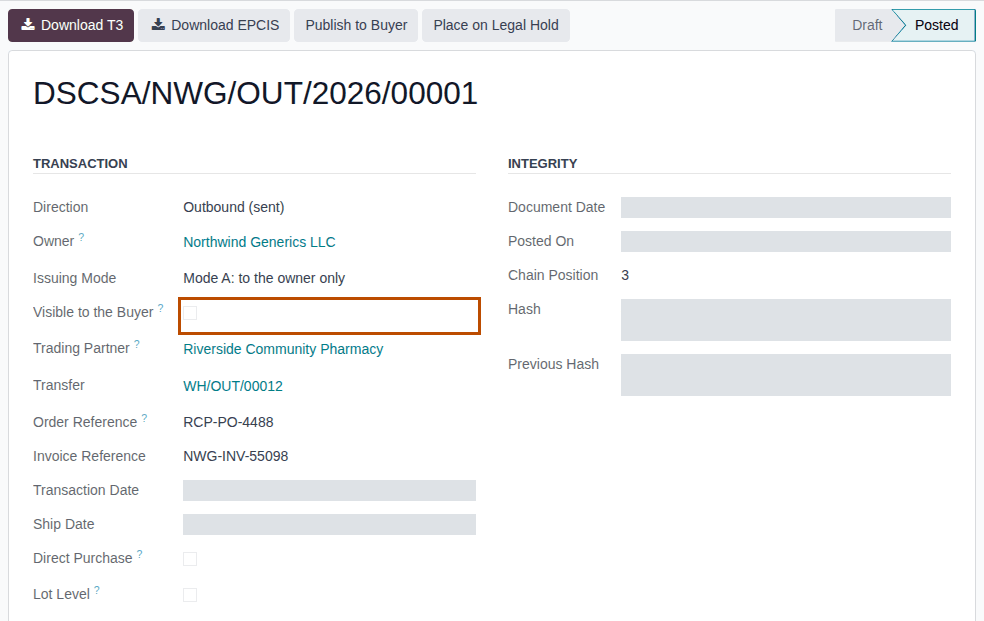
DSCSA/NWG/OUT/2026/00001.Result: the document is Posted. Three fields appear above Trading Partner: Owner, Issuing Mode and Visible to the Buyer.
-
Read the Transaction group:
Field What it shows on an owner document Owner the owner in whose name the document is issued Issuing Mode Mode A: to the owner only or Mode B: sent to the customer, as it was when the document was posted (3PL-DOC-03) Visible to the Buyer selected when the buyer sees the document in its customer portal: always in mode B; in mode A only after Publish to Buyer Trading Partner the buyer: the owner's customer Transfer the delivery, for example WH/OUT/00012Order Reference the owner order's Customer PO; else its Owner's Order Reference; else the owner-order number Invoice Reference the owner order's Owner Invoice, for example NWG-INV-55098 -
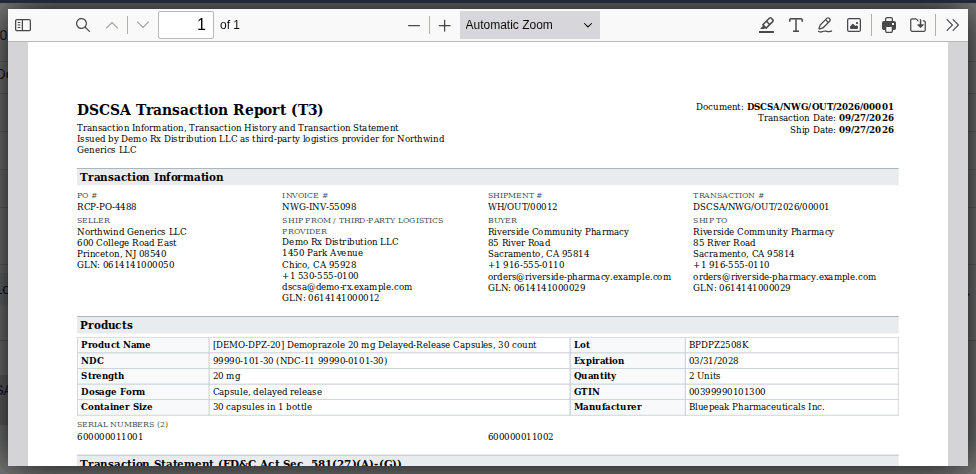
To read the T3 report on screen, go to the chatter (below the form, or at its right on a wide screen), select the 📎 (Attach files) icon next to the file count, then select the T3 file, for example
T3-DSCSA-NWG-OUT-2026-00001.pdf.Result: the T3 report opens in a preview. Its header says "Issued by Demo Rx Distribution LLC as third-party logistics provider for Northwind Generics LLC". Seller is the owner, at the TI Business Address of its owner profile; Ship From / Third-Party Logistics Provider is your company and warehouse. The statement is headed "Transaction Statement of Northwind Generics LLC (seller)", and the Licenses section ends with Third-Party Logistics Provider (Ship From) and your 3PL facility license.
-
Close the preview (✕ at the top right), then select Download T3 or Download EPCIS in the document's header.
Result: the browser downloads
T3-DSCSA-NWG-OUT-2026-00001.pdforEPCIS-DSCSA-NWG-OUT-2026-00001.xml, the files stored when the delivery became Done.
Result: you know what the owner's document says. Records: none; nothing is created or changed.
The EPCIS file names the owner as the sender in its header and as the owning party the units come from, your warehouse as the ship-from
location, and the customer's purchase order with the customer's GLN (Global Location Number); see
What an owner document's EPCIS file contains. The owner profile's Content options
change these details: see Set how the owner's documents are issued. Your own documents keep
their own numbering (DSCSA/OUT/…) and never show a third-party logistics block.
Other ways in: the owner order's DSCSA Documents smart button opens its documents, and Inventory ‣ Rx Tracking ‣ Owner Documents (in the 3PL ‣ Reports section) lists every owner document with its owner: see Find the DSCSA documents issued in an owner's name or received for it.
If it doesn't work
- The document has no EPCIS file and a yellow banner says "No EPCIS file was generated: the owner … has no GLN" (or "our company … has no GLN (named in the owner's EPCIS options)"): the owner's or your GLN is missing. See Warning: "No EPCIS file was generated: the owner … has no GLN".
- The fields Owner, Issuing Mode and Visible to the Buyer don't show: the document is one of your own. Owner fields show only on documents issued in an owner's name or received for one.
Read an owner's inbound document and the history of owner documents
When an owner's receipt with its supplier's file becomes Done, an inbound document is recorded in the owner's name: the supplier is the seller and the owner is the buyer. The owner's outbound documents build their transaction history from it, so the history runs from the supplier to the owner to the owner's customer, and never through your company.
Who: Rx Tracking User or Manager
Requires: Rx Tracking (DSCSA): 3PL and title model, with 3PL switched on.
Before you start:
- The owner's receipt is Done, with its supplier's file. See Scan and validate an owner receipt.
-
Go to Inventory ‣ Rx Tracking ‣ Documents, open the search options and select the filters Owner documents and Inbound.
-
Open the inbound document, for example
DSCSA/NWG/IN/2026/00001.Result: Direction is Inbound (received), Owner is
Northwind Generics LLC, Trading Partner is the supplier (Bluepeak Pharmaceuticals Inc.), Transfer is the owner's receipt and Order Reference is the owner's purchase order (NWG-PO-2611). Issuing Mode and Visible to the Buyer are empty: they apply to outbound documents only. -
Select the Files tab.
Result: the supplier's EPCIS file, exactly as it was imported, for example
3pl_nwg_purchase_DEMO-DPZ-20_12ea.xml. There is no T3 report of yours on an inbound document, so the header has no Download T3. -
Select the Transaction History tab.
Result: one row, This Document's Transaction: the supplier sold to the owner.
-
Open the owner's outbound document of the same units, for example
DSCSA/NWG/OUT/2026/00001, and select its Transaction History tab.Result: two rows. This Document's Transaction:
Northwind Generics LLC→Riverside Community Pharmacy. Received from Trading Partner:Bluepeak Pharmaceuticals Inc.→Northwind Generics LLC, with the supplier's references. Your company is on neither row.
Result: you see the owner's chain of ownership as the documents record it. Records: none.
Variants:
- A custody receipt (the owner's own goods, for example from its distribution center) records no inbound document and adds no row to the history: ownership didn't change. See Receive the owner's own goods as a custody receipt.
- A lot-level document (for an exempt small dispenser) builds its history from the owner's own receipts of that lot only, never from another owner's or yours.
- The documents of a title transfer in place are covered on Find and read the in-place documents of a title transfer.
Know who receives an owner's documents: issuing mode A or B
Before you ship for an owner, check its issuing mode: it decides whether the owner's customer sees the documents in its portal and gets them by email, or whether they go to the owner only. The mode is set on the owner profile and frozen on each document when it is posted. Your procedure decides whether you issue an owner's documents to its customers; the software requires the owner's written authorization, recorded on the owner profile by an Rx Tracking Manager, unless the company setting says otherwise.
Who: Rx Tracking User or Manager to check; Rx Tracking Manager to change the mode
Requires: Rx Tracking (DSCSA): 3PL and title model, with 3PL switched on.
Before you start:
- The owner has an owner profile. See Create an owner profile.
-
Go to Inventory ‣ Rx Tracking ‣ Owners (in the 3PL ‣ Configuration section), open the owner and select the Documents tab.
Result: Issuing Mode reads Mode A: documents go to the owner only (Northwind) or Mode B: we send the owner's documents to its customer (Summit, whose written authorization is recorded).
-
To check a document already posted, open it (3PL-DOC-01 steps 1–3) and read Issuing Mode and Visible to the Buyer.
Result: on the document, the mode reads Mode A: to the owner only or Mode B: sent to the customer. A mode-B document always has Visible to the Buyer selected; a mode-A document has it cleared until it is published.
Result: you know who receives the owner's documents. Records: none.
What each mode does:
| Mode A: to the owner only | Mode B: sent to the customer | |
|---|---|---|
| The customer's portal (DSCSA Documents) | doesn't list the document; its address gives "Error 404" | lists the document, with T3 (PDF) and EPCIS (XML) |
| Email to the customer when the delivery is Done | none | only when the profile's Email Documents to the Customer is selected: "OWNER: your order CUSTOMER-PO has shipped", naming the owner as the seller, with the T3 and EPCIS files attached; it is in the delivery's chatter |
| The owner | its owner portal lists the document; Send Documents to Owner emails it; with Email Documents to the Owner, each document is emailed when posted | the same |
| Later | Publish to Buyer makes one document visible to the buyer | nothing to do |
For an owner delivery of DSCSA products, Odoo's own delivery confirmation email in your company's name is never sent, whatever the Inventory setting Email Confirmation says. Your own deliveries keep Odoo's behaviour.
How the mode follows the owner profile and the company setting Issue documents as the owner's agent: see Set how the owner's documents are issued and Choose the company's 3PL policies. Changing the mode applies to documents posted from then on: documents already posted keep theirs, and a mode-A document reaches its buyer only through Publish to Buyer.
What the owner sees: Find, open and download your DSCSA documents in the owner portal handout.
Known issue (PF-A06-01): a message sent from the chatter of a mode-A owner document to its buyer gives the buyer a link that opens the document and its T3 and EPCIS files without Publish to Buyer (confirmed live). Until this is fixed, never send a chatter message to the buyer from a mode-A owner document; publish it first (3PL-DOC-05), or send the owner its copy (3PL-DOC-04).
Send an owner its documents
Email the owner copies of the T3 report and EPCIS file of one or more of its documents, for example after a mode-A shipment or when the owner asks for a copy. The copies go to the owner's document contacts; the documents themselves don't change.
Who: Rx Tracking User or Manager
Requires: Rx Tracking (DSCSA): 3PL and title model, with 3PL switched on.
Before you start:
- The owner profile's Document Contacts has at least one contact with an email address. See Set how the owner's documents are issued.
- Odoo can send email (an outgoing mail server). See Odoo's outgoing mail server documentation.
-
Go to Inventory ‣ Rx Tracking ‣ Owner Orders (in the 3PL ‣ Operations section) and open the shipped order, for example
3PL/OUT/2026/00001. -
Select Send Documents to Owner in the header.
Result: the Send Documents to Owner window opens with Owner
Northwind Generics LLC, Send To filled with the profile's document contacts (Northwind Generics LLC, Northwind DSCSA Desk) and the order's posted owner documents, each with its Issuing Mode and State.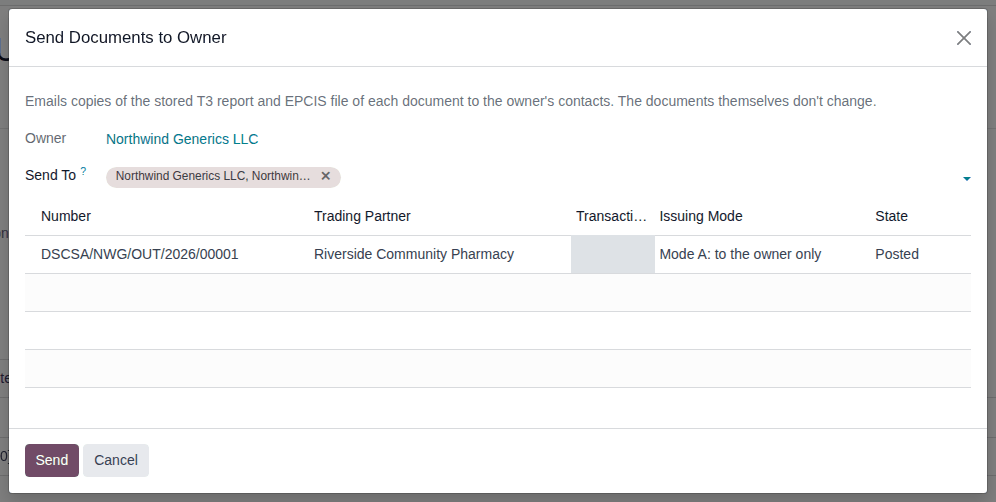
-
If needed, change Send To: remove a contact with its ✕, or type the name of another contact of the owner and choose it. Only the owner's contacts with an email address are offered.
-
Select Send.
Result: a notification says "1 document(s) sent to Northwind Generics LLC.".
Result: one email per document goes to the chosen contacts, with the subject "Northwind Generics LLC: DSCSA transaction documents
DSCSA/NWG/OUT/2026/00001" and copies of T3-DSCSA-NWG-OUT-2026-00001.pdf and EPCIS-DSCSA-NWG-OUT-2026-00001.xml. Records: the email
and a note in each document's chatter, "Documents emailed to Northwind Generics LLC: Northwind Generics LLC, Northwind DSCSA Desk
(T3-DSCSA-NWG-OUT-2026-00001.pdf, EPCIS-DSCSA-NWG-OUT-2026-00001.xml).". The document's number, hash and files are unchanged.
From the Documents list, for several documents
Use the list to send several documents of one owner at once, or a document whose owner order you don't have at hand.
-
Go to Inventory ‣ Rx Tracking ‣ Documents and filter Owner documents (3PL-DOC-01 steps 1–2).
-
Select the checkbox of each document to send. They must all be the same owner's.
-
Open the ⚙ (Actions) menu and select Send Documents to Owner.
-
Check Send To, then select Send (steps 3–4 above).
Result: "N document(s) sent to OWNER.", one email per document.
Automatically, when each document is posted
For a mode-A owner, select Email Documents to the Owner on the owner profile's Documents tab (3PL-OWN-02). Each outbound document of that owner's shipments is then emailed to its document contacts as soon as it is posted, as above. Documents of a title transfer in place are not emailed this way. If the profile has no document contact with an email address, nothing is sent and the document's chatter says "Not emailed to OWNER: its owner profile has no document contact with an email address." (see The owner didn't get its documents by email).
If it doesn't work
- "Not owner documents (ours go to our customers): …": you selected one of your own documents. Select owner documents only. See Error: "Not owner documents (ours go to our customers): …".
- "Send the documents of one owner at a time.": the selection mixes owners. Send each owner's documents separately. See Error: "Send the documents of one owner at a time.".
- "Choose the owner's contacts to send the documents to.": Send To is empty, because the profile has no document contact with an email address or you removed them. See Error: "Choose the owner's contacts to send the documents to.".
- There is no Send Documents to Owner: the order isn't shipped yet or has no posted document, or you have no Rx Tracking right. See Send Documents to Owner or Publish to Buyer isn't shown.
Known issue (PF-W17-01): Send Documents to Owner also accepts an owner's inbound document. The owner then gets an email that says "Please find attached …" with no file attached, and the chatter says "(no stored file)". Send outbound documents only. The supplier's file of an inbound owner document is in the owner export (Export everything we keep about one owner as one zip).
Publish a mode-A owner document to its buyer
Make one mode-A owner document visible to its buyer in the customer portal, when the owner has since authorized you in writing or asks you to give that document to its customer. Publishing is recorded and can't be undone.
Your procedure decides what counts as the owner's instruction to publish and who may accept it; the software requires the Rx Tracking Manager right and records the owner's instruction or written authorization as the basis.
Who: Rx Tracking Manager
Requires: Rx Tracking (DSCSA): 3PL and title model, with 3PL switched on.
Before you start:
- The document is a posted outbound owner document, in mode A, with Visible to the Buyer cleared (3PL-DOC-03).
- One of these, from the owner:
- its written authorization to issue its documents to its customers, recorded on its owner profile (Set how the owner's documents are issued); or
- its instruction to publish this document, with its reference (for example the owner's email). You can record it in the window, or beforehand as an owner instruction of kind Publish documents to the buyer (Record an owner's instruction).
- The company setting Issue documents as the owner's agent is not Never (Choose the company's 3PL policies).
-
Open the document, for example
DSCSA/NWG/OUT/2026/00001(3PL-DOC-01 steps 1–3). -
Select Publish to Buyer in the header.
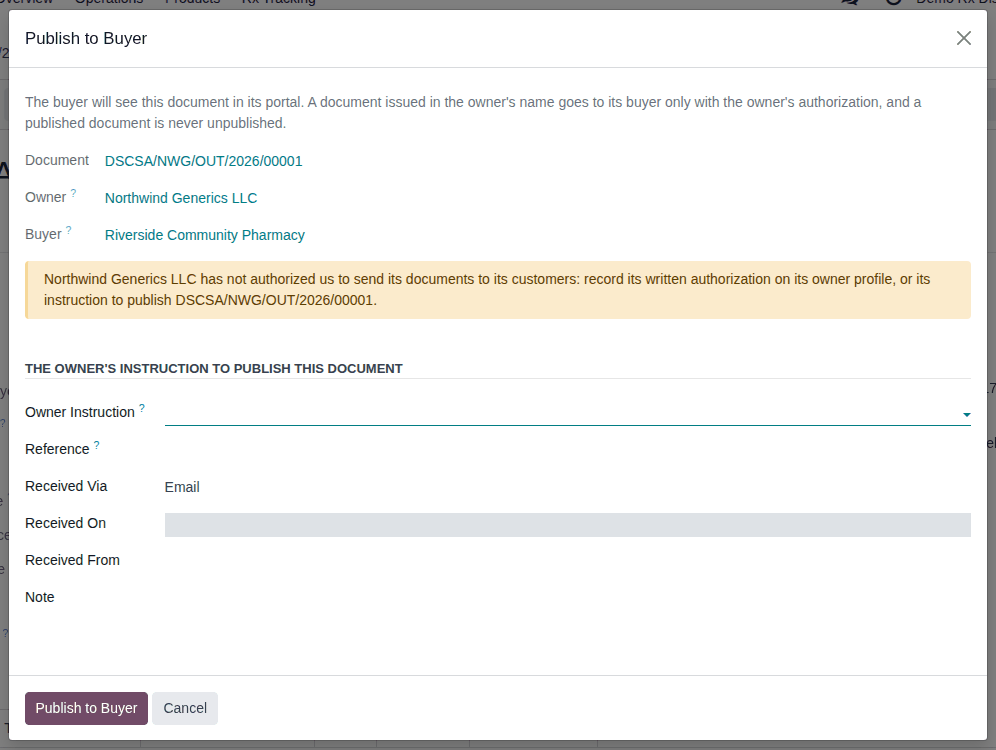
Result: the Publish to Buyer window shows the Document, the Owner and the Buyer, and one of two banners:
- yellow, when the owner has not authorized you in writing: "Northwind Generics LLC has not authorized us to send its documents to its customers: record its written authorization on its owner profile, or its instruction to publish DSCSA/NWG/OUT/2026/00001.", followed by the section The owner's instruction to publish this document;
- blue, when the owner profile is now in mode B: "It will be published on the basis of the owner's written authorization REFERENCE of DATE, recorded on its owner profile [CODE] OWNER." (with the company setting Always: "… on the basis of the company setting "Issue Documents as the Owner's Agent": Always (owner profile [CODE] OWNER)."). Go to step 4.
-
Give the owner's instruction. Choose one:
- If the instruction is already recorded, select it in Owner Instruction, for example
NWG-PUB-3105 (Publish documents to the buyer, Northwind Generics LLC). Only unused instructions of that kind, for this document or for no record, are offered. - Otherwise, record it here. Fill in:
- Reference: the owner's reference, for example
NWG-PUB-3122(required) - Received Via: Email, Portal, EDI, Phone or Other
- Received On: when you received it (default: now)
- Received From: the owner's contact who gave it, for example
Dana Reyes - Note (optional): what the owner asked
- Reference: the owner's reference, for example
- If the instruction is already recorded, select it in Owner Instruction, for example
-
Select Publish to Buyer.
Result: a notification says "DSCSA/NWG/OUT/2026/00001 is now visible to Riverside Community Pharmacy.". Visible to the Buyer is selected and Publish to Buyer disappears from the header.
Result: the buyer's customer portal lists the document with its T3 (PDF) and EPCIS (XML). No email is sent. Records: the chatter note "Published to the buyer Riverside Community Pharmacy by Morgan Lee on DATE UTC. Basis: the owner's instruction NWG-PUB-3122, received on DATE via Email." (or the written authorization), the tracked change of Visible to the Buyer (No → Yes), and the owner instruction, listed as used by this document in Inventory ‣ Rx Tracking ‣ Owner Instructions (in the 3PL ‣ Operations section). The document keeps its Issuing Mode, number, hash and files.
A published document stays visible to its buyer: nothing can hide it again, because the buyer may already have downloaded the files.
If it doesn't work
- "Invalid fields: Reference" when you select Publish to Buyer: the owner has not authorized you in writing, and no instruction was chosen or recorded. Choose or record the instruction (step 3). See Error: "… has not authorized us to send its documents to its customers …".
- A red banner, for example "… never issues documents as the owner's agent (setting "Issue Documents as the Owner's Agent": Never): … goes to … only.", and no Publish to Buyer button in the window: the document can't be published. See The Publish to Buyer window shows a red banner.
- The instruction is refused ("Instruction … is not a … instruction.", "… was already used on …", "… is from …, not from …"): choose another instruction, or record a new one in the window. See Error: "Instruction … is not a … instruction." and Error: "Instruction … was already used on …".
- There is no Publish to Buyer: you are not an Rx Tracking Manager, or the document is already visible, is your own, is inbound, or isn't posted. See Send Documents to Owner or Publish to Buyer isn't shown.
What an owner document's EPCIS file contains
The owner's customer, or its integrator, may ask how the EPCIS (Electronic Product Code Information Services) file of an owner document
differs from yours. The excerpt below is EPCIS-DSCSA-NWG-OUT-2026-00001.xml, downloaded with Download EPCIS from the document
DSCSA/NWG/OUT/2026/00001 in the example database (Northwind Generics LLC, mode A, shipped to Riverside Community Pharmacy; the owner
profile's Content options at their defaults). Lines are shortened with …; the numbers in brackets point to the table.
<sbdh:Sender>   <sbdh:Identifier Authority="GS1">0614141000050</sbdh:Identifier>          [1]
<sbdh:Receiver> <sbdh:Identifier Authority="GS1">0614141000029</sbdh:Identifier>          [2]
<sbdh:InstanceIdentifier>DSCSA/NWG/OUT/2026/00001</sbdh:InstanceIdentifier>               [3]
<VocabularyElement id="urn:epc:id:sgln:0614141.00005.0">                                  [4]
  <attribute id="…#name">Northwind Generics LLC</attribute>
  <attribute id="…#streetAddressOne">600 College Road East</attribute> … Princeton, NJ
<VocabularyElement id="urn:epc:id:sgln:0614141.00001.0">                                  [5]
  <attribute id="…#name">Demo Rx Distribution LLC</attribute> … 1450 Park Avenue, Chico, CA
<gs1ushc:legalNotice>Seller has complied with each applicable subsection of FDCA Sec. 581(27)(A)-(G).</gs1ushc:legalNotice>   [6]
<ObjectEvent> … <bizStep>…:commissioning</bizStep>                                       [7]
  <readPoint><id>urn:epc:id:sgln:0399990.00000.0</id></readPoint>
  <bizLocation><id>urn:epc:id:sgln:0399990.00000.0</id></bizLocation>
<ObjectEvent> … <bizStep>…:shipping</bizStep> <disposition>…:in_transit</disposition>
  <readPoint><id>urn:epc:id:sgln:0614141.00001.0</id></readPoint>                        [8]
  <bizTransaction type="…:btt:po">urn:epcglobal:cbv:bt:0614141000029:RCP-PO-4488</bizTransaction>        [9]
  <bizTransaction type="…:btt:inv">urn:epcglobal:cbv:bt:0614141000050:NWG-INV-55098</bizTransaction>
  <bizTransaction type="…:btt:desadv">urn:epcglobal:cbv:bt:0614141000050:WH%2FOUT%2F00012</bizTransaction>
  <source type="…:sdt:owning_party">urn:epc:id:sgln:0614141.00005.0</source>                        [10]
  <source type="…:sdt:location">urn:epc:id:sgln:0614141.00001.0</source>
  <destination type="…:sdt:owning_party">urn:epc:id:sgln:0614141.00002.0</destination>              [11]
  <destination type="…:sdt:location">urn:epc:id:sgln:0614141.00002.0</destination>
| # | What it says | Where it comes from |
|---|---|---|
| 1 | The header's sender is the owner (Northwind's GLN 0614141000050) | the owner profile's EPCIS Header Sender: Owner (the default); Us (3PL) puts your company's GLN here |
| 2 | The receiver is the buyer, the owner's customer (Riverside, 0614141000029) | the delivery's customer |
| 3 | The document number carries the owner's code | the owner profile's Code (NWG) |
| 4 | The owner's location is its GLN, with the owner's name and its TI Business Address (here Northwind Corporate Office in Princeton, not its main address in Edison) | the owner profile's TI Business Address |
| 5 | Your warehouse's location: your company GLN (0614141000012) with your name and address | your company and warehouse |
| 6 | The Transaction Statement's legal notice is the owner's | the owner profile's TS Legal Notice (EPCIS) (the software's default text until you replace it) |
| 7 | The units' commissioning is restated at the manufacturer's location (Bluepeak, 0399990000009), as in your own files | the units' first receipt |
| 8 | The shipping event is read at your warehouse and has no bizLocation | your warehouse |
| 9 | The customer's purchase order is identified by the customer's GLN; the owner's invoice and the delivery by the owner's GLN | the owner order's Customer PO and Owner Invoice, and the delivery |
| 10 | The units come from the owner (owning_party) at your warehouse (location); your company is not an owning party | the owner and your warehouse |
| 11 | They go to the customer, as owning party and location | the delivery's customer |
With Possessing Party in EPCIS selected on the owner profile, the file also names you as the possessing party. A file of your own
stock has none of these differences: your company is the sender and the owning party, and the numbering is DSCSA/OUT/…. The structure
common to every outbound file is described in The outbound EPCIS 1.2 file.