Ship owner orders
3PL add-on For: Compliance manager, Warehouse staff Checked on 18.0.0.2.0, 18.0.1.0.0
When an owner (one of your 3PL clients) sells its stock to one of its customers, it sends you a release or an order to ship. You record it as an owner order, confirm it, and then pick, scan and ship its delivery like any other. The units, the sale and the outbound DSCSA document are the owner's: you issue no sales order and no invoice, and your own stock doesn't change.
Background: the modules follow the reading that an owner's shipment is the owner's sale and not the 3PL's, and that each one rests on the owner's instruction (FD&C Act § 582(c)(1)(A)(ii)–(iii), § 582(g)(1)(A)–(B); § 581(22), (24), (26), (27); FD&C Act § 581(6), (22), (24), (26), (27); § 582(a)(1), (a)(7); § 584(d); see Compliance background).
The usual order is: record the order (3PL-OUT-01), confirm it (3PL-OUT-02), then pick, scan and ship it (3PL-OUT-03). To change or stop an order, see 3PL-OUT-04. To send an owner's goods back to the owner itself, use a custody return instead: Send an owner's goods back to it.
Record an owner order
Record the owner's order as soon as it arrives. It stays a draft, and reserves nothing, until you confirm it.
Who: Rx Tracking User or Manager
Requires: Rx Tracking (DSCSA): 3PL and title model, with 3PL switched on.
Before you start:
- The owner has an active owner profile. See Create an owner profile.
- The owner's instruction to ship (kind Ship to a customer) is recorded, unless the owner's profile makes instructions optional. The order can't create one. See Record an owner's instruction.
- The owner's customer is a trading partner with its DSCSA role, GLN (Global Location Number) and a valid license. See Onboard a trading partner: DSCSA role, GLN and address.
- The owner holds the product in your warehouse. See Receive stock for an owner.
-
Go to Inventory ‣ Rx Tracking ‣ Owner Orders (in the 3PL ‣ Operations section) and select New.
Result: a new owner order opens in Draft, numbered
/, with Kind set to Owner's sale and Warehouse set to your first warehouse, for exampleChico Distribution Center. -
Under Owner, fill in:
- Owner: the owner company, for example
Northwind Generics LLC. - Owner Instruction: the owner's instruction to ship this order, for example
NWG-SHIP-3102 (Ship to a customer, Northwind Generics LLC). The list shows only the owner's unused instructions of the kinds Ship to a customer and Return to the owner (custody). - Owner's Order Reference (optional): the owner's own order or release number, for example
NWG-SO-7731. - Owner Invoice (optional): the owner's invoice number or numbers to its customer, separated by commas.
- Owner: the owner company, for example
-
Under Customer, fill in:
- Sold To: the owner's customer, for example
Riverside Community Pharmacy. - Ship To: filled in with the customer's delivery address, for example
Riverside Community Pharmacy, Receiving. Change it if the owner names another address of that customer. - Customer PO (optional): the customer's purchase order number to the owner, for example
RCP-PO-4520. - Warehouse: the warehouse that ships the order, if it isn't the one proposed.
- Sold To: the owner's customer, for example
-
On the Lines tab, select Add a line, choose the Product, and enter the Quantity, for example
Demoprazoleand2. Choose a Lot only when the owner orders that lot: the order then ships that lot and no other. -
Select the ☁ (Save manually) icon.
Result: the order gets its number, for example
3PL/OUT/2026/00006, and stays in Draft. Its chatter says "DSCSA Owner Order (3PL) created".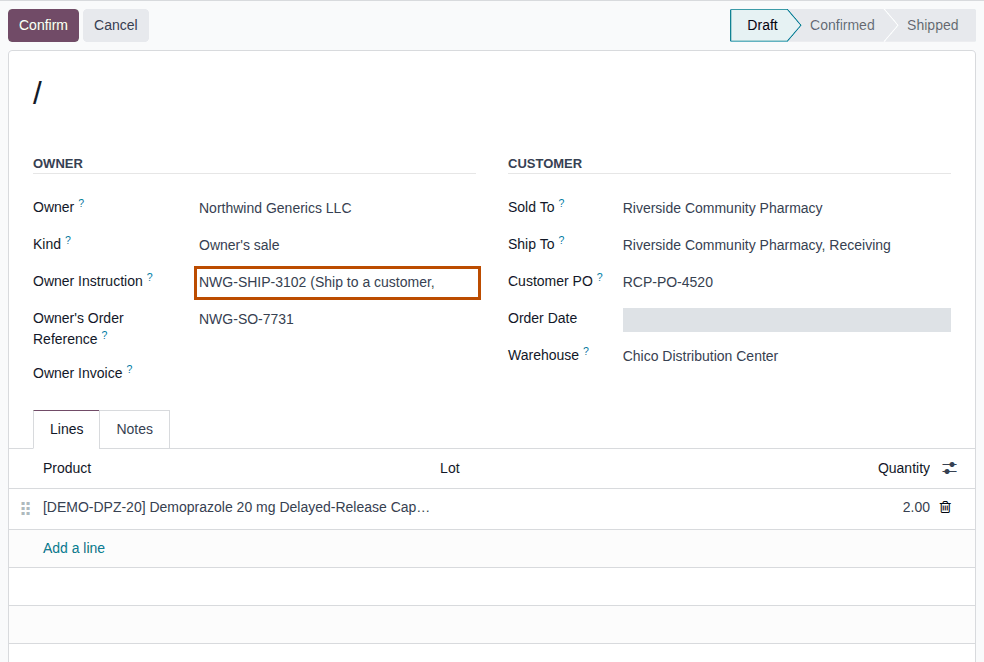
Result: the owner's order is recorded. Records: the owner order 3PL/OUT/YYYY/NNNNN in Draft. Nothing is reserved, and the
instruction is not used yet: another order can still select it.
The list's filters Draft, To Ship, Shipped and Custody returns, and Group By Owner or Status, find an order quickly. Orders can also be imported (Import records in the list's ⚙ (Actions) menu); an imported order always starts as a draft and gets the same checks when it is confirmed.
If it doesn't work
- "Northwind Generics LLC can't buy its own goods: ship them back with a custody return." (when you save): Sold To is the owner. To send the goods back to the owner, record a custody return: 3PL-OUT-05. See Error: "… can't buy its own goods …".
- "An owner order ships an owner's stock: our own stock ships on our sale orders." (when you save): Owner is your own company. Your own stock ships on a sales order. See the same entry.
- The instruction isn't in the Owner Instruction list: it is used, of another kind, or of another owner, or it isn't recorded yet. See Find an owner's instructions and see which are used.
Known issue (PF-W16-01): Owner offers every company, also one that isn't an owner, and the draft saves. The mistake shows only when you confirm: "… has no active owner profile in …". Check the owner before you save; if it is wrong, delete the draft (an Rx Tracking Manager, 3PL-OUT-04) or change Owner while the order is a draft.
Next: Confirm an owner order
Confirm an owner order
Confirming checks the order and the owner's instruction, checks the owner, its customer and your facility, and creates the delivery held for the owner. From then on the order can't change, except for its references.
Who: Rx Tracking User or Manager
Requires: Rx Tracking (DSCSA): 3PL and title model, with 3PL switched on.
Before you start:
- The order is in Draft and has its lines and, for DSCSA products, its instruction. See Record an owner order.
- The owner and its customer are authorized trading partners, and the warehouse has a verified 3PL facility license. See Get an owner transfer through the owner, counterparty and facility checks.
-
Go to Inventory ‣ Rx Tracking ‣ Owner Orders (in the 3PL ‣ Operations section) and open the order, for example
3PL/OUT/2026/00006. -
Check the Owner Instruction, the parties and the lines against the owner's order. After the next step they can't change.
-
Select Confirm.
Result: the order is Confirmed. The Transfers smart button appears, the fields are read-only except Owner's Order Reference, Owner Invoice and Customer PO, and the Lines tab gets a Delivered column (
0.00). The chatter says "Draft → Confirmed (State)". -
Select the Transfers smart button to see the delivery.
Result: the delivery opens, for example
WH/OUT/00025, Ready (or Waiting, see below). Its Source Document and Owner Order are the order's number and Held for Owner is the owner.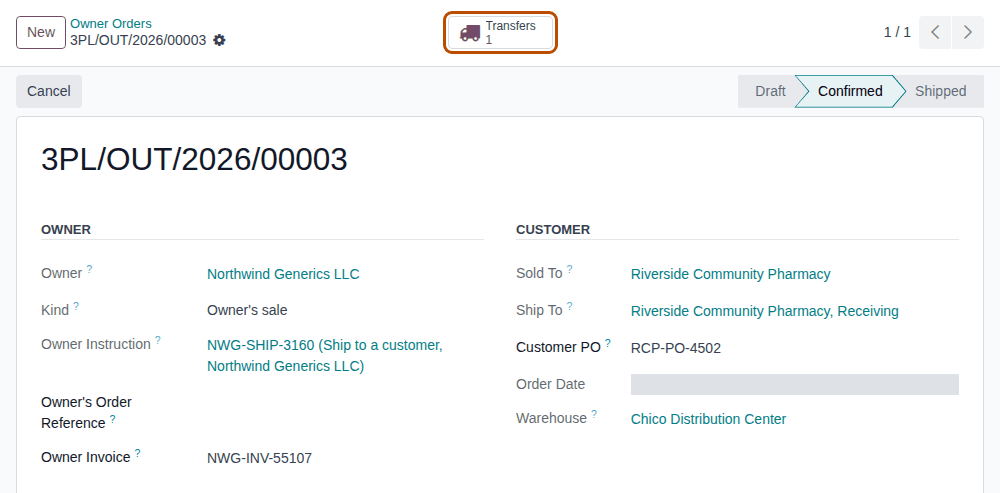
Result: the order is ready to ship. Records: the owner order, Confirmed; one delivery held for the owner, linked to the order (in a multi-step warehouse, its first step); the owner's instruction, now used by the order (its Used On date and For Record = the order); one row per check for the owner in Inventory ‣ Rx Tracking ‣ Gate Log (in the 3PL ‣ Reports section). No sales order and no invoice is created.
When the delivery is Waiting
The delivery reserves only the owner's units (and, when a line names a lot, only that lot). When the owner has no free units of the product in the warehouse, the delivery is Waiting: it never takes your units or another owner's. Receive the owner's goods first, or ask the owner to change its order. Units of a lot on hold are not reserved either; see Error: "… lot … is quarantined …".
When the owner's or the customer's GLN is missing
The order still confirms, and its chatter says, for example:
DSCSA warning: the owner's document of this shipment will have no EPCIS file, because the buyer Foothill Care Pharmacy has no GLN. Add the
GLN before the delivery is validated: the file can't be added to a posted document later.
An Rx Tracking Manager also gets a GLN missing activity on the partner, "Add the GLN of … before shipping", unless the partner already has one. Add the GLN before you validate the delivery: see Fix a missing GLN before shipping. No warning is given for a customer that is an exempt small dispenser (it gets a lot-level document without EPCIS).
Only non-DSCSA products on the order
An order that carries only products that are not DSCSA products (for example Adhesive Bandages) confirms without an instruction and
without any check, and nothing is logged.
Unless the company's Owner isolation for non-DSCSA products policy is on, the delivery of a non-DSCSA line reserves any stock of the product, your own included (PF-W16-03). See Choose the company's 3PL policies.
If it doesn't work
A refused confirmation changes nothing: the order stays in Draft and the instruction stays unused. The Invalid Operation dialog starts "3PL/OUT/YYYY/NNNNN can't be confirmed:" and lists every problem.
- "Northwind Generics LLC's instruction (Ship to a customer) is required for 3PL/OUT/2026/00005: record the owner's order or approval first.": Owner Instruction is empty. Record the owner's instruction, select it, and confirm again. See Error: "…'s instruction (…) is required for …".
- "Instruction NWG-RTN-3104 (…) is not a Ship to a customer instruction.": a custody-return instruction on an owner's sale. See Error: "Instruction … is not a … instruction".
- "Instruction NWG-SHIP-3203 (…) was already used on 2026-09-27 20:11:19.": another order used it after you selected it (the time is in UTC, PF-W13-07). Each order needs its own instruction. See Error: "Instruction … was already used on …".
- "…: it ships DSCSA products for Northwind Generics LLC." followed by "Sold-to: …", "Ship-to: …", "Owner: …" or "Facility …": the check of the owner, its customer or your facility failed. See Error: "… can't be confirmed: it ships DSCSA products for …".
- "- it has no lines.", "- …: the quantity must be positive." or "- … has no active owner profile in …": see Error: "… can't be confirmed:" (the order itself).
Next: Pick, scan and ship an owner order
Pick, scan and ship an owner order
Ship the order's delivery as you ship your own: scan each unit and validate. Only the owner's units are accepted, the order's quantities and lot are kept, and the outbound DSCSA document is issued in the owner's name.
With Odoo Enterprise's Barcode app, see Scan owner stock in the Barcode app.
Who: Rx Tracking User or Manager
Requires: Rx Tracking (DSCSA): 3PL and title model, with 3PL switched on.
Before you start:
- The order is Confirmed and its delivery is Ready. See Confirm an owner order.
- The scanner is set up for Scan Serials. See Set up a handheld scanner for Scan Serials.
-
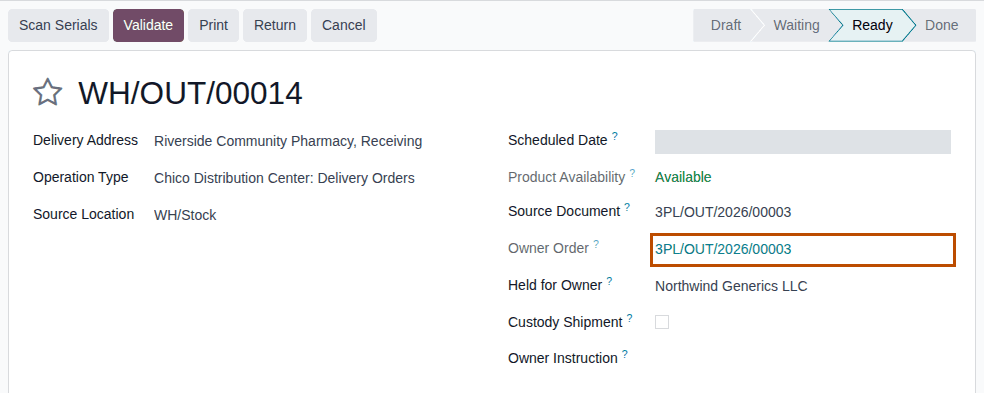
Open the confirmed order and select the Transfers smart button, or go to Inventory ‣ Operations ‣ Deliveries and open the delivery, for example
WH/OUT/00025. -
Check that Held for Owner is the order's owner and Owner Order is the order.
-
Pick the units of the owner, select Scan Serials, scan every unit, then select Register, as in Scan the serials of a delivery and validate it.
Result: the chatter says "2 DSCSA package(s) scanned.", and the DSCSA Packages tab lists each unit.
-
Select Validate.
Result: the delivery is Done, a DSCSA Documents smart button appears, and the chatter says "DSCSA document DSCSA/NWG/OUT/2026/00002 posted for this transfer.". The document is numbered with the owner's code.
-
Select the order's number in Owner Order to go back to the order.
Result: the order is Shipped, the Delivered column shows the quantity shipped, and the order has a DSCSA Documents smart button and a Send Documents to Owner button.
Result: the owner's units are shipped in the owner's name. Records: the delivery, Done; each package Shipped, with Held for
Owner and Seller of Record = the owner and Shipped To = the customer; the owner's outbound DSCSA document
(DSCSA/OWNER-CODE/OUT/YYYY/NNNNN) with the order's Customer PO (else the owner's order reference) and Owner Invoice as its
references; the order, Shipped. You book no sale, invoice, journal entry or stock valuation for it. Odoo's own delivery confirmation
email is not sent for an owner's delivery of DSCSA products, whatever the company's Email Confirmation setting.
Who receives the document depends on the owner's issuing mode: in mode A it goes to the owner only, and you send it with Send Documents to Owner; in mode B the customer sees it in its portal and, if the owner chose it, gets an email "OWNER: your order PO has shipped" with the files. See Know who receives an owner's documents and Send an owner its documents.
Ship part now, the rest later
Scan only the units you ship now and select Validate. In the Create Backorder? window, select Create Backorder. The chatter says "The backorder WH/OUT/NNNNN has been created."; the backorder keeps the order and its instruction, and the order stays Confirmed until every delivery is done or cancelled. To drop the rest, cancel the backorder: open it, select Cancel, then Ok. The order is then Shipped. (Select No Backorder to drop the rest at once.)
Ship in pick, pack and ship steps
In a warehouse with several delivery steps (for example the Albany Annex's pick, pack and ship), the order first creates the pick, for
example WH2/PICK/00002. Validate each step in turn: the next one appears when the previous one is done (the Next Transfer smart
button), and every step is held for the owner and linked to the order. Scan the serials on the last step, the one to the customer: it
alone checks the order's instruction and posts the document. See
Ship part of a delivery, or ship in pick, pack and ship steps.
If it doesn't work
- "Line 1: Serial 600000012001 is held for Summit Specialty Pharma Inc., not for Northwind Generics LLC: it can't be used on this transfer." (in Scan Serials): the unit belongs to another owner (or "… is held for … not for our own stock …"). Put it back and scan one of the order owner's units. See Error: "… is held for …, not for …".
- "WH/OUT/00033: 3PL/OUT/2026/00019 ships lot BPDPZ2507C of … only." (at Validate, under "DSCSA owner isolation (3PL):"): a scanned unit is of another lot than the order line names. Remove its scan and scan a unit of the ordered lot. See Error: "… ships lot … of … only.".
- "WH/OUT/00029: … is not on 3PL/OUT/2026/00008." (at Validate): a line added to the delivery by hand. Owner orders ship what the owner ordered. See Error: "… is not on …".
- "… 2 packages scanned but only 1.0 ordered." (in Scan Serials): more scans than the delivery's demand. See Error: "… packages scanned but only … ordered.".
- "… can't be validated: it moves DSCSA products (…) to or from a trading partner." followed by a line per problem: the owner, its customer or your facility failed the check at validation. See the facility checks troubleshooting page.
- "These owners' units are on an owner hold and can't be shipped …": the lot is on an owner hold until it is released. See Error: "These owners' units are on an owner hold …".
Known issue (PF-A06-07): the yellow GLN banner of an owner's delivery checks your company and the customer, not the owner. When the owner has no GLN, no banner appears, although the owner's document gets no EPCIS file. Watch for the order's "DSCSA warning: …" note (3PL-OUT-02) and add the owner's GLN before you validate.
Next: Send an owner its documents
Change, cancel or delete an owner order
A confirmed owner order is the record of the owner's order: its owner, parties, lines and instruction are fixed, and it is never deleted. Its references can still change until it is shipped, and it can be cancelled until part of it ships.
Who: Rx Tracking User or Manager; deleting a draft: Rx Tracking Manager
Requires: Rx Tracking (DSCSA): 3PL and title model, with 3PL switched on.
Before you start:
- The order exists. See Record an owner order.
- To cancel, none of its deliveries is Done (otherwise see "Cancel the rest of a partly shipped order" below).
Change a confirmed order's references
The owner often sends its invoice number, or the customer's PO number, after the order. They are copied onto the owner's document when you validate the delivery.
-
Go to Inventory ‣ Rx Tracking ‣ Owner Orders (in the 3PL ‣ Operations section) and open the Confirmed order.
-
Change Customer PO, Owner Invoice or Owner's Order Reference, for example Owner Invoice
NWG-INV-55130. -
Select the ☁ (Save manually) icon.
Result: the chatter records the change, for example "NWG-INV-55121 → NWG-INV-55130 (Owner Invoice)".
The other fields are read-only once the order is confirmed. After the order is Shipped or Cancelled, the references are read-only too.
Cancel an order
-
Open the order, in Draft or Confirmed.
-
Select Cancel.
Result: a Confirmation window asks "Cancel this owner order and its open transfers?".
-
Select Ok.
Result: the order is Cancelled, and its open deliveries are cancelled. The chatter says "Confirmed → Cancelled (State)".
The owner's instruction stays used by the cancelled order. A new order for the same goods needs a new instruction from the owner.
Cancel the rest of a partly shipped order
When one of the order's deliveries is done, Cancel on the order is refused. Cancel the open delivery instead:
-
Select the order's Transfers smart button and open the delivery that isn't Done (usually the backorder).
-
Select Cancel, then Ok in the window "Are you sure you want to cancel this transfer?".
Result: the delivery is Cancelled, and the order is Shipped (it shipped part of the goods).
Correct a confirmed order
-
Cancel the order, as above.
-
In the ⚙ (Actions) menu, select Duplicate.
Result: a new draft opens at once, with the same owner, parties, references and lines, and an empty Owner Instruction.
-
Correct the draft, select the owner's new instruction, and confirm it (3PL-OUT-02).
Delete a draft
-
Open the order in Draft.
-
In the ⚙ (Actions) menu, select Delete. (An Rx Tracking User sees only Duplicate there.)
-
In the Bye-bye, record! window, select Delete.
Result: the draft is gone. Odoo shows the form of the next order in the list (a copy keeps its original's Order Date, so it sorts next to it), not the list.
Result: the order says what happened to the owner's order. Records: a changed reference in the order's chatter; or the order and its open deliveries Cancelled, the instruction still used; or a new draft copy; or a draft deleted. Confirmed, shipped and cancelled orders are kept.
If it doesn't work
- "3PL/OUT/2026/00008 has shipped transfers: cancel its remaining transfers in Inventory instead.": part of the order shipped. Cancel the open delivery ("Cancel the rest of a partly shipped order" above). See Error: "… has shipped transfers …".
- "3PL/OUT/2026/00009 was confirmed: it is kept as a record of the owner's order (cancel it instead).": only drafts are deleted. Cancel the order. See the same entry.
- Delete isn't in the ⚙ (Actions) menu: you are an Rx Tracking User; ask an Rx Tracking Manager.