After a title transfer: documents, resale and accounting
3PL add-on For: Administrator, Compliance manager, Warehouse staff, Sales and purchasing Checked on 18.0.0.2.0, 18.0.1.0.0
Once a title transfer is Done, whether you made it by hand, from a title purchase order or just in time, three things follow: its in-place documents are on record, the units you bought are your own stock to sell, and the purchase (or the sale back to an owner) shows in your accounting. This page shows where to find each of them.
Find and read the in-place documents of a title transfer
A title transfer posts two documents at the moment ownership changes: the seller's side and the buyer's side. Neither has a ship date, because nothing is shipped.
Background: the modules treat a title transfer to you as a transaction with an inbound document that has the transfer moment as its transaction date, no shipment date, and the mark "in place, no shipment" (FD&C Act § 581(6), (22), (24), (26), (27); § 582(a)(1), (a)(7); § 584(d); see Compliance background). This is how the modules read the law; it has not been reviewed by counsel. See the disclaimer.
Who: Rx Tracking User or Manager
Requires: Rx Tracking (DSCSA): 3PL and title model, with 3PL switched on.
Before you start:
- The title transfer is Done. See Check and validate a title transfer.
-
Go to Inventory ‣ Rx Tracking ‣ Title Transfers (in the 3PL ‣ Operations section) and open the transfer, for example
TT/2026/00001(Summit Specialty Pharma to you, title orderP10025).Result: the chatter says "In-place documents posted: SELLER-SIDE-DOCUMENT, BUYER-SIDE-DOCUMENT."
-
Select the Documents tab.
Result: under In-place documents, Buyer-Side Document always names a document: yours (
DSCSA/IN/YYYY/NNNNN) for a sale to you, the owner's (DSCSA/CODE/IN/YYYY/NNNNN) for a sale back to an owner or between owners. Seller-Side Document names the seller's document only when you issued it: yours for a sale back to an owner (DSCSA/OUT/YYYY/NNNNN), or the owner's in mode B (DSCSA/CODE/OUT/YYYY/NNNNN, with Seller's Documents Generated by Us selected). With the owner's own transfer file (mode A), Owner's Transfer File names it instead. -
Select the Buyer-Side Document, for example
DSCSA/IN/2026/00001.Result: the document opens Posted, with Transfer of Ownership in Place selected, Transaction Date = the transfer's day, Ship Date empty, Order Reference = the buyer's order (for example
P10025) and Transfer = the title-in transfer (WH/TT/NNNNN).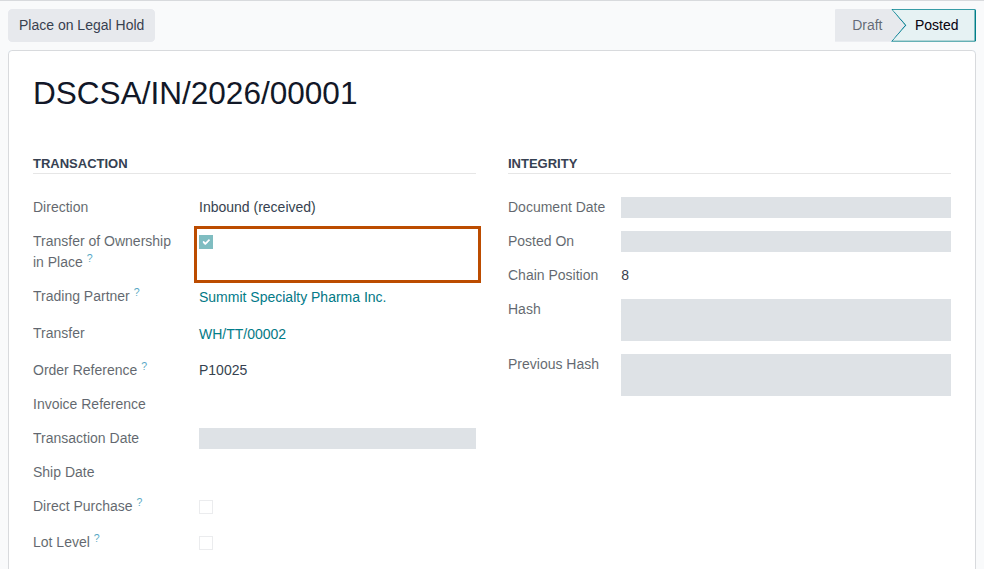
-
Select the Transaction History tab.
Result: "This Document's Transaction" (seller → buyer, no ship date) and, when the seller's own purchase is on record, the hop "Received from Trading Partner" before it (for example Bluepeak Pharmaceuticals Inc. → Summit Specialty Pharma Inc.).
-
Select the Files tab.
Result: the EPCIS file of the transfer: the owner's transfer file, or a copy of the seller-side document's file with the same name (for example
EPCIS-DSCSA-SSP-OUT-2026-00002.xml). An inbound document has no T3 report. -
Go back to the transfer and open the Seller-Side Document. In its chatter, select the 📎 (Attach files) button, then the
T3-….pdfcard.Result: Odoo's file viewer shows the T3 report. Where a shipped document prints "Ship Date", this one prints "Transfer of ownership in place, no shipment". SHIPMENT # is "-", and the ship-from and ship-to are your own warehouse.
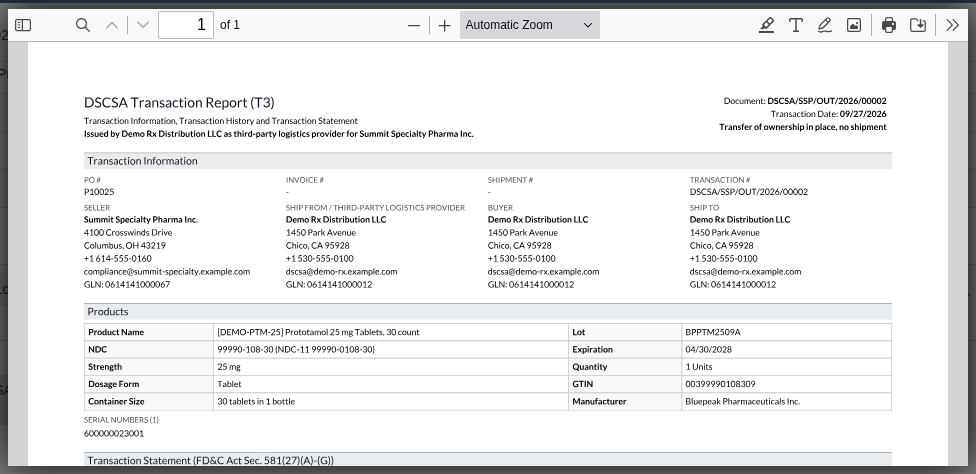
Result: you have read both sides of the transfer; nothing changed. Records read: the title transfer, the in-place documents, their
EPCIS file and the seller side's T3. The title transfers' own stock transfers (WH/TT/NNNNN) each say "DSCSA document NAME posted for
this transfer."
Find in-place documents without the transfer
- Go to Inventory ‣ Rx Tracking ‣ Documents, open the search options and, under Group By, select Add Custom Group ‣ Transfer of Ownership in Place (or Title Transfer).
- From a document, the Transfer field opens the title-in or title-out stock transfer, whose Title Transfer field opens the title transfer.
- The owner sees its side in the owner portal, marked as in place. Documents in place are not emailed automatically; to send the owner its side, see Send an owner's documents to it.
If it doesn't work
- A posted in-place document says "No EPCIS file was generated: the shipment has no business reference", and the EPCIS Missing filter lists it: a sale back to an owner or between owners was validated without Buyer's Order Reference or Invoice Reference. The file can't be added afterwards. See The in-place documents have no EPCIS file.
- The Documents tab is empty: the transfer is not Done yet.
Known issue (PF-A08-03, PF-A08-01): an in-place document and an owner's transfer file don't show which title transfer they belong to; go through the document's Transfer field or group the documents by Title Transfer as above. A reversion or a sale between owners validated without a business reference posts both documents without EPCIS and Check doesn't warn: always fill in Buyer's Order Reference or Invoice Reference first.
Sell units bought in place as our own stock
After a title transfer to you, the units are your own stock: sell and ship them like any other units. Your outbound document names your company as the seller, and its history includes the transfer.
Background: the history of a title-model sale is your sale, then the transfer hop (owner → you, no ship date), then the owner's own purchase when you hold its inbound document (FD&C Act § 581(6), (22), (24), (26), (27); § 582(a)(1), (a)(7); § 584(d); see Compliance background).
Who: Sales User (any level) for the order; Rx Tracking User or Manager to scan and ship.
Requires: Rx Tracking (DSCSA): 3PL and title model, with 3PL switched on.
Before you start:
- A title transfer to you is Done. See Check and validate a title transfer.
- You know which serials you bought: the transfer's Serials tab lists them (for example
600000023001).
-
Create and confirm a sales order for the product, for example Prototamol for Riverside Community Pharmacy. See Confirm a sales order for DSCSA products.
-
On its delivery, select Scan Serials, scan the units you bought, then select Register.
-
Select Validate.
Result: the delivery is Done, and the chatter says "DSCSA document DSCSA/OUT/YYYY/NNNNN posted for this transfer."
-
Select the DSCSA Documents smart button and open the document.
Result: your company is the seller; Direct Purchase follows the selling owner's Direct-Purchase Basis: selected when it is Manufacturer or repackager or Manufacturer's exclusive distributor, cleared for Wholesaler (transaction history) (Summit's basis, so cleared here).
-
Select the Transaction History tab, or open the T3 report from the chatter's 📎 (Attach files) button.
Result: for each lot, the history lists your sale ("This Document's Transaction"), then the transfer hop from the owner to you (its PO number is your title order, for example
P10025, and its transaction number the owner's seller-side document), then the owner's own purchase. A delivery that also took a just-in-time owner's units shows one history per origin ("History 1", "History 2").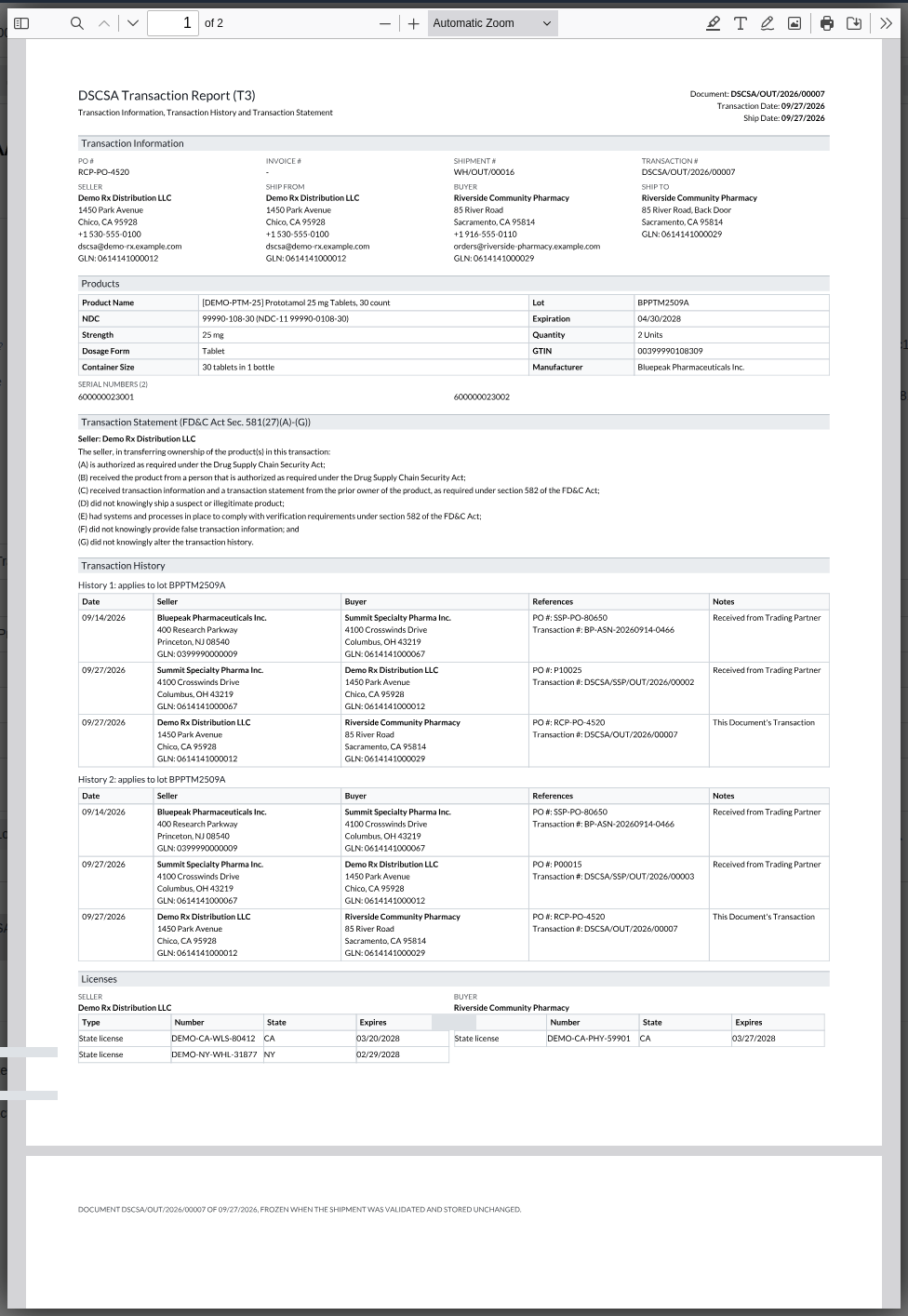
Result: the units are sold and shipped as yours. Records: the sales order, the delivery WH/OUT/NNNNN (Done), your outbound
document DSCSA/OUT/YYYY/NNNNN with its T3 and EPCIS file, and the units Shipped to the customer.
If it doesn't work
- "Line N: Serial SERIAL is held for OWNER, not for our own stock: it can't be used on this transfer.": that unit was not part of the transfer (when you bought part of a lot, the rest stays the owner's). Scan a unit you bought. If the owner is a just-in-time owner, its unit is accepted and bought at validation instead (3PL-JIT-02). See Error: "… is held for …, not for …".
- Any other refusal is the same as for any delivery: see Scan the serials of a delivery and validate it.
Account for a title transfer: valuation, vendor bill and reversion invoice
A title transfer changes ownership in the DSCSA records; your accounting follows it. A purchase in place enters your stock valuation and is billed like any purchase; a sale back to an owner leaves your valuation and is invoiced by hand.
Your procedure decides who bills and invoices title transfers and when. DSCSA ownership comes only from the recorded transfer, never from the accounting entries (FD&C Act § 581(6), (22), (24), (26), (27); § 582(a)(1), (a)(7); § 584(d); see Compliance background).
Who: Purchase User (any level) to create the draft bill, and Invoicing Invoicing or Administrator to confirm it; an accountant with Inventory Administrator for the valuation report; an Invoicing user for the customer invoice. Linking the invoice to the reversion needs Rx Tracking Manager and an Invoicing right in the same user (Known issue below).
Requires: Rx Tracking (DSCSA): 3PL and title model, with 3PL switched on, and the Purchase and Invoicing apps.
Before you start:
- A title transfer to you, or a reversion (a sale back to an owner), is Done. See Check and validate a title transfer and Sell units back to an owner in place (reversion).
- For entries in the general ledger: the product's category uses automated valuation (for example Rx Drugs (FIFO, automated), the category of Prototamol). With manual valuation, the valuation report still shows the value, without journal entries.
-
Go to Purchase ‣ Orders ‣ Purchase Orders and open the title purchase order, for example
P10025. -
Read the product line.
Result: Received equals the units the transfer bought (for example
1.00) and Billed is0.00. The order has no receipt: the transfer counts as received.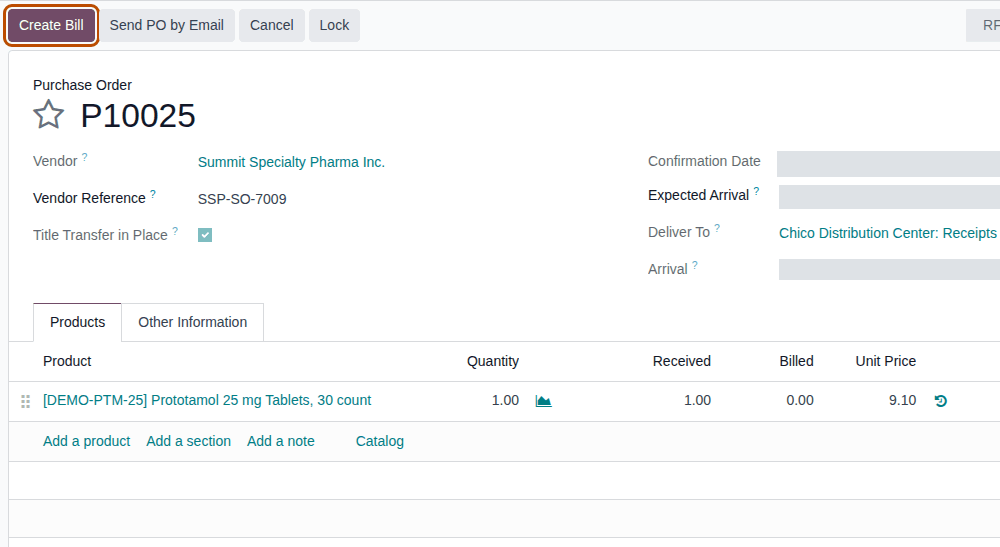
-
Select Create Bill.
Result: a draft vendor bill opens with the received quantity at the order price (for example 1 ×
9.10). A user with Invoicing Invoicing or Administrator (an accountant) selects Confirm; a Purchase user without an Invoicing right has no Confirm button. -
As an accountant, go to Inventory ‣ Reporting ‣ Valuation.
Result: the purchase in place is a positive line whose Reference is the title-in transfer
WH/TT/NNNNN, at the order price (for example 1 ×9.10). The owner's side (the title-out transfer) has no line: units held for an owner are never valued. A reversion is a negative line on its title-out transfer, at your FIFO or average cost (for example −2 Demoprazole at22.40). -
For a sale back to an owner, go to Invoicing ‣ Customers ‣ Invoices and select New. Enter the owner as Customer and one line per product with the quantity and price of the reversion, then select Confirm.
Result: the customer invoice is posted, for example
INV/2026/00005. -
Open the reversion in Inventory ‣ Rx Tracking ‣ Title Transfers (in the 3PL ‣ Operations section), choose the invoice in Customer Invoice, and select the save icon.
Result: the reversion shows the invoice in Customer Invoice.
Result: the transfer is billed or invoiced. Records: the vendor bill (a purchase in place); the valuation lines of the title-in or title-out transfer, and their journal entries under automated valuation; the customer invoice and its link on the reversion. A sale between two owners has no valuation line and nothing to bill. Units bought in place get the transfer's date as their date in stock, so FIFO uses them after units you received earlier.
If it doesn't work
- Typing in Customer Invoice opens "Oops!" ("Something went wrong…"): you have no Invoicing right. See Customer Invoice shows an Access Error.
- The reversion's Invoice Reference (typed before validation) is what the documents print; Customer Invoice doesn't change the posted documents.
Known issue (PF-W20-04): Customer Invoice is shown to every Rx Tracking user, but only a user with Rx Tracking Manager and an Invoicing right can choose an invoice; for others, typing in it opens "Oops!". It also offers every customer invoice of the company: choose the owner's. In the example database, the administrator links the invoice.