Buy an owner's units in place
3PL add-on For: Administrator, Compliance manager, Warehouse staff, Sales and purchasing Checked on 18.0.0.2.0, 18.0.1.0.0
When an owner (one of your 3PL clients) sells you units that you already hold for it, nothing leaves the shelf: a title transfer changes the units' owner in place. You confirm a title purchase order to the owner, select the serials that change owner, check the transfer, and an Rx Tracking Manager validates it. The units then become your own stock, with in-place documents instead of a receipt.
Background: the modules follow the reading that buying units you hold for an owner is a transaction, that the owner's transaction information and statement are due before or at the transfer, and that a 3PL that takes title acts as a wholesaler and needs its wholesale license for the facility (FD&C Act § 581(6), (22), (24), (26), (27); § 582(a)(1), (a)(7); § 584(d); FD&C Act § 582(c)(3), § 581(2); § 584(a)–(b); see Compliance background). This is how the modules read the law; it has not been reviewed by counsel. See the disclaimer. The idea behind it: The title model.
The usual order is: get ready once (3PL-TTL-01), confirm the title purchase order (3PL-TTL-02), select the serials (3PL-TTL-03), then check and validate (3PL-TTL-04). When the owner is in issuing mode A, import its transfer file before you check: Import the owner's transfer file on a title transfer.
Get ready for title transfers in place
Run this checklist once before the first title transfer, and again for each new owner you buy from. It checks the company, the warehouse, your facility licenses and the owner's profile; each item links to the procedure that fixes it. Your procedure decides which owners you buy from, at what price and with whose approval; the software requires the setup below.
With Odoo Enterprise's Quality app, a quality point on the Title Transfer operation type stops every title transfer. See Use Quality Control checks alongside DSCSA operations.
Who: Rx Tracking Manager. Step 1 needs an Administrator (Administration: Settings), step 2 Inventory Administrator.
Requires: Rx Tracking (DSCSA): 3PL and title model, with 3PL switched on.
Before you start:
- 3PL is on for the company. See Turn on third-party logistics for a company.
- The owner has an active owner profile. See Create an owner profile.
- You hold serialized units for the owner in the warehouse, received on owner receipts. See Receive stock for an owner.
-
As an administrator, go to Inventory ‣ Configuration ‣ Settings and scroll to the block DSCSA: third-party logistics (3PL).
Result: Third-party logistics (3PL) is selected, and Title location shows
Virtual Locations/DSCSA Title Transfer. Turning 3PL on creates that location; nothing else uses it. -
Go to Inventory ‣ Configuration ‣ Operations Types.
Result: each warehouse has an operation type Title Transfer (for example Title Transfer, Chico Distribution Center). The title transfer uses it for its two stock moves; don't start transfers from it yourself (Known issue below).
-
Go to Inventory ‣ Rx Tracking ‣ Facility Licences (in the 3PL ‣ Configuration section), open the warehouse's group, for example Chico Distribution Center, and open its licenses.
Result: one license of the warehouse has Activity Wholesale distribution on its form (for example
DEMO-CA-WLS-80412), and Status Valid in the list. The list's Activities column stays empty for facility licenses (PF-V02j-03); to list only the wholesale licenses, open the search options and select the filter Wholesale activity. Buying in place and selling back to an owner need it; a sale between two owners needs a valid license with Third-party logistics instead. To record one, see Record and verify our facility licenses. -
Go to Inventory ‣ Rx Tracking ‣ Owners (in the 3PL ‣ Configuration section) and open the owner, for example
Summit Specialty Pharma Inc.Result: under Owner as trading partner, Authorized Trading Partner is selected. If it isn't, see Check whether an owner is an authorized trading partner, and fix it.
-
On the Documents tab, read Issuing Mode:
If the profile says Then, for a sale by this owner Mode B: we send the owner's documents to its customer you may issue the owner's side of the sale as its agent; no file is needed from the owner Mode A: documents go to the owner only the owner must send its own EPCIS transfer file, which you import on the transfer (3PL-TTL-05) To change it, see Set how the owner's documents are issued.
-
Select the Title Transfer tab.
Result: Title Transfers Allowed is selected. It is needed only when the owner sells to you; a sale back to the owner or between two owners doesn't need it. To select it, see Allow title transfers or just-in-time transfers, or make the owner a consignor.
-
Select the Policies tab and read Owner Instructions.
Result: with Required (the default), each title transfer records the selling owner's instruction: for a sale to you, the owner's reference in the purchase order's Vendor Reference is enough; between two owners, both owners' Title transfer instructions are needed. See Record an owner's instruction.
Result: the company, the warehouse and the owner are ready; nothing is created. The first transfer (3PL-TTL-02 to 3PL-TTL-04) is the proof: it validates and posts its in-place documents.
If it doesn't work
- There is no Title location in the settings, or no Title Transfer operation type: 3PL is off. See Turn on third-party logistics for a company and Error: "WAREHOUSE has no Title Transfer operation type …".
- A later check says "Facility Chico Distribution Center has no valid wholesale distributor licence: …": step 3 found no verified wholesale license. See Error: "Facility … has no valid … licence".
Known issue (PF-A08-07): the Title Transfer operation type also has a card on Inventory ‣ Overview, and a new transfer can
be started from it (numbered WH/TT/NNNNN, from WH/Stock to WH/Stock, like the real title moves). Such a transfer is not a title
transfer: it never changes an owner, and it can't move DSCSA units into the title location. Start title transfers only from Title
Transfers or a title purchase order.
Next: Create and approve a title purchase order
Create and approve a title purchase order
A title purchase order buys units that you hold for the owner: the owner is the vendor, and Title Transfer in Place makes the order create a title transfer instead of a receipt. Confirm it when the owner has agreed to sell.
Who: Purchase User (any level); no Rx Tracking right is needed. The order's Title Transfers smart button also needs Rx Tracking User or Manager.
Requires: Rx Tracking (DSCSA): 3PL and title model, with 3PL switched on, and the Purchase app.
Before you start:
- The owner and your warehouse are ready. See Get ready for title transfers in place.
- You have the owner's order or approval reference for the sale, for example
SSP-SO-7014.
-
Go to Purchase ‣ Orders ‣ Requests for Quotation and select New.
-
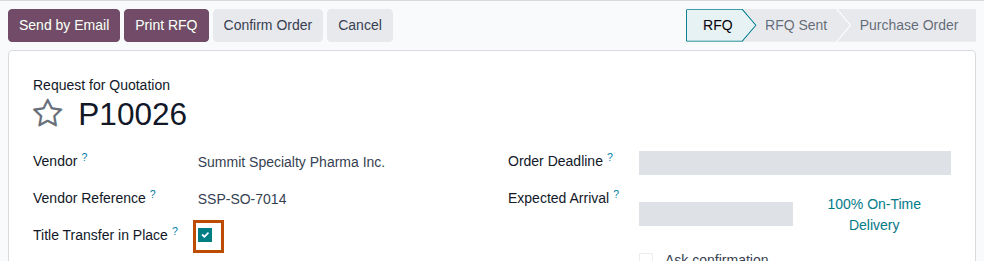
Fill in:
- Vendor: the owner, for example
Summit Specialty Pharma Inc.Choose the company, not one of its contacts. - Vendor Reference: the owner's reference, for example
SSP-SO-7014. It counts as the owner's instruction for this sale. - Title Transfer in Place: selected.
- Vendor: the owner, for example
-
On the Products tab, select Add a product, choose the DSCSA product and enter the Quantity and Unit Price, for example
Demoprazole,2and10.40. Use one line per DSCSA product. Deliver To stays one of your warehouses' receipts, for example Chico Distribution Center: Receipts: the units are bought where they are. -
Select Confirm Order.
Result: the order is a Purchase Order. It has no Receipt smart button for its DSCSA lines. A draft title transfer
TT/YYYY/NNNNNis created, with Kind Owner to us, Trigger Block, the owner as From, the order as Title Purchase Order and its number as Buyer's Order Reference, and one line per DSCSA product. Title Transfer in Place can't be changed any more. -
With Rx Tracking User or Manager, select the Title Transfers smart button.
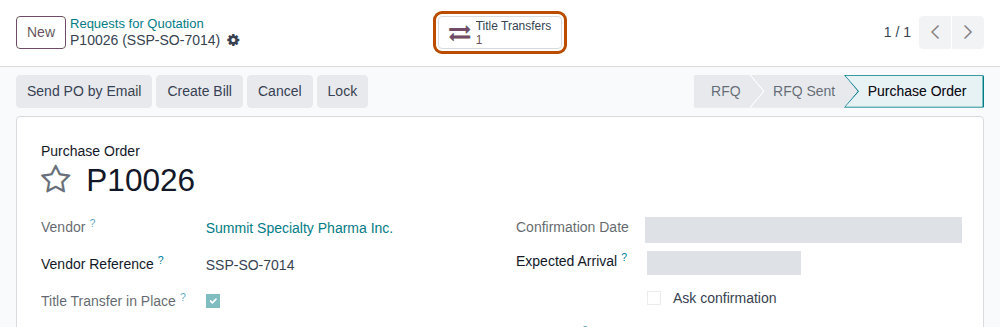
Result: the draft transfer opens. Without an Rx Tracking right, find it later in Inventory ‣ Rx Tracking ‣ Title Transfers (in the 3PL ‣ Operations section).
Result: the order is confirmed and waits for its title transfer. Records: the purchase order PNNNNN (received quantity 0), and the
draft title transfer TT/YYYY/NNNNN. Nothing moves in stock and no document is posted until a manager validates the transfer.
With two-step order approval
When Purchase's Purchase Order Approval is on and the order is above its minimum amount, Confirm Order by a Purchase User leaves the order To Approve and creates no title transfer yet. A purchase manager selects Approve Order: the order is a Purchase Order, and the draft title transfer is created then.
With non-DSCSA products on the same order
A line of a product that is not a DSCSA product (for example Adhesive Bandages) is received on an ordinary receipt WH/IN/NNNNN: for
users with Inventory rights, the confirmed order shows the Receipt smart button for it next to Title Transfers, and the title
transfer has lines for the DSCSA products only. An order with only products that are not DSCSA products can't be a title order (see
below).
When the quantity changes after confirmation
Raising the quantity of a DSCSA line after its transfer is Done creates a new draft title transfer for what is left to receive. A quantity can't go below what was already received (see 3PL-TTL-10).
If it doesn't work (each message starts with "PNNNNN (title transfer in place):")
- "Title transfers are not allowed for OWNER: turn "Title Transfers Allowed" on in its owner profile first (R-97).": ask an Rx Tracking Manager to select it (3PL-OWN-04). See Error: "Title transfers are not allowed for …".
- "VENDOR has no active owner profile: we only buy in place from our owners.": the vendor is not one of your owners. Clear Title Transfer in Place to buy from it the usual way. See Error: "… has no active owner profile …".
- "it has no DSCSA product: a title order buys DSCSA units we hold." or "one line per DSCSA product.": fix the lines. See Error: "… it has no DSCSA product …" or "… one line per DSCSA product.".
- "third-party logistics (3PL) is off for the company.": clear Title Transfer in Place, or have 3PL turned on. See Error: "Third-party logistics (3PL) is off …".
Known issue (PF-D01R-01): the code in brackets at the end of some of these messages is the developer's internal reference; it needs no action.
Known issue (PF-A08-04, PF-W20-01, PF-A08-05): Title Transfer in Place shows on every draft request for quotation, even when 3PL is off or the vendor is not an owner; select it only for an owner. A buyer without an Rx Tracking right sees no Title Transfers smart button after confirming, and nothing else on the order says that a title transfer is waiting: tell the warehouse. The transfer's line Quantity doesn't follow later changes of the order line; the checks use the order, so select the units the order now asks for.
Next: Select the serials that change owner
Select the serials that change owner
Name the units that change owner, by scanning them or by taking a number of units of a lot. Only units held for the seller, in stock and sellable, in the transfer's warehouse and on no open operation can be selected.
A sale back to an owner selects your own units, and a sale between two owners the selling owner's units: see Sell units back to an owner, or between two owners.
Who: Rx Tracking User or Manager
Requires: Rx Tracking (DSCSA): 3PL and title model, with 3PL switched on.
Before you start:
- A draft title transfer exists. See Create and approve a title purchase order.
- To scan: the units' DataMatrix labels, or the scans as text.
-
Go to Inventory ‣ Rx Tracking ‣ Title Transfers (in the 3PL ‣ Operations section) and open the draft transfer, for example the one of
P10026.Result: the list shows Reference, Kind, From, To, Warehouse, Title Purchase Order, Units, Transferred On and Status. The transfer opens in Draft.
-
Select Select Serials.
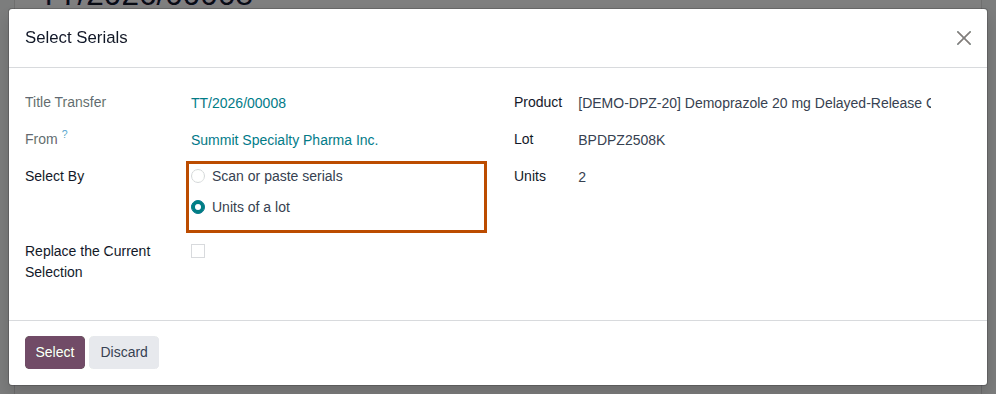
Result: the Select Serials window opens with the Title Transfer, the seller (From) and Select By.
-
Choose one:
- Scan or paste serials: scan each unit's DataMatrix into the box, one per line. A raw scan, a scan with
<GS>for the group separator and the(01)…(21)…form are all read. - Units of a lot: select Units of a lot, choose Product, then Lot, and enter Units, for example
Demoprazole,BPDPZ2508Kand2. The oldest free units of that lot held for the seller are taken.
- Scan or paste serials: scan each unit's DataMatrix into the box, one per line. A raw scan, a scan with
-
To start again instead of adding to the units already selected, select Replace the Current Selection.
-
Select Select.
Result: the Serials tab lists each unit with Serial Number, Product, Lot, Expiration Date, SSCC, Held for Owner and State In Stock, for example
600000012001and600000012002. The Lines tab shows Selected2and LotsBPDPZ2508K × 2next to the ordered Quantity. A Checked transfer goes back to Draft.
Result: the units are selected; their owner hasn't changed yet. Records: the transfer's Serials and Lines. The selection is all or nothing: if one unit is refused, none is added.
Add units on the Serials tab
On the Serials tab, Add a line opens Add: Serials, a list of the seller's units with their Pending Transfer and Shipped To; select the units, then Select. Units added this way are checked only at Check or Validate, not when you add them, and the list can offer units of other warehouses (Known issue PF-W20-11). Prefer Select Serials.
If it doesn't work
- "These serials can't be selected for TT/YYYY/NNNNN:" followed by one line per refused unit, for example "Serial 600000011003 is held for Northwind Generics LLC, not for Summit Specialty Pharma Inc.." or "Serial 600000024001 is not in Chico Distribution Center.": the unit belongs to someone else or is elsewhere. Remove that scan. See Error: "These serials can't be selected …".
- "… is quarantined: only units in stock and sellable change owner." or "…: lot LOT is quarantined.": held, quarantined or expired units never change owner. See Error: "… only units in stock and sellable change owner.".
- "Serial SERIAL is scanned on WH/OUT/NNNNN: take it off that transfer first.": the unit is on an open delivery. See Error: "… is scanned on …: take it off that transfer first.".
- "Nothing was selected. Fix these scans and try again:" with "Line N: serial SERIAL is not in the package ledger." or "Line N: a case (SSCC) label can't be used here; scan each unit's DataMatrix.": see Error: "Nothing was selected …".
- "Lot LOT: only N unit(s) held for OWNER are in stock in WAREHOUSE and free.": ask for fewer units, or choose another lot. See Error: "Lot …: only N unit(s) held for …".
Next: Check and validate a title transfer
Check and validate a title transfer
Check runs every rule of the transfer without changing anything, so an Rx Tracking User can prepare the transfer for a manager. Validate runs them again and changes the owner of the selected units, in place, in one step.
Your procedure decides who approves the purchase before a manager validates it; the software requires the Rx Tracking Manager right to validate.
Who: Rx Tracking User or Manager for Check; Rx Tracking Manager for Validate.
Requires: Rx Tracking (DSCSA): 3PL and title model, with 3PL switched on.
Before you start:
- The serials are selected. See Select the serials that change owner.
- If the seller is in issuing mode A, its transfer file is imported. See Import the owner's transfer file on a title transfer.
-
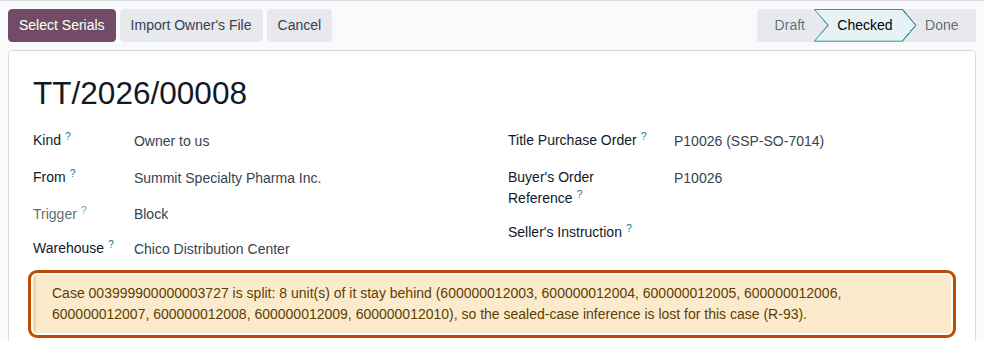
On the draft transfer, select Check.
Result: the status is Checked. If the units come from a sealed case and part of the case stays behind, a yellow banner warns: "Case SSCC is split: N unit(s) of it stay behind (SERIALS), so the sealed-case inference is lost for this case (R-93)." The warning doesn't stop the transfer: the case label no longer stands for its contents. Check writes nothing in the Gate Log.
-
As an Rx Tracking Manager, open the transfer and select Validate. (Validate is also shown on a Draft transfer; it runs every check itself.)
Result: a Confirmation window asks "Ownership of the selected units changes now, in place. Continue?"
-
Select Ok.
Result: the transfer is Done, with Transferred On. The units are still in their bin, now held for the buyer: for a transfer to you, Held for Owner is empty. The Transfers smart button and the Operations tab show the two done transfers of the Title Transfer type (Title-Out Transfer and Title-In Transfer, numbered
WH/TT/NNNNN). The chatter says "In-place documents posted: DOCUMENTS." -
Select the Documents tab.
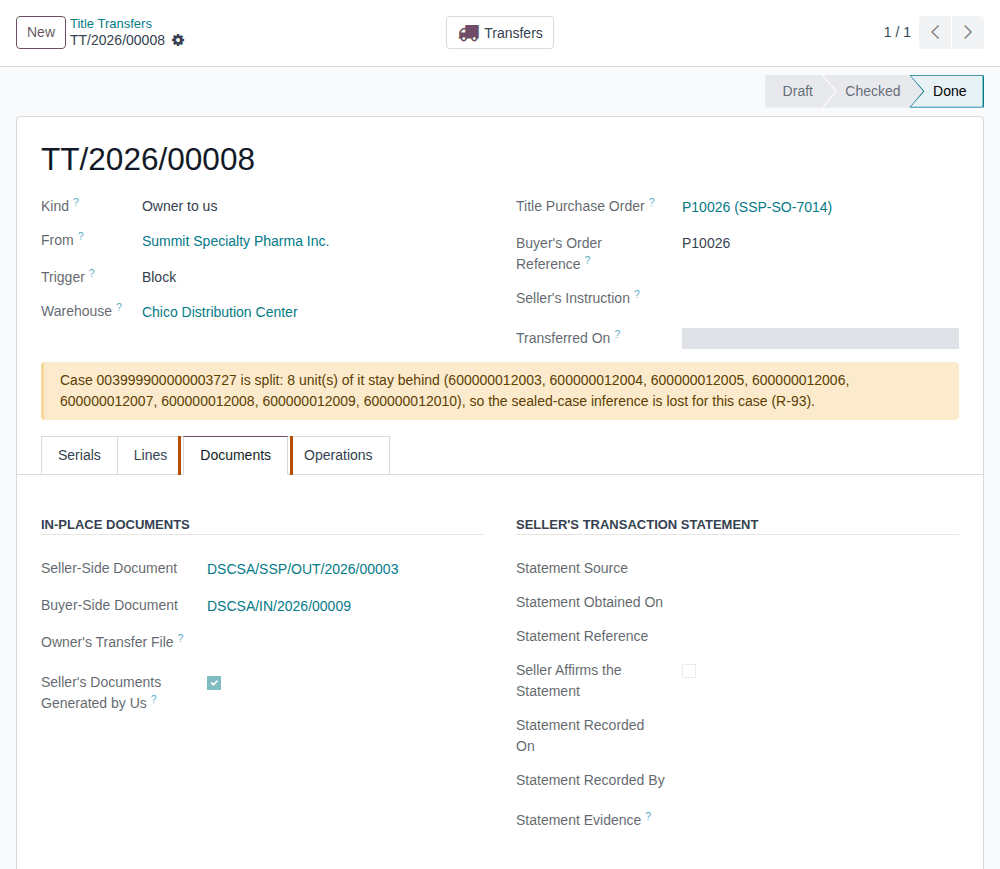
Result: In-place documents lists the Buyer-Side Document (your inbound document,
DSCSA/IN/YYYY/NNNNN) and, when you issued the owner's side as its agent (mode B), the Seller-Side Document (DSCSA/CODE/OUT/YYYY/NNNNN, for exampleDSCSA/SSP/OUT/2026/00003) with Seller's Documents Generated by Us selected. With the owner's file (mode A), Owner's Transfer File names it and there is no seller-side document.
Result: you own the units. Records: the transfer TT/YYYY/NNNNN (Done, frozen); two done transfers WH/TT/NNNNN; the in-place
documents (with no ship date); two Gate Log rows (the seller and your facility); the title order's Received quantity (its bill can
be created as for any purchase), and on the order a Receipt smart button that opens the Title-In Transfer; the owner's instruction
marked used, when one was chosen. To read the documents, see Find and read the in-place documents of a title transfer; for
the bill, see Account for a title transfer.
If it doesn't work
- Check or Validate lists refusals under "The title transfer can't be validated:" (at Check) or "TT/YYYY/NNNNN can't be validated:" (at Validate): nothing changed. Each line has its own entry; start from Error: "The title transfer can't be validated: …".
- "PRODUCT: N unit(s) selected but only M left to receive on PNNNNN.": select fewer units, or raise the order line first. See Error: "… selected but only … left to receive …".
- "Select the serials that change owner first.": see Select the serials that change owner.
- There is no Validate button: you have Rx Tracking User only. Ask a manager. See No Validate button, or "Only a DSCSA manager can validate a title transfer.".
Known issue (PF-W20-02, PF-W20-03, PF-W20-08): the split-case warning names at most 10 of the units that stay behind, without saying the list is cut short; the count is right. When you change the selection after Check, the old warning stays until you select Check again. After the transfer, the title purchase order shows the Import EPCIS button of an ordinary receipt: don't use it; the title order needs no supplier file.