Buy an owner's units just in time
3PL add-on For: Administrator, Compliance manager, Warehouse staff, Sales and purchasing Checked on 18.0.0.2.0, 18.0.1.0.0
With just-in-time buying, your own sales may take units that you hold for an owner, and your company buys those units from the owner at the moment the delivery (or the pick) is validated. The software then creates a title transfer and a purchase order to the owner by itself, issues the owner's side of the sale as its agent, and ships the units as your own stock.
Background: just-in-time buying is a per-owner option, off by default, in which the delivery of your own sale converts the owner's units it picks, in the same step as the delivery (FD&C Act § 581(6), (22), (24), (26), (27); § 582(a)(1), (a)(7); § 584(d); see Compliance background). The idea behind title transfers: The title model.
The usual order is: set up the owner once (3PL-JIT-01), then ship your sales as usual on one-step routes (3PL-JIT-02) or pick, pack and ship routes (3PL-JIT-03), and review and bill the purchase orders the software created (3PL-JIT-04). A consignor is bought the same way: see Take in and sell consignment stock.
Set up an owner for just-in-time buying
Let your own sales take an owner's units and buy them when your delivery is validated. Do this only when you have agreed with the owner that you may buy its stock this way: the owner's profile setting is the owner's standing approval of every such purchase. Your procedure decides which owners you buy from just in time, at what price and with whose approval; the software requires the settings below.
This changes how your own warehouse works: "Once an owner we buy from just in time holds units of a product in our warehouse, our own sales of that product may take its units after ours. The step that takes any of them (the pick on pick/pack/ship routes) needs their serials scanned, and then every unit it moves; steps that take only our own units work as before." Products that no just-in-time owner holds in the warehouse, and companies without just-in-time owners, work exactly as before.
Who: Rx Tracking Manager
Requires: Rx Tracking (DSCSA): 3PL and title model, with 3PL switched on.
Before you start:
- The owner is ready for title transfers in place: your wholesale facility license for the warehouse, the owner's active profile, and Authorized Trading Partner. See Get ready for title transfers in place.
- The owner is in issuing mode B: the company setting Issue documents as the owner's agent is Always, or the owner's written authorization is recorded. See Set how the owner's documents are issued.
- Optionally, the owner's price for each product it may sell you, as a vendor price on the product's Purchase tab (vendor = the owner). Recording it needs Purchase Administrator or Inventory Administrator.
-
Go to Inventory ‣ Rx Tracking ‣ Owners (in the 3PL ‣ Configuration section) and open the owner, for example
Summit Specialty Pharma Inc. -
On the Documents tab, check that Issuing Mode is Mode B: we send the owner's documents to its customer.
-
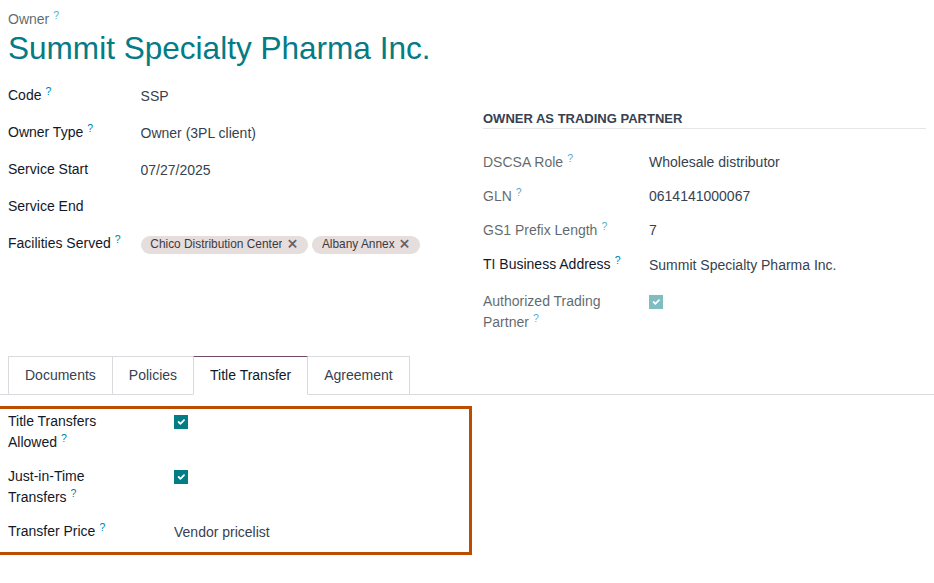
Select the Title Transfer tab, then select Title Transfers Allowed and Just-in-Time Transfers.
Result: Transfer Price appears, set to Vendor pricelist.
-
In Transfer Price, choose where the price of each automatic purchase order comes from:
Choose The purchase order's unit price is Vendor pricelist the owner's vendor price for the product, when the product has one; otherwise the product's Cost Manual the product's Cost. Nobody types a price while a delivery is validated; correct it on the vendor bill -
Optionally, on the Agreement tab, enter the Service Agreement reference, for example
SSP-3PL-2026-02. It is copied into the Vendor Reference of each automatic purchase order. -
Select the save icon.
Result: the owner is a just-in-time owner. Records: the owner profile (its chatter logs the change of Title Transfers Allowed and Just-in-Time Transfers; a change of Transfer Price is not logged). From the next reservation on, your own deliveries of a DSCSA product this owner holds in the warehouse take your own units first, then the owner's.
A consignor (Owner Type Consignor) is bought just in time by its type, without Just-in-Time Transfers: see Take in and sell consignment stock.
If it doesn't work
- "Just-in-time transfers for OWNER need issuing mode B: we generate the owner's transaction information and statement at the transfer, so we must be authorized to issue them.": the owner is in mode A. Select Discard changes, record the owner's written authorization first, then repeat. See Error: "Just-in-time transfers for … need issuing mode B …".
- There is no Just-in-Time Transfers checkbox you can select: you have the Rx Tracking User right, which reads owner profiles only. Ask an Rx Tracking Manager.
- Your deliveries never take the owner's units: see The owner's units are never taken by our sales.
Known issue (PF-W13-01): Just-in-Time Transfers saves without Title Transfers Allowed, with no message, but the owner is then not a just-in-time owner and your sales never take its units. Always select both.
Next: Ship our own sale that takes a just-in-time owner's units
Ship our own sale that takes a just-in-time owner's units
On a one-step delivery route, your delivery is the step that takes the owner's units. You scan every unit as for any delivery; validating it buys the owner's units first, then ships everything as your own sale, all in one step.
With Odoo Enterprise's Barcode app, see Scan owner stock in the Barcode app and the Known issue below.
Who: Rx Tracking User or Manager
Requires: Rx Tracking (DSCSA): 3PL and title model, with 3PL switched on.
Before you start:
- The owner is a just-in-time owner. See Set up an owner for just-in-time buying.
- Your sales order is confirmed, its delivery is Ready, and your own stock didn't cover it, so the delivery reserved some of the owner's units. See Confirm a sales order for DSCSA products.
- The customer needs package-level (serialized) data. A delivery to an exempt small dispenser at lot level never takes owner units.
-
Go to Inventory ‣ Operations ‣ Deliveries and open the delivery, for example
WH/OUT/00016(2 Prototamol for Riverside Community Pharmacy, source documentS00025). -
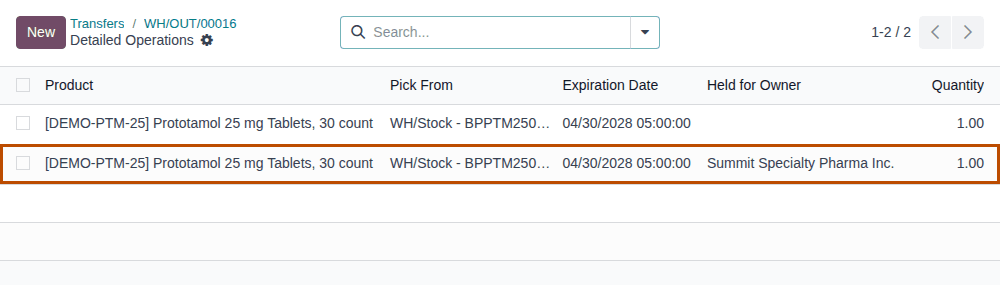
To see whose units the delivery reserved, select the Moves smart button.
Result: Detailed Operations lists one line per reserved lot and owner. A line with Held for Owner empty is your own stock; a line that names the owner takes the owner's units.
-
Go back to the delivery and select Scan Serials.
-
Scan the DataMatrix of each unit you ship, yours and the owner's, one per line, then select Register.
Result: the DSCSA Packages tab lists every scanned unit In Stock, and the chatter says "N DSCSA package(s) scanned.".
-
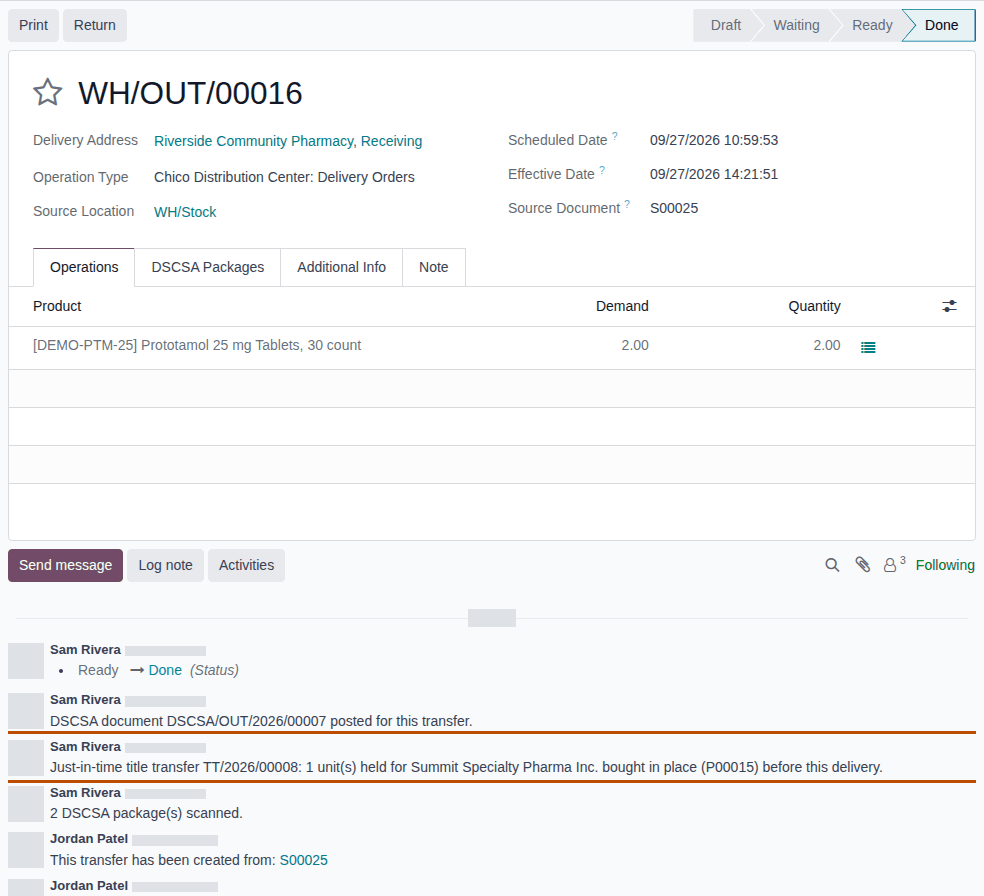
Select Validate.
Result: the delivery is Done. The chatter says "Just-in-time title transfer TT/YYYY/NNNNN: N unit(s) held for OWNER bought in place (PNNNNN) before this delivery." and then "DSCSA document DSCSA/OUT/YYYY/NNNNN posted for this transfer."
-
To see the title transfer, go to Inventory ‣ Rx Tracking ‣ Title Transfers (in the 3PL ‣ Operations section) and open it.
Result: the transfer is Done, with Kind Owner to us, Trigger Just in time, JIT Delivery = your delivery, and Title Purchase Order = the new purchase order, whose reference reads "Standing JIT approval, owner profile CODE (SERVICE-AGREEMENT)". Its Documents tab lists the owner's Seller-Side Document (
DSCSA/CODE/OUT/YYYY/NNNNN, issued by you as its agent) and your Buyer-Side Document (DSCSA/IN/YYYY/NNNNN).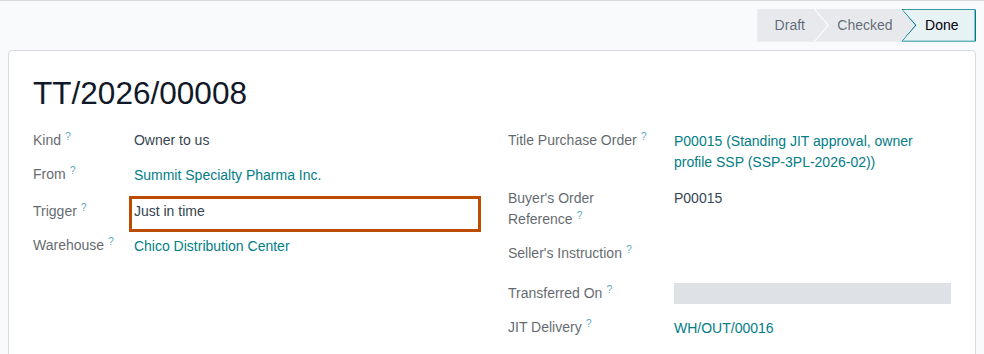
Result: you bought the owner's units and shipped them as your own sale. Records: the delivery WH/OUT/NNNNN (Done); a title
transfer TT/YYYY/NNNNN (Done, trigger Just in time) with two done transfers WH/TT/NNNNN; a purchase order PNNNNN to the owner
(Purchase Order, the units Received); the in-place documents (the owner's seller side and your buyer side, with no ship date); your
outbound document DSCSA/OUT/YYYY/NNNNN, whose history runs from your sale back through the owner
(Sell units bought in place as our own stock); two Gate Log rows. The owner keeps its other
units.
Several owners, backorders and who may validate
- Units of several just-in-time owners on one delivery make one title transfer and one purchase order per owner.
- The units you scan decide what is bought. If you scan owner units instead of your own, the owner's units are bought and yours stay on the shelf (see the Known issue below).
- If you scan fewer units than the delivery asks for, Validate offers Create Backorder?. Nothing is bought for the units left for the backorder until the backorder is validated.
- An Inventory User without an Rx Tracking right can't scan, but can validate a delivery that a colleague has scanned; the owner's units are still bought (the owner profile is the standing approval).
What never takes an owner's units
Only moves of your own sales orders take a just-in-time owner's units. A delivery created by hand without a sales order, a lot-level
delivery to an exempt small dispenser (such as Hillcrest Family Pharmacy), an owner's own order, and products that no just-in-time owner
holds in that warehouse work exactly as without 3PL: when your own stock is short, the delivery waits (Waiting).
If it doesn't work
- "WH/OUT/NNNNN can't be validated: scan one DSCSA serial for each unit being validated." with "- PRODUCT: 2 expected, 0 scanned.": scan every unit, the owner's too (steps 3–4). Nothing was bought. See Error: "… can't be validated: scan one DSCSA serial for each unit being validated".
- "Line N: Serial SERIAL is held for OWNER, not for our own stock: it can't be used on this transfer.": the unit belongs to an owner that is not a just-in-time owner (or doesn't hold it here). Scan another unit. See Error: "… is held for …, not for …".
- "TT/YYYY/NNNNN can't be validated:" with "- Facility WAREHOUSE has no valid wholesale distributor licence: …": buying the owner's units needs your wholesale license for the warehouse. Nothing changed: the delivery is still Ready and the units are still the owner's. See Error: "TT/… can't be validated:" when you validate a delivery.
- "DSCSA owner isolation (3PL):" followed by "…: a line (lot LOT) takes units held for OWNER, but the move is for our own stock." and "…: serial SERIAL is held for OWNER, not for our own stock.": the owner stopped being a just-in-time owner after its units were reserved. See Error: "… takes units held for …, but the move is for our own stock.".
- The delivery stays Waiting although the owner holds the product: see The owner's units are never taken by our sales.
Known issue (PF-W21-05, PF-W21-04, PF-A08-08): the delivery reserves your own units first, but Scan Serials accepts the owner's units in their place and nothing warns you: scanning two owner units buys both even when your own unit of the same lot is reserved. Check the Moves list before you scan. The move's details window (the list icon on the Operations tab) shows the owner's line like your own; only the Moves list shows Held for Owner. In Odoo Enterprise's Barcode app, just-in-time deliveries are untested and the lot pre-fill offers your own stock only; scan the owner's units in the backend Scan Serials window.
Next: Review and bill the automatic just-in-time purchase orders
Pick, pack and ship when a just-in-time owner holds the product
On a route with two or three steps for deliveries, the pick is the step that takes units from stock, so the pick is where the owner's units are taken and bought. Pack and ship then move only your own units.
Once an owner we buy from just in time holds units of a product in our warehouse, our own sales of that product may take its units after ours. The step that takes any of them (the pick on pick/pack/ship routes) needs their serials scanned, and then every unit it moves; steps that take only our own units work as before.
Who: Rx Tracking User or Manager
Requires: Rx Tracking (DSCSA): 3PL and title model, with 3PL switched on.
Before you start:
- The owner is a just-in-time owner. See Set up an owner for just-in-time buying.
- The warehouse ships in several steps (Outgoing Shipments in 2 or 3 steps, as the
Albany Annexdoes), and the pick of your sales order is Ready. - The units' DataMatrix labels, for every unit the pick moves.
-
Go to Inventory ‣ Overview and, on the Pick card of the warehouse (for example Albany Annex), select To Process. Open the pick, for example
WH2/PICK/00001(source documentS00026). -
Select the Moves smart button to see the lines: a line with Held for Owner filled takes the owner's units.
-
If any line takes the owner's units, the pick needs a scan of every unit it moves. Go back to the pick and select Scan Serials, scan every unit (yours and the owner's), then select Register.
-
Select Validate.
Result: the pick is Done. The chatter says "Just-in-time title transfer TT/YYYY/NNNNN: N unit(s) held for OWNER bought in place (PNNNNN) before this delivery." The Next Transfer smart button opens the next step.
-
Open the pack step (for example
WH2/PACK/NNNNN) and select Validate.Result: the pack is Done; it needs no scan.
-
Open the shipment (for example
WH2/OUT/NNNNN) and select Validate. The units scanned at the pick are already on its DSCSA Packages tab.Result: the shipment is Done, and the chatter says "DSCSA document DSCSA/OUT/YYYY/NNNNN posted for this transfer."
Result: the owner's units were bought at the pick and shipped as your own. Records: the pick, pack and shipment (Done); the title transfer (Done, trigger Just in time, JIT Delivery = the pick, Transferred On = the pick's validation); the purchase order to the owner; the in-place documents; your outbound document posted by the shipment.
When the pick takes only your own units, it validates without scans, as without 3PL, and you scan the serials on the shipment (Scan the serials of a delivery and validate it).
If it doesn't work
-
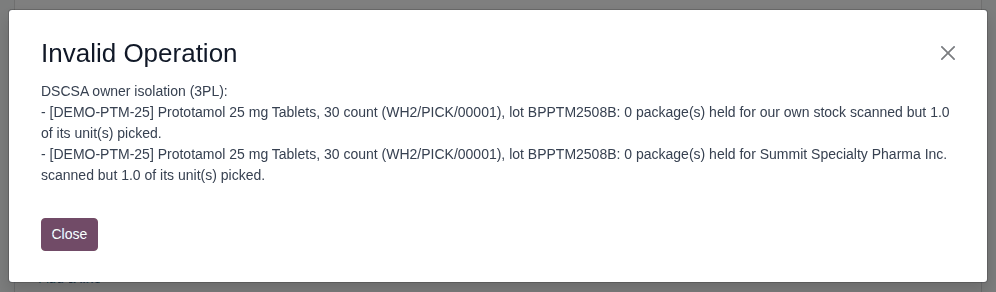
"DSCSA owner isolation (3PL):" with a line per lot and owner, for example "… (WH2/PICK/00001), lot BPPTM2508B: 0 package(s) held for Summit Specialty Pharma Inc. scanned but 1.0 of its unit(s) picked.": the pick takes owner units and some units are not scanned, yours included. Scan every unit the pick moves (step 3). See Error: "… package(s) held for … scanned but … of its unit(s) picked.".
-
Create Backorder? after you scanned only some units: the scanned units set the quantity. Select Discard and scan the rest, or create a backorder for them.
-
The other refusals of 3PL-JIT-02 apply to the pick as well.
Known issue (PF-W21-01): in the pick's refusal, the picked quantity is printed with a decimal ("1.0 of its unit(s) picked") while the scanned count is a whole number. Read "1.0" as one unit.
Next: Review and bill the automatic just-in-time purchase orders
Review and bill the automatic just-in-time purchase orders
Every just-in-time purchase creates a confirmed purchase order to the owner, received in full. Review it, then bill it as any purchase when the owner's invoice arrives.
Who: Purchase User (any level) to review the order and create the draft bill; no Rx Tracking right is needed. Confirming the bill needs an Invoicing right (Invoicing Invoicing or Administrator). The title transfer behind an order is visible only with Rx Tracking User or Manager.
Requires: Rx Tracking (DSCSA): 3PL and title model, with 3PL switched on, and the Purchase app.
Before you start:
- A delivery or pick bought units just in time. See Ship our own sale that takes a just-in-time owner's units.
-
Go to Purchase ‣ Orders ‣ Purchase Orders.
Result: the just-in-time orders show the owner as Vendor, the user who validated the delivery as Buyer, the title transfer
TT/YYYY/NNNNNas Source Document, and Billing Status Waiting Bills. The order's status, Purchase Order, shows on its form (step 2). -
Open the order, for example
P00015.Result: Vendor Reference reads "Standing JIT approval, owner profile CODE (SERVICE-AGREEMENT)", Title Transfer in Place is selected, and each product line shows Received = the units bought and Unit Price from the owner profile's Transfer Price (for example
9.10, Summit's vendor price for Prototamol).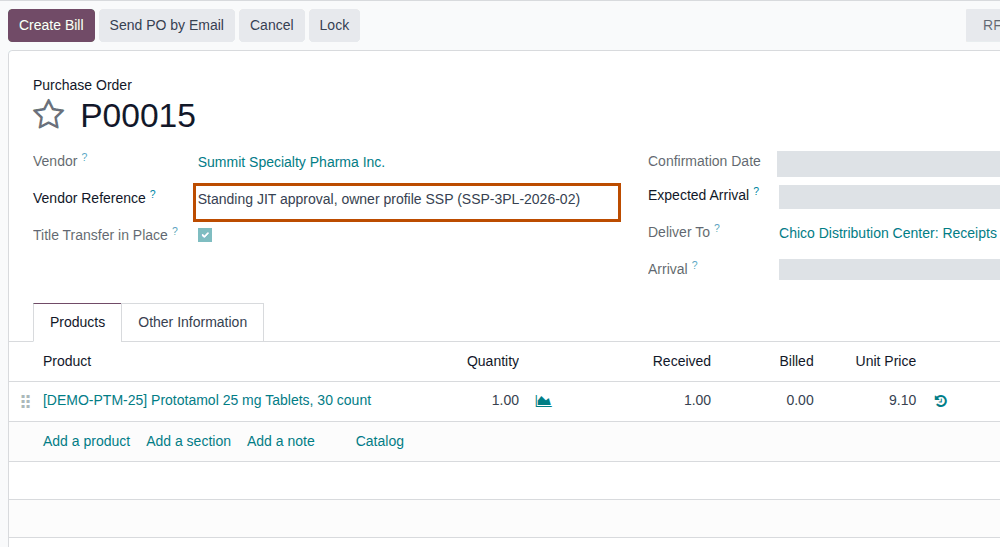
-
When the owner's invoice arrives, select Create Bill.
Result: a draft vendor bill opens with the received quantity at the order's unit price. Change the price there if the owner's invoice differs. A Purchase user without an Invoicing right sees no Confirm button on the bill: a user with Invoicing Invoicing or Administrator (an accountant) selects Confirm.
Result: the purchase is billed. Records: the purchase order PNNNNN (Billing Status changes as usual) and the vendor bill.
With Purchase's two-step order approval, just-in-time orders are approved anyway: the owner profile set by an Rx Tracking Manager is the standing approval, even when an Inventory user validates the delivery.
To list the just-in-time title transfers themselves, go to Inventory ‣ Rx Tracking ‣ Title Transfers (in the 3PL ‣ Operations section), open the search options, and under Group By select Add Custom Group ‣ Trigger.
If it doesn't work
- The price is not the owner's price: the product has no vendor price for the owner, or the profile's Transfer Price is Manual (3PL-JIT-01 step 4). Correct the price on the vendor bill.
- The order has no Receipt or Title Transfers smart button: you have no Rx Tracking right. That doesn't stop the bill.
Known issue (PF-A08-06): the title transfer list has no Trigger filter; group by Trigger as above.
Known issue (PF-A08-02): a consignor's profile doesn't show Transfer Price: its orders always use Vendor pricelist.