Use the owner's transfer file
3PL add-on For: Compliance manager, Warehouse staff Checked on 18.0.0.2.0, 18.0.1.0.0
When the selling owner is in issuing mode A, it sends you its own EPCIS (Electronic Product Code Information Services) transfer file for the sale: its transaction information and statement. You import the file on the title transfer before a manager validates it. The file decides which units change owner: the serials it lists that you hold for the owner are selected, and the others are recorded as discrepancies.
Background: the modules follow the reading that the owner's transaction information and statement are due before or at a title transfer to you. The add-on reconciles an owner-generated transfer file against the serials held for that owner, not against a receipt (FD&C Act § 581(6), (22), (24), (26), (27); § 582(a)(1), (a)(7); § 584(d); see Compliance background).
Import the owner's transfer file on a title transfer
Import the file when the owner sends it, before Check. A mode-A owner's sale can't pass Check without it; a mode-B owner may send one too, and then you don't issue its side of the sale yourself.
Who: Rx Tracking User or Manager
Requires: Rx Tracking (DSCSA): 3PL and title model, with 3PL switched on.
Before you start:
- An open (Draft or Checked) title transfer with the owner as From: a transfer to you (3PL-TTL-02) or between two owners (3PL-TTL-09). A sale back to an owner has no owner's file.
- The owner's EPCIS file (
.xml) is on your computer. It names the owner as seller and you (or, between two owners, the buying owner) as buyer, by GLN (Global Location Number), and your warehouse at both ends. For example3pl_nwg_title-file_P10027_affirmed.xmlfor Northwind's transfer ofP10027.
-
Go to Inventory ‣ Rx Tracking ‣ Title Transfers (in the 3PL ‣ Operations section) and open the transfer, for example the Northwind transfer of
P10027. -
Select Import Owner's File.
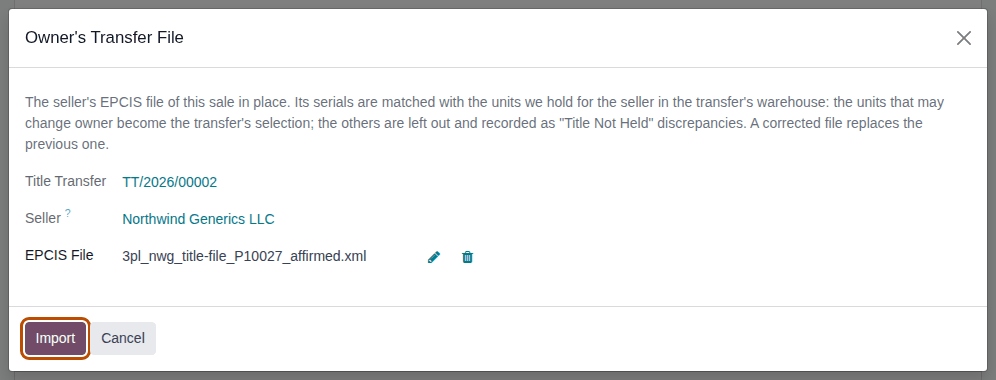
Result: the Owner's Transfer File window opens, with the Title Transfer and the Seller.
-
In EPCIS File, upload the owner's file.
-
Select Import.
Result: the Serials tab now holds exactly the units the file lists that you hold for the owner, for example
600000011007and600000011008; any earlier selection is replaced. An Owner's File smart button appears. The chatter says "Owner's transfer file FILE: N serial(s) held for OWNER selected.", followed by "N serial(s) left out (Title Not Held): DISC/YYYY/NNNNN." and "N warning(s): see the import." when that applies. -
If the file didn't affirm the Transaction Statement, a yellow banner asks you to record it: see 3PL-TTL-06. If serials were left out, see 3PL-TTL-07.
-
Check and validate the transfer: Check and validate a title transfer.
Result: the owner's file is on record for the transfer. Records: the file, kept under Inventory ‣ Rx Tracking ‣ Supplier EPCIS Files with Imported On Title transfer and the owner as Owner; any Title Not Held discrepancies. At validation it becomes the file of your buyer-side document, and no seller-side document is issued (Owner's Transfer File names it on the Documents tab). Nothing in the package ledger changes until the transfer is Done.
Import a corrected file
If the owner sends a corrected file, import it the same way. It replaces the first one: the first file is Superseded, the selection follows the new file, and a statement you recorded stays recorded. Title Not Held discrepancies of the first file stay open until you resolve them.
Take the file off the transfer
Select the Owner's File smart button, then Cancel Import, and select Ok in the Confirmation window ("Remove the packages this file announced from the receipt?"). The file is Cancelled; the transfer has no Owner's File smart button any more, a Checked transfer goes back to Draft, and the units the file selected stay selected. The transfer's chatter says "Owner's transfer file FILE cancelled." Title Not Held discrepancies of the file stay open until you resolve them.
If it doesn't work (each refusal starts with "FILE was not imported:")
- "The seller in the file has GLN …, but OWNER has …" or "The buyer in the file has GLN …, but … has …": the file is not this sale's (another seller, or another buyer). Don't add the GLN the message suggests; ask the owner for the right file. See Error: "The seller in the file has GLN …" on a title transfer.
- "None of the N serial(s) the file lists can change owner on TT/YYYY/NNNNN (SERIAL: REASON, …): is it the right file?": nothing in the file is yours to buy from this owner, for example because the units already changed owner. See Error: "None of the … serial(s) the file lists can change owner …".
- "FILE can't be read as an EPCIS 1.2 file: …": see Error: "… can't be read as an EPCIS 1.2 file".
Known issue (PF-A08-03, PF-W20-07): the owner's file opens in the supplier-file form: its first group is titled Receipt with an empty Receipt, its status reads Awaiting Receipt, a Received / Expected smart button reads 0 / 0, Cancel Import asks about "the receipt", and the form doesn't name its title transfer. Nothing is received. To go back to the transfer, use the breadcrumb, or search Title Transfers by Serial.
Next: Check and validate a title transfer
Record the seller's Transaction Statement that the owner's file does not affirm
When the owner's file doesn't affirm the DSCSA Transaction Statement, the transfer can't pass Check until you record where you obtained the owner's statement: its invoice or packing slip, its portal, an email or EDI. The record and its evidence are kept for good.
Who: Rx Tracking User or Manager
Requires: Rx Tracking (DSCSA): 3PL and title model, with 3PL switched on.
Before you start:
- The owner's file is imported and the transfer shows the yellow banner. See 3PL-TTL-05.
- You have the owner's statement, and its evidence as a file (a PDF or a screenshot), unless it came by EDI or another channel that you can name by a reference.
-
Open the transfer.
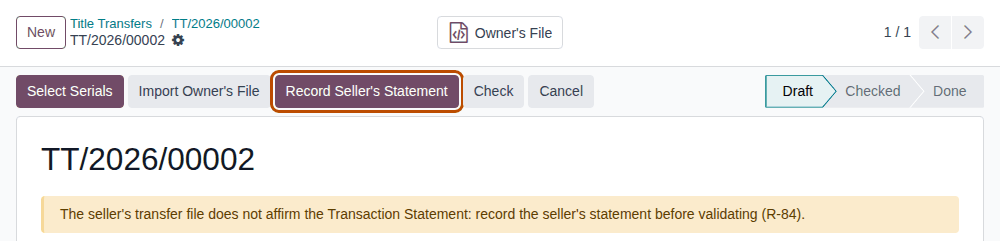
Result: a yellow banner says "The seller's transfer file does not affirm the Transaction Statement: record the seller's statement before validating (R-84)." and Record Seller's Statement is in the header.
 Known issue
Known issue (PF-D01R-01): the code in brackets at the end of some of these messages is the developer's internal reference; it needs no action.
-
Select Record Seller's Statement.
Result: the Record Seller's Statement window opens, with the Title Transfer and the Seller.
-
Fill in:
- Where Was It Obtained?: T3 / Packing-Slip PDF, Supplier Portal, Email, EDI or Other
- Obtained On: the day you received it (today by default; not in the future)
- Reference: the invoice number, portal address or email subject, for example
NWG-EDI-869-20260927 - Evidence Files: the file that shows the statement. It may be left empty only for EDI or Other with a Reference.
-
Select "The seller's statement affirms the §581(27) Transaction Statement", and add a note if useful.
-
Select Record.
Result: the banner and the button are gone. On the Documents tab, Seller's transaction statement shows Statement Source, Statement Obtained On, Statement Reference, Seller Affirms the Statement, Statement Recorded On, Statement Recorded By and Statement Evidence. The chatter says "Seller's Transaction Statement recorded by USER: SOURCE, obtained on DATE, reference REFERENCE, evidence FILES."
Result: the transfer passes Check and can be validated. Records: the recorded statement on the transfer (it can be recorded once, and its evidence can't be deleted), and, after validation, the text "Transaction Statement obtained separately: …" in your buyer-side document.
If it doesn't work
- "Confirm that the supplier's statement affirms the §581(27) Transaction Statement. If it doesn't, the discrepancy stays open: ask the supplier for it.": step 4 was skipped (the text speaks of a discrepancy and a supplier: Known issue PF-W20-07). Only record a statement that affirms it; otherwise ask the owner for it. See Error: "Confirm that the supplier's statement affirms …".
- A refusal about the evidence files or the date: see Error: "Attach the evidence file(s) …" and Error: "The date the Transaction Statement was obtained can't be in the future.".
- Validate or Check says "OWNER's transfer file FILE does not affirm the Transaction Statement: record the seller's statement on the transfer first (R-84).": this procedure wasn't done. See Error: "… does not affirm the Transaction Statement …".
Resolve serials the owner's file lists that can't change owner (Title Not Held)
A serial in the owner's file that you don't hold for the owner, in stock and sellable, can't change owner. The import leaves it out of the transfer and records it as a Title Not Held discrepancy. Nothing is put on hold, because nothing was received; you follow it up with the owner.
Who: Rx Tracking User or Manager
Requires: Rx Tracking (DSCSA): 3PL and title model, with 3PL switched on.
Before you start:
- The chatter of the import said "N serial(s) left out (Title Not Held): DISC/YYYY/NNNNN." See 3PL-TTL-05.
-
On the title transfer, select the Owner's File smart button.
-
Select the Discrepancies smart button.
Result: Receiving Discrepancies lists the file's discrepancies, with Type Title Not Held, the Serial Number, Supplier File Says and Found.
If you imported another file afterwards, the Owner's File smart button opens the newest file, which has no Discrepancies button (Known issue PF-W20-09). Go to Inventory ‣ Rx Tracking ‣ Receiving Discrepancies instead and search for the number in the chatter, for example
DISC/2026/00011. -
Open the discrepancy.
Result: the form shows
DISC/YYYY/NNNNNand Title Not Held. Supplier File Says reads "held for OWNER in WAREHOUSE and sellable, lot LOT"; Found gives the reason: "not in our package ledger", "held for OTHER-OWNER" (or "held for our own stock"), "lot LOT in our ledger, lot LOT in the file", or the reason the unit can't be selected. The description says "OWNER's transfer file FILE lists serial SERIAL for TT/YYYY/NNNNN, but it can't change owner: REASON. It was left out of the transfer (R-85)." Lots Put on Hold is empty.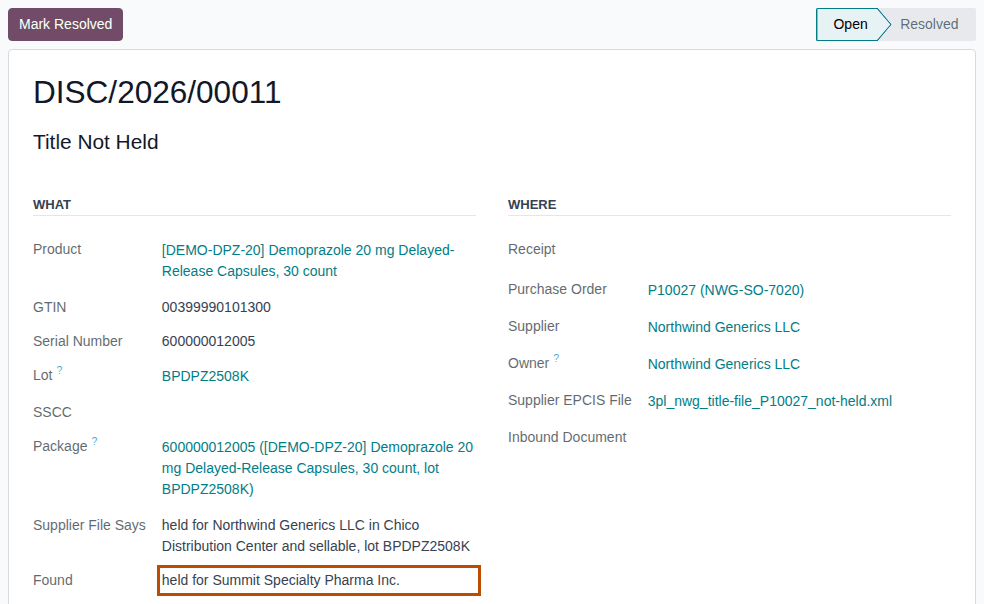
-
Ask the owner about the serial. Choose one:
If Then the file was wrong ask the owner for a corrected file and import it (Import a corrected file) the unit is another owner's or yours it keeps its owner; the transfer goes ahead without it -
In Resolution Note, enter what was agreed, for example
Northwind confirmed 600000012005 was listed by mistake; corrected file NWG-TT-0031 to follow. -
Select Mark Resolved.
Result: the discrepancy is Resolved, with who resolved it and when.
Result: the discrepancy is resolved; the unit it names never changed owner. Records: the discrepancy DISC/YYYY/NNNNN with its
resolution note (kept; it can't be deleted). The steps of Mark Resolved and Reopen are those of any discrepancy:
Work a receiving discrepancy to resolution.
If it doesn't work
- "Write how the discrepancy was resolved first (DISC/YYYY/NNNNN).": fill in Resolution Note first. See Error: "Write how the discrepancy was resolved first …".