Sell units back to an owner, or between two owners
3PL add-on For: Administrator, Compliance manager, Warehouse staff Checked on 18.0.0.2.0, 18.0.1.0.0
Two more kinds of title transfer change who owns units without moving them: a reversion sells your own units back to an owner, and an owner-to-owner transfer records that one owner sold units you hold to another owner. This page also says how to cancel or correct a title transfer or a title purchase order, and what can't be undone.
Background: the modules follow the reading that a reversion is an outbound transaction with your transaction information and statement and no shipment, with the owner authorized as buyer, and that a sale between two owners is an owner change made on both owners' instructions, in which you are not a party (FD&C Act § 581(6), (22), (24), (26), (27); § 582(a)(1), (a)(7); § 584(d); see Compliance background).
Sell units back to an owner in place (reversion)
Sell units that are yours back to an owner, when the owner buys them from you and they stay on your shelves. You are the seller: your outbound in-place document goes to the owner, and the units become the owner's stock again. Your procedure decides the price and who approves the sale; the software requires the owner to be an authorized buyer and an Rx Tracking Manager to validate.
Who: Rx Tracking User or Manager prepares the transfer; Rx Tracking Manager validates it. Linking the Customer Invoice also needs Invoicing rights (an Administrator in the example database).
Requires: Rx Tracking (DSCSA): 3PL and title model, with 3PL switched on.
Before you start:
- Your warehouse has a verified wholesale license. See Get ready for title transfers in place step 3.
- The owner is an authorized trading partner. See Check whether an owner is an authorized trading partner, and fix it.
- Your own units, in stock and sellable, in the warehouse.
- The owner's order number, or your invoice number, or both. Without either, the in-place documents have no EPCIS file (Known issue below).
-
Go to Inventory ‣ Rx Tracking ‣ Title Transfers (in the 3PL ‣ Operations section) and select New.
-
Fill in:
- Kind: Us to owner (reversion). From, Title Purchase Order and Seller's Instruction disappear: you are the seller, and the software asks no instruction for your own units.
- To: the owner, for example
Northwind Generics LLC - Warehouse: where the units are, for example
Chico Distribution Center - Buyer's Order Reference: the owner's purchase order, for example
NWG-PO-2731 - Invoice Reference: your invoice number, for example
INV/2026/00031
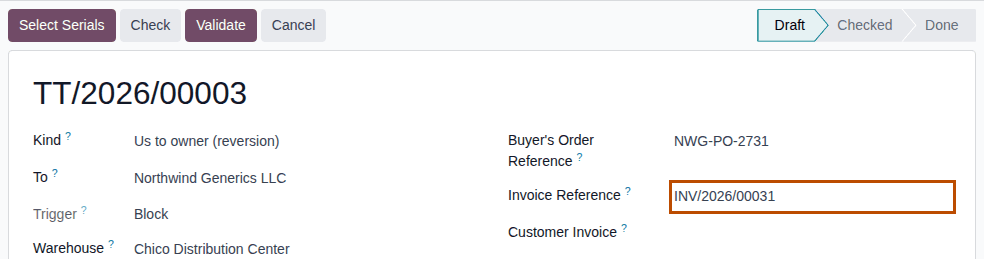
-
Select the save icon.
Result: the transfer gets its number
TT/YYYY/NNNNNand is Draft. There is no Import Owner's File button on a reversion. -
Select your units: Select the serials that change owner steps 2–5, for example Units of a lot,
Demoprazole, lotBPDPZ2509B,2. -
Select Check, then, as an Rx Tracking Manager, Validate and Ok: Check and validate a title transfer steps 1–3.
Result: the transfer is Done. The units stay in their bin, now with Held for Owner
Northwind Generics LLC. On the Documents tab, Seller-Side Document is your outbound documentDSCSA/OUT/YYYY/NNNNNand Buyer-Side Document the owner's inbound recordDSCSA/CODE/IN/YYYY/NNNNN, for exampleDSCSA/NWG/IN/2026/00002. -
Invoice the owner in Accounting with a customer invoice, as for any sale without a sales order.
-
Optional: an Rx Tracking Manager with Invoicing rights (in the example database, the administrator) opens the done transfer, chooses the invoice in Customer Invoice, for example
INV/2026/00005, and selects the save icon. It is the only field of a done transfer that can still change.
Result: the owner owns the units again. Records: the transfer TT/YYYY/NNNNN (Done); two done transfers WH/TT/NNNNN; your
outbound in-place document (your Transaction Statement, no ship date) and the owner's inbound record; the Gate Log rows of the owner
(as buyer) and your facility. How the reversion shows in accounting: Account for a title transfer.
If it doesn't work
- Check or Validate says "Buyer: …" with the owner's authorization problem: the owner is not an authorized trading partner. See Error: "Seller: …" or "Buyer: …".
- "Facility WAREHOUSE has no valid wholesale distributor licence: …": see Error: "Facility … has no valid … licence".
- "Serial SERIAL is quarantined: only units in stock and sellable change owner.": units on hold, quarantined or expired never change owner by a reversion. See Error: "… only units in stock and sellable change owner.".
- Choosing a Customer Invoice shows "Access Error" and "Oops!": you have no Invoicing rights. Ask an administrator. See Customer Invoice shows an Access Error.
Known issue (PF-A08-01, PF-W20-04): a reversion with neither Buyer's Order Reference nor Invoice Reference passes Check and Validate without a warning, but its documents have no EPCIS file (the seller-side document says "No EPCIS file was generated: the shipment has no business reference", and the owner's inbound record has no file at all), and it can't be added later. Always fill in at least one of them before Validate. Customer Invoice is shown to every Rx Tracking user, but typing in it without Invoicing rights opens "Access Error" and "Oops!"; and it offers every customer invoice of the company: choose the owner's.
Record a sale between two owners in place
Record that one owner sold units you hold to another owner. You are not a party: you record the owner change on both owners' instructions, and the documents are the owners'. The units stay in their bin; their Held for Owner changes to the buyer.
Who: Rx Tracking User or Manager prepares the transfer; Rx Tracking Manager validates it.
Requires: Rx Tracking (DSCSA): 3PL and title model, with 3PL switched on.
Before you start:
- Both owners have active profiles and are authorized trading partners. Title Transfers Allowed is not needed. See Get ready for title transfers in place.
- Your warehouse has a verified license with Activity Third-party logistics (or Wholesale distribution when the buyer is a consignor). See Record and verify our facility licenses.
- Each owner's Title transfer instruction is recorded and not used yet, for example
SSP-TTL-3112(Summit's) andNWG-TTL-3112(Northwind's). See Record an owner's instruction. - If the seller is in issuing mode A: its transfer file, naming the buying owner as buyer.
-
Go to Inventory ‣ Rx Tracking ‣ Title Transfers (in the 3PL ‣ Operations section) and select New.
-
Fill in:
- Kind: Owner to owner
- From: the selling owner, for example
Summit Specialty Pharma Inc. - To: the buying owner, for example
Northwind Generics LLC - Buyer's Order Reference: the buying owner's purchase order, for example
NWG-PO-2745 - Seller's Instruction: the seller's Title transfer instruction, for example
SSP-TTL-3112 - Buyer's Instruction: the buyer's Title transfer instruction, for example
NWG-TTL-3112
The instruction lists offer only unused Title transfer instructions of that owner.
-
Select the save icon.
Result: the transfer is Draft, numbered
TT/YYYY/NNNNN. If From and To are the same owner, a window "Oh snap!" says "An owner-to-owner transfer needs two different owners."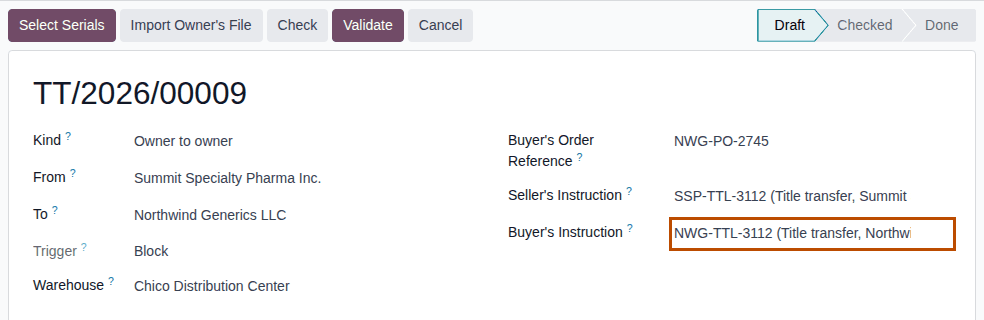
-
Select the seller's units: Select the serials that change owner steps 2–5.
-
If the seller is in issuing mode A, import its file: Import the owner's transfer file on a title transfer.
-
Select Check, then, as an Rx Tracking Manager, Validate and Ok: Check and validate a title transfer steps 1–3.
Result: the transfer is Done and the units are held for the buyer. On the Documents tab, Seller-Side Document is the seller's outbound document issued by you as its agent (
DSCSA/SSP/OUT/YYYY/NNNNN, mode B) and Buyer-Side Document the buyer's inbound record (DSCSA/NWG/IN/YYYY/NNNNN). With the seller's file on record there is no seller-side document.
Result: the buyer owns the units. Records: the transfer (Done); two done transfers WH/TT/NNNNN; the seller's outbound document
(mode B) and the buyer's inbound record, both in the owners' names; both instructions marked used; the Gate Log rows of both owners and
your facility's 3PL license.
If it doesn't work
- "OWNER's instruction (Title transfer) is required for TT/YYYY/NNNNN: record the owner's order or approval first.": an instruction is missing. See Error: "… instruction (Title transfer) is required …".
- "OWNER's transaction information and statement must be on file before or at the transfer (R-84): import OWNER's transfer file, or record OWNER's written authorization for us to issue its documents (issuing mode B).": the seller is in mode A and its file isn't imported. See Error: "… transaction information and statement must be on file …".
- "An owner-to-owner transfer needs two different owners." (when you save): From and To are the same. See Error: "An owner-to-owner transfer needs two different owners.".
- "Facility WAREHOUSE has no valid 3PL licence: …": see Error: "Facility … has no valid … licence".
Known issue (PF-D01R-01): the code in brackets at the end of some of these messages is the developer's internal reference; it needs no action.
Known issue (PF-A08-06, PF-A08-01): From and To list every company and top-level contact, not only owners; a non-owner is refused only at Check. Without the seller's file and without a Buyer's Order Reference, both documents have no EPCIS file: fill in the buyer's order number before Validate.
Cancel or correct a title transfer or a title purchase order
Cancel a title transfer created by mistake, or correct a title purchase order, as long as nothing has changed owner. A done transfer can't be changed or cancelled; to undo it, you record the opposite sale.
Who: Rx Tracking User or Manager for a title transfer; for the title purchase order, Purchase User with Inventory or Rx Tracking rights (Known issue below).
Requires: Rx Tracking (DSCSA): 3PL and title model, with 3PL switched on.
Cancel a title transfer
-
Open the Draft or Checked transfer and select Cancel.
Result: the transfer is Cancelled and shows no buttons. Nothing moved, and the units keep their owner. A cancelled transfer can't be reopened; create a new one.
Cancel a title purchase order
-
Open the title purchase order and select Cancel.
Result: the order is Cancelled, and its open title transfers are Cancelled with it (the Title Transfers smart button still opens them). Once part of the order changed owner, the order can't be cancelled.
Change the quantity of a confirmed title purchase order
-
On the Products tab, change the line's Quantity and select the save icon.
Result: when the line's transfer is already done, a new draft title transfer is created for what is left to receive. While a draft transfer is open, Check and Validate use the new quantity (the transfer's own Quantity column doesn't follow: Known issue PF-A08-05 on 3PL-TTL-02). A quantity below what was already received is refused.
What can't be undone
- A Done transfer is frozen: every field is read-only except Customer Invoice on a reversion.
- Title transfers are never deleted; cancel them instead.
- Title Transfer in Place can't be changed once the order is confirmed.
- To undo a done transfer to you, sell the units back (3PL-TTL-08); to undo a reversion, buy them again (Create and approve a title purchase order); to undo a sale between two owners, record the opposite sale (3PL-TTL-09).
Result: the transfer or the order is cancelled or corrected. Records: the cancelled transfer or order (kept, with its chatter); the new draft transfer when a quantity was raised.
If it doesn't work
- "Unable to cancel purchase order(s): PNNNNN (REF) since they have receipts that are already done.": part of the order changed owner. See Error: "Unable to cancel purchase order(s) …" or "You cannot decrease the ordered quantity …".
- "You cannot decrease the ordered quantity below the received quantity." (in a window titled "Oh snap!"): see the same entry.
- Cancel on the order opens "Access Error" about "DSCSA Package": see A buyer can't cancel a confirmed purchase order.
Known issue (PF-W20-05, PF-W20-10): a buyer with Purchase User only (no Inventory or Rx Tracking right) can't cancel a confirmed purchase order: Cancel opens "Access Error" about "DSCSA Package", also on orders without DSCSA products; ask the administrator. The ⚙ (Actions) menu of a title transfer offers Duplicate, also on a Done transfer: the copy is saved at once as a new draft with the same kind, parties, order and serials, fails Check, and can only be cancelled. Create transfers from New or a title purchase order.