Count and scrap in the Barcode app
Odoo Enterprise: Barcode app For: Compliance manager, Warehouse staff Checked on 18.0.0.2.0, 18.0.1.0.0
Count DSCSA stock with the Inventory count of Odoo Enterprise's Barcode app, and name the units that are gone or found; scrap damaged units, which for DSCSA products happens in the Inventory app. Both keep the package ledger in step with the stock. Abbreviations: GTIN: Global Trade Item Number (see the glossary).
Count DSCSA stock in the Barcode app
Count a lot in a location, correct the counted quantity, and apply the count. When the count changes a DSCSA quantity, the DSCSA Serials dialog asks for the serial of each unit gone or found, as the Inventory count does (see Count stock and record the units that are gone).
Who: Rx Tracking User or Manager (recording units found needs the Rx Tracking Manager right; see Record units found in a count)
Requires: Odoo Enterprise with the Barcode app, and Rx Tracking (DSCSA) - Barcode.
Before you start:
- The product's Barcode field holds its GTIN: without it the count refuses the product's DataMatrix. See Prepare scanners, products and operation types.
- The units are in the package ledger (received, or registered with the opening balance).
-
Go to the Barcode app and select Inventory count.
Result: the Inventory Count screen says "Scan a location".
-
Scan the location's barcode, for example
WHSTOCKfor WH/Stock. -
Scan the DataMatrix of one unit of the lot.
Result: a line of the product and lot appears, for example DEMO-DPZ-20, BPDPZ2509B (07/31/2028),
22/22: the first scan of a lot sets the counted quantity to the quantity Odoo has on hand. Each further scan of another unit adds one.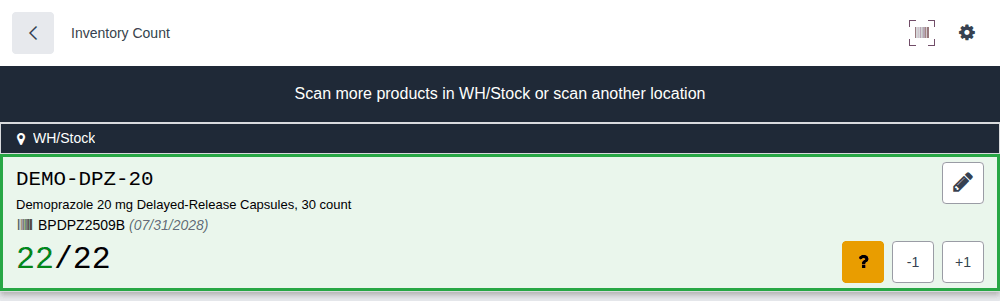
-
If the units in hand differ from the counted quantity, select the line's pencil icon, enter the number of units counted, and select Confirm. The -1 and +1 buttons of the line do the same one unit at a time.
-
Select Apply.
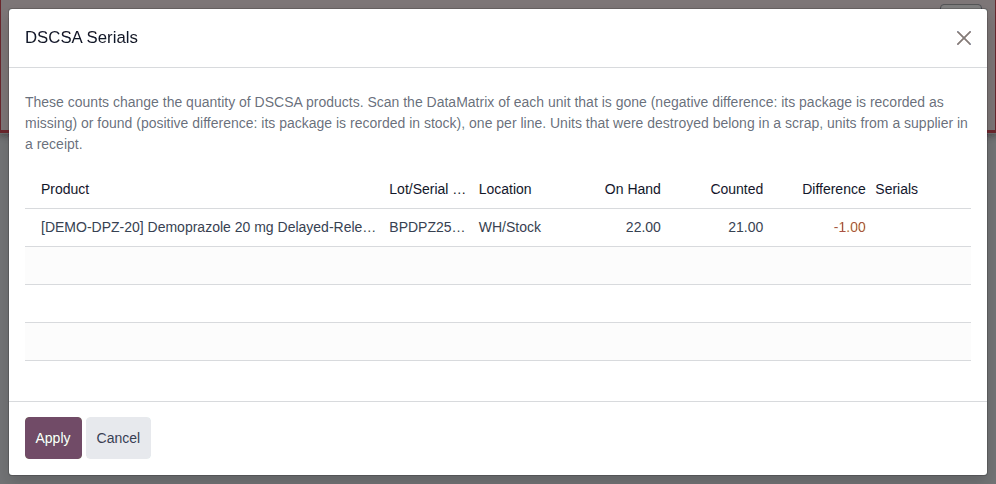
Result: if the counted quantity equals the quantity on hand, the count is applied and the app returns to its start screen. If it differs, the DSCSA Serials dialog opens over the app, with one row per counted line: On Hand, Counted, Difference and an empty Serials cell.
-
In the Serials cell, scan the DataMatrix of each unit that is gone (difference below zero) or found (above zero), one per line. This dialog reads the separator as ASCII 29 or
<GS>, not#. The column is narrow, so each scan wraps over several lines (PF-W10-01); the scans are still read correctly. -
Select Apply.
Result: the count is applied. Records: the quant's new quantity; each unit named as gone is Missing in the package ledger, each unit found is registered In Stock; the inventory adjustment moves.
The serials you scanned while counting are not carried into the DSCSA Serials dialog: name the units gone or found there again. A serial scanned twice in the same count gives the yellow "Serial SERIAL of PRODUCT is already counted." and changes nothing; the app forgets these serials when you reload the page.
Known issue (PF-W25-04): counting unit by unit over-counts: the first scan of a lot sets the counted quantity to the whole lot on hand
(for example 22), and each further unit scanned adds one (23, 24, …). Count the units by hand, then type the number with the pencil
icon (step 4).
Known issue (PF-A10-06): without the product's Barcode field, the count answers "This product doesn't exist." to its DataMatrix, although receipts and deliveries work without it. Set Barcode = GTIN on every DSCSA product you count in the app.
If it doesn't work
- "This product doesn't exist.": the product has no Barcode, or the company isn't on the GS1 nomenclature. See The Barcode app says "This product doesn't exist.".
- "The inventory adjustment can't be applied: … - Line 1: Serial SERIAL can't be used here: it is Shipped.": a serial in the dialog is not a unit of this lot in this location, or the number of serials doesn't match the difference. See Error: "The inventory adjustment can't be applied".
With 3PL: each owner's stock of a lot is its own count line. A scan adds to the selected line of that lot whatever the unit's owner (PF-A10-07). Select the owner's line before you scan, or type the counted quantity with the pencil icon.
Scrap DSCSA units when you work in the Barcode app
The Barcode app's Scrap page has no field for the serials, so it refuses every DSCSA product. Scrap DSCSA units in the Inventory app, where the scrap form asks for each unit's DataMatrix; scrap other products in the app as usual.
Who: Rx Tracking User or Manager
Requires: Odoo Enterprise with the Barcode app, and Rx Tracking (DSCSA) - Barcode.
Before you start:
- The damaged units and their labels are in hand.
What happens in the Barcode app
-
In the Barcode app, open a delivery (or an internal transfer) and select the gear icon.
-
Select Scrap.
-
Fill in the product (a DSCSA product), the quantity and the Serial/Lot Number, then select Scrap.
Result: the "Invalid Operation" dialog says "PRODUCT is a DSCSA product: scan the serial of each unit being scrapped (DSCSA Serials)." Nothing is scrapped.

-
Select Close.
Result: the app returns to the transfer, and nothing is scrapped. What you entered stays as a draft scrap order named New (state Draft) in Inventory ‣ Operations ‣ Scrap (Known issue PF-F10-01).
Scrap the units in the Inventory app
- Go to Inventory ‣ Operations ‣ Scrap. Open the draft New that the Barcode app left, or select New to start a scrap order.
- Follow Scrap DSCSA units, naming each unit's serial: the product, the lot, the quantity and the DataMatrix of each unit in the DSCSA Serials box, then Validate.
Result: the scrap is Done. Records: the scrap order SP/NNNNN; each scrapped unit's package is Destroyed in the package ledger.
If it doesn't work
- "Only DSCSA users can scrap PRODUCT: the serials of the scrapped units must be recorded in the package ledger." (an "Access Error"): the user has Inventory rights only. Ask an Rx Tracking User to scrap it. See Error: scrap refused in the Barcode app.
Known issue (PF-A10-01): scrapping a DSCSA product from the Barcode app is always refused, because its Scrap page has no DSCSA Serials field. Use the Inventory app ("Scrap the units in the Inventory app").
Known issue (PF-F10-01): the refused attempt isn't thrown away: it stays as a draft scrap order named New in Inventory ‣ Operations ‣ Scrap, and the app doesn't say so. Complete that draft with the serials (step 1 of "Scrap the units in the Inventory app"), so that no stray drafts pile up.