Receive, ship and return in the Barcode app
Odoo Enterprise: Barcode app For: Compliance manager, Warehouse staff Checked on 18.0.0.2.0, 18.0.1.0.0
Scan each unit's GS1 DataMatrix in Odoo Enterprise's Barcode app to receive it, ship it, move it or take it back. Each scan records the unit's serial number in the package ledger, exactly as the Scan Serials dialog of the Inventory forms does, and the same checks apply.
The Barcode app is its own app, not a menu of Inventory. It never shows the Rx Tracking tabs, buttons or banners of the Inventory forms: importing a supplier's EPCIS file, recording a Transaction Statement, removing a scan and opening a DSCSA document happen in the Inventory form. Each procedure says when to switch. Abbreviations: EPCIS: Electronic Product Code Information Services; GLN: Global Location Number; GTIN: Global Trade Item Number; SSCC: Serial Shipping Container Code; T3: Transaction Report (see the glossary).
Receive DSCSA units in the Barcode app
Scan every unit of a supplier's delivery on its receipt, then validate. Background: the modules read FDA's guidance as recommending that you confirm the supplier's transaction data matches what was physically received (FD&C Act § 582(c)(1)(A)(i), § 582(g)(1); FDA interoperable exchange guidance (September 2023); see Compliance background).
Who: Rx Tracking User or Manager
Requires: Odoo Enterprise with the Barcode app, and Rx Tracking (DSCSA) - Barcode.
Before you start:
- The Barcode app is set up. See Switch the company to the GS1 barcode nomenclature and Prepare scanners, products and operation types.
- The purchase order is confirmed and its receipt is Ready. See Confirm a purchase of DSCSA product.
- If the supplier sent its EPCIS file, import it first, in the Inventory form of the receipt: the Barcode app has no import. See Import the supplier's EPCIS file on the receipt.
- If the form then shows "The supplier's EPCIS file has no (affirmed) Transaction Statement.", record the statement in the form before you validate. The Barcode app doesn't show that banner. See Record the supplier's Transaction Statement before validating.
-
Go to the Barcode app and select Operations.
-
Select Receipts of your warehouse (for example Receipts, Chico Distribution Center).
Result: the receipts To Do and Ready are listed. To find one, type its purchase order number (for example
P10003) in the search box and pressEnter. -
Select the receipt, for example
WH/IN/00022of Bluepeak Pharmaceuticals Inc.Result: the receipt opens with one line per product, for example DEMO-SMS-40, Samplostatin 40 mg Tablets, 90 count,
0/12.
-
Scan each unit's DataMatrix, one after the other.
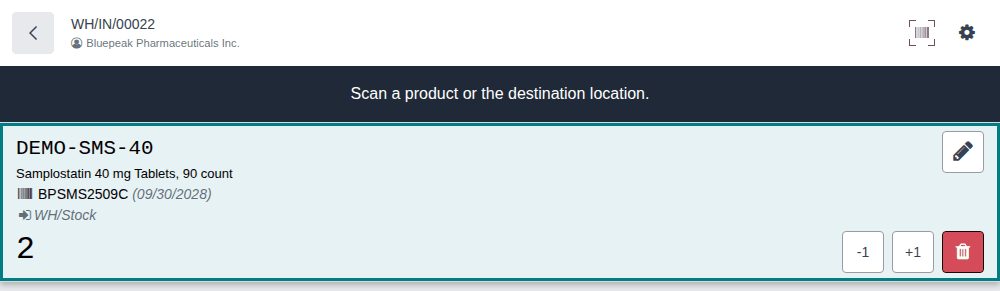
Result: after each scan the product's line shows the lot with its expiry date in brackets, for example BPSMS2509C (09/30/2028), and the number of units scanned. A lot met for the first time is created with the expiry date of the scan.
-
When every unit is scanned, select Validate.
Result: the notification "The transfer has been validated" appears, and the app leaves the receipt.
Result: the receipt is Done. Records: one package per unit, In Stock; the lot, created from the first scan that named it; and,
when a supplier file was imported, the inbound DSCSA document (DSCSA/IN/YYYY/NNNNN) and any receiving discrepancy, with its lot held. See
them in the Inventory form of the receipt (DSCSA Packages tab) or under Inventory ‣ Rx Tracking ‣ Packages.
Known issue (PF-W25-01): after the first DSCSA scan, the line no longer shows the ordered quantity: it reads 2 instead of 2/12,
and a receipt you leave and reopen can read 12/8. Count the units in hand against the purchase order or the Operations tab of the
form. If you validate before every unit is scanned, the app doesn't ask about a backorder: Odoo puts the rest in a backorder itself, and
the notification says "Following backorder was created: WH/IN/NNNNN".
Known issue (PF-A10-05): the Barcode app doesn't show the receipt's warnings: the missing Transaction Statement banner, "GLN missing", and the 3PL "No supplier data yet" banner. Validating in the app goes ahead: with a file that has no affirmed Transaction Statement, the lot is quarantined at validation. After importing a file, check the receipt's Inventory form for a banner before you validate in the app.
Scan the same unit twice
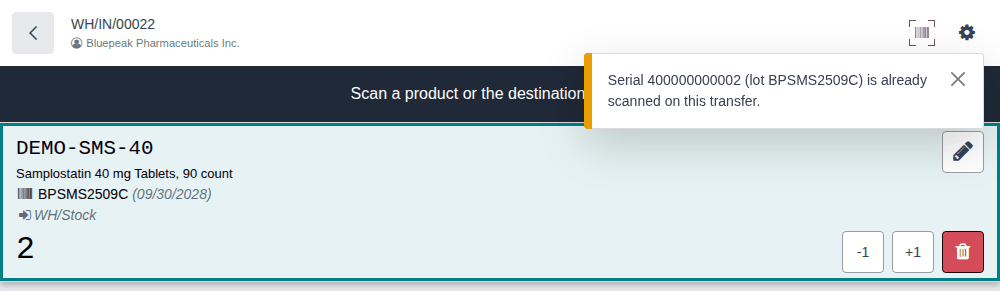
A unit that is already scanned on this receipt is counted once. The app shows the yellow notification "Serial SERIAL (lot LOT) is already
scanned on this transfer." and the quantity doesn't change: after units 1 and 2 and a second scan of unit 2, the line still reads 2,
under "Scan a product or the destination location."
Without a supplier file
Skip the import and scan every unit as above. The receipt validates without discrepancies, and no inbound document is posted (see Receive without a supplier EPCIS file).
A sealed case (SSCC label)
The Barcode app can't receive a sealed case from its case label: scanning it shows "To use packages, enable 'Packages' in the settings" (or, with Odoo's Packages setting on, treats it as an Odoo package) and records no unit. Either scan every unit label in the app, or open the receipt in the Inventory form and scan the case label with Scan Serials (see Receive a sealed case by scanning its SSCC label).
Products that aren't DSCSA products
Lines of other products work as in standard Odoo. A serial-tracked product that isn't a DSCSA product keeps the serial number of its code as its serial (see What the Barcode app leaves to standard Odoo).
If it doesn't work
- "This product doesn't exist.": the scan wasn't read as a GS1 DataMatrix. See The Barcode app says "This product doesn't exist.".
- "Nothing was registered. Fix these scans and try again: Serial SERIAL: Serial SERIAL is already registered (state: In Stock). A duplicate serial is a suspect-product signal: …": the unit is already in the ledger. Put it aside. See Error: "… is already registered …".
- "… the scan has no lot number (AI 10).", "… the scan says lot LOT expires DATE, but the lot expires DATE.": the label and the ledger disagree. See Error: lot or expiry doesn't match.
- "… PRODUCT is not on this transfer.": the product isn't on this receipt. See Error: "… is not on this transfer".
- "Only DSCSA users can scan DSCSA serials onto a transfer.": see Error: "Only DSCSA users can scan DSCSA serials onto a transfer".
- Validate opens an "Invalid Operation" dialog: see The transfer won't validate.
Next: Pick and ship a delivery in the Barcode app
Pick and ship a delivery in the Barcode app
Scan every unit of a customer's order on its delivery, then validate. Validation posts the DSCSA document for the shipment, as it does from the Inventory form. Background: DSCSA sets what a wholesaler provides when it sells to a dispenser (FD&C Act § 582(c)(1)(A)(ii)–(iii), § 582(g)(1)(A)–(B); § 581(22), (24), (26), (27); see Compliance background).
Who: Rx Tracking User or Manager
Requires: Odoo Enterprise with the Barcode app, and Rx Tracking (DSCSA) - Barcode.
Before you start:
- The sales order is confirmed and its delivery is Ready. See Confirm a sales order for DSCSA products.
- The units are In Stock in the package ledger (received, or registered with the opening balance).
-
Go to the Barcode app, select Operations, then Delivery Orders of your warehouse.
-
Select the delivery. To find it, type in the search box and choose what to search, for example Search Contact for: … with the customer's name, or Search Product for: ….
Result: the delivery opens with the source location (WH/Stock) and one line per product, for example DEMO-DPZ-20
0/12and DEMO-BND-1000/2. The banner may say "Scan the source location". -
Scan each DSCSA unit's DataMatrix. A DSCSA unit needs no location scan first.
Result: the product's line shows the lot and the count, for example
1/12. If you scan a unit of another lot than the one Odoo reserved, the line switches to the scanned lot: it shows one sub-line per lot.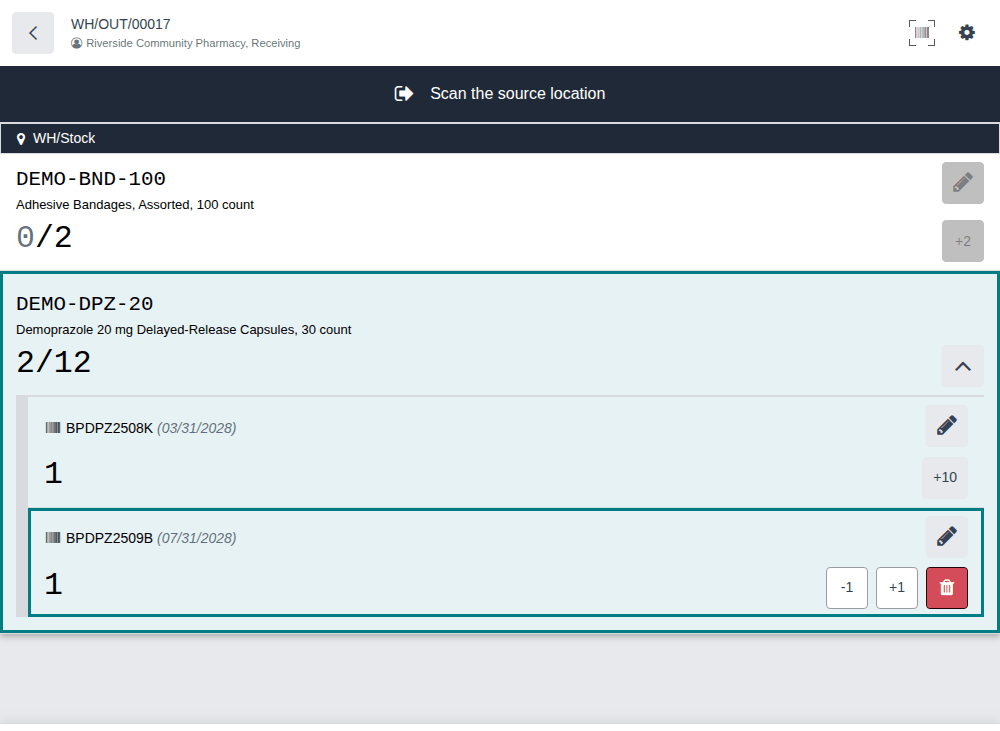
-
For each product that isn't a DSCSA product, scan the source location if the banner asks for it, then scan the product (or select the + button of its line).
Result: its line shows the quantity, for example
2/2. -
Select Validate.
Result: "The transfer has been validated" appears. If some products aren't complete, the Incomplete Transfer dialog first lists them: select Validate to put the rest in a backorder, or Stay on transfer.
Result: the delivery is Done. Records: the scanned packages are Shipped to the customer; the outbound DSCSA document
(DSCSA/OUT/YYYY/NNNNN) with its T3 and EPCIS file, posted to the customer; a backorder WH/OUT/NNNNN for what wasn't shipped. The app
shows none of the documents: open them from the Inventory form or under Rx Tracking (see
Find, view, download and print DSCSA documents).
Known issue (PF-W25-02): when you scan DSCSA units but leave a line of a non-DSCSA product at 0, validating ships that product in
full, although the Incomplete Transfer dialog says it goes to a backorder. To keep a non-DSCSA product back, open the delivery in the
Inventory form and set its Quantity on the Operations tab to 0 before you validate.
Known issue (PF-W25-01): a delivery you leave and reopen shows the scanned count as the demand (for example 3/3 on a delivery of
12). Validate then skips the Incomplete Transfer dialog, and Odoo puts the rest in a backorder itself. Check the order quantity
on the Inventory form before a partial shipment.
Known issue (PF-V02m-01): when a line switches to the scanned lot, it can show the reserved lot's expiry date next to the scanned lot's name. For example, on a delivery of 1 Samplostatin reserved from lot BPSMS2508B (expiry 08/31/2028), a unit of lot BPSMS2509C (expiry 09/30/2028) makes the line read BPSMS2509C (08/31/2028). The unit and its lot are recorded correctly. Read the expiry on the delivery's DSCSA Packages tab in the Inventory form, or on the lot.
Ship part of a delivery
Scan what ships and select Validate. For DSCSA lines the serial count runs first; the rest goes to a backorder as described in step 5 and in the known issues above. See also Ship part of a delivery.
Ship at lot level to an exempt small dispenser
For a customer marked as an exempt small dispenser, the delivery may ship without serials: scan the lot only (a code with the GTIN and the lot, no serial) or use the line's + buttons. This needs the product's Barcode field (BC-02). Once one serial is scanned on a line, every unit of it needs its serial. The example database has no open delivery to a small dispenser, so this variant was not performed in the app. See Ship at lot level to an exempt small dispenser.
If it doesn't work
-
"… Serial SERIAL can't be used here: it is Quarantined." (or Shipped, Missing, Destroyed …): the unit's state doesn't allow shipping it. See Error: "… can't be used here: it is …".

-
"… is not in the package ledger, so it can't be shipped or moved.": see Error: "… is not in the package ledger …".
-
"PRODUCT: 2 packages scanned but only 1.0 ordered.": more units than the delivery asks for. See Error: "… packages scanned but only … ordered".
-
"… the scan says lot LOT but the ledger has lot LOT.", "… the scan says expiry DATE but the ledger has DATE.": see Error: lot or expiry doesn't match.
-
"… is held for OWNER, not for our own stock: it can't be used on this transfer." (3PL): the unit belongs to an owner's stock. See Error: "… is held for …, not for …".
-
Validate opens an "Invalid Operation" dialog (the serial count, the customer's license, a quarantined lot): see The transfer won't validate.
The delivery's "GLN missing" banner of the Inventory form doesn't show in the Barcode app (PF-A10-05). The delivery validates; the document is posted without an EPCIS file. See Handle a document posted without an EPCIS file.
Move DSCSA stock internally, or in pick and pack steps, in the Barcode app
In a warehouse with pick, pack and ship steps, the serials are scanned once, on the first step, and travel with the goods to the next steps. Internal transfers inside the warehouse need no serials.
Who: Rx Tracking User or Manager
Requires: Odoo Enterprise with the Barcode app, and Rx Tracking (DSCSA) - Barcode. Multi-step routes (Inventory setting Multi-Step Routes) for the pick, pack and ship variant.
Before you start:
- The warehouse ships in two or three steps, and the sales order's pick is Ready. See Ship part of a delivery, or ship in pick, pack and ship steps.
Pick, pack and ship
-
Go to the Barcode app, select Operations, then Pick of the warehouse (for example Pick, Albany Annex).
-
Select the pick, for example
WH2/PICK/00001. -
Scan each DSCSA unit's DataMatrix.
Result: the line shows the lot and the count.
-
Select Validate.
Result: the pick is Done, and the pack step (
WH2/PACK/NNNNN) is Ready, with the scanned serials attached to it. -
Select Operations, then Pack of the same warehouse, and open the pack step.
Result: the line reads
0/2: the serials travel with the goods, but the app doesn't count them on this step. -
Select Validate without scanning again.
Result: the pack is Done, and the ship step (
WH2/OUT/NNNNN) is Ready. -
Open the ship step under Delivery Orders and select Validate.
Result: the three steps are Done. Records: the packages are Shipped to the customer at the ship step, and the outbound DSCSA document is posted there. A unit scanned again on the pack or ship step is counted once ("… is already scanned on this transfer.").
Move stock inside the warehouse
An internal transfer that you create in the Barcode app takes lot scans, not serial scans: a serial scan of a DSCSA unit is refused with "… is not on this transfer." (then, once the line exists, "… 1 packages scanned but only 0.0 ordered.").
- Go to the Barcode app, select Operations, then Internal Transfers, and select New.
- Scan the source location, then the lot's code without a serial (GTIN and lot), once per unit. This needs the product's Barcode field (BC-02).
- Scan the destination location, then select Validate.
Result: the stock is moved; the package ledger is unchanged (internal moves need no serial count).
To move a quarantined lot to a quarantine shelf, see Move quarantined stock to a quarantine shelf.
Known issue (PF-W25-03): a transfer created in the Barcode app refuses DSCSA serial scans, with a message ("… only 0.0 ordered.") that doesn't say why. Use lot scans for internal moves, and create receipts and deliveries from their orders, not in the app.
Batch transfers don't record serials: the serial of a DSCSA scan is dropped (PF-A10-04). Use batches for internal pick steps only, and open each receipt or delivery on its own. See What the Barcode app leaves to standard Odoo.
Process a return in the Barcode app
Take back units a customer returns, on a return of the customer's delivery. Each returned unit must match a unit you shipped to that customer; accepted units wait in Returns to Verify until the compliance manager decides. Background: DSCSA sets rules for saleable returns (FD&C Act § 582(c)(1)(B), § 582(c)(4)(D); see Compliance background).
Who: Rx Tracking User or Manager
Requires: Odoo Enterprise with the Barcode app, and Rx Tracking (DSCSA) - Barcode.
Before you start:
- The customer's delivery is Done, and the returned units are in hand.
-
Go to the Barcode app, select Operations, then Delivery Orders.
-
To see done deliveries, remove the To Do and Ready filters from the search box, then search the customer (Search Contact for: …) and select the delivery.
Result: the delivery shows "This picking is already done" and a Return Products button.

-
Select Return Products.
Result: a return
WH/IN/NNNNNopens in the app, with every product of the delivery at its delivered quantity, for example DEMO-DPZ-200/2to WH/Returns to Verify. -
Scan each returned unit.
Result: the line shows the lot and the count, for example
1/2. -
Select Validate.
Result: the return is Done, with only the scanned units (no backorder). Records: each returned package is Returned and waits in Inventory ‣ Rx Tracking ‣ Returns to Verify. Next, the compliance manager verifies it (see Verify returned units for resale).
Return Products creates the return of every delivered quantity and skips the serial fields of the Inventory return dialog; scan only the units that came back. To return units to a supplier, see Return saleable product to the supplier.
If it doesn't work
- "… was shipped to CUSTOMER, not to CUSTOMER.": the unit went to another customer. See Error: a returned unit doesn't match our sale.
- "… is not in our package ledger: we never received it, so it can't be a return of our own sale.", "… was never shipped …", "… has no record of a shipment to …": see the same entry.
- "… was sold by OWNER (we hold its stock as a 3PL): it can only come back into the stock of OWNER, not into ours. …" (3PL): see Error: "… was sold by …".
Undo or correct a serial scanned by mistake
The Barcode app can't show or remove a DSCSA scan: its -1 button and trash icon change the line's quantity, not the serials recorded on the transfer. Remove the wrong unit in the Inventory form, then continue in the app.
Who: Rx Tracking User or Manager
Requires: Odoo Enterprise with the Barcode app, and Rx Tracking (DSCSA) - Barcode.
Before you start:
- The transfer isn't Done yet.
-
Note the transfer's reference at the top of the app (for example
WH/OUT/00027). -
Go to Inventory ‣ Operations ‣ Receipts (for a receipt), Deliveries (for a delivery) or Internal (for a pick step), type the reference in the search box, press
Enterand open the transfer. -
Select the DSCSA Packages tab.
Result: each scanned unit is listed with its Serial Number, Product, Lot, Expiration Date and State.
-
On the wrong unit's row, select the ✖ icon (Remove this scan).
Result: the row disappears; the transfer's quantities follow.
-
Go back to the Barcode app and open the transfer again (leave it with the back arrow and reopen it, or reload the page).
-
Scan the right unit, if any.
Result: the transfer holds only the units you mean to receive or ship. Records: the removed unit's package goes back to its state before the scan (a unit received by mistake is deleted from the ledger; a unit scanned on a delivery stays In Stock).
If you lower a line with -1 in the app instead, the serial stays scanned: Validate is then refused with "… 1 expected, 2 scanned." and the hint "Scan the missing serials, unscan the extra ones, or change the quantities to validate (the rest can go to a backorder)." "Unscan" means steps 2–4.
If it doesn't work
- There's no ✖ on the row: the transfer is Done, or you don't have the Rx Tracking User right. See Correct the scans of an open delivery.
Known issue (PF-A10-02): the Barcode app has no way to see or remove a DSCSA scan, and lowering the line doesn't remove it. Use the Inventory form as above. In the form, don't type the Quantity of a scanned receipt line either: it can leave a line without a lot, which Validate refuses (PF-W05-02). Remove the scan with ✖ instead.