Set up the Barcode app for DSCSA scanning
Odoo Enterprise: Barcode app For: Administrator, Warehouse staff Checked on 18.0.0.2.0, 18.0.1.0.0
Set the company's barcode rules to GS1, then prepare the scanners, products and operation types, so that one scan of a unit's GS1 DataMatrix in Odoo Enterprise's Barcode app records its lot and its serial number. Do this once per company, and again for each new scanner.
Switch the company to the GS1 barcode nomenclature
The Barcode app reads a DataMatrix only when the company uses the Default GS1 Nomenclature: its rules tell the app which part of the code is the GTIN (Global Trade Item Number), the expiry date, the lot and the serial number. Background: Odoo keeps only one of the lot and the serial of a DataMatrix unless the serial gets its own rule.
Who: Administrator (Administration: Settings)
Requires: Odoo Enterprise with the Barcode app, and Rx Tracking (DSCSA) - Barcode.
Before you start:
- Rx Tracking (DSCSA) - Barcode is installed. It also installs the Barcode app. See Install the Enterprise add-ons.
- In a database with several companies, switch to the company you are setting up (the company selector at the top right).
-
Go to Inventory ‣ Configuration ‣ Settings.
-
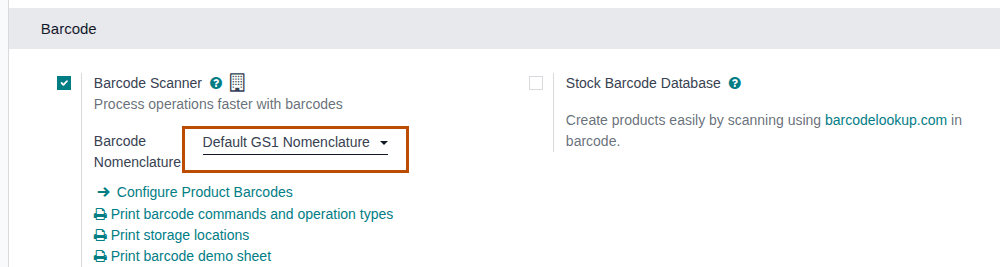
Scroll to the Barcode block.
Result: Barcode Scanner is selected (the add-on turned it on), and Barcode Nomenclature is shown under it.
-
In Barcode Nomenclature, select Default GS1 Nomenclature.
-
Select Save.
Result: the company reads barcodes with the GS1 rules. In those rules the Serial number rule (GS1 code 21) has the Type Serial number, which the add-on sets, so a scan keeps the lot (GS1 code 10) and the serial side by side. Records: the company's Barcode Nomenclature setting. Nothing else changes until someone scans.
To see the rules, turn on developer mode and go to Inventory ‣ Configuration ‣ Barcode Nomenclatures (in the Products section), then open Default GS1 Nomenclature. Leave the rules as they are.
In a database with several companies
The nomenclature is a setting of each company. Repeat the procedure for every company that scans in the Barcode app: switch to it with the company selector first. A new company starts on Default Nomenclature.
With a copy of the GS1 nomenclature
The add-on sets the Serial number type only on the rule of Default GS1 Nomenclature. If the company uses its own copy of that nomenclature, open the copy in developer mode, open its rule for code 21 and set Type to Serial number. Without it, a DataMatrix of a DSCSA product loses its lot.
If it doesn't work
- Every DataMatrix gives "This product doesn't exist." in the Barcode app: the company still uses Default Nomenclature. Repeat steps 1–4. See The Barcode app says "This product doesn't exist.".
- Barcode Nomenclature isn't shown: Barcode Scanner is cleared. Select it, then Save, and repeat step 3.
Known issue (PF-A10-10): nothing sets or checks the nomenclature for you. A company left on Default Nomenclature gets no warning: every DataMatrix is "not recognized". Check this setting first when scanning doesn't work.
Known issue (PF-A10-09): installing the add-on also changes Point of Sale: a GS1 code with only a GTIN and a serial (no lot) no longer fills the serial number of a serial-tracked product there. It doesn't affect the Barcode app or Inventory.
Next: Prepare scanners, products and operation types for DataMatrix scanning
Prepare scanners, products and operation types for DataMatrix scanning
A keyboard-mode scanner types what it reads into the Barcode app. Set it up so that each DataMatrix arrives in one piece, check the products, and choose how strict each operation type is.
Who: Administrator (Administration: Settings) for the operation types; no Odoo right for the scanner set-up; Rx Tracking User or Manager for the test scan and for the products' GTIN (see Set up a DSCSA product)
Requires: Odoo Enterprise with the Barcode app, and Rx Tracking (DSCSA) - Barcode.
Before you start:
- The company uses the GS1 nomenclature. See BC-01.
- The scanner's configuration guide (the manufacturer's setup barcodes or configuration tool), and one unit of a DSCSA product with its label.
- Everyone who scans DSCSA units has the Rx Tracking User right. See Give staff the right Rx Tracking access.
Set up the scanner
-
With the scanner's configuration guide, put the scanner in keyboard mode (USB HID keyboard, or Bluetooth HID).
-
Set the scanner to send Enter after each scan (a carriage-return suffix).
-
Set how the scanner sends the GS1 separator (FNC1, the group separator "GS") after the lot: as the control character itself (ASCII 29), or as
#. Both work in the Barcode app. Don't send it as the text<GS>: the Barcode app doesn't read that form. -
Turn off any symbology prefix (an AIM identifier such as
]d2). The Barcode app doesn't recognize a scan that starts with one. -
Scan a unit's DataMatrix into a plain text editor.
Result: one line appears, and its digits match the text printed next to the code:
01and the 14-digit GTIN,17and the expiry date (YYMMDD),10and the lot, then the separator, then21and the serial.
A scanner set to send # works in the Barcode app but not in the Scan Serials dialog of the Inventory forms, which refuses #
(PF-A02-06). If your staff use both, set the scanner to send ASCII 29: both accept it. See
Set up a handheld scanner for Scan Serials.
Check the products
A serial scan of a DSCSA product needs only the product's GTIN (on its DSCSA tab): the Barcode app sends the scan to the server, which finds the product by the GTIN in the code. The product's own Barcode field is optional for receipts, deliveries and returns.
-
Go to Inventory ‣ Products ‣ Products and open the product, for example Demoprazole 20 mg Delayed-Release Capsules.
-
On the DSCSA tab, check that DSCSA Product is selected and that GTIN is filled in (
00399990101300for Demoprazole). -
Optional: on the General Information tab, enter the GTIN in Barcode too, then select Save.
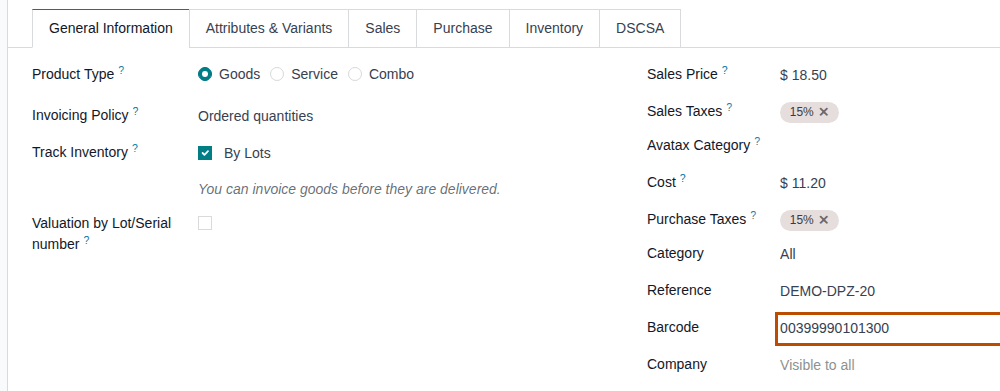
Result: the Barcode app also knows the product by its code, which is what these scans need:
- an Inventory count (BC-08): without Barcode, the count refuses the DataMatrix;
- a lot-only scan (GTIN and lot, no serial), for example on an internal transfer (BC-05);
- scanning a unit on the Barcode app's start screen, to see the product's stock.
In the examples on these pages, Demoprazole has Barcode set; Samplostatin doesn't, and its serial scans still work.
Choose the operation type options
The Barcode app's options live on each operation type. The defaults work for DSCSA scanning; these are the ones worth knowing.
-
Go to Inventory ‣ Configuration ‣ Operations Types and open the operation type, for example Delivery Orders of Chico Distribution Center.
-
Select the Barcode App tab.
Result: the tab shows Show reserved lots/SN, the Mandatory Scan group (Source Location, Product, Lot/Serial), Allow extra products and Allow full picking validation.
-
Change the options your procedure asks for, then select Save:
- Source Location = Mandatory Scan (the default on one-step deliveries): the app asks for the source location first. A DSCSA serial scan doesn't need it: the server places the unit by its lot.
- Allow full picking validation (on by default): Validate can be selected before anything is scanned. For DSCSA lines the serial count then refuses ("… 8 expected, 0 scanned."); non-DSCSA lines validate as usual.
Your procedure decides how strict each operation type is; the software requires one scanned serial per DSCSA unit whatever the options.
Test one scan
-
Go to the Barcode app and select Operations.
-
Select Receipts (of your warehouse) and open a receipt in the Ready state that has a DSCSA product.
-
Scan the unit.
Result: a line of the product shows the lot, its expiry date in brackets and the quantity
1. The unit is recorded on the receipt; see BC-03 for the rest of the receipt, or remove the test unit (BC-07).Without a scanner, select the gear icon, type the code in Enter a barcode... and select Apply. Type
#for the separator, or type the human-readable form printed next to the code, for example(01)00399990101300(17)280630(10)BPDPZ2509A(21)300000000005: the app reads both.
Result: the scanner types each DataMatrix as one line with its separator, the products are found by their GTIN, and the operation types behave as your procedure asks. Records: the products' GTIN and optional Barcode, the operation types' Barcode App options, and the test unit's package on the receipt.
If it doesn't work
- "This product doesn't exist." when you scan a unit on a receipt: the scanner adds a prefix, sends the separator as text such as
<GS>, or drops it; or the company isn't on the GS1 nomenclature. See The Barcode app says "This product doesn't exist.". - "Only DSCSA users can scan DSCSA serials onto a transfer.": the user has Inventory rights only. See Error: "Only DSCSA users can scan DSCSA serials onto a transfer".
Known issue (PF-A10-08): the Barcode app doesn't recognize a scan that starts with a symbology prefix (]d2), although the Scan
Serials dialog accepts it. With no line selected, the app answers "This product doesn't exist.". When a line of the product is selected
(just after another scan), it adds a sub-line whose lot is the whole code instead, with the quantity 1, and records no unit. Turn the
prefix off (step 4 of "Set up the scanner"), and select such a sub-line's trash icon to take it off the line again.