Scan owner stock in the Barcode app
3PL add-on Odoo Enterprise: Barcode app For: Compliance manager, Warehouse staff Checked on 18.0.0.2.0, 18.0.1.0.0
When you hold stock for 3PL owners, you scan the owners' receipts and deliveries in Odoo Enterprise's Barcode app as you scan your own. The app accepts only the units of the transfer's owner, and a lot scan takes the owner's stock of the lot. This page covers the module Rx Tracking (DSCSA): 3PL Barcode bridge: it installs by itself when the Barcode and 3PL modules are both installed, and it has no settings and no menus of its own. Abbreviations: EPCIS: Electronic Product Code Information Services; GTIN: Global Trade Item Number (see the glossary).
Background: one owner's units never serve another owner's order, and each owner's units stay the owner's until a title transfer. The checks run on the server, so the Barcode app, the Inventory forms, imports and the API refuse the same scans.
Scan owner stock in the Barcode app
Scan an owner's delivery or receipt in the app: each unit's DataMatrix is checked against the transfer's owner before it is recorded. Owner transfers are created in the Inventory app, from the owner's order or as an owner receipt; the app only scans and validates them.
Who: Rx Tracking User or Manager
Requires: Odoo Enterprise with the Barcode app, Rx Tracking (DSCSA) - Barcode, and Rx Tracking (DSCSA): 3PL and title model, with 3PL switched on. Rx Tracking (DSCSA): 3PL Barcode bridge installs automatically.
Before you start:
- The Barcode app reads DataMatrix codes: see Switch the company to the GS1 barcode nomenclature and Prepare scanners, products and operation types.
- The owner's delivery is Ready. It comes from a confirmed owner order: see Confirm an owner order.
Ship an owner's delivery
-
Go to the Barcode app, select Operations, then Delivery Orders of your warehouse.
-
In the search box, type the owner order's number, for example
3PL/OUT/2026/00003, and select Search Source Document for: ….Result: the owner's delivery is listed, for example
WH/OUT/00014to Riverside Community Pharmacy, Receiving, Ready. The cards don't show the owner (PF-W28-03): search by the owner order's number. -
Select the delivery.
Result: each line shows the product, the owner next to a person icon, for example Northwind Generics LLC, and the units to ship (
0/2).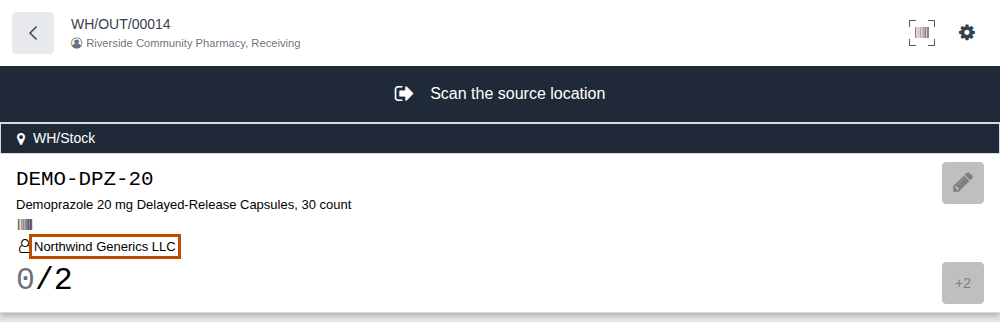
-
Scan the DataMatrix of each unit you ship. With a keyboard, select the gear icon, type the code in Enter a barcode... with
#for the GS1 separator, and select Apply.Result: the line shows the lot, for example BPDPZ2508K (03/31/2028), and counts the unit. A unit held for someone else is refused with a red notification and nothing is recorded (see "If it doesn't work").
-
Select Validate.
Result: the app says "The transfer has been validated" and returns to the list. Records: the delivery, Done; one package per unit, Shipped, with the owner as seller of record; the outbound DSCSA document in the owner's name, as when you ship from the Inventory form (Pick, scan and ship an owner order). Your own stock is unchanged.
Receive on an owner's receipt
The Barcode app can't import a supplier's file. Attach it in the Inventory form first: Attach the supplier's EPCIS file to an owner's open receipt.
-
Go to the Barcode app, select Operations, then Receipts of your warehouse.
-
Type the owner's purchase order reference, for example
NWG-PO-2690, and select Search Source Document for: …. -
Select the receipt, for example
WH/IN/00010from Bluepeak Pharmaceuticals Inc.Result: the line shows the product, Northwind Generics LLC, the destination WH/Stock and
0/6. -
Scan the DataMatrix of each unit.
Result: the line shows the lot, for example BPDPZ2509G (07/31/2028), and the count of units scanned.
-
Select Validate.
Result: "The transfer has been validated". Records: the receipt, Done; one package per unit, In Stock, held for the owner; the
supplier's file, Received; the inbound DSCSA document in the owner's name, for example DSCSA/NWG/IN/2026/00002, as in
Scan and validate an owner receipt.
Without the supplier's file (or the owner's confirmation), validating holds the received lots: see Receive an owner's goods before their data. The app shows none of the receipt's warnings (PF-A10-05): check the receipt in the Inventory form before you validate.
Ship your own sale that takes a just-in-time owner's units
A delivery of your own sale may take units of a just-in-time owner once your own units run out
(Ship our own sale that takes a just-in-time owner's units). In the app, open it like any
delivery (search the sale's number, for example S00025) and scan the serial of every unit, yours and the owner's: the app accepts the
just-in-time owner's units on this delivery. Validate without the serials is refused ("… can't be validated: scan one DSCSA serial for
each unit being validated."). At Validate, Odoo buys the owner's units just in time: a title transfer TT/2026/NNNNN and a purchase
order to the owner, as when you ship from the form. For pick, pack and ship, see BC-05.
Returns, title transfers and counts
- Customer returns: a unit sold by an owner can only come back into that owner's stock. Create the return from the owner's delivery (Take back units an owner sold), then scan it (BC-06).
- Title transfers: the Title Transfer operation types appear in Operations with nothing to do (PF-W28-02). Title transfers are selected and completed in the Inventory app (Buy an owner's units in place); a scan on a title-transfer move is refused ("… title-transfer moves take no scans …", see Error: "… is a title-transfer picking …").
- Counts: each owner's stock of a lot is its own line in Inventory count; see Count DSCSA stock in the Barcode app and the known issue below.
Known issue (PF-A10-07, PF-W28-01): in Inventory count, a lot held by you and by owners has one line per owner. The first unit
you scan counts one unit on every owner's line of the lot (3/31 after one scan of lot BPDPZ2508K), and every later unit is counted on
the line selected, whatever the unit's owner: a Summit unit and one of yours scanned after a Northwind unit both go on Northwind's line.
Count each owner's units by hand and type each line's quantity with its pencil icon, or count in the Inventory app
(Count stock and record the units that are gone).
Known issue (PF-A10-11, PF-W28-02, PF-W28-03): the app names the owner differently and hides it in places. The transfer's details (select the transfer's name at the top of the app) show the owner as Assign Owner, Odoo's own label, not Held for Owner; it is the same field. The transfer cards in Operations don't show the owner and the search offers no owner, so find an owner's transfer by its source document. The Title Transfer operation types are listed in Operations although nothing can be done there.
Known issue (PF-A10-04): batch transfers drop the serial of DSCSA scans, so a DSCSA receipt or delivery, owner or own, can't be completed in a batch. Scan owner transfers one by one.
If it doesn't work
-
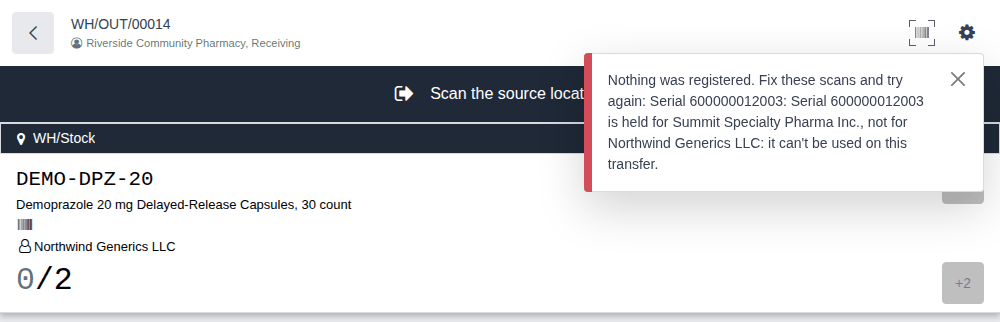
"Nothing was registered. Fix these scans and try again: Serial SERIAL: Serial SERIAL is held for OWNER, not for TARGET: it can't be used on this transfer.": the unit belongs to another owner, or to your own stock ("… held for our own stock, not for Northwind Generics LLC …"). Put it back and scan one of the transfer owner's units. See Error: "… is held for …, not for …".
-
"… was announced by the supplier for OWNER's receipt RECEIPT: receive it there.": the unit is in a supplier file attached to another open receipt. Set it aside and receive it on the receipt named. See Error: "… was announced by the supplier for …".
-
"… was sold by SELLER: it can only come back into the stock of SELLER …": a return of the wrong stock. See Error: "… was sold by …".
-
An "Invalid Operation" dialog at Validate ("… can't be validated: scan one DSCSA serial for each unit being validated.", or "DSCSA owner isolation (3PL): …"): see The transfer won't validate from the Barcode app and Error: "DSCSA owner isolation (3PL): …".
-
On a just-in-time delivery, "… package(s) held for OWNER scanned but … of its unit(s) picked." (or "… takes units held for OWNER, which we buy just in time: scan the serial of each of those units first."): scan the serial of every unit, yours and the owner's. See Error: "… package(s) held for … scanned but … of its unit(s) picked.".
Scan a lot on an owner transfer: the owner-aware lot pre-fill
When you scan a lot's code (the GTIN and the lot, no serial) and the transfer has nothing of that lot reserved, the Barcode app adds a line and fills in its owner from the stock of that lot. Turning 3PL on switches on Odoo's owner fields (Consignment) for every internal user, and standard Odoo then prefers stock that has an owner: it could take an owner's stock on your own delivery. With the bridge, the app chooses only among the stock of the transfer's owner: that owner's stock on an owner's transfer, your own stock (no owner) on yours.
Lot scans are for lot-level work: internal moves, lot-level deliveries to an exempt small dispenser, and products that aren't DSCSA products. A DSCSA delivery to any other customer still needs the serial of every unit.
Who: Rx Tracking User or Manager
Requires: Odoo Enterprise with the Barcode app, Rx Tracking (DSCSA) - Barcode, and Rx Tracking (DSCSA): 3PL and title model, with 3PL switched on. Rx Tracking (DSCSA): 3PL Barcode bridge installs automatically.
Before you start:
- The product's Barcode field holds its GTIN: without it the app doesn't recognize a lot code. See Prepare scanners, products and operation types.
- The transfer is open, and nothing of the lot you scan is reserved on it (a reserved line already has the right owner).
-
Open the transfer in the Barcode app, as in 3PL-BC-01 steps 1–3. A transfer that isn't Ready is hidden by the Ready filter: remove that filter in the search box.
-
If the header says "Scan the source location", scan the location's barcode, for example
WHSTOCKfor WH/Stock. -
Scan the lot's code, for example
01003999901013001728033110BPDPZ2508K(Demoprazole, lot BPDPZ2508K).Result: a line of the lot appears with the transfer's owner: on Northwind's delivery BPDPZ2508K (03/31/2028), Northwind Generics LLC,
1, although you, Northwind and Summit all hold that lot. On your own delivery, the line shows no owner.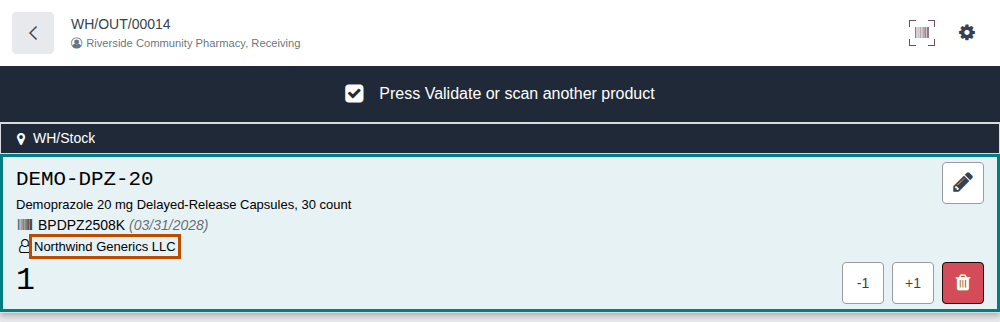
-
For a DSCSA unit that ships to a customer who isn't an exempt small dispenser, also scan the unit's DataMatrix.
Result: the line still counts
1: the serial is recorded for that unit. -
Select Validate.
Result: "The transfer has been validated", followed by "Following backorder was created: WH/OUT/NNNNN" when you shipped fewer units than ordered (the app doesn't ask first). Records: the transfer, Done, with the lot taken from the transfer owner's stock; the backorder for the rest.
Variants
-
Your own transfer: the lot scan fills in no owner, and the line takes your own stock of the lot.
-
A just-in-time delivery of your own sale: the pre-fill takes your own stock only, even when you hold fewer units of the lot than the line needs, so the line shows no owner. Scan the serial of each unit (yours and the owner's): the delivery validates and buys the owner's units just in time, as in 3PL-BC-01. See the known issue below.
-
Not narrowed: batch transfers, scans of an Odoo package, inventory counts and an owner typed by hand (the line's pencil icon, or Pick From in the Inventory form). A line that takes another owner's DSCSA stock is refused at Validate:
DSCSA owner isolation (3PL):- [DEMO-DPZ-20] Demoprazole 20 mg Delayed-Release Capsules, 30 count (WH/OUT/00027): a line (lot BPDPZ2508K) takes units held for Summit Specialty Pharma Inc., but the move is for Northwind Generics LLC. -
Products that aren't DSCSA products keep standard Odoo's pre-fill, unless the company's Owner isolation for non-DSCSA products policy is on (Choose the company's 3PL policies). With 3PL off, the app behaves as standard Odoo.
Fields the bridge adds
The bridge adds two computed fields to transfers for the app's use; neither is shown in any view. Company Partner (3PL Barcode) is the company's own contact (your own stock), and Barcode Owner Scope (3PL) says which products the pre-fill narrows: empty while 3PL is off, the DSCSA products, or every product when Owner isolation for non-DSCSA products is on.
Known issue (PF-A08-08): on a just-in-time delivery the lot pre-fill looks only at your own stock, so the line shows no owner even when it takes a just-in-time owner's units. Nothing is lost: the serial scans decide which units ship, and Validate buys the owner's units. Scan every unit's serial on such deliveries.
If it doesn't work
- "Mandatory Source Location. You are supposed to scan WH/Stock or another source location": scan the location first (step 2).
- "This product doesn't exist." after the lot code: the product has no Barcode. See The Barcode app says "This product doesn't exist.".
- "… can't be validated: scan one DSCSA serial for each unit being validated.": a DSCSA line of a customer delivery has lot scans only. Scan the serials (step 4). See The transfer won't validate from the Barcode app.
- "DSCSA owner isolation (3PL): … a line (lot LOT) takes units held for OWNER, but the move is for OWNER.": a line takes another owner's stock. Set the line back to the transfer owner's stock (or delete it and scan again). See One owner per transfer.