Set up DSCSA documents and delivery emails
Core module For: Administrator, Compliance manager Checked on 18.0.0.2.0
Decide what your outbound DSCSA documents say, which trading partners count as authorized, until when small dispensers may receive lot-level data, and whether customers get the DSCSA files by email. Each setting is per company, in the DSCSA (Rx Tracking) block of the Inventory settings.
Review the Transaction Statement and the EPCIS legal notice
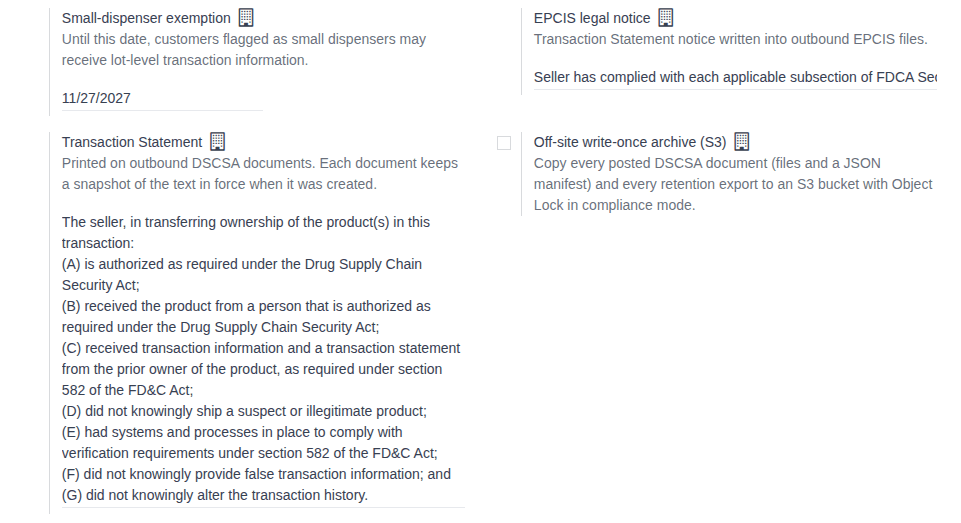
Every outbound DSCSA document prints the Transaction Statement on its T3 report and writes the EPCIS legal notice into its EPCIS file. Each document keeps a copy of the texts in force when it was created. Background: the modules follow the reading that the Transaction Statement is made of the seller's attestations (A) to (G), and that an EPCIS file carries the statement as a flag with a legal notice (FD&C Act § 582(c)(1)(A)(ii)–(iii), § 582(g)(1)(A)–(B); § 581(22), (24), (26), (27); see Compliance background).
The default texts are the publisher's wording of how the modules read the law; they have not been reviewed by counsel. Whether they fit your business is your decision; have a qualified advisor review them before you go live. See the disclaimer.
Your procedure decides who signs off the wording (for example your compliance manager with counsel); the software requires the rights in the Who line to change it.
Who: Administrator with Administration: Settings, who is also Inventory Administrator and Rx Tracking Manager
Requires: Rx Tracking (DSCSA). Works in Odoo Community and Enterprise.
Before you start:
- The wording your business decided on, if it differs from the defaults. The defaults are listed in the DSCSA settings reference.
-
Open the DSCSA settings: Open the DSCSA settings of a company, steps 1–2.
-
Read EPCIS legal notice and Transaction Statement.
-
Only if your wording differs: copy the current text somewhere safe first (there is no button that restores the default), then replace the text in the field.
-
Select Save.
Result: the page reloads and shows the saved texts.
Result: DSCSA documents created from now on carry these texts. Documents already posted keep the texts they were created with. Records: the company (Transaction Statement, TS Legal Notice (EPCIS)).
If it doesn't work
- The block isn't shown, or the settings can't be opened: see Open the DSCSA settings of a company.
Known issue (PF-A01-01): the settings accept an empty Transaction Statement or EPCIS legal notice without a warning. Every document posted afterwards carries the empty text, and while both are empty the documents get no EPCIS file; posted documents can't be corrected. Never save either field empty. If you did, put the text back and save before anyone validates the next delivery. See Documents show an empty Transaction Statement or have no EPCIS file.
Set whether wholesalers and 3PLs need an FDA 503(e) report
By default a wholesale distributor or a 3PL is an authorized trading partner with a valid, verified state license. With this setting on, it also needs a valid, verified license of type FDA 503(e) annual report. Background: the modules follow the reading that a wholesaler's evidence includes a current FDA §503(e) annual report next to the state license (FD&C Act § 582(c)(3), § 581(2); see Compliance background).
Your procedure decides whether to require the report; the software's default is off.
Who: Administrator with Administration: Settings, who is also Inventory Administrator and Rx Tracking Manager
Requires: Rx Tracking (DSCSA). Works in Odoo Community and Enterprise.
Before you start:
- If you turn it on: the 503(e) reports of your wholesaler and 3PL partners are recorded and verified, or the partners are refused from the moment you save. See Record and verify a trading partner's license.
-
Open the DSCSA settings: Open the DSCSA settings of a company, steps 1–2.
-
Select Wholesalers/3PLs need a 503(e) report to require the report, or clear it to stop requiring it.
-
Select Save.
Result: the page reloads with the checkbox as you left it.
-
To see the effect, go to Contacts, open a wholesaler (for example
Westfield Drug Wholesale Inc.) and select its DSCSA tab.Result: with the setting on and no 503(e) report on file, Authorized Trading Partner is cleared and the tab says "Westfield Drug Wholesale Inc. (wholesaler) has no valid FDA 503(e) annual report: none on file." With the setting off, the valid state license is enough and Authorized Trading Partner is selected again.
Result: the rule applies at once to every wholesaler and 3PL partner: orders, receipts and deliveries are checked against it from now on. Records: the company (Wholesalers/3PLs Need a 503(e) Report).
If it doesn't work
- An order or transfer with a wholesaler is refused with "… has no valid FDA 503(e) annual report …": record and verify the partner's report (Record and verify a trading partner's license), or clear the setting. An Rx Tracking Manager records the report. See Check whether a partner is an authorized trading partner, and why not and Troubleshooting: products, partners and licenses.
Next: Record and verify a trading partner's license
Set the small-dispenser exemption end date
Customers flagged as small dispensers may receive lot-level transaction information instead of package-level data until this date. On the date itself and after it, package-level data is required again. Background: FDA's letter of 2026-08-06 exempts small business dispensers and their trading partners from certain requirements until 2027-11-27 (FD&C Act § 582(g)(1); FDA exemption letters of 2024-10-09 and 2026-08-06; see Compliance background).
Your procedure decides which customers are small dispensers and when the date changes; the software applies the date to every flagged customer of the company.
Who: Administrator with Administration: Settings, who is also Inventory Administrator and Rx Tracking Manager
Requires: Rx Tracking (DSCSA). Works in Odoo Community and Enterprise.
Before you start:
- The new end date, if it changed. The default is 11/27/2027.
-
Open the DSCSA settings: Open the DSCSA settings of a company, steps 1–2.
-
In Small-dispenser exemption, enter the end date, or keep the date shown.
-
Select Save.
Result: the page reloads with the date.
-
To see the effect, go to Contacts, open a small-dispenser customer (for example
Hillcrest Family Pharmacy) and select its DSCSA tab.Result: Exemption in Effect is selected while the date is in the future, and cleared from the date itself onward.
Result: flagged small dispensers are exempt until the date. Records: the company (Small-Dispenser Exemption Ends).
An empty date exempts nobody: every customer then needs package-level data, whatever its flag.
Next: Flag a small-dispenser customer and record its attestation
Send the DSCSA files with delivery confirmation emails
Customers can always download their DSCSA documents from the customer portal. With this option, Odoo's delivery confirmation email also carries copies of the delivery's stored T3 report (PDF) and EPCIS file (XML).
Who: Administrator with Administration: Settings, who is also Inventory Administrator and Rx Tracking Manager
Requires: Rx Tracking (DSCSA). Works in Odoo Community and Enterprise.
Before you start:
- Odoo can send email (an outgoing mail server). See Odoo's outgoing mail server documentation.
- Your customers' delivery addresses or companies have an email address.
-
Go to Inventory ‣ Configuration ‣ Settings.
-
In the Search... box, enter
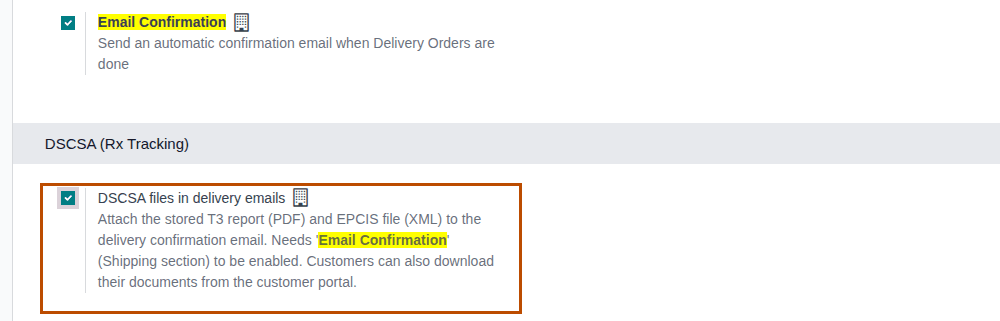
Email Confirmation.Result: the page shows Email Confirmation (in Shipping) and DSCSA files in delivery emails (in DSCSA (Rx Tracking)).
-
Select Email Confirmation.
-
Select DSCSA files in delivery emails.
-
Select Save.
Result: the page reloads with both options selected.
Result: each time someone validates a delivery with DSCSA products, Odoo posts its delivery confirmation email in the delivery's chatter ("We
are glad to inform you that your order has been shipped.") and sends it to the delivery address (for an order shipped to Riverside's
"Receiving" address, to that contact). The email has three files: the delivery slip,
T3-DSCSA-OUT-YYYY-NNNNN.pdf and EPCIS-DSCSA-OUT-YYYY-NNNNN.xml, named after the delivery's DSCSA document. Records: the company
(Attach DSCSA Documents to Delivery Emails); for each delivery, the email in its chatter.
The files are copies of the ones stored on the DSCSA document; nothing is generated again. A delivery with only non-DSCSA products, or a document without an EPCIS file, gets only the files that exist.
If it doesn't work
- No email appears in the delivery's chatter: Email Confirmation is off. See The delivery email has no DSCSA files.
- The email has only the delivery slip: DSCSA files in delivery emails is off, or the delivery has no DSCSA products. Same entry.
- The email is in the chatter but never arrives: Odoo can't send email (in a test database without an outgoing mail server, the email stays unsent). See An email or reminder never arrived.