Check scheduled jobs and reminders
Core module 3PL add-on Odoo Enterprise: Quality app For: Administrator, Compliance manager, Warehouse staff Checked on 18.0.0.2.0, 18.0.1.0.0
The Rx Tracking modules run a few jobs on their own (license reminders, the monthly retention export, the off-site archive) and remind people of work with Odoo activities. Check once that the jobs run, tune them if needed, choose who gets the reminders, and work the reminders from your to-do list. Every job is listed in Scheduled jobs; every activity and email in Emails, notifications and activities.
Check that a DSCSA job ran, and run it by hand
Check the jobs at go-live, when a reminder or an export didn't appear, or when someone asks what runs automatically. Running a job by hand does at once what it would do at its next run.
Who: Administrator (Administration: Settings)
Requires: Rx Tracking (DSCSA). Works in Odoo Community and Enterprise. With Rx Tracking (DSCSA): 3PL and title model, one more job.
Before you start:
- Developer mode: go to Settings, scroll to Developer Tools, and select Activate the developer mode. (Scheduled actions are only in the developer menus, so this page has no screenshot of them.)
-
Go to Settings ‣ Technical ‣ Scheduled Actions.
-
In the search box, enter
DSCSAand pressEnter.Result: the list shows the DSCSA jobs with their Next Execution Date, Interval Number and Interval Unit: DSCSA: license expiry reminders (1 Days), DSCSA: monthly retention export (1 Months), DSCSA: send S3 archive queue (1 Hours) and, with the 3PL add-on, DSCSA 3PL: FDA annual report reminders (1 Days).
-
Check the Next Execution Date of each job.
Result: on a server that runs its scheduled jobs, every date is in the future, at most one interval away. A date in the past means the job is waiting: the server isn't running scheduled jobs, or the job was switched off (Active cleared).
-
Open the job you want to run, for example DSCSA: license expiry reminders.
Result: the form shows the Model, Scheduler User, Execute Every, Active, Next Execution Date, Priority and the Code it runs (for example
model._cron_schedule_expiry_activities()). -
Select Run Manually.
Result: the job runs at once, as its Scheduler User. The form doesn't change and shows no message; the Next Execution Date stays as it was.
-
Check what the job made:
Job Where to look DSCSA: license expiry reminders a License expiring activity for each license's Responsible (Act on license-expiry reminders) DSCSA: monthly retention export a new export in Inventory ‣ Rx Tracking ‣ Retention Exports for each finished month without one (REC-09) DSCSA: send S3 archive queue jobs Done, or retried with a Last Error, in Inventory ‣ Rx Tracking ‣ S3 Archive Queue (ARC-05) DSCSA 3PL: FDA annual report reminders a draft FDA annual report and FDA annual report due activities (Act on the FDA annual report reminders)
Result: you know whether the jobs run, and the job you selected has done its work. Records: whatever the job creates (activities, exports, archive uploads); running a job by hand creates nothing more than its scheduled run would, because each job skips what it has already done (one reminder per license expiry date, one export per month, only the archive jobs that are due).
Don't change a job's code, and don't switch it off unless your procedure says so: a switched-off job silently stops its reminders, exports or uploads. Changes to a job's schedule are kept when the modules are updated.
If it doesn't work
- "Oops! Something went wrong…" after Run Manually on DSCSA: license expiry reminders: the reminder window parameter isn't a whole number. See Error: "Oops! Something went wrong" when the license reminder job runs.
- There is no Technical menu in Settings: developer mode is off, or you don't have Administration: Settings.
- A job's dates stay in the past: see A scheduled job didn't run.
Tune the jobs through system parameters
Three values of the jobs can be changed without touching the jobs: how many days before expiry the license reminder appears, and how many archive uploads are sent per run and attempted before giving up. None of them exists after installation; the default applies until you add it.
Who: Administrator (Administration: Settings)
Requires: Rx Tracking (DSCSA). Works in Odoo Community and Enterprise.
Before you start:
- Developer mode: go to Settings, scroll to Developer Tools, and select Activate the developer mode.
- Your procedure decides how early licenses are reminded and how long the archive keeps retrying.
-
Go to Settings ‣ Technical ‣ System Parameters.
-
Search for the key. If it exists, open it; otherwise select New.
-
Fill in:
- Key: one of the keys in the table below, exactly as written
- Value: a whole number, for example
60
-
Save the record (the ☁ Save manually icon).
Result: the parameter is in the list. The next run of the job uses it.
| Key | Default | What it changes |
|---|---|---|
aglow_rx_tracking.license_expiry_reminder_days | 30 | how many days before a license's expiry date its License expiring reminder appears |
aglow_rx_tracking.archive_batch_size | 50 | how many archive uploads one run of DSCSA: send S3 archive queue sends (it runs again at once while more are due). A value that isn't a positive number is ignored |
aglow_rx_tracking.archive_max_attempts | 8 | how many attempts an archive upload gets before it is Failed. Between attempts it waits 15 minutes, doubling each time up to one day. A value that isn't a positive number is ignored |
Result: the jobs use the new values from their next run. Records: the system parameter. For example, with the reminder window at 90,
running DSCSA: license expiry reminders by hand gives a license that expires in 60 days its reminder today
(AUTO-01).
To go back to the default, open the parameter and delete it (⚙ Actions ‣ Delete).
The system parameters also hold one aglow_rx_tracking.archive_secret_key.COMPANY-ID per company with the archive on. It is written by
the archive settings; never edit it here (Set up the off-site S3 archive).
Known issue (PF-A01-07): a reminder window that isn't a whole number (for example 30 days) makes DSCSA: license expiry
reminders fail every day, and no license gets a reminder. The scheduled run fails silently; Run Manually shows "Oops! Something
went wrong…". Enter digits only, and run the job once by hand after a change (AUTO-01).
If it doesn't work
- The new value has no effect: check the Key letter by letter (a misspelled key is simply ignored), and wait for the next run or run the job by hand.
Choose who receives the DSCSA reminder activities
Two DSCSA reminders go to a person you can choose: License expiring, for licenses that have no Responsible, and GLN missing, raised when an order is confirmed for a buyer without a GLN. The others go to a fixed person, as the table at the end shows.
Who: Administrator (Administration: Settings)
Requires: Rx Tracking (DSCSA). Works in Odoo Community and Enterprise.
Before you start:
- Developer mode: go to Settings, scroll to Developer Tools, and select Activate the developer mode.
- The person who should receive the reminders is an internal user, for example the compliance manager.
-
Go to Settings ‣ Technical ‣ Activity Types.
Result: the list includes the DSCSA types License expiring, S3 archive failed, Trace request due, GLN missing and Lot still quarantined; with the 3PL add-on also FDA annual report due and Report to FDA within 30 days; with the suspect product add-on also Notify FDA (Form 3911).
-
Open GLN missing (or License expiring).
-
In Default User, choose the person, for example
Morgan Lee. -
Save the record (the ☁ Save manually icon).
Result: the next reminder of this type goes to that person.
Result: reminders of the type reach the chosen person. Records: the activity type's Default User. For example, after a salesperson confirms an order for Foothill Care Pharmacy (no GLN), Morgan Lee gets the activity "Add the GLN of Foothill Care Pharmacy before shipping" on the contact.
Who gets each DSCSA reminder:
| Activity type | Goes to |
|---|---|
| License expiring | the license's Responsible; if it has none, the type's Default User; if neither, nobody |
| GLN missing | the type's Default User; if none, the first Rx Tracking Manager of the order's company. Only one open per contact |
| Trace request due | the trace request's Responsible |
| Lot still quarantined, S3 archive failed | every Rx Tracking Manager of the company who has no open one |
| FDA annual report due, Report to FDA within 30 days (3PL) | every Rx Tracking Manager of the company |
| Notify FDA (Form 3911) (suspect product) | the investigation's responsible |
The Default User of the other types has no effect on these reminders.
Known issue (PF-A01-08): licenses created by data files, the demo data or scripts have OdooBot as Responsible, so their reminders go to OdooBot, not to the Default User, and nobody sees them. Open each such license and set a person in Responsible (Act on license-expiry reminders).
If it doesn't work
- The reminder still goes to someone else: for License expiring, the license has a Responsible, who comes first. For GLN missing, the contact already had an open activity, so no new one was made. See A reminder went to the wrong person, or to nobody.
Work the DSCSA activities in your to-do list
The DSCSA reminders are Odoo activities: they appear in the Activities menu of the top bar, and Odoo tells the person by email or in Odoo, as each user's preferences say. Some close by themselves when you do the work; the others you mark done.
Who: Rx Tracking User or Manager; also any user who is the Responsible of a license
Requires: Rx Tracking (DSCSA). Works in Odoo Community and Enterprise.
Before you start:
- Nothing to prepare: the reminders arrive by themselves.
-
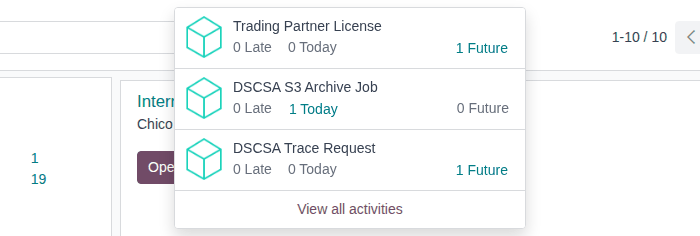
In the top bar, select the Activities icon (the clock).
Result: the list groups your activities by kind of record, each with its counts of late, today's and future ones, for example Trading Partner License, DSCSA S3 Archive Job and DSCSA Trace Request.
-
Select a group, for example Trading Partner License.
Result: a list of the records that have an activity for you.
-
Open the record.
Result: under Planned Activities, the chatter shows the activity: its due date, summary and note, for example Due in 60 days: "OR State license DEMO-OR-WDD-66204 expires on 2026-11-26" for Morgan Lee.
-
Do the work the activity names (see the table below).
Result: for the types that close by themselves, the activity moves to the chatter history as done, with its feedback, for example "Trace request due done : Respond to the trace request within 24 hours" with the feedback "Responded.".
-
For the other types, select Mark Done under the activity, enter what you did, and select Done.
Result: the chatter logs "TYPE done : SUMMARY" with your feedback.
Result: the reminder is done. Records: the activity, now in the record's chatter history with its feedback and who closed it.
| Activity | What to do | Closes by itself |
|---|---|---|
| License expiring | renew the license (MD-11) | no: mark it done |
| GLN missing | add the GLN before anyone selects Validate on the delivery (MD-07) | no: mark it done |
| Trace request due | respond to the request (EXC-08) | yes, on Respond ("Responded."); removed when the request is cancelled |
| Lot still quarantined | release the lot once nothing else holds it (EXC-02) | yes, when the lot is released ("Lot released.") |
| S3 archive failed | fix the cause and retry (ARC-06) | yes, on Retry, when the job is sent, or when test mode is switched off |
| FDA annual report due (3PL) | submit the report (3PL-FAC-02) | yes, when the report is marked submitted |
| Report to FDA within 30 days (3PL) | report the facility event (3PL-FAC-04) | yes, on Mark reported ("Reported to FDA.") |
| To-Do for an owner's portal upload (3PL) | record the uploaded file (3PL-GBD-07) | no: mark it done |
| Notify FDA (Form 3911) (suspect product) | notify FDA and the trading partners (ILL-02) | yes, when the notifications are recorded |
Known issue (PF-A04-03): a Trace request due activity stays with the first Responsible and the first due date when either is changed on the request. Select Edit on the activity and set the new person and date. See The trace request reminder went to the wrong person or date.
If it doesn't work
- An expected reminder never arrived: see A reminder went to the wrong person, or to nobody and An email or a reminder never arrived.