Use Rx Tracking in a multi-company database
Core module 3PL add-on For: Administrator, Compliance manager Checked on 18.0.0.2.0, 18.0.1.0.0
Run several legal entities in one Odoo database, each with its own GLN, licenses, package ledger and DSCSA documents. Set up each company once, then choose in the company switcher which companies you work in.
Set up and work in a multi-company database
Each company is a separate trading partner for DSCSA purposes: it keeps its own records, and the checks run for the company you work in. Set up a new company like the first one, then give people access to it.
Who: Administrator (Administration: Settings) who is also Rx Tracking Manager and Inventory Administrator
Requires: Rx Tracking (DSCSA). Works in Odoo Community and Enterprise.
Before you start:
- You know the new company's GLN (Global Location Number) and GS1 company prefix length, and its state license numbers.
- For Odoo's own multi-company settings (currencies, branches, inter-company rules), see Odoo's multi-company documentation.
Add the company
-
Go to Settings ‣ Users & Companies ‣ Companies and select New.
-
Fill in:
- Company Name: for example
Demo Rx Distribution East LLC - Address
- GLN: the company's 13-digit GLN, for example
0614141002023 - GS1 Prefix Length: the length of its GS1 company prefix, for example
7
- Company Name: for example
-
Select the ☁ (Save manually) icon.
Result: the company is created and the company switcher at the top right lists it. You are allowed to use it; nobody else is yet.
-
Select the company switcher, then select the new company's name to switch to it.
Result: the switcher shows the new company's name.
-
Go to Inventory ‣ Configuration ‣ Warehouses, select New, enter the warehouse's Warehouse name and Short Name (for example
Harrisburg Distribution CenterandHBG), and save. Odoo doesn't create a warehouse for a new company by itself. -
Still in the new company, work through the DSCSA settings as for the first company: open the DSCSA settings of the company, check the Company GLN, review the Transaction Statement and the EPCIS legal notice (EPCIS, Electronic Product Code Information Services, is the file format of the DSCSA data), and give the warehouse its own GLN if it has one.
-
Record the company's own licenses: Record our own company's licenses.
Give people access to the company
-
Go to Settings ‣ Users & Companies ‣ Users and open the user.
-
On the Access Rights tab, in the Multi Companies section, add the company to Allowed Companies. If the person works mainly for it, set it as Default Company too.
-
Select the ☁ (Save manually) icon.
Result: the next time the person signs in, the company switcher lists the company. Their Rx Tracking level is the same in every company they may use.
Work in several companies
-
Select the company switcher at the top right.
-
Choose one:
- select a company's name to work in that company only;
- select the box in front of another company, then select Confirm, to see both companies' records in one list.
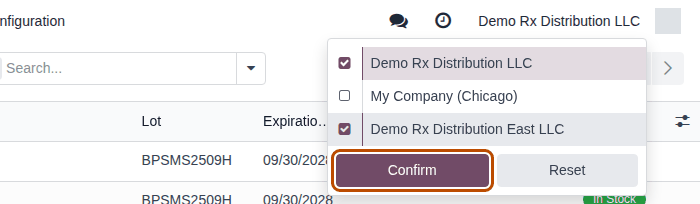
Result: the page reloads and lists show the records of the selected companies. The highlighted company, named at the top right, is the current one: new records, settings and the trading-partner checks use it.
Result: the company has its own GLN, warehouse, DSCSA settings and licenses, and its users see only its records. Records: the company and its contact (with the GLN), its warehouse, its licenses, and the users' allowed companies.
What each company keeps separately, and what all companies share:
| Kept per company | Shared by all companies |
|---|---|
| packages (the package ledger), DSCSA documents and their hash chain, supplier EPCIS files, discrepancies, trace requests, retention exports, archive jobs, Ledger vs Stock, and every 3PL record | contacts, with their DSCSA Role, GLN and Small Business Dispenser flag |
| the DSCSA (Rx Tracking) settings and the 3PL switch and settings | products without a company |
| licenses whose Company is set: they count only for that company. To record one for another of your companies, tick that company in the company switcher first (part "Work in several companies", step 2), or it can't be saved | licenses without a Company: they count for every company |
| a document's number, and the chain that Verify Integrity checks (the current company's) | the numbering of discrepancies, trace requests, owner orders and title transfers (one counter for all companies) |
- Trading partners are checked for the current company. A partner is authorized when its licenses without a company, or with the current company, are valid. A license recorded for another company doesn't count.
- The same unit can be in two ledgers. A GTIN and serial number are unique within one company, so the unit a company ships to another of your companies is registered again when the other company receives it.
- Wizards use the current company: the opening balance, Export now of a retention export, a new trace request.
- With the Barcode add-on, switch every company that scans to the GS1 barcode nomenclature (Switch the company to the GS1 barcode nomenclature).
- With the 3PL add-on, 3PL is switched on per company, and owner profiles belong to one company. Switching 3PL on shows Odoo's owner fields (Consignment) to internal users of every company.
If it doesn't work
- "Uh-oh! Looks like you have stumbled upon some top-secret records. …" when you save a license (or another record) whose Company is another of your companies, with "you might be able to access the record by switching to the company: COMPANY": that company isn't ticked in the company switcher. Tick it as well (part "Work in several companies", step 2) and save again. The same message without that sentence: the record belongs to a company the person may not use. Add the company to their Allowed Companies (part "Give people access to the company", steps 1–3). See Error: "Uh-oh! Looks like you have stumbled upon some top-secret records".
- "… belongs to another company" or "… only covers the records of …": a record of one company was used on another's. Select the right company and pick its records. See Error: "... belongs to another company".
- A partner is refused with "none on file" although a license is recorded: the license's Company is another company. Clear the Company on the license, or record one for the current company (Record and verify a trading partner's license).
- "Third-party logistics (3PL) is off for …": 3PL is switched off for the current company. See Error: "Third-party logistics (3PL) is off for ...".
Next: Move DSCSA stock between two of our companies
Move DSCSA stock between two of our companies
Move DSCSA units from one of your companies to another as a sale and a purchase between two trading partners. Each company then keeps its own documents and its own package ledger.
Don't ship DSCSA units to another of your companies through Odoo's inter-company transit. When you create a second company, Odoo sends sales to your other companies to Virtual Locations/Inter-company transit. Rx Tracking doesn't handle that location: such a delivery validates without the trading-partner check, the serial count or a DSCSA document, and its packages stay In Stock in the sending company's ledger (Ledger vs Stock then lists the difference). The first part of the steps below prevents it.
Who: Administrator (Administration: Settings) who is also Rx Tracking Manager and may use both companies. The sale, the delivery, the purchase and the receipt can also be done by the usual staff of each company.
Requires: Rx Tracking (DSCSA). Works in Odoo Community and Enterprise.
Before you start:
- Both companies are set up (Set up and work in a multi-company database).
- Each company's contact is an authorized trading partner: a DSCSA Role (for example Wholesale distributor) and a verified license without a Company, or with the other company as Company. See Onboard a trading partner and Record our own company's licenses.
- The developer mode is on for the first part (Settings, Activate the developer mode at the bottom of the page).
The example ships 2 units of Demoprazole from Demo Rx Distribution LLC (the seller) to Demo Rx Distribution East LLC (the buyer).
Point the two companies at each other's normal partner locations (once)
-
Switch to the seller, go to Contacts and open the buyer's company contact (
Demo Rx Distribution East LLC). -
On the Sales & Purchase tab, in the Inventory section, set Customer Location to
Partners/Customers, then save.Result: the seller's deliveries to the buyer go to Partners/Customers instead of Virtual Locations/Inter-company transit.
-
Switch to the buyer, open the seller's company contact (
Demo Rx Distribution LLC). -
On the Sales & Purchase tab, in the Inventory section, set Vendor Location to
Partners/Vendors, then save.Result: the buyer's receipts from the seller come from Partners/Vendors.
These locations are kept per company, so each company needs its own setting.
Ship from the seller
-
Switch to the seller and confirm a sales order to the buyer's company contact: Confirm a sales order for DSCSA products.
Result: the order is a Sales Order and its delivery goes to Partners/Customers.
-
Scan the serials of the delivery and validate it: Scan the serials of a delivery and validate it.
Result: the delivery is Done, its packages are Shipped in the seller's ledger, and the DSCSA Documents smart button opens the outbound document (for example
DSCSA/OUT/2026/00007) with its T3 and EPCIS file.
Receive at the buyer
-
Switch to the buyer and confirm a purchase order from the seller's company contact: Confirm a purchase of DSCSA product from an authorized supplier.
-
On its receipt (for example
HBG/IN/00001), import the seller's EPCIS file, downloaded from the seller's document with Download EPCIS: Import the supplier's EPCIS file on the receipt. This is optional; without it, scan the units only. -
Scan the units (Scan units onto a receipt with Scan Serials, and undo a scan) and validate the receipt (Validate a DSCSA receipt).
Result: the receipt is Done and the units are In Stock in the buyer's ledger.
Result: the seller's ledger shows the units Shipped with its outbound document; the buyer's ledger shows the same serial numbers
In Stock, with an inbound document (for example DSCSA/IN/2026/00001) when its EPCIS file was imported. Records: the sales order,
delivery and outbound document of the seller; the purchase order, receipt, supplier EPCIS file and inbound document of the buyer.
If it doesn't work
- The delivery validates without asking for serials and no DSCSA Documents button appears: it went to the inter-company transit location (the first part wasn't done before the order). Check the delivery's destination; see the Important note above.
- "… can't be confirmed: it contains DSCSA products …": the other company's contact is not an authorized trading partner for the company you work in. See Error: "… can't be confirmed: it contains DSCSA products …".
- "These lots are quarantined and can't be shipped or sent to transit or another company …": the lot is quarantined. See Error: "These lots are quarantined …".
- "DSCSA stock (…) can only be relocated to an internal location of its company …": stock can't be moved to the other company by changing a lot's location. Use the sale and purchase above. See Error: "DSCSA products can't be consumed or produced here ...".
Known issue (PF-W04-01): a sale to another company of the same database ships through the inter-company transit location unless the first part of this procedure was done: no trading-partner check, no serial count, no DSCSA document, and the units stay In Stock in the seller's ledger. If it happened, ask an Rx Tracking Manager to review Ledger vs Stock (Check the package ledger against the stock).