Give staff and customers access
Core module For: Administrator Checked on 18.0.0.2.0
Give each employee the Rx Tracking level their job needs, and give customers a portal login to download their own DSCSA documents. Set it when someone joins or changes job.
Give staff the right Rx Tracking access
Rx Tracking has two levels, User and Manager, set on each user's Access Rights tab. Staff without an Rx Tracking right can still sell and buy: the trading-partner checks apply to their orders all the same.
Who: Administrator (Administration: Settings)
Requires: Rx Tracking (DSCSA). Works in Odoo Community and Enterprise.
Before you start:
-
The user exists (Settings ‣ Users & Companies ‣ Users, New). See Odoo's access rights documentation.
-
You know which level each person needs:
Person Rx Tracking Also needs What they get Warehouse staff User nothing (Inventory User comes with it) Inventory ‣ Rx Tracking with the Operations and Master Data sections: packages, supplier files, documents, returns to verify, discrepancies, quarantined lots, trace requests, licenses (read) Compliance manager Manager Administration: Settings and Inventory Administrator only to change the DSCSA settings also Opening Balance, Ledger vs Stock and the Configuration section (Verify Document Integrity, Retention Exports, S3 Archive Queue); licenses, quarantine release, legal holds Administrator who configures DSCSA Manager Administration: Settings and Inventory Administrator also Settings in the Configuration section and the DSCSA (Rx Tracking) settings block Inventory administrator who only manages warehouses none Inventory Administrator warehouse GLNs (Give a warehouse its own GLN) Sales and purchasing staff none their Sales and Purchase rights no Rx Tracking menu; orders with unauthorized partners are still refused, and a DSCSA user fixes the cause
-
Go to Settings ‣ Users & Companies ‣ Users and open the user.
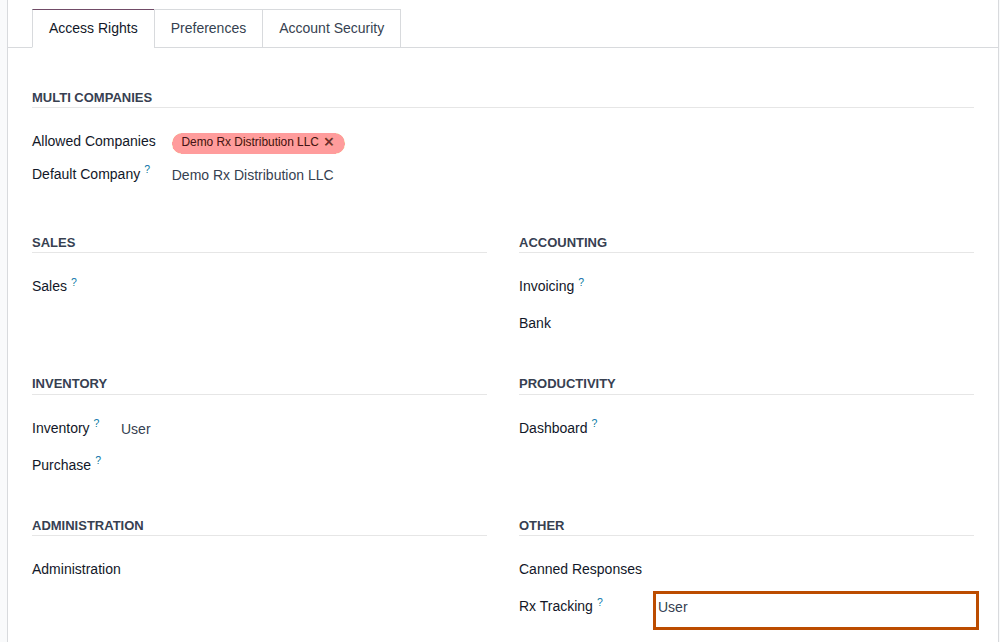
Result: the user form opens on the Access Rights tab.
-
In the Other section, set Rx Tracking to User or Manager. Leave it empty for no Rx Tracking right.
-
For an administrator who configures DSCSA, also set Administration (in Administration) to Settings and Inventory (in Inventory) to Administrator.
-
Select the ☁ (Save manually) icon next to the user's name at the top.
Result: the user is saved. Inventory now shows as User at least, because the Rx Tracking right includes it.
Result: the user sees the new menus after reloading the page or signing in again: with User, Inventory ‣ Rx Tracking shows the Operations and Master Data sections; with Manager, also Opening Balance, Ledger vs Stock and the Configuration section. Records: the user (its groups).
If it doesn't work
- The user doesn't see Rx Tracking in the Inventory menu: they have no Rx Tracking right, or haven't reloaded the page since you saved.
- A Manager with Administration: Settings doesn't see the DSCSA settings block: they also need Inventory Administrator. See The DSCSA (Rx Tracking) block isn't in the settings.
- A user sees "Only DSCSA users can …" or "Only a DSCSA manager can …": their level is too low for that action. See Error: "Only DSCSA users can ..." and Error: "Only a DSCSA manager can ...".
The trading-partner checks run for everyone, with or without an Rx Tracking right: a salesperson without one can't confirm an order for an unauthorized customer, and can't open the customer's DSCSA tab to check it beforehand. See Working with DSCSA products without an Rx Tracking right.
Give a customer portal access to its DSCSA documents
A customer's employee with a portal login downloads the DSCSA documents of that customer's deliveries from the customer portal, without asking you for them.
Who: Administrator (Administration: Settings)
Requires: Rx Tracking (DSCSA). Works in Odoo Community and Enterprise.
Before you start:
- The customer's company is set up as a trading partner. See Onboard a trading partner: DSCSA role, GLN and address.
- The person is a contact of that company with a valid email address that no other user signs in with (the address becomes the portal login).
- Odoo can send email, for the invitation. See Odoo's portal access documentation.
-
Go to Contacts and open the customer's company (for example
Riverside Community Pharmacy), or the person's contact. -
Select the ⚙ (Actions) icon next to the name at the top, then select Grant portal access.
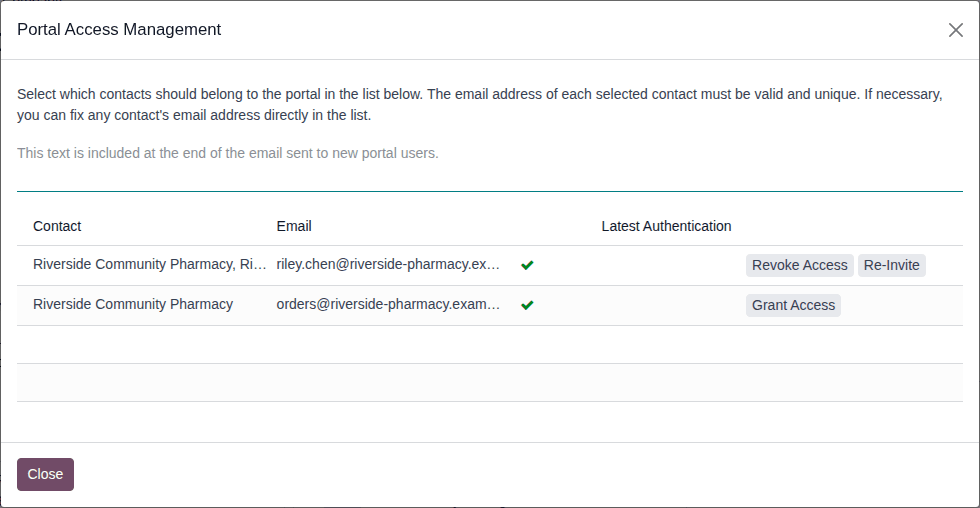
Result: the Portal Access Management dialog lists the company and its contacts with their email addresses. A contact without portal access shows Grant Access; one with access shows Revoke Access and Re-Invite.
-
If the email address is missing or wrong, correct it in the dialog's Email column.
-
On the person's line (for example
Riverside Community Pharmacy, Riley Chen), select Grant Access.Result: the line now shows Revoke Access and Re-Invite, and Odoo sends the invitation email "Your account at COMPANY-NAME".
-
Select Close.
Result: the person is a portal user. After setting a password from the invitation and signing in, they see My account with the DSCSA Documents card ("Transaction information, history and statements of your deliveries"). Records: a portal user for the contact; the invitation email. They see only posted outbound documents whose buyer is their own company; see What portal users and link recipients can read. Send them the customer portal handout.
Remove a customer's access
Follow steps 1–2, then select Revoke Access on the person's line and Close. The person can no longer sign in to the portal.
If it doesn't work
- An "Invalid Operation" dialog says the contact "does not have a valid email" or "has the same email as an existing user": the address is missing or invalid, or another user already signs in with it. Select Close; the line shows no Grant Access until the address is valid. Correct it in the Email column and select Grant Access again. See Error: portal access refused because of the email address.
- The invitation never arrives: see An email or reminder never arrived. Re-Invite sends it again.
Next: Find and download your DSCSA documents (the customer's side)