Quarantine and release lots
Core module For: Administrator, Compliance manager, Warehouse staff Checked on 18.0.0.2.0
Put a lot of a DSCSA product on hold so that nobody can reserve or ship it while you investigate, see which lots are on hold and why, move the held units to a quarantine shelf, and release the lot when it is cleared. The software keeps the reason, who and when for both the hold and the release. What a hold is, and how the holds the software places itself relate to yours: Quarantine and holds.
Quarantine a lot so it can't be reserved or shipped
Quarantine a lot when you suspect its units: a complaint, damaged or tampered cases, a recall notice, a duplicate serial. From that moment the lot is never reserved for an order, and the units already reserved are replaced by units of other lots. Background: the modules follow the reading that suspect product is quarantined while it is investigated, and released if it is cleared (FD&C Act § 582(c)(4); FDA suspect-product guidance (June 2021); Form FDA 3911; see Compliance background).
Your procedure decides when a lot is quarantined and who investigates it; the software requires the Rx Tracking Manager right and a reason.
With the Suspect Product add-on (Odoo Enterprise), every quarantine also opens an investigation for the lot. See Follow the investigation a lot quarantine opens automatically. When the lot holds units that a 3PL keeps for owners, see Put a lot that holds owner units on hold.
Who: Rx Tracking Manager
Requires: Rx Tracking (DSCSA). Works in Odoo Community and Enterprise.
Before you start:
- The lot belongs to a DSCSA product. See Set up a DSCSA product.
- You have the reason at hand, with any case or notice number: the software keeps it on the lot and shows it wherever the lot is refused.
-
Go to Inventory ‣ Rx Tracking ‣ Quarantined Lots.
Result: the list shows the lots that are on hold now (the Quarantined filter is set).
-
In the search bar, select the × on the Quarantined facet, then open the lot, for example
BPDPZ2508K(Demoprazole). You can also find the lot in Inventory ‣ Products ‣ Lots / Serial Numbers.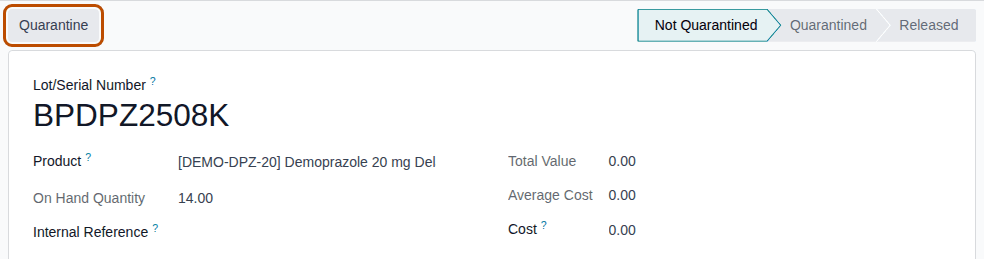
-
Select Quarantine.
Result: the Quarantine Lot dialog opens. It says "A quarantined lot is no longer reserved for any order and can't be shipped. Its open reservations are released and its packages in stock are put on hold." and shows the lot under Lots.
-
In Reason, enter why the lot is held, for example
Customer complaint: crushed cartons from this lot, under investigation (case QA-2026-031).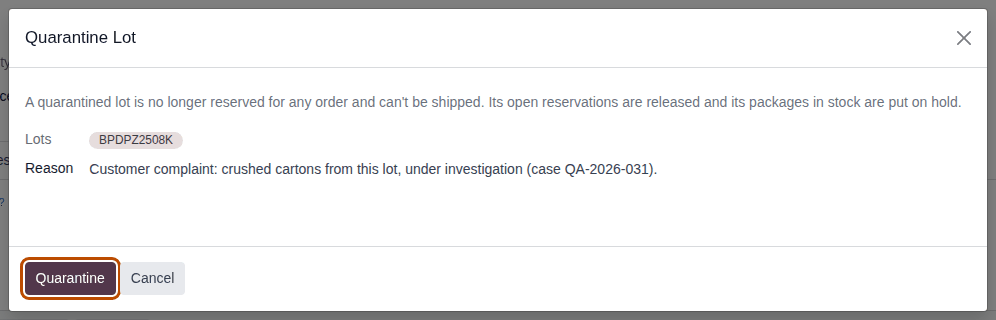
-
Select Quarantine.
Result: the lot's status is Quarantined, a red Quarantined badge shows under its name, and Release replaces the Quarantine button. The new Quarantine tab shows Quarantine Reason, Quarantined On, Quarantined By and Held Outside Discrepancies (selected: this hold doesn't come from a receiving discrepancy). The chatter says "Lot quarantined: REASON", "14 package(s) put on hold." and "Taken off open operations: WH/OUT/00012."
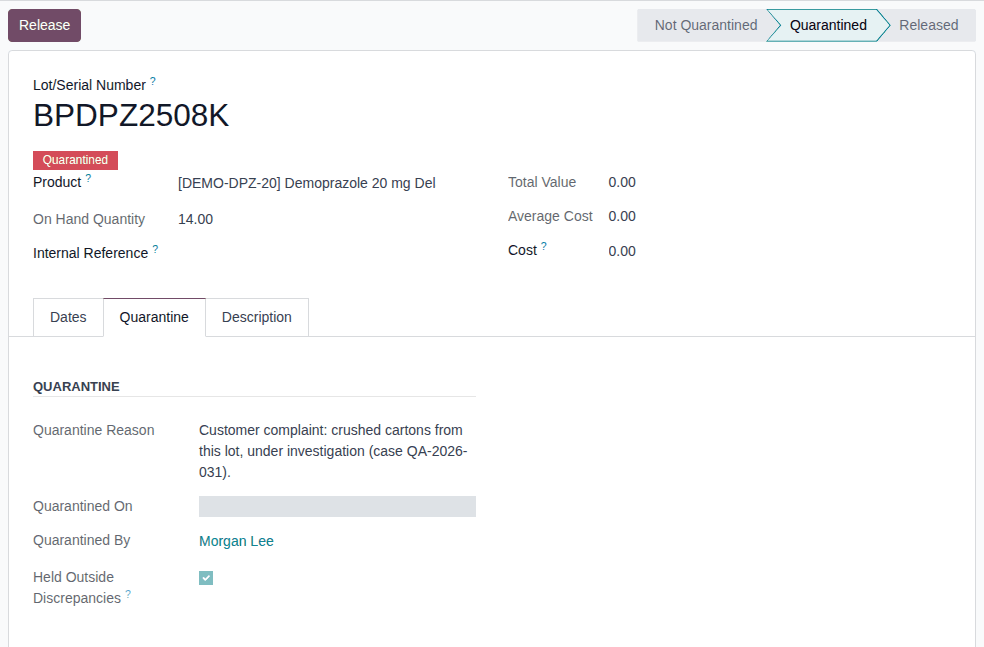
Result: the lot is on hold. Records: the lot, with its status Quarantined, the reason, the date and the manager, and three chatter
lines; each of its packages that was In Stock or Returned is now Quarantined (the package remembers its earlier state). The
lot's reservations on open operations are released, and those operations reserve other lots at once: in the example, the delivery
WH/OUT/00012 of the open sale S00025 now reserves lot BPDPZ2509B. Units of the lot that were already scanned onto an open delivery
are taken off it; scans on an internal transfer or a scrap stay.
From now on:
- the lot is never reserved automatically;
- validating a delivery, a return to the supplier, or a move to a transit location or to another company's location refuses the lot (except a non-saleable return, see Send a non-saleable return to the supplier);
- scanning one of its units onto a delivery is refused ("… can't be used here: it is Quarantined.");
- receipts into the lot, internal transfers inside the company (for example to a quarantine shelf) and scrapping stay possible.
The units stay in stock: the lot's On Hand Quantity and the product's forecast still count them.
If it doesn't work
- The Quarantine button isn't shown: you don't have the Rx Tracking Manager right, the lot is already Quarantined (you see Release instead), the lot isn't saved yet, or its product isn't a DSCSA product (then no status bar shows at all). See The Quarantine or Release button isn't shown.
- "Invalid fields: Reason", or "Give a reason for the quarantine.": the Reason is empty or only spaces. Enter a reason and select Quarantine again. See Error: "Give a reason for the quarantine.".
Known issue (PF-A04-07): managers quarantine or release one lot at a time: the lot lists have no Quarantine or Release action for several selected lots. For a recall that covers several lots, open each lot and repeat steps 2–5.
Next: Move quarantined stock to a quarantine shelf
Holds the software places by itself
Some holds need no manager. Validating a receipt quarantines its lots when a receiving discrepancy is found or when the supplier file has no affirmed Transaction Statement, whoever validates. Those lots show in Quarantined Lots like the others; their chatter names the discrepancy, and Held Outside Discrepancies is cleared. See Work a receiving discrepancy to resolution and Record a missing Transaction Statement after validation and release the lots. If a manager then quarantines the same lot by hand, the lot stays quarantined when the discrepancy is resolved.
Release a lot from quarantine
Release a lot when the investigation cleared it, the supplier corrected its file or the recall was withdrawn. Its units can then be reserved and shipped again.
Your procedure decides who may release a quarantined lot and on what evidence; the software requires the Rx Tracking Manager right and a reason.
With the Suspect Product add-on (Odoo Enterprise), you can also release the lot from its investigation. See Release the lot from its investigation. When the lot holds units that a 3PL keeps for owners, the dialog also asks for each owner's release instruction: see Release a lot that holds owner units, with each owner's release instruction.
Who: Rx Tracking Manager
Requires: Rx Tracking (DSCSA). Works in Odoo Community and Enterprise.
Before you start:
- The lot is Quarantined. See Quarantine a lot so it can't be reserved or shipped.
- You have the reason for the release, for example the outcome of the investigation.
-
Go to Inventory ‣ Rx Tracking ‣ Quarantined Lots and open the lot, for example
BPFMY2509D(Fictimycin, held after a temperature excursion). -
Select Release.
Result: the Release Lot dialog opens. It says "A released lot can be reserved and shipped again. Its packages return to the state they had before the quarantine." and shows Lots and the Current Quarantine Reason.
-
In Reason, enter why the lot is released, for example
Bluepeak confirmed in writing that the excursion stayed within the labeled storage range (letter BP-QA-0931).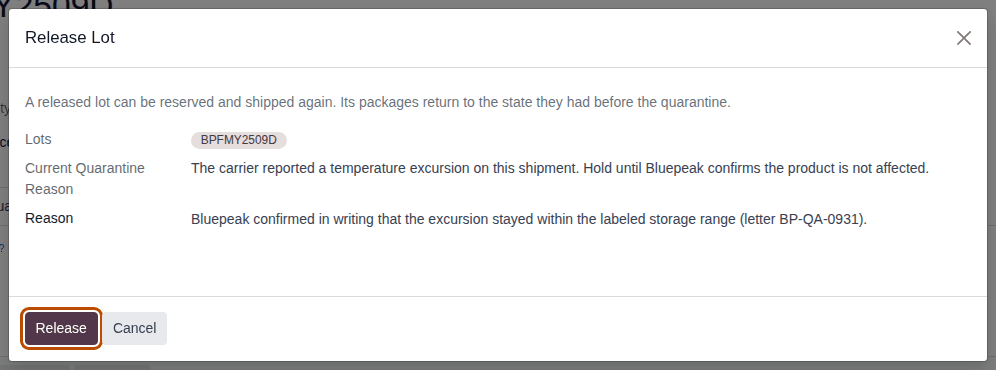
-
Select Release.
Result: the lot's status is Released and the badge is gone. The Quarantine tab now also shows Release Reason, Released On and Released By. The chatter says "Lot released from quarantine: REASON" and "12 package(s) back from hold."
-
If a delivery is waiting for units of this lot, go to Inventory ‣ Operations ‣ Deliveries, open the delivery and select Check Availability.
Result: the delivery reserves units of the released lot and is Ready.
Result: the lot can be reserved and shipped again. Records: the lot, with its status Released, the release reason, the date and the manager, and two chatter lines; its quarantined packages are back in the state they had before the hold (In Stock, or Returned for units waiting in Returns to Verify). Nothing is reserved automatically at the release: open deliveries pick the lot up when someone selects Check Availability, or at the next run of Odoo's scheduler.
If it doesn't work
- The Release button isn't shown: you don't have the Rx Tracking Manager right, or the lot isn't quarantined. See The Quarantine or Release button isn't shown.
- "These lots are not quarantined.": someone released the lot after you opened it. Reload the page. See Error: "These lots are not quarantined.".
- "Invalid fields: Reason", or "Give a reason for the release.": enter a reason. See Error: "Give a reason for the quarantine.".
Known issue (PF-A04-06): when a released lot is quarantined again, its Quarantine tab still shows the Release Reason, Released On and Released By of the earlier release under the new quarantine. Read the status and the badge: they are right, and the chatter keeps the order of events.
Known issue (PF-W15-01): with the 3PL add-on, the Release Lot dialog of a lot that also holds owner units can't be confirmed: it ends in a Validation Error ("… Owner Release Instruction (Release Window) … Field: Lot (lot_id)") and the lot stays Quarantined, your own units included. Lots that hold only your own units are not affected. See Release a lot that holds owner units, with each owner's release instruction.
A lot held by a receiving discrepancy
Recording the missing Transaction Statement releases the lots that its discrepancy held, unless something else still holds them; then each Rx Tracking Manager gets a Lot still quarantined activity on the lot and releases it here. Held Outside Discrepancies (on the Quarantine tab) is selected when such another hold exists, for example a manager's own quarantine. Resolving any other receiving discrepancy never releases a lot: release it with this procedure. See Record a missing Transaction Statement after validation and release the lots.
Review the lots on hold, and why they are held
Check which lots are blocked, and why, for a daily review, an auditor's question, or a colleague who asks why an order won't ship.
Who: Rx Tracking User or Manager
Requires: Rx Tracking (DSCSA). Works in Odoo Community and Enterprise.
-
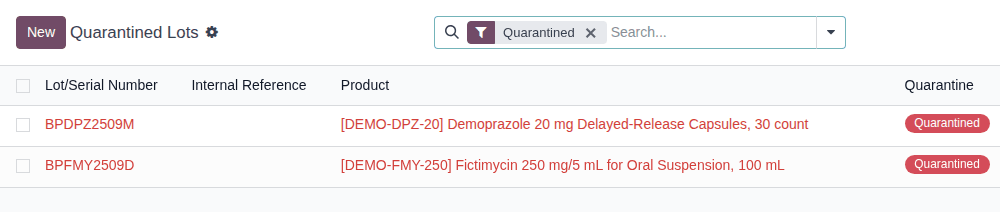
Go to Inventory ‣ Rx Tracking ‣ Quarantined Lots.
Result: the list shows every DSCSA lot on hold, with its Product and a red Quarantined badge. When no lot is on hold, the list says "No lot on quarantine hold".
-
Open a lot and select the Quarantine tab.
Result: you see the Quarantine Reason (several reasons, one per line, when the software added a hold to a lot that was already quarantined), Quarantined On, Quarantined By and Held Outside Discrepancies. The chatter below lists every hold and release of the lot, with its reason ("Lot quarantined: …", "Additional quarantine reason: …", "Lot released from quarantine: …").
-
To see the lot's units, select the Packages smart button (under More when the form has more smart buttons than fit).
Result: the list of the lot's packages, each with its State (Quarantined for the units on hold).
Result: you know which lots are held, why, since when and by whom. Nothing is changed.
Known issue (PF-W09-04): the list's Created on column is when the lot was created (at receipt), not when it was quarantined. To see the start of each hold in the list, open the optional columns menu at the right end of the list header and select Quarantined On.
Other views of the same information:
- To see released lots too, select the × on the Quarantined facet: released lots show a green Released badge. The search options (the ▾ at the end of the search bar) have the filters Quarantined and Released from Quarantine.
- Inventory ‣ Products ‣ Lots / Serial Numbers has the same Quarantine column and filters (the list is grouped by location); quarantined lots are shown in red.
- Inventory ‣ Rx Tracking ‣ Packages with the Quarantined filter lists every held unit. See Look up a unit in the package ledger.
- Inventory ‣ Rx Tracking ‣ Receiving Discrepancies lists the discrepancies that hold a lot. See Work a receiving discrepancy to resolution.
Move quarantined stock to a quarantine shelf
Move the units of a quarantined lot to a separate shelf so that nobody picks them by mistake. The lot stays quarantined on the shelf. Because a quarantined lot is never reserved automatically, you scan each unit you move.
Who: Rx Tracking User or Manager
Requires: Rx Tracking (DSCSA). Works in Odoo Community and Enterprise.
Before you start:
- The lot is Quarantined. See Quarantine a lot so it can't be reserved or shipped.
- The shelf exists as an internal location of your warehouse, for example
WH/Stock/Quarantine. An Inventory Administrator creates it in Inventory ‣ Configuration ‣ Locations (with Storage Locations selected in the Inventory settings). - The scanner is set up. See Set up a handheld scanner for Scan Serials.
-
Go to Inventory ‣ Operations ‣ Internal and select New.
-
Fill in:
- Source Location: where the units are, for example
WH/Stock - Destination Location: the shelf, for example
WH/Stock/Quarantine
- Source Location: where the units are, for example
-
On the Operations tab, select Add a line, choose the product (for example Fictimycin) and enter the Demand (for example
12). -
Select Mark as Todo.
Result: the transfer is Waiting and the line's Quantity is
0.00: the quarantined units aren't reserved. -
Select Scan Serials, scan the DataMatrix of each unit you move into the scan box, one per line, and select Register.
Result: the DSCSA Packages tab lists each unit with the State Quarantined, and the Quantity equals the units scanned.
-
Select Validate.
Result: the transfer is Done.
Result: the units are on the shelf and the lot is still quarantined. Records: the internal transfer WH/INT/NNNNN (Done); the
packages stay Quarantined. Release the lot later with Release a lot from quarantine, or scrap the units from the shelf with
Scrap DSCSA units, naming each unit's serial.
If it doesn't work
- "You cannot validate a transfer if no quantities are reserved, or if only non-reserved moves are picked.To force the transfer, encode quantities." (Odoo's message): nothing is scanned yet. Do step 5.
- "These lots are quarantined and can't be shipped or sent to transit or another company until a DSCSA manager releases them:": the Destination Location is a transit location or another company's location. Choose an internal location of your company, or release the lot first. See Error: "These lots are quarantined and can't be shipped …".
- "DSCSA stock (…) can only be relocated to an internal location of its company, not to …": an Inventory Administrator changed the lot's Location on its form to a location outside your company's stock. Use this procedure instead. See Error: "DSCSA stock (…) can only be relocated …".
- A scan is refused ("Some lines could not be read", "… is already scanned on …"): see Troubleshooting: receiving (the same scan errors as on a receipt).