Scrap DSCSA units
Core module For: Compliance manager, Warehouse staff Checked on 18.0.0.2.0
Take destroyed, damaged, expired or rejected units out of stock for good, and record which units they were. For a DSCSA product you scan the serial of each unit you scrap, so the package ledger marks exactly those units Destroyed.
Scrap DSCSA units, naming each unit's serial
Scrap units of a DSCSA product with Odoo's scrap form, which asks for the DataMatrix of each unit in its DSCSA Serials block. Background: the modules track every unit by its own serial number in a package ledger, so the ledger has to learn which units left stock.
Your procedure decides who may destroy product, how it is destroyed and what evidence is kept outside Odoo; the software requires the Rx Tracking User right and one serial per unit.
The Barcode app (Odoo Enterprise) can't scrap DSCSA units: use this form. See Scrap DSCSA units when you work in the Barcode app. For units that a 3PL keeps for an owner, see Scrap an owner's units on its scrap or destroy instruction.
Who: Rx Tracking User or Manager
Requires: Rx Tracking (DSCSA). Works in Odoo Community and Enterprise.
Before you start:
- The units are in the package ledger with the state In Stock, Returned or Quarantined (a quarantined lot can be scrapped), and aren't scanned on another open transfer. Units counted as missing can't be scrapped until they are recorded as found. See Record units found in a count.
- You know the location the units are in, in the same warehouse as the scrap's Source Location (for example
WH/StockorWH/Stock/Quarantine). - The scanner is set up. See Set up a handheld scanner for Scan Serials.
-
Go to Inventory ‣ Operations ‣ Scrap and select New.
-
In Product, choose the product, for example Samplostatin.
Result: the DSCSA Serials block appears under the fields, with the hint "Scan the DataMatrix of each unit being scrapped, one per line."
-
If the units aren't in
WH/Stock, change Source Location to where they are, for exampleWH/Stock/Quarantine. -
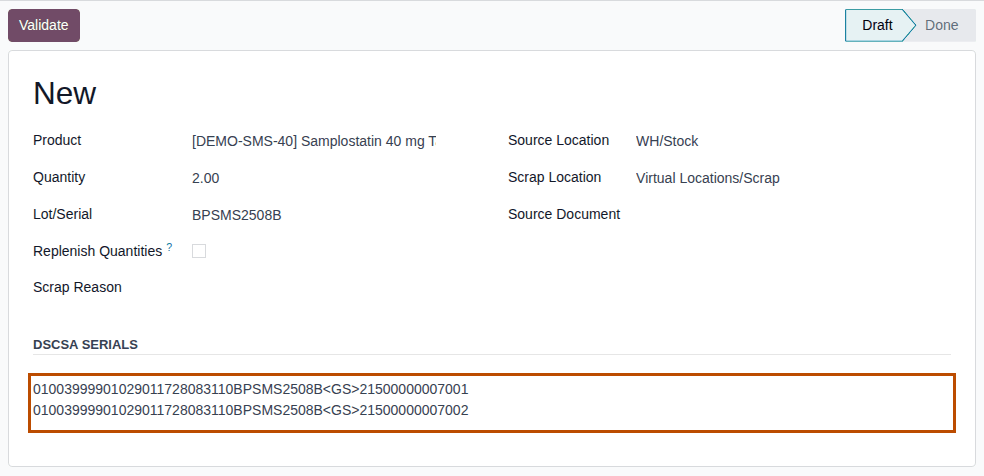
In DSCSA Serials, scan the DataMatrix of each unit you scrap, one per line. You can also paste the lines.
Result: Quantity equals the number of serials, and Lot/Serial shows the lot of the scanned units when they all belong to one lot.
-
Optional: in Scrap Reason, choose one or more reasons.
-
Select Validate.
Result: the scrap gets its number (
SP/00001) and is Done. The DSCSA Serials block lists each unit with its Serial Number, Lot, Expiration Date and the State Destroyed, and the scans can no longer be changed.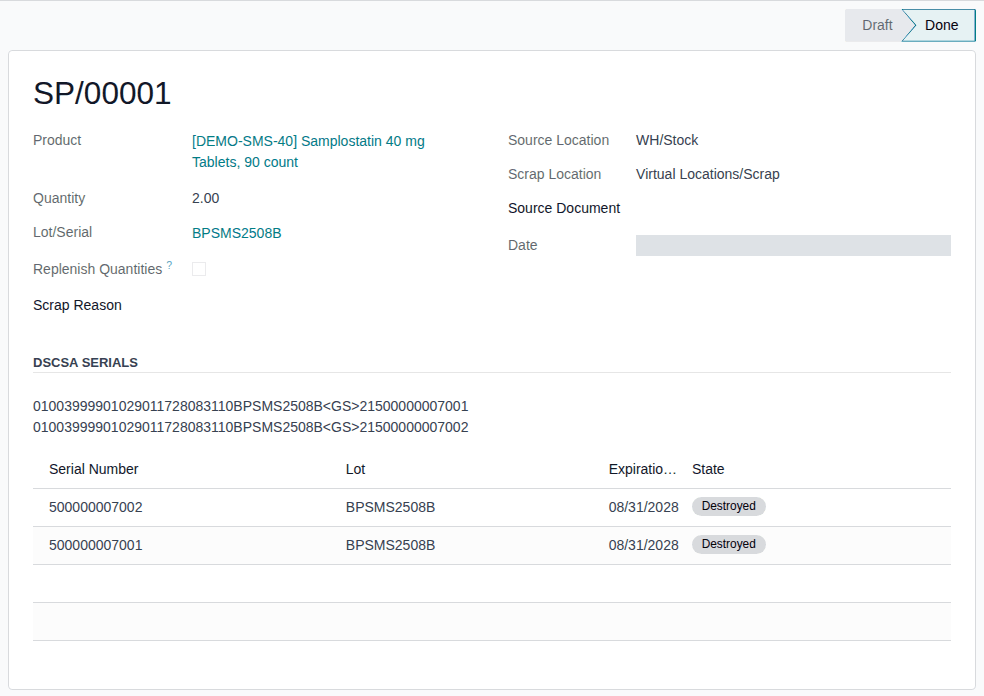
Result: the units are out of stock and recorded as destroyed. Records: the scrap SP/NNNNN (Done) with its scans; one package per
unit, now Destroyed; the stock move from the Source Location to Virtual Locations/Scrap (the Product Moves smart button).
The DSCSA Serials box accepts the same lines as Scan Serials on a transfer: a raw scan, the <GS> stand-in for the group separator,
or the (01)…(21)…(17)…(10)… form. Scrap each lot on its own scrap: the form needs one Lot/Serial.
Products that aren't DSCSA products show no DSCSA Serials block and are scrapped as in standard Odoo.
If it doesn't work
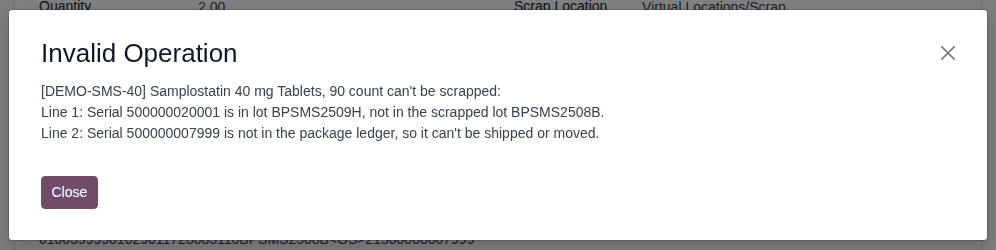
Validating checks every line at once and lists every problem in one message, "PRODUCT can't be scrapped:", one line per problem. Nothing is scrapped: select Close, correct the lines or the quantity, and select Validate again. The scrap stays a draft named "New" until Validate succeeds.
- "Only DSCSA users can scrap PRODUCT: the serials of the scrapped units must be recorded in the package ledger.": you have no Rx Tracking right (the DSCSA Serials block isn't shown either). Ask an Rx Tracking User to scrap the units. See Error: "Only DSCSA users can scrap …".
- "PRODUCT is a DSCSA product: scan the serial of each unit being scrapped (DSCSA Serials).": do step 4. See Error: "… is a DSCSA product: scan the serial of each unit being scrapped".
- "N serial(s) scanned for Q Units scrapped: scan one serial per unit.": the Quantity doesn't match the lines. See Error: "… serial(s) scanned for … scrapped".
- "Line N: Serial … can't be used here: it is Destroyed." (or Shipped, Missing), "… is not in the package ledger …" or "… is already scanned on …": that unit can't be scrapped now. See Error: "Serial … can't be used here" on a scrap.
- "Line N: Serial … is in lot …, not in the scrapped lot …": the unit belongs to another lot. See Error: "Serial … is in lot …, not in the scrapped lot …".
- "Line N: Serial … is in WH/Stock, not at WH2/Stock.": the unit is recorded in another warehouse. See Error: "Serial … is in …, not at …".
- "Line N: a case (SSCC) label can't be used here; scan each unit's DataMatrix.": see Error: "a case (SSCC) label can't be used here".
- "Invalid fields: Lot/Serial": the lines belong to several lots, or no line named a lot. See Error: "Invalid fields: Lot/Serial" on a scrap.
From an open transfer
You can also scrap units while a transfer is open, for example units found damaged while picking a delivery. The units still have to be in stock; scrapping doesn't change what the transfer asks for.
-
Open the transfer, for example the delivery
WH/OUT/00012. -
Select the ⚙ (Actions) menu, then Scrap.
Result: the Scrap Products dialog opens.
-
Choose the Product, check Source Location, and scan each unit into DSCSA Serials, as in steps 2–4 above.
-
Select Scrap Products.
Result: the dialog closes and the units are Destroyed, as above.
Known issue (PF-W09-01): on a transfer that is already Done (for example a receipt), Scrap Products is refused for a DSCSA product with "PRODUCT can't be added to WH/IN/NNNNN: it is done, and DSCSA units must go through the checks of a validation (serials, trading partner, quarantine, documents). Put the extra units on a new transfer instead." Select Close and Discard, then scrap the units from Inventory ‣ Operations ‣ Scrap (steps 1–6 above). See Error: "… can't be added to …: it is done" when scrapping from a transfer.
Other ways units leave stock as destroyed
- Returned units that fail their check: Reject and Destroy in Returns to Verify. See Verify returned units for resale, or reject and destroy them.
- Units that are gone and can't be scanned: record them in a count. See Count stock and record the units that are gone.
- Manufacturing and repair orders can't consume DSCSA products: scrap the units here. See Error: "DSCSA products can't be consumed or produced here …".