Answer trace requests
Core module For: Administrator, Compliance manager, Warehouse staff Checked on 18.0.0.2.0
When the FDA, a state authority or a trading partner asks for the records of a serial number, a lot or a product, log the request, search the records, and answer with one zip of every matching DSCSA document. The software keeps the request, what was found and what was sent, and reminds the person responsible of the 24-hour deadline.
Log a trace request from the FDA, a state or a trading partner
Log each request as soon as it arrives: its deadline is counted from the moment you enter as Received On. Background: the modules follow the reading that requests from the FDA or a state for transaction information and statements are answered within 24 hours, and that FDA treats one business day as acceptable (FD&C Act § 582(c)(4); FDA suspect-product guidance (June 2021); Form FDA 3911; FD&C Act § 582, requests for information; see Compliance background); the modules therefore keep a log of each request and build one zip of the records.
When the request concerns units that a 3PL keeps for an owner, see Answer a trace request about an owner's records.
Who: Rx Tracking User or Manager
Requires: Rx Tracking (DSCSA). Works in Odoo Community and Enterprise.
Before you start:
- You have the request at hand: the letter, email or notice, with the requester's reference number.
- The requester is a contact in Odoo (an agency, a trading partner or a person). If it isn't, leave Requester empty and name the requester in the request text, or ask a colleague with Odoo's Contact Creation right to create it.
-
Go to Inventory ‣ Rx Tracking ‣ Trace Requests and select New.
Result: a new request in the New status. Received On is now, Due On is 24 hours later and Responsible is you.
-
Fill in the Request group and the text box below it:
- Requested By: FDA, State Authority, Trading Partner or Other
- Requester: the contact who asked, for example
U.S. Food and Drug Administration, Casey Brooks - Their Reference: the requester's case, letter or notification number, for example
FDA-TR-2026-0419 - Received On: when the request really arrived, if that was earlier than now (Due On follows)
- Responsible: who answers it
- the text box "What was asked, in the requester's words...": the request itself
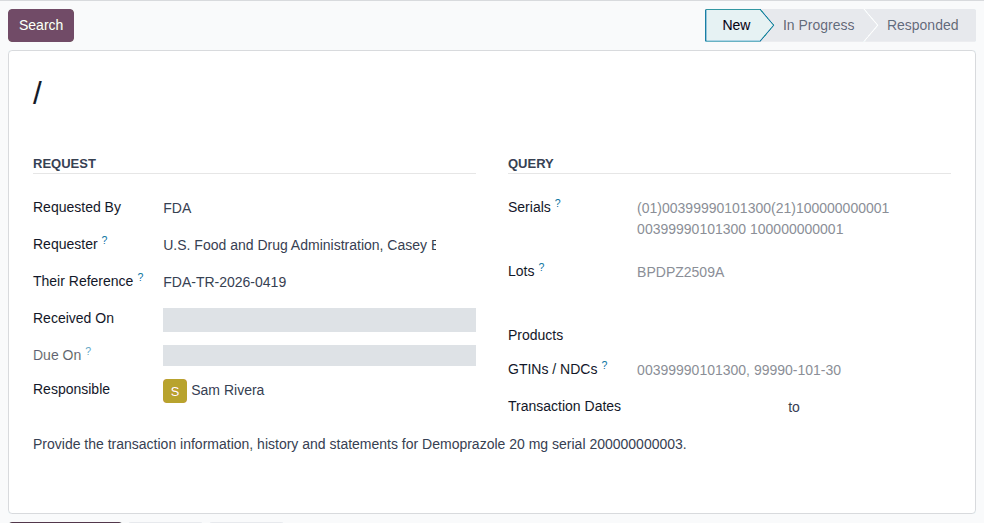
-
Select the ☁ (Save manually) icon next to the request's number.
Result: the request gets its number, for example
DSCSA/TR/2026/00006. The chatter shows "DSCSA Trace Request created" and a planned activity "Respond to the trace request within 24 hours" for the Responsible, due on the Due On date.
Result: the request is logged. Records: the trace request DSCSA/TR/YYYY/NNNNN (New), with its Due On time and a Trace
request due activity for the Responsible. Fill in the Query group now or later: see
Search the records a trace request asks for.
Requests are numbered in one sequence for all your companies. In a database with several companies, the request belongs to the company selected in the Company field, and only that company's records are searched.
If it doesn't work
- "You are not allowed to access 'DSCSA Trace Request' (dscsa.trace.request) records.": you have no Rx Tracking right (the Rx Tracking menu isn't shown either). Ask an administrator for the Rx Tracking User right. See Error: "You are not allowed to access ... records".
Known issue (PF-A04-03): the reminder activity is created only when the request is saved the first time. If you change Responsible or Received On afterwards, the activity stays with the first person and the first date. In the chatter, select Edit on the activity and set the new person and due date. See The trace request reminder went to the wrong person or date.
Search the records a trace request asks for
Enter what the request asks about and let the software find every matching unit and DSCSA document, "up and down": the documents that received the units and those that sold or returned them.
Who: Rx Tracking User or Manager
Requires: Rx Tracking (DSCSA). Works in Odoo Community and Enterprise.
Before you start:
- The request is logged and New or In Progress. See Log a trace request from the FDA, a state or a trading partner.
-
Go to Inventory ‣ Rx Tracking ‣ Trace Requests and open the request, for example
DSCSA/TR/2026/00002(Riverside Community Pharmacy asks about two units). -
In the Query group, fill in one or more of:
- Serials: one unit per line, as a scanned or pasted DataMatrix,
(01)…(21)…text, an SGTIN or SSCC URN,GTIN SERIAL(for example00399990101300 200000000002), a serial number alone (any product), or a case label(00)…(every unit that the supplier's file put in that case) - Lots: lot numbers, one per line or separated by commas; upper or lower case doesn't matter
- Products: DSCSA products
- GTINs / NDCs: each a GTIN or an
NDC (an NDC with its hyphens, for example
99990-101-30), separated by spaces or commas - Transaction Dates: the first and last transaction date of the documents to find
Every field you fill in must match; within one field, any of its values matches.
- Serials: one unit per line, as a scanned or pasted DataMatrix,
-
Select Search (Search Again if the request is already In Progress).
Result: the request is In Progress. The Documents and Packages smart buttons show how many were found, and three tabs appear:
- Documents: Number, Direction (Inbound (received) or Outbound (sent)), Trading Partner, Transfer, Transaction Date and Package Count of each DSCSA document found;
- Packages: Serial Number, GTIN, Product, Lot, Expiration Date, Shipped To and State of each unit found;
- Response: Searched On and Searched By.
A yellow banner lists what matched nothing, for example "Not found: serial (01)00399990101300(21)299999999999". The chatter says "Search: 2 document(s), 1 package(s). Not found: …".
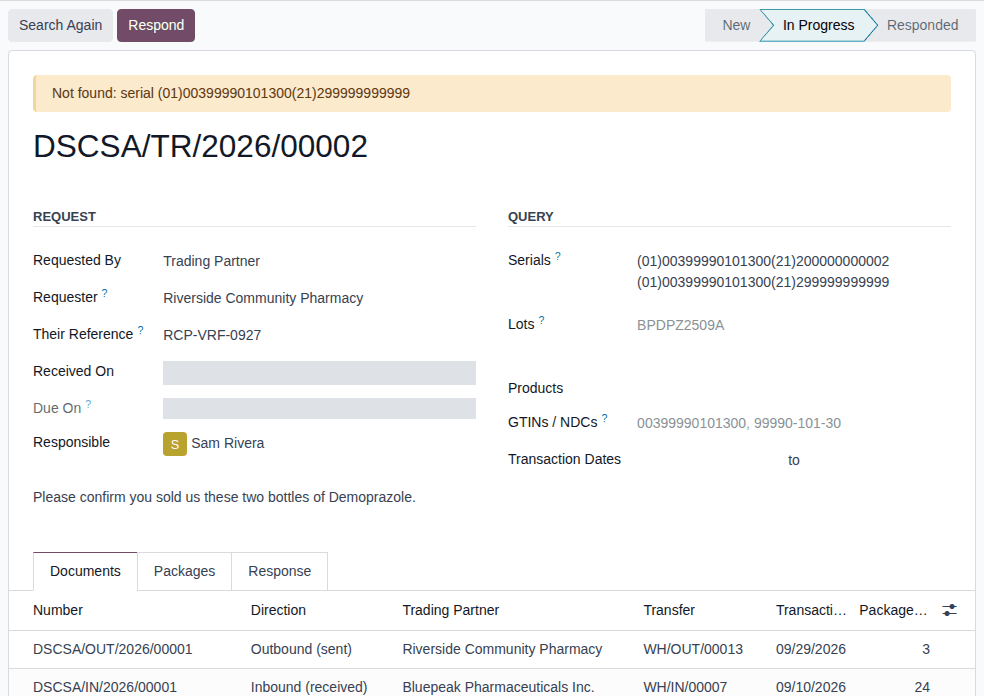
Result: the results are stored on the request, which is In Progress. Records: the request's Documents and Packages lists, the search time and user, and one chatter line.
What the search finds:
- only posted DSCSA documents and units of DSCSA products, of the request's company;
- for a unit: the inbound document it was received with (also when the supplier's file announced it but it never arrived), and the outbound documents of its sales and returns to the supplier;
- with Transaction Dates: documents by their transaction date. Movements that have no document, such as a customer return, aren't
found by dates; they are in the zip's
packages.csvwhen you search by serial or lot; - a unit received without a supplier file has no inbound document: its receipt shows in the Packages tab and in
packages.csv.
If you change any field of the Query group (or the Company) after a search and save, the results are thrown away: the request goes back to New and the tabs disappear. Select Search again. Search again too before responding if documents were posted since the search: the response uses the stored results.
If it doesn't work
- "Enter at least one serial, lot, product, GTIN or transaction date.": the Query group is empty. See Error: "Enter at least one serial, lot, product, GTIN or transaction date.".
- "Some serial lines could not be read:" or "Some GTINs / NDCs could not be read:", with one line per problem (for example a GTIN with a wrong check digit): correct those lines. See Error: "Some serial lines could not be read".
- "The transaction date range of DSCSA/TR/YYYY/NNNNN ends before it starts.": swap the two dates. See Error: "The transaction date range of … ends before it starts.".
Respond to a trace request with the response zip, and send it
Build the answer from the stored results: one zip with the stored files of every document found, an index, the ledger movements of every unit found and a summary of the request. Responding closes the request.
Your procedure decides how the zip reaches the requester (a secure email, the agency's portal …) and who approves the answer; the software builds and keeps the zip but doesn't send it.
Who: Rx Tracking User or Manager
Requires: Rx Tracking (DSCSA). Works in Odoo Community and Enterprise.
Before you start:
- The request is In Progress, and its search is up to date. See Search the records a trace request asks for.
-
Open the request and check the Documents and Packages tabs.
-
Select Respond.
Result: a Confirmation dialog asks "Build the response zip from these results? The request is then closed and can't be changed."
-
Select Ok.
Result: the request is Responded and a Download Response button appears. The Response tab also shows Responded On, Responded By, Response File Name (
DSCSA-TR-2026-00002-response.zip) and Response SHA-256. The chatter says "Response FILE-NAME built by USER on DATE UTC: N document(s), M package(s). SHA-256 CHECKSUM." with the zip attached, and the reminder activity is marked done ("Responded.").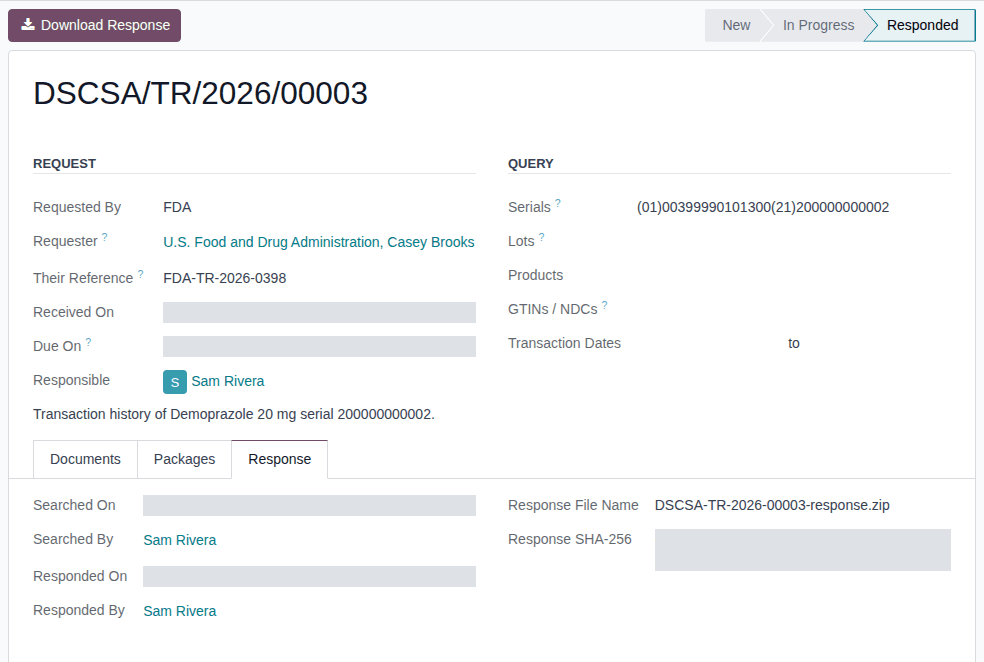
-
Select Download Response.
Result: your browser downloads the zip.
-
Send the zip to the requester, outside Odoo.
Result: the request is answered and closed. Records: the request (Responded), which can no longer change (only its chatter and activities); the zip, kept on the request for good, with its SHA-256 checksum; the chatter line with the counts and the checksum.
The zip holds:
| Path | Content |
|---|---|
documents/NUMBER/ | the files stored when each document was posted, byte for byte: the T3 report (PDF), our EPCIS file, the supplier's original EPCIS file |
documents/NUMBER/transaction-statement/ | for a supplier file without an affirmed Transaction Statement that was recorded later: the record of where the statement was obtained, and its evidence files |
index.csv | one row per product line of each document: partner, GLN, product, NDC, GTIN, lot, expiry, quantity, the files and their SHA-256, the document's hash, and the Transaction Statement columns |
packages.csv | the package-ledger movements of each unit found: date (UTC), movement, transfer, document, locations, partner, product, serial, lot, expiry, case and state |
request.txt | the request, the query, the results and what the zip contains; times in UTC |
A search that found nothing can still be answered: the zip then holds only index.csv, packages.csv and request.txt.
If it doesn't work
- "The stored files of these DSCSA documents don't match their checksums; run Verify Integrity before responding:": a stored file has changed since it was posted. Nothing is built. Ask an Rx Tracking Manager to check the documents. See Error: "The stored files of these DSCSA documents don't match their checksums".
- "Search trace request … before responding." or "Trace request … is closed and can't be changed …": the request changed in another window. Reload the page. See Error: "Search trace request … before responding.".
Known issue (PF-A04-04): in packages.csv, a scrap and a unit counted as missing both show the movement removal, and the
package_state column is the unit's state when the zip was built, not after each movement. To tell them apart, look the unit up in
the package ledger (Look up a unit in the package ledger): its state there is Destroyed or Missing.
Cancel a trace request that needs no answer
Cancel a request that was logged twice or withdrawn. The request is kept, as a record that it was received: there is no Delete.
Your procedure decides when a request needs no answer; the software requires the Rx Tracking Manager right.
Who: Rx Tracking Manager
Requires: Rx Tracking (DSCSA). Works in Odoo Community and Enterprise.
Before you start:
- The request is New or In Progress.
-
Go to Inventory ‣ Rx Tracking ‣ Trace Requests and open the request.
-
Select Cancel Request.
Result: the request is Cancelled; its reminder activity is removed and its fields can no longer be changed. The chatter shows the status change.
Result: the request is closed without an answer. Records: the request (Cancelled), kept with its chatter; it shows greyed out when you remove the Open filter from the list.
If it doesn't work
- The Cancel Request button isn't shown: you don't have the Rx Tracking Manager right, or the request is already Responded or Cancelled. Ask an Rx Tracking Manager. See Error: "Only DSCSA managers can do this on a trace request.".
Keep trace requests within the 24-hour deadline
Check every day which requests are open and which are late, and answer the late ones first. A request is overdue when it is New or In Progress and its Due On time has passed; a responded or cancelled request is never overdue. The banner of an overdue request says "This request is overdue: DSCSA expects the answer within 24 hours of receipt."; the background of that deadline is in Log a trace request from the FDA, a state or a trading partner.
Who: Rx Tracking User or Manager
Requires: Rx Tracking (DSCSA). Works in Odoo Community and Enterprise.
-
Go to Inventory ‣ Rx Tracking ‣ Trace Requests.
Result: the list shows the open requests (the Open filter: New and In Progress), newest first. Overdue requests are in red.
-
To see only the late ones, select the × on the Open facet, open the search options (the ▾ at the end of the search bar) and select Overdue.
Result: only the overdue requests are listed.

-
Open an overdue request.
Result: a red banner says "This request is overdue: DSCSA expects the answer within 24 hours of receipt." Answer it: Search the records a trace request asks for, then Respond to a trace request with the response zip, and send it.
Result: you know which requests are open and late. Nothing is changed.
Other ways to follow the deadline:
- Each Responsible has a Trace request due activity ("Respond to the trace request within 24 hours") due on the Due On date. The clock (Activities) icon in the top bar counts them under DSCSA Trace Request, as Late, Today or Future.
- The search options also have Responded, My Requests, FDA, State Authority, Trading Partner and Received On, and group by Status, Requested By or Month.