Record and verify licenses
Core module For: Administrator, Compliance manager Checked on 18.0.0.2.0
Keep each trading partner's license in Odoo, with where you verified it and the proof. A partner is an authorized trading partner only while it has a verified, unexpired license of the type its DSCSA role needs; our own company's licenses are printed on every outbound DSCSA document.
Background: the license checks exist because of DSCSA's rule on authorized trading partners and the license each role needs (FD&C Act § 582(c)(3), § 581(2); see Compliance background).
Record and verify a trading partner's license
Record a new partner's license, or a new license of an existing partner, and mark it verified once you have checked it at its source (the state board of pharmacy's look-up, the FDA database). Your procedure decides how a license is checked and how often it is re-checked; the software requires a verification source before it accepts the license as verified.
Who: Rx Tracking Manager
Requires: Rx Tracking (DSCSA). Works in Odoo Community and Enterprise.
Before you start:
- The partner exists as a company with its DSCSA role. See Onboard a trading partner.
- You have looked up the license at its source and saved the proof (a screenshot or a PDF).
-
Go to Inventory ‣ Rx Tracking ‣ Licenses and select New. (Or, on the partner's form, select the Licenses smart button, then New: Trading Partner is filled in.)
Result: a license form opens. The status bar shows Unverified, Valid and Expired, and the header has Mark verified.
-
In Number, enter the license number, for example
DEMO-CA-PHY-63015. -
Fill in:
- Trading Partner: the partner's company, for example Pinecrest Pharmacy. Only companies (and individuals without a company) are listed.
- Type: State license (the default), FDA establishment registration, FDA 503(e) annual report, DEA registration or Other.
- Jurisdiction: the issuing state, required for a state license. Type the name and select the entry with (US), for example California (US): the list also has other countries' states, such as Baja California (MX).
- Issue Date and Expiry Date: as on the license. Leave Expiry Date empty only for a license that doesn't expire.
- Responsible: the person who gets the renewal reminder. It defaults to you.
- Company: shown only when the database has several companies. Leave it empty to share the license with every company. To record a license for another of your companies, tick that company in the company switcher first: select your company's name in the top bar, select the box in front of the other company, then Confirm, so that both are ticked. Do it before step 1: the switch reloads the screen and drops a form you haven't saved.
-
Under Verification, in Verification Source, enter the look-up URL or where and how you checked it, for example
California Board of Pharmacy license look-up, checked 09/26/2026. -
Select Evidence and choose the proof file.
Result: the file is listed under Evidence.
-
Select the save icon.
Result: the license is saved with the status Unverified. The partner is not authorized by it yet.
-
Select Mark verified.
Result: the status is Valid. Verified By and Verified On show you and today, Keep Evidence Until shows the date until which the evidence files are kept, and the chatter logs "License verified by YOUR-NAME on DATE. Source: …". The header now shows Record re-verification, and the licensed facts (partner, type, number, jurisdiction, dates, company) are read-only.
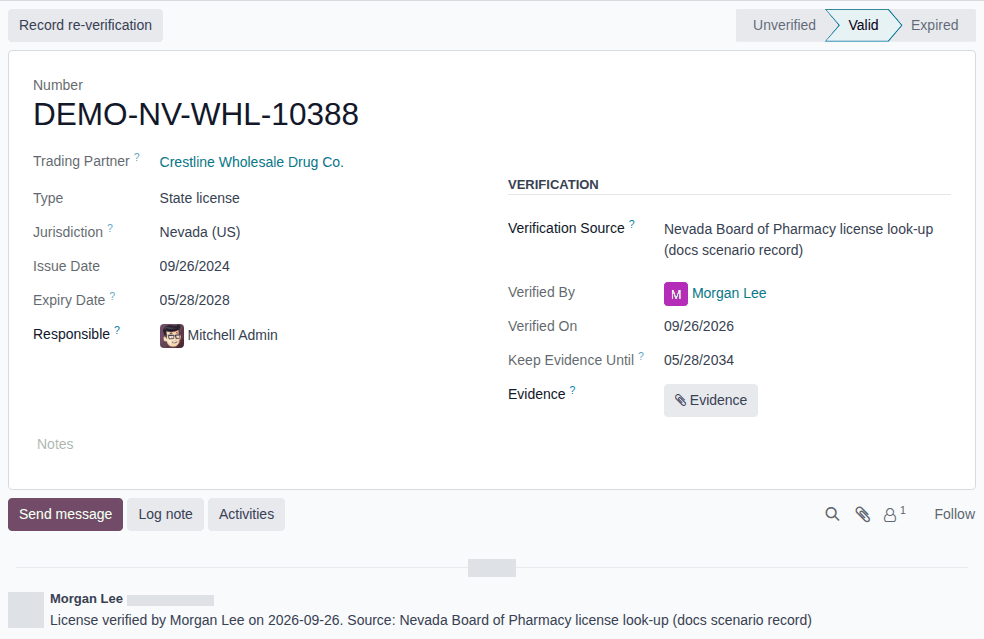
Result: the license is verified. If it is the license the partner's role needs, the partner is an authorized trading partner (MD-05), and the license is printed in the Licenses section of the partner's DSCSA documents while it is in force. Records: the license, its evidence file, and the verification in its chatter.
The status of a license is computed every day:
| Status | Meaning |
|---|---|
| Unverified | nobody has marked it verified |
| Not yet in force | verified, but its Issue Date is in the future |
| Valid | verified and in force: it counts for the partner |
| Expired | its Expiry Date has passed, verified or not |
If it doesn't work
- "Enter where … was verified (Verification Source: a URL or a short description) before marking it verified.": Verification Source is empty. Fill it in and select Mark verified again. See Error: "Enter where … was verified".
- "Invalid fields: Jurisdiction": a state license needs its Jurisdiction. Select it.
- "License … cannot expire before it is issued.": Expiry Date is before Issue Date. Correct the dates. See Error: "License … cannot expire before it is issued".
- "Sorry, YOUR-NAME (id=ID) doesn't have 'create' access to: - Trading Partner License, …" ending with "you might be able to access the record by switching to the company: COMPANY" (in an Oh snap! dialog, when you save): the license's Company isn't ticked in the company switcher. Select Discard changes, tick that company as step 3 describes, and record the license again. See Error: "Uh-oh! Looks like you have stumbled upon some top-secret records".
- There is no New button and no Mark verified: you are an Rx Tracking User, who can read licenses but not record or verify them. Ask an Rx Tracking Manager.
- "Record license … on the company …, not on its contact or address …" (when importing licenses): a license belongs to the partner's company. See Error: "Record license … on the company …".
Known issue (PF-A01-04): Jurisdiction is required only on the form. A state license imported or created through the API without a jurisdiction is accepted, can be verified and then authorizes the partner. After an import, filter the licenses by Type and check that every state license has a Jurisdiction before you verify it.
Next: Check whether a partner is an authorized trading partner
Record our own company's licenses
Record your company's own licenses (state wholesale licenses, FDA registrations) the same way as a partner's. Every outbound DSCSA document lists the licenses of our company that are in force on its transaction date.
Who: Rx Tracking Manager
Requires: Rx Tracking (DSCSA). Works in Odoo Community and Enterprise.
Before you start:
- You have the license and its look-up proof.
-
Follow MD-08 steps 1–7, with Trading Partner = your company, for example Demo Rx Distribution LLC, and the license's state in Jurisdiction, for example Nevada (US).
Result: the license is Valid and appears on the DSCSA tab of your company's contact.
Result: the next outbound DSCSA documents list the license under SELLER in the Licenses section of their T3 (Transaction Report). Documents already posted keep the licenses they were frozen with. A DEA registration is never printed. Records: the license, its evidence and its verification.
Our company needs no DSCSA role for this: the software never checks our company against itself.
With the 3PL add-on, the licenses of each of our warehouses (facility licenses) are recorded as described in Record facility licenses.
Renew, correct or retire a verified license
A verified license is kept as evidence: its licensed facts can't be changed and it can't be deleted. To renew or correct it, record a new license and verify it, then archive the old one. To retire it, archive it.
Who: Rx Tracking Manager
Requires: Rx Tracking (DSCSA). Works in Odoo Community and Enterprise.
Renew or correct a license
Record and verify the new license before you archive the old one, so the partner stays authorized throughout.
-
Go to Inventory ‣ Rx Tracking ‣ Licenses and open the old license.
-
Select the ⚙ (Actions) menu next to its name, then Duplicate.
Result: an unverified copy opens with the same partner, type, number, jurisdiction and dates, and the same Verification Source; the evidence files and the verification are not copied. Its status bar shows Unverified, or Expired when the old license has already expired (the copy keeps the old, past Expiry Date until you change it in step 3).
-
Correct what changed: for a renewal, Issue Date and Expiry Date (for example
10/16/2028); for a correction, the wrong field. -
Update Verification Source and select Evidence to add the new proof.
-
Select the save icon, then Mark verified.
Result: the new license is Valid.
-
Open the old license again, select the ⚙ (Actions) menu, then Archive, and confirm with Archive.
Result: the old license shows an ARCHIVED ribbon. Its open reminder activity, if any, is removed.
Result: the partner has one active, valid license and stays authorized. Records: the new license with its verification; the old one, archived, with its evidence kept. Archived licenses are listed under the Archived filter of the license list.
You can also record the new license from New (MD-08) instead of duplicating.
Record a re-verification
When you check a verified license at its source again:
-
Open the license, update Verification Source if needed and select the save icon.
-
Select Record re-verification.
Result: Verified On shows today, and the chatter logs a new "License verified by … on …" line.
Result: the license is re-verified. Records: the new verification line in its chatter.
Retire a license
- Open the license, select the ⚙ (Actions) menu, then Archive, and confirm with Archive.
Result: the license no longer counts: if it was the partner's only valid license of the required type, the partner is no longer authorized. Records: the archived license. To bring it back, open it under the Archived filter and select Unarchive in the ⚙ (Actions) menu.
If it doesn't work
- The number, partner, type, jurisdiction or dates can't be edited: the license is verified. Renew or correct it as above.
- "… cannot be deleted: verified licenses are verification evidence and must be kept for six years. Archive them instead." (when you select Delete): archive it instead. See Error: "… cannot be deleted: verified licenses are verification evidence …".
- "… is verified: the verification is evidence for its …, which can't change." (when importing changes): renew or correct it as above. See Error: "… is verified: the verification is evidence …".
An unverified license stays fully editable, and an Rx Tracking Manager may delete it. On a verified license, Responsible, notes, Verification Source and new evidence files can still be changed or added.
Act on license-expiry reminders
Every day the job DSCSA: license expiry reminders gives each license that expires within the next 30 days one License expiring activity, due on the expiry date, for its Responsible. Renew the license before it expires.
Who: the license's Responsible, with Rx Tracking Manager to renew it.
Requires: Rx Tracking (DSCSA). Works in Odoo Community and Enterprise.
Before you start:
- You are the Responsible of the license, or the Default User of the License expiring activity type (Choose who receives the DSCSA reminder activities).
-
In the top bar, select the activities icon (the clock).
Result: the list shows Trading Partner License with its counts of late, today's and future activities.
-
Select Trading Partner License.
Result: the license list shows the licenses with an activity for you.
-
Open the license.
Result: under Planned Activities, the chatter shows the reminder, for example "CA State license DEMO-CA-PHY-61508 expires on 2026-10-16".

-
Renew the license: follow Renew or correct a license steps 2–5.
-
Back on the old license, select Mark Done under the reminder.
Result: the chatter logs "License expiring done : …".
-
Archive the old license (Renew or correct a license step 6).
Result: the partner has a valid license with the new expiry date, and the reminder is done. Records: the new license and its verification; the done activity and the archived old license.
To see every license that expires soon, go to Inventory ‣ Rx Tracking ‣ Licenses, open the search options and select Expiring in 30 Days (always 30 days, whatever the reminder window).
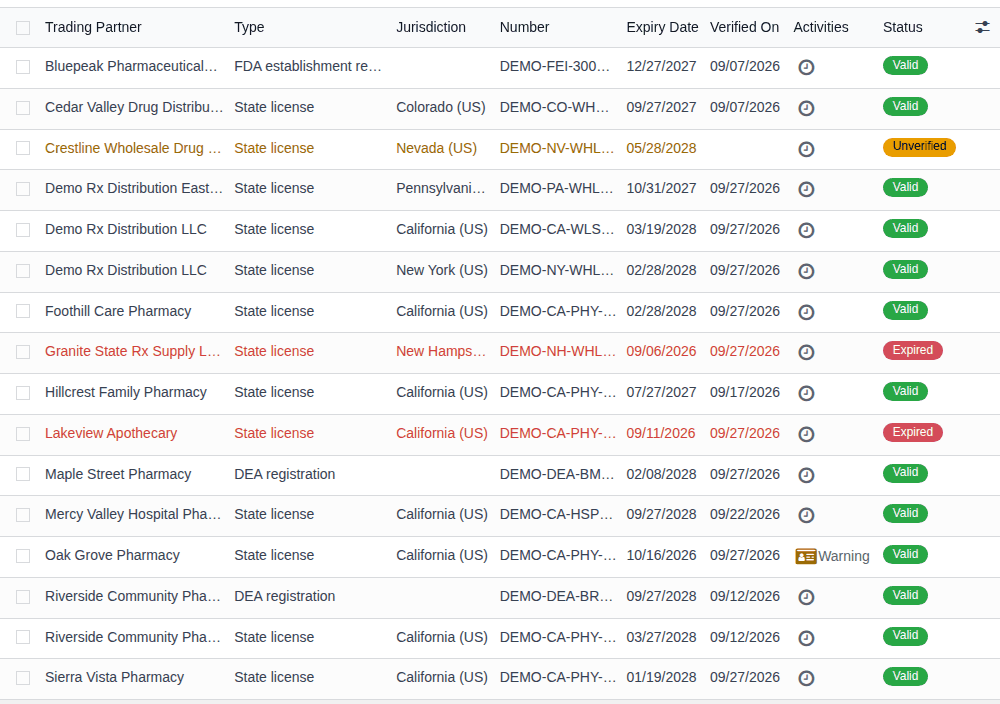
A license gets one reminder per expiry date: an open reminder isn't duplicated, and one marked done doesn't come back for the same date. The new license, with its new expiry date, gets its own reminder in time. A license with no Responsible gets a reminder only if the License expiring activity type has a Default User. To change the 30-day window or run the job at once, see Tune the jobs through system parameters and Check that a DSCSA job ran, and run it by hand.
If it doesn't work
- No reminder arrives for a license that expires soon: the license has no Responsible (or an inactive one) and the activity type has no Default User, or the job didn't run. See No license-expiry reminder arrives.
Known issue (PF-A01-08): licenses created by data files, the module's demo data or scripts have OdooBot as Responsible, so their reminders go to OdooBot and nobody sees them. Open each such license and set a person in Responsible; the field stays editable on a verified license.