Set up DSCSA products
Core module For: Administrator, Compliance manager, Warehouse staff, Sales and purchasing Checked on 18.0.0.2.0
Mark each prescription drug you buy and sell as a DSCSA product, with its National Drug Code (NDC) and drug data. Only DSCSA products are checked: they get serial capture, the trading-partner license checks and the DSCSA transaction documents. Every other product works as in standard Odoo.
Set up a DSCSA product
Turn on DSCSA Product for a new or existing product and enter its NDC. The software stores the NDC in its hyphenated 10-digit form and computes the GTIN (Global Trade Item Number), the product number used in DSCSA files and 2D barcodes. See the glossary for the abbreviations.
Background: the product flag, the NDC and the GTIN are the drug master data the modules add to Odoo.
Who: Rx Tracking Manager, with a right that lets you create and edit products: Inventory, Sales, Purchase or Invoicing Administrator. The administrator has both.
Requires: Rx Tracking (DSCSA). Works in Odoo Community and Enterprise.
Before you start:
- You have the NDC as printed on the package, or the manufacturer's GTIN.
- The manufacturer exists as a contact, if you want it printed on DSCSA documents. See Onboard a trading partner.
-
Go to Inventory ‣ Products ‣ Products and select New. For an existing product, open it instead.
Result: the product form opens with the tabs General Information, Sales, Purchase, Inventory and DSCSA (and Attributes & Variants when product variants are switched on).
-
Enter the product name, for example
Illustrafen 200 mg Tablets, 100 count. -
Select the DSCSA tab, then select DSCSA Product.
Result: the tab shows the NDC, GTIN and GS1 Company Prefix Length fields and a Drug group. On the General Information tab, Product Type is Goods and Track Inventory is selected By Lots; on the Inventory tab, Expiration Date is selected under Traceability.
-
In NDC, enter the NDC with its hyphens as printed on the package, for example
99990-108-10.Result: GTIN fills in with 14 digits, for example
00399990108101. -
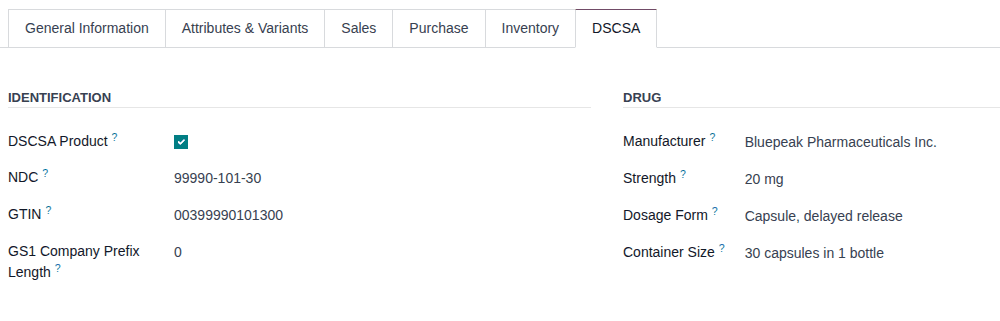
Under Drug, fill in:
- Manufacturer: the drug's manufacturer (the NDC labeler), for example Bluepeak Pharmaceuticals Inc.
- Strength: for example
200 mg - Dosage Form: for example
Tablet - Container Size: for example
100 tablets
-
Select the save icon.
Result: the product is saved. NDC shows the hyphenated 10-digit NDC, and the chatter logs "Product created".
Result: the product is a DSCSA product. It appears under the DSCSA Products filter of the product list, every license check, serial scan and DSCSA document applies to it, and it can be found by any form of its NDC or GTIN (MD-03). Records: the product, with its NDC, GTIN and drug data; the changes are logged in its chatter.
Accepted NDC forms. Any of these is accepted and stored as the 10-digit NDC with hyphens:
| You enter | Stored as |
|---|---|
99990-108-10 (5-3-2), 9999-0108-10 (4-4-2), 99990-1080-1 (5-4-1) | as entered |
99990-0108-10 (the 11-digit billing form, 5-4-2) | 99990-108-10 |
99990010810 (11 digits without hyphens) | 99990-108-10 |
NDC: 99990-108-10 (with a label) | 99990-108-10 |
A 10-digit NDC without hyphens (9999010810) is refused when you save, because it could be 4-4-2, 5-3-2 or 5-4-1:

If it doesn't work
- "NDC '…' has 10 digits but no hyphens, so it is unclear whether it is 4-4-2, 5-3-2 or 5-4-1." (in an Oh snap! dialog), or another message that starts with "NDC": the NDC isn't in a form the software can read. Select Stay here and enter it with its hyphens. See Error: "NDC '…' has 10 digits but no hyphens".
- "The GTIN … of … is already used by …": another product, possibly archived, already has this GTIN (or an NDC that gives it). Check the NDC; if it is right, the other product is a duplicate. See Error: "The GTIN … is already used by …".
- "… is a DSCSA product and must be tracked by lots, not by unique serial numbers …" or "… must be tracked in inventory (Track Inventory) and tracked by lots.": Track Inventory was cleared or changed on the General Information tab. Select Track Inventory and By Lots. See Error: "… must be tracked by lots".
- DSCSA Product is greyed out and can't be selected: you aren't an Rx Tracking Manager. Ask one to set the flag. See Error: "Only a DSCSA manager can …".
- There is no New button in the product list, or the form can't be edited: your Inventory right is User, which can only read products. Ask an administrator for Inventory Administrator.
Known issue (PF-A01-02): a DSCSA product without an NDC saves without any warning, but its deliveries post their DSCSA document without an EPCIS (Electronic Product Code Information Services) file (the document is listed under the EPCIS Missing filter), and the file can't be added later. The same happens for a GTIN entered by hand without a GS1 Company Prefix Length. Always enter the NDC, or the GTIN and its prefix length, before you sell the product.
Known issue (PF-A01-05): the form turns on Expiration Date when you select DSCSA Product, but a product created by import or through the API with DSCSA Product set keeps Expiration Date off. After an import, check the Inventory tab of each imported DSCSA product and select Expiration Date.
Known issue (PF-W03-03): a user with a product right (for example Inventory Administrator) but no Rx Tracking right can still change the NDC and GTIN of a DSCSA product, even one that already has packages in the ledger and posted documents; only the DSCSA Product flag is protected. Each change is logged in the product's chatter. Your procedure decides who may edit DSCSA product identifiers; limit product rights accordingly.
Known issue (PF-V02c-01): once a DSCSA product has units in the package ledger, changing its NDC or GTIN is saved without a warning, but its units in stock can then no longer be scanned onto any transfer: their labels carry the old GTIN. Scans say "… is not in the package ledger …", "no DSCSA product has GTIN …" or "Serial … belongs to …". Don't change the identifiers of a product that has been received; if it happened, set them back (Error: "Serial … belongs to …").
Known issue (PF-W03-01): Rx Tracking Manager alone doesn't let you edit products: the product list has no New button and the form is read-only. Give the users who set up DSCSA products a product right as well (the Who line).
Next: Onboard a trading partner: DSCSA role, GLN (Global Location Number) and address
With the manufacturer's GTIN instead of an NDC
Use this when the manufacturer's GTIN is not the one computed from the NDC.
-
Follow steps 1–3 above.
-
In GTIN, enter the GTIN from the package: 8, 12, 13 or 14 digits, for example
399990110104. -
In GS1 Company Prefix Length, enter the length of the manufacturer's GS1 company prefix inside the GTIN (6 to 12), for example
7. The manufacturer or its GS1 data gives it. -
Fill in the Drug group and select the save icon.
Result: GTIN is stored with 14 digits (
00399990110104) and the prefix length is kept.
If you also enter the NDC later, GTIN is computed from it again: check it against the package.
For a product you already have in stock
You can turn on DSCSA Product for a product that already has stock. Its units on hand then have no packages in the ledger until you register the opening balance. Follow Go live with stock and records you already have instead of this procedure.
Stop treating a product as DSCSA, duplicate it or archive it
Clear DSCSA Product on a product that was flagged by mistake, archive a product you no longer sell, or duplicate a product to create a similar one. Once a product is part of the DSCSA record, it stays a DSCSA product: archive it instead.
Who: Rx Tracking Manager, with a right that lets you edit products (as in MD-01).
Requires: Rx Tracking (DSCSA). Works in Odoo Community and Enterprise.
Clear the DSCSA flag
-
Go to Inventory ‣ Products ‣ Products and open the product.
-
Select the DSCSA tab, then clear DSCSA Product.
Result: the NDC, GTIN and Drug fields are hidden. Their values are kept.
-
Select the save icon.
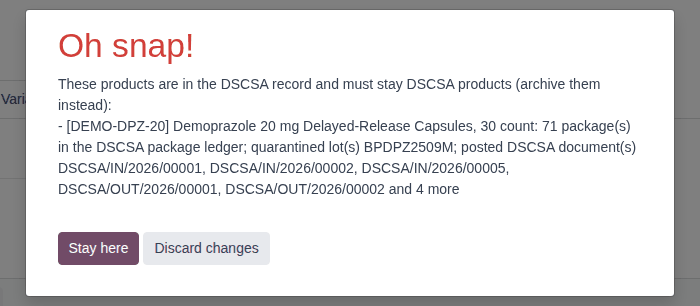
Result: if the product has never been received, shipped or quarantined, it is saved and is no longer a DSCSA product. Otherwise an Oh snap! dialog lists why it must stay one.
-
If the dialog appears, select Discard changes, and archive the product instead (Archive a product).
Result: the product is no longer a DSCSA product, or it stays one and the form is unchanged. Records: the product; the change of DSCSA Product is logged in its chatter. Selecting DSCSA Product again later is always allowed and brings back the NDC and GTIN.
Archive a product
-
Open the product and select the ⚙ (Actions) menu next to its name, then Archive.
-
In the Confirmation dialog, select Archive.
Result: the form shows an ARCHIVED ribbon.
Result: the product no longer appears in product lists or on new orders. It keeps its history and stays a DSCSA product; its GTIN still counts as used (MD-01). Records: the archived product.
Duplicate a product
-
Open the product and select the ⚙ (Actions) menu, then Duplicate.
Result: a copy named "… (copy)" opens. For a DSCSA product, the copy is a DSCSA product with the drug data but without NDC and GTIN, which identify one product only.
-
Change the name, enter the new product's NDC (MD-01 step 4) and select the save icon.
Result: a new product. Records: the copy.
If it doesn't work
- "These products are in the DSCSA record and must stay DSCSA products (archive them instead): …": the product has packages in the package ledger, a quarantined lot or a line on a posted DSCSA document. Archive it instead. See Error: "These products are in the DSCSA record …".
- "Only DSCSA managers can change whether … is a DSCSA product …" (in an Access Error dialog) when you duplicate a DSCSA product or clear the flag: you aren't an Rx Tracking Manager. Ask one. See Error: "Only a DSCSA manager can …".
Find a product by NDC or GTIN, or a partner by GLN
Find a product from the NDC or GTIN on a package, a supplier file or a phone call, and a trading partner from its GLN (Global Location Number). Any common form of the code works.
Who: any user who can open products or contacts. Filters and fields added by Rx Tracking to contacts need Rx Tracking User or Manager.
Requires: Rx Tracking (DSCSA). Works in Odoo Community and Enterprise.
In a product list
-
Go to Inventory ‣ Products ‣ Products.
-
In the search bar, enter the code, for example
9999010130, and select Search NDC / GTIN for: … in the list that opens.Result: the list shows the products whose NDC or GTIN matches, here Demoprazole 20 mg Delayed-Release Capsules, 30 count.
Result: the matching products. The same code can be entered as 99990-101-30, 99990-0101-30, 00399990101300 or
399990101300; a part of a code (99990) lists every product whose codes contain it.
- To list only DSCSA products, open the search options (the ▾ at the end of the search bar) and select DSCSA Products under the filters.
- To show the codes as columns, switch to the list view, open the optional-columns menu at the right end of the column headers, and select NDC and GTIN.
In a product field (orders, transfers, scrap)
-
In a product field, for example on a quotation line after Add a product, enter the NDC or GTIN in any form:
9999010130,00399990101300or a part such as99990-101.Result: the dropdown lists the product, for example [DEMO-DPZ-20] Demoprazole 20 mg Delayed-Release Capsules, 30 count.
Result: you can select the product as usual. The usual search by name, internal reference or barcode is unchanged.
A partner by GLN
-
Go to Contacts, enter the 13-digit GLN in the search bar, for example
0614141000029, and select Search GLN for: ….Result: the list shows the partner with that GLN, here Riverside Community Pharmacy.
-
In a partner field (the Customer of a quotation, the Vendor of a request for quotation), enter the GLN; spaces are allowed (
0614141 000029).Result: the dropdown lists the partner.
Result: the matching partners. A company and its delivery addresses may share one GLN, so several partners can match.
Without the Contacts app, customers are under Sales ‣ Orders ‣ Customers and vendors under Purchase ‣ Orders ‣ Vendors; the search works the same way there.