Set up trading partners
Core module For: Compliance manager, Warehouse staff, Sales and purchasing Checked on 18.0.0.2.0
Record each company you buy DSCSA products from or sell them to as a trading partner: its DSCSA role, its GLN (Global Location Number) and its address. The role decides which licenses make the partner an authorized trading partner; the GLN names it in DSCSA files. See the glossary for the abbreviations.
These procedures use the Contacts app. Without it, customers are under Sales ‣ Orders ‣ Customers and vendors under Purchase ‣ Orders ‣ Vendors; the form is the same.
Onboard a trading partner: DSCSA role, GLN and address
Create the partner as a company, with its full address, GLN and DSCSA role. Then record its license (MD-08): until a valid license is on file, orders and transfers of DSCSA products with the partner are refused.
Background: the GLN is the number that names a company or a location in a DSCSA file.
Who: Rx Tracking User or Manager, with a right that lets you create and edit contacts (Contact Creation, or Sales, Purchase or Inventory Administrator).
Requires: Rx Tracking (DSCSA). Works in Odoo Community and Enterprise.
Before you start:
- You have the partner's legal name, address and GLN, and you know its role: manufacturer, repackager, wholesale distributor, third-party logistics provider (3PL) or dispenser.
- A pharmacy location with its own state license is a company of its own, not an address of another company.
-
Go to Contacts and select New.
-
Select Company above the name, and enter the name, for example
Pinecrest Pharmacy. -
Fill in the address. Select Country first (for example United States), then State, so that the state list shows that country's states.
-
In GLN, enter the partner's 13-digit GLN, for example
0614141002085. Spaces are allowed.Result: GS1 Prefix Length appears under GLN, showing
0. Leave it at0(not set) unless the partner gave you its GS1 company prefix length. -
Select the DSCSA tab, and in DSCSA Role select the partner's role, for example Dispenser.
Result: the tab shows Authorized Trading Partner (cleared) and, for a dispenser, Small Business Dispenser.
-
Select the save icon.
Result: a yellow banner says why the partner is not authorized yet, for example "Pinecrest Pharmacy (dispenser) has no valid state license: none on file." The Licenses smart button shows 0.
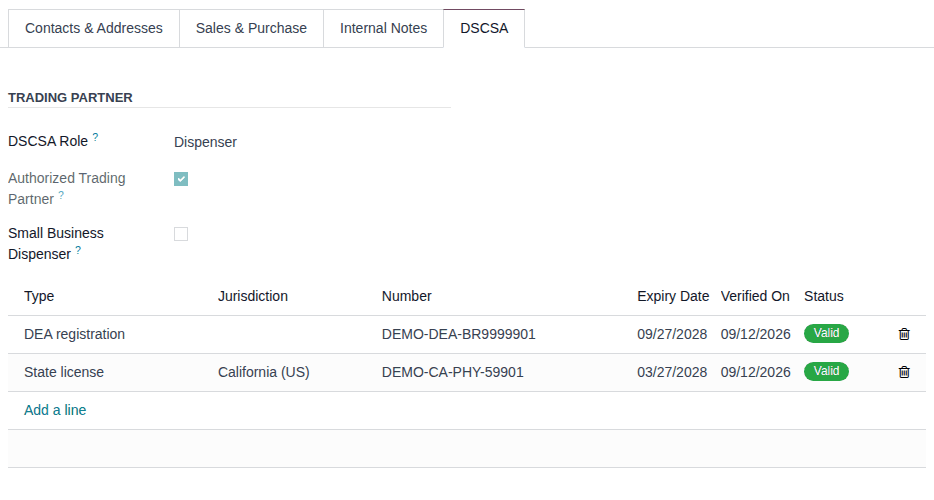
Result: the partner is a company with a DSCSA role and a GLN. It is listed under the Not Authorized (DSCSA Role Set) filter until a valid license is recorded. Records: the contact (company); the changes are logged in its chatter.
If it doesn't work
- "GLN '…' has an invalid check digit: the last digit should be …, not …." or "GLN '…' must have 13 digits, it has …." (in an Oh snap! dialog): the GLN was mistyped. Select Stay here and correct it. See Error: "GLN '…' has an invalid check digit".
- "The GS1 company prefix length must be between 6 and 12 …": clear GS1 Prefix Length or enter 6 to 12. See the same entry.
- There is no DSCSA tab: you have no Rx Tracking right. Ask an Rx Tracking User or Manager to set the role.
- The form can't be edited or there is no New button: you have no right to create or edit contacts. Ask an administrator.
- "Only DSCSA users can set or change the DSCSA role of …" (when importing partners with a DSCSA Role column): the importing user has no Rx Tracking right. See Error: "Only DSCSA users can …".
Known issue (PF-W03-02): Rx Tracking User doesn't include the right to edit contacts, so a warehouse user with only Rx Tracking User and Inventory User sees the partner form read-only and can't set a role or the small-dispenser flag. Give the users who onboard partners Contact Creation (shown on the user form in developer mode) or an administrator right in Sales, Purchase or Inventory.
Next: Record and verify a trading partner's license
Add a contact person or a delivery address
-
On the partner's form, select the Contacts & Addresses tab, then Add.
Result: the Create Contact dialog opens.
-
Select Contact or Delivery Address, fill in the name and address, then select Save & Close.
-
Select the save icon.
Result: the contact or address is listed on the Contacts & Addresses tab.
-
To check its DSCSA status, go to Contacts, search for the contact's name (for example
Jamie Park), open it and select the DSCSA tab. The dialog that opens when you select the contact on the company's Contacts & Addresses tab has no tabs.Result: the DSCSA tab shows the company's role read-only, the company's authorization status, and the note "The DSCSA role and licenses of this contact are managed on its company."
Result: the contact or address belongs to the company and shares its role and authorization. A delivery address may share the company's GLN or have its own GLN (on its full form, opened from Contacts). Records: the new contact.
A duplicated partner has no DSCSA role, no licenses and no small-dispenser flag: set them again.
Check whether a partner is an authorized trading partner, and why not
Check a partner before its first order, when an order or a transfer is refused, or in a periodic review. The status is for today and for your current company, and it is the same for the company and all its contacts and addresses.
Background: the license checks exist because of DSCSA's rule on authorized trading partners and the license each role needs (FD&C Act § 582(c)(3), § 581(2); see Compliance background). Your procedure decides how often you re-check licenses at their source; the software checks the recorded licenses every time.
Who: Rx Tracking User or Manager
Requires: Rx Tracking (DSCSA). Works in Odoo Community and Enterprise.
-
Go to Contacts and open the partner's company.
-
Select the DSCSA tab.
Result: Authorized Trading Partner is selected when the partner is authorized. When it isn't and the partner has a role, a yellow banner gives each reason, for example "Lakeview Apothecary (dispenser) has no valid state license: license DEMO-CA-PHY-61177 expired on 2026-09-11." The license list shows each license's Status.
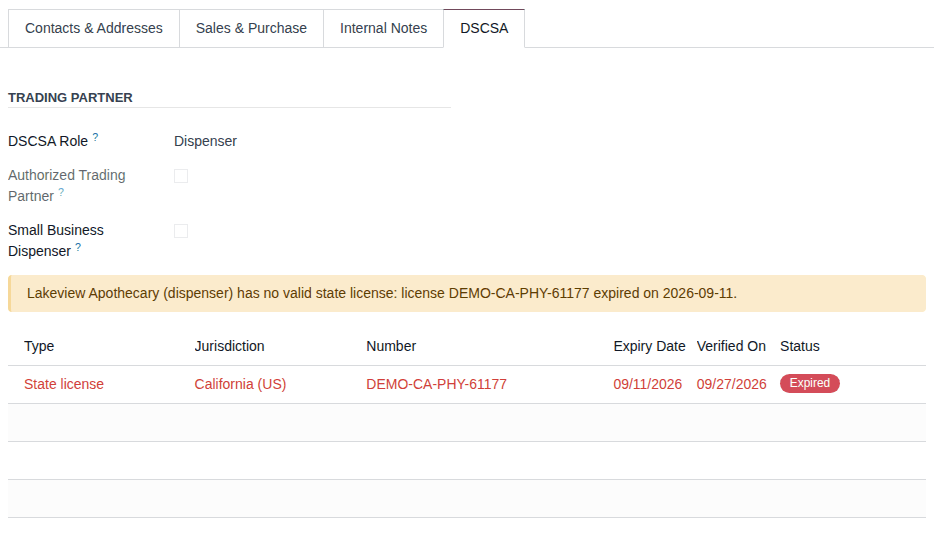
-
Fix what the banner names (see the table below).
Result: you know whether orders and transfers of DSCSA products with the partner are allowed today, and why not. Nothing is changed.
| The banner says | Cause | Fix |
|---|---|---|
| "… has no DSCSA role set, so it is not an authorized trading partner." (only in a refusal: without a role there is no banner) | no DSCSA Role | set the role (MD-04) |
| "… has no valid state license: none on file." | no license of the type the role needs | record and verify it (MD-08) |
| "… none on file (a DEA registration does not count)." | only a DEA registration is on file | record the state license (MD-08) |
| "… license NUMBER is unverified." | the license was never verified | verify it (MD-08 step 7) |
| "… license NUMBER expired on DATE." | the license's Expiry Date has passed | record the renewed license (MD-10) |
| "… license NUMBER is not in force until DATE." | the license's Issue Date is in the future | wait for that date, or check the date |
| "… has no valid FDA 503(e) annual report: …" | the company setting that also asks wholesalers and 3PLs for an FDA 503(e) annual report is on | record and verify the report (MD-08) |
Which license counts depends on the role: dispensers, wholesale distributors and 3PLs need a State license; manufacturers and repackagers an FDA establishment registration. A DEA registration never counts. Archived licenses don't count.
List the partners that are not authorized
-
Go to Contacts. Open the search options (the ▾ at the end of the search bar) and select Not Authorized (DSCSA Role Set).
Result: the list shows each company with a DSCSA role that isn't authorized today, and its contacts and addresses.
Result: the partners to follow up. The filters Authorized Trading Partners and Small Dispensers, and the grouping DSCSA Role, are in the same menu. A partner without a role is in neither filter: DSCSA products can't be sold to or bought from it.
Known issue (PF-A01-09): sales and purchasing staff without an Rx Tracking right don't see the DSCSA tab or these filters. They learn that a partner isn't authorized only when confirming an order is refused, and then need an Rx Tracking user to look up why. See Error: "… not an authorized trading partner" when you have no Rx Tracking right.
Flag a small-dispenser customer and record its attestation
Record that a dispenser customer attested it is a small business dispenser. Until the company's small-dispenser exemption end date, such a customer may receive lot-level transaction data: scanning is optional on its deliveries, and its documents list lots and have no EPCIS (Electronic Product Code Information Services) file.
Background: the flag exists because of FDA's letter of 2026-08-06 on small business dispensers (FD&C Act § 582(g)(1); FDA exemption letters of 2024-10-09 and 2026-08-06; see Compliance background). Your procedure decides how you obtain and keep the customer's attestation; the software records its date.
Who: Rx Tracking User or Manager, with a right to edit contacts (as in MD-04).
Requires: Rx Tracking (DSCSA). Works in Odoo Community and Enterprise.
Before you start:
- The customer company has the DSCSA role Dispenser (MD-04).
- The company's small-dispenser exemption end date is set. See Set the small-dispenser exemption end date.
-
Go to Contacts, open the customer's company and select the DSCSA tab.
-
Select Small Business Dispenser.
Result: Small Dispenser Attested On (required) and Exemption in Effect appear.
-
In Small Dispenser Attested On, enter the date the customer attested it: today or earlier.
-
Select the save icon.
Result: Exemption in Effect is selected.

Result: the customer is an exempt small dispenser until the company's exemption end date, and it is listed under the Small Dispensers filter of Contacts. Its contacts and addresses follow the company. Records: the contact (company); the chatter logs Small Business Dispenser and Small Dispenser Attested On.
To end the exemption for this customer, clear Small Business Dispenser and save: the date is cleared too. Changing the role away from Dispenser clears both.
If it doesn't work
- "Invalid fields: Small Dispenser Attested On": the date is empty. Enter it.
- "The small-dispenser attestation date of … is in the future.": enter the date the customer actually attested. See Error: "… is flagged as a small business dispenser …".
- Small Business Dispenser isn't shown: the partner's role isn't Dispenser.
- Exemption in Effect stays cleared: the attestation date is after today, or the company's exemption end date has passed or is empty (CFG-07).
A contact that is moved out of the company (its company removed, or made a company itself) loses the flag, with the chatter note "Small-dispenser exemption cleared: … is no longer a contact of … and must attest for itself."
Next: Ship at lot level to an exempt small dispenser
Fix a missing GLN before shipping
When a sales order with DSCSA products is confirmed while our company or the buyer has no GLN, the software warns but doesn't block: the delivery would post its DSCSA document without an EPCIS file, and the file can't be added to a posted document later. Add the GLN before you validate the delivery.
Who: to add a partner's GLN: a user who can edit contacts; to add our company's GLN: an administrator. The warning reaches everyone who opens the order or the delivery.
Requires: Rx Tracking (DSCSA). Works in Odoo Community and Enterprise.
Before you start:
- You have the missing GLN.
-
Open the delivery (Inventory ‣ Operations ‣ Deliveries) or its sales order, and read the warning. On the delivery it is a yellow banner:
The DSCSA document of this shipment will have no EPCIS file: the buyer Foothill Care Pharmacy has no GLN. Add the GLN beforevalidating; the file can't be added to a posted document later.
Result: you know whose GLN is missing: "the buyer NAME" or "our company NAME". Don't validate the delivery yet.
-
If our company's GLN is missing, ask an administrator to set it (Set the company GLN and GS1 prefix length), then go to step 5.
-
Go to Contacts and open the buyer named in the warning. In GLN, enter its GLN, for example
0614141002092. -
Select the save icon.
-
Reopen the delivery.
Result: the banner is gone.
-
On the contact that lacked the GLN (the buyer, or our company's contact), the chatter shows the planned activity GLN missing: "Add the GLN of … before shipping". Select Mark Done.
Result: the chatter logs "GLN missing done …".
Result: the delivery's DSCSA document gets its EPCIS file when you validate the delivery (Scan the serials of a delivery and validate it). Records: the contact with its GLN; the done activity in its chatter.
The warning is also an internal note on the sales order ("DSCSA warning: the delivery of this order will get its DSCSA document without an EPCIS file, because …"), and the activity goes to the Default User of the GLN missing activity type, else to the first Rx Tracking Manager of the company (Choose who receives the DSCSA reminder activities). Orders confirmed while one GLN missing activity is open share it. There is no warning for an order with only non-DSCSA products, or for an exempt small dispenser, whose documents have no EPCIS file anyway.
If it doesn't work
- The banner stays: our company has no GLN either, or the delivery address's company is another company without a GLN. Read the banner again: it names each missing GLN. See Warning: "… have no EPCIS file …".
- The delivery is already Done: its document is posted without an EPCIS file and stays so. See Handle a document posted without an EPCIS file.
Known issue (PF-A03-06): the GLN missing activity doesn't close by itself when the GLN is added. Mark it done by hand (step 6).