Buy DSCSA product from a supplier
Core module For: Warehouse staff, Sales and purchasing Checked on 18.0.0.2.0
Buy DSCSA products on an ordinary Odoo purchase order. When the order is confirmed, Rx Tracking checks that the vendor is an authorized trading partner; the receipt Odoo then creates is where the warehouse imports the supplier's file and scans the units. Abbreviations: EPCIS: Electronic Product Code Information Services; GLN: Global Location Number (see the glossary).
Confirm a purchase of DSCSA product from an authorized supplier
Confirm a request for quotation that contains DSCSA products. Only the confirmation (and, with order approval, the approval) is checked: you can prepare and send a request for quotation to any vendor. Background: the modules follow the reading that a wholesaler may buy only from authorized trading partners (FD&C Act § 582(c)(3), § 581(2); see Compliance background).
With 3PL switched on, goods you hold for an owner don't come from your own purchase orders: they arrive on an owner receipt. See Create a receipt held for an owner.
Who: Purchase User or Administrator; no Rx Tracking right needed
Requires: Rx Tracking (DSCSA) and the Purchase app. Works in Odoo Community and Enterprise.
Before you start:
- The vendor is an authorized trading partner: it has a DSCSA role and the valid, verified license or registration that role needs. See Onboard a trading partner: DSCSA role, GLN and address and Record and verify a trading partner's license.
- The products you buy are DSCSA products with a GTIN (Global Trade Item Number, see the glossary). See Set up a DSCSA product.
-
Go to Purchase ‣ Orders ‣ Requests for Quotation and select New.
Result: a new request for quotation opens in the RFQ state.
-
In Vendor, choose the supplier, for example
Bluepeak Pharmaceuticals Inc.. -
On the Products tab, select Add a product, choose the product, for example
[DEMO-DPZ-20] Demoprazole 20 mg Delayed-Release Capsules, 30 count, and enter the Quantity, for example24. -
Select Confirm Order.
Result: the status bar shows Purchase Order, the title above the order number changes from "Request for Quotation" to "Purchase Order", and the order gets its number, for example
P00012. The header now offers Create Bill and Send PO by Email.
Result: the order is a Purchase Order. Records: the purchase order, and the receipt Odoo creates for it (WH/IN/NNNNN, Ready),
which users with an Inventory right open from the order's Receipt smart button or from Inventory ‣ Operations ‣ Receipts. No DSCSA
record is created yet: the receipt is where the supplier's file and the scans go
(Import the supplier's EPCIS file on the receipt).
With purchase order approval
When Purchase Order Approval is on (Purchase ‣ Configuration ‣ Settings) and the order total is above its Minimum Amount, step 4 puts the order in To Approve. A Purchase Administrator then opens the order and selects Approve Order. The vendor is checked again at that moment: if its license lapsed in between, approving is refused with "… can't be approved: …" and the order stays To Approve. A Purchase Administrator's own Confirm Order approves at once and is checked the same way.
Orders with products that are not DSCSA products
The check reads only the DSCSA lines. An order with no DSCSA product (for example [DEMO-BND-100] Adhesive Bandages) confirms as in
standard Odoo, whatever the vendor. On a mixed order, the refusal names only the DSCSA products: an order to Granite State Rx Supply LLC
for Demoprazole and Adhesive Bandages is refused with "… it contains DSCSA products ([DEMO-DPZ-20] Demoprazole 20 mg Delayed-Release
Capsules, 30 count). …".
If it doesn't work
-
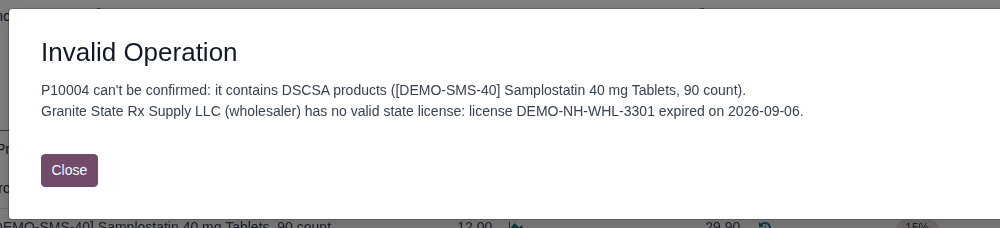
"P10004 can't be confirmed: it contains DSCSA products ([DEMO-SMS-40] Samplostatin 40 mg Tablets, 90 count). Granite State Rx Supply LLC (wholesaler) has no valid state license: license DEMO-NH-WHL-3301 expired on DATE.": the vendor's license has expired. The order stays an RFQ. Ask an Rx Tracking Manager to record the renewed license (Renew, correct or retire a verified license), then select Confirm Order again. See Error: "… has no valid state license: license … expired on …".
-
"… has no valid state license: license DEMO-NV-WHL-10388 is unverified.": the license is recorded but nobody has verified it. Ask an Rx Tracking Manager to verify it (Record and verify a trading partner's license). See Error: "… has no valid state license: license … is unverified.".
-
"… has no valid … : none on file." (or "none on file (a DEA registration does not count)"), "… has no DSCSA role set, so it is not an authorized trading partner.", or "… has DSCSA role …, which has no authorization rule.": the vendor's master data is incomplete. Ask an Rx Tracking Manager to complete it (Check whether a partner is an authorized trading partner, and why not). See Error: "… has no valid state license: none on file." and Error: "… has no DSCSA role set, so it is not an authorized trading partner.".
Every form of this refusal is explained, with its fix, under Error: "… can't be confirmed: it contains DSCSA products …". Purchasing staff without an Rx Tracking right can't see licenses; see Error: "… not an authorized trading partner" when you have no Rx Tracking right.
Known issue (PF-W20-05): a Purchase User without an Inventory or Rx Tracking right can't cancel a confirmed purchase order, even one without DSCSA products: Cancel shows an Access Error, "You are not allowed to access 'DSCSA Package' (dscsa.package) records.", and the order stays a Purchase Order. Ask someone with Inventory User (or an Rx Tracking right) to select Cancel on the order. See Error: "You are not allowed to … records".
Next: Import the supplier's EPCIS file on the receipt
Record or find a receipt by the supplier's document number
Every receipt has a Supplier Document field for the supplier's own number for the shipment: its despatch advice (advance ship notice), packing slip or invoice number. Use it to find the receipt when the supplier, or its file, quotes that number.
Who: Inventory User or Administrator; no Rx Tracking right needed
Requires: Rx Tracking (DSCSA). Works in Odoo Community and Enterprise.
Before you start:
- The receipt exists (the purchase order is confirmed). See Confirm a purchase of DSCSA product from an authorized supplier.
Record the number
-
Go to Inventory ‣ Operations ‣ Receipts and open the receipt.
-
In Supplier Document (under Source Document, placeholder "e.g. the supplier's despatch advice number"), enter the number, for example
BP-PS-20260926-0112.
-
Select the ☁ (Save manually) icon next to the receipt's name.
Result: the chatter logs the change of Supplier Document.
You can record or correct the number on a receipt in any state except Cancelled, including a Done one. When you import the supplier's EPCIS file (IN-03) and the field is empty, the import fills it with the file's despatch advice number (or, without one, its invoice number). It never overwrites a number that is already there. Duplicating a receipt doesn't copy the number.
Find a receipt by the number
-
Go to Inventory ‣ Operations ‣ Receipts.
-
In the search box, enter the number, for example
BP-ASN-20260924-0419.Result: the search offers "Search Supplier Document for: BP-ASN-20260924-0419".
-
Select Search Supplier Document for: ….
Result: the list shows the receipts with that number, for example
WH/IN/00008(source documentP10002).
To see the numbers in the list, open the optional columns menu at the right end of the list header and select Supplier Document.
Result: the receipt carries the supplier's number, and you can find it by that number. Records: the receipt's Supplier Document field, with its change history in the chatter.
If it doesn't work
- The field is read-only: the receipt is Cancelled. Record the number on the receipt that replaced it.
- The field isn't on the form: it is shown only on receipts (incoming transfers), not on deliveries or internal transfers.