Resolve receiving discrepancies
Core module For: Compliance manager, Warehouse staff Checked on 18.0.0.2.0
When you validate a receipt that has a supplier EPCIS file, the software compares the units you scanned with the units the file announced. Every difference becomes a receiving discrepancy with a 10-business-day deadline, and every lot concerned is quarantined, so the product can't be sold on until someone looks at it. Abbreviations: EPCIS: Electronic Product Code Information Services; GTIN: Global Trade Item Number; SSCC: Serial Shipping Container Code (see the glossary).
Background: the modules follow this reading of the rule for receiving discrepancies: resolve them within 10 business days, document how, and don't sell the affected product on until they are resolved; duplicate serial numbers on two packages are suspect product (FD&C Act § 582(c)(1)(A)(i), § 582(g)(1); FDA interoperable exchange guidance (September 2023); see Compliance background).
With Odoo Enterprise and Rx Tracking (DSCSA) - Suspect Product Investigations installed, every lot quarantine a discrepancy causes also opens a suspect-product investigation. See Follow the investigation a lot quarantine opens automatically.
Work a receiving discrepancy to resolution
Find the open discrepancies, find out with the supplier what happened, write down how it was resolved, and mark it resolved. Resolving a discrepancy never releases its lot: an Rx Tracking Manager releases the lot separately once nothing else holds it. Your procedure decides how you investigate with the supplier and what counts as resolved; the software requires a written Resolution Note.
Who: Rx Tracking User or Manager to resolve. Rx Tracking Manager to reopen a discrepancy and to release its lot.
Requires: Rx Tracking (DSCSA). Works in Odoo Community and Enterprise.
Before you start:
- A receipt with a supplier file is Done and didn't match the file. See Validate a DSCSA receipt.
The types of discrepancy, as the Type, Supplier File Says and Found columns show them:
| Type | When | Supplier File Says | Found | Lots quarantined |
|---|---|---|---|---|
| Missing | the file announced the unit, it wasn't received, and no backorder expects it | shipped, lot LOT | not received | the file's lot |
| Extra | a unit was received that the file doesn't list | not in the file | received, lot LOT | the received lot |
| Wrong Product | a unit was received of a product the file doesn't list at all | product not in the file | received, lot LOT | the received lot |
| Wrong Lot | the unit's label gives another lot than the file | lot FILE-LOT | lot LABEL-LOT | both lots |
| Wrong Expiry | the unit's label gives another expiry date than the file | expiry DATE | expiry DATE | the lot |
| Duplicate Serial | the file lists a serial that is already in the package ledger (DISC-09) | new package, lot LOT | already in the ledger (STATE, lot LOT) | both lots |
| Transaction Statement Missing | the file doesn't affirm the Transaction Statement (DISC-07) | affirmed Transaction Statement | no Transaction Statement, or Transaction Statement not affirmed | every DSCSA lot of the receipt |
-
Go to Inventory ‣ Rx Tracking ‣ Receiving Discrepancies.
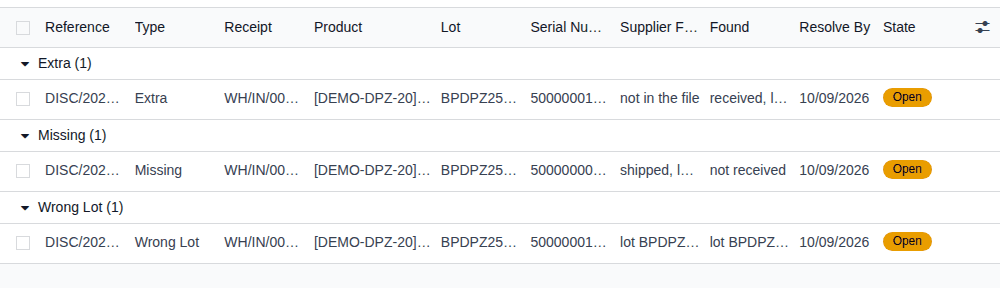
Result: the list opens with the Open filter. Each row shows Reference, Type, Receipt, Supplier, Product, Lot, Serial Number, Supplier File Says, Found, Resolve By, Responsible and State. Overdue rows are red.
-
To sort them out, open the search options (the ▾ Toggle Search Panel button) and choose:
- a filter: Open, Overdue, Resolved, Transaction Statement Missing or My Discrepancies;
- a grouping: Type, Receipt, Supplier or Lot.
Filters in the same block combine with "or": with Open still selected, Overdue shows every open discrepancy (Known issue PF-W06-05). Remove Open from the search box to see only the overdue ones.
-
Open a discrepancy.
Result: the form shows
DISC/YYYY/NNNNNand its type, then What (product, GTIN, serial, lot, SSCC, package, Supplier File Says, Found), Where (receipt, purchase order, supplier, supplier file, inbound document) and Follow-up (Detected On, Resolve By, Responsible, Lots Put on Hold), with a sentence that describes the difference.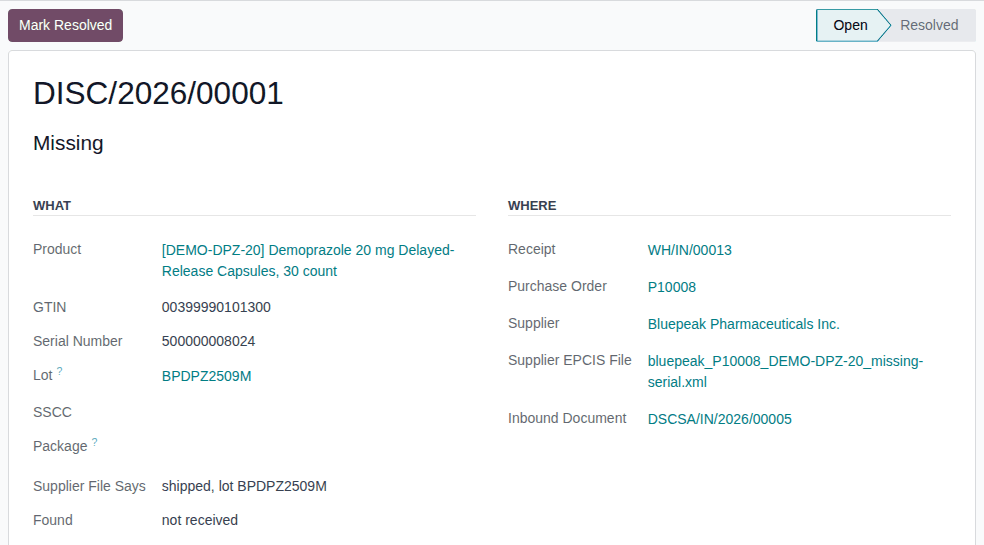
-
Contact the supplier, find out what happened, and agree on the outcome (a credit, a replacement shipment, a corrected file, a return). If needed, change Responsible to the person who follows it up.
-
In Resolution Note, enter how it was resolved, for example
Bluepeak confirmed unit 500000015024 was never packed; credit note CN-7781 issued. -
Select Mark Resolved.
Result: the discrepancy is Resolved, with Resolved On and Resolved By. The Resolution Note is read-only. The lot stays Quarantined.
-
When no other discrepancy or hold is left on the lot, ask an Rx Tracking Manager to release it. See Release a lot from quarantine.
Result: the discrepancy is resolved and, once a manager releases it, the lot can be sold. Records: the discrepancy DISC/YYYY/NNNNN
with its resolution note, who resolved it and when (kept; it can't be deleted), and the release in the lot's chatter.
Where else discrepancies show:
- the Discrepancies smart button on the receipt and on the supplier file (which also has a Discrepancies tab);
- the lot's Quarantine tab, whose Quarantine Reason says "Receipt WH/IN/NNNNN does not match the supplier's EPCIS file: COUNT TYPE (DISC/YYYY/NNNNN). Resolve by DATE.";
- the receipt's chatter: "EPCIS reconciliation: N package(s) received." and "N discrepancy(ies): …. Their lots are quarantined; resolve by DATE."
In a database with several companies, each discrepancy belongs to the company of its receipt, and the list shows those of the companies selected in the company switcher.
Resolve By is 10 business days after the discrepancy was detected. Weekends are skipped; public holidays are not, so the date can only be earlier than a count that skips holidays. After that date, the form shows the red banner "This discrepancy is past its 10-business-day resolution deadline." and the row is red in the list.
Reopen a resolved discrepancy
-
As an Rx Tracking Manager, open the resolved discrepancy and select Reopen.
Result: the discrepancy is Open again, and its Resolution Note can be edited again. An Rx Tracking User has no Reopen button.
If it doesn't work
- "Write how the discrepancy was resolved first (DISC/YYYY/NNNNN).": the Resolution Note is empty. Enter it and select Mark Resolved again. See Error: "Write how the discrepancy was resolved first …".
- The lot is still Quarantined after Mark Resolved: that is by design; a manager releases it. See The lot stays quarantined.
- There is no Reopen button: only an Rx Tracking Manager can reopen a discrepancy. See Error: "Only a DSCSA manager can reopen a discrepancy.".
- There is no Delete, and an import or API call that deletes or changes a discrepancy is refused: discrepancies are part of the record. See A discrepancy can't be deleted or changed.
Known issue (PF-A02-07): nothing reminds anyone of a discrepancy before or at its Resolve By date: no activity, no email. Overdue discrepancies only turn red. Check the Overdue filter as part of your daily routine.
Next: Release a lot from quarantine
Handle a duplicate serial at receipt
A supplier file, or a unit's label, gives a serial number that is already in your package ledger. Two packages with one serial number are a suspect-product signal: the software never receives the second one, records the duplicate, and quarantines both lots. Your procedure decides how the suspect units are set aside and investigated; the software refuses to register them.
Who: Rx Tracking User or Manager. Rx Tracking Manager to quarantine a lot by hand.
Requires: Rx Tracking (DSCSA). Works in Odoo Community and Enterprise.
Before you start:
- The supplier's file is ready to import on the open receipt. See Import the supplier's EPCIS file on the receipt.
-
Import the supplier's file on the receipt (IN-03).
Result: the file's form opens with a yellow banner: "N serial(s) in this file are already in the package ledger (suspect product). They become discrepancies when the receipt is validated." Its chatter says "… N serial(s) are already in the package ledger (duplicates)."

-
Select the Duplicates tab.
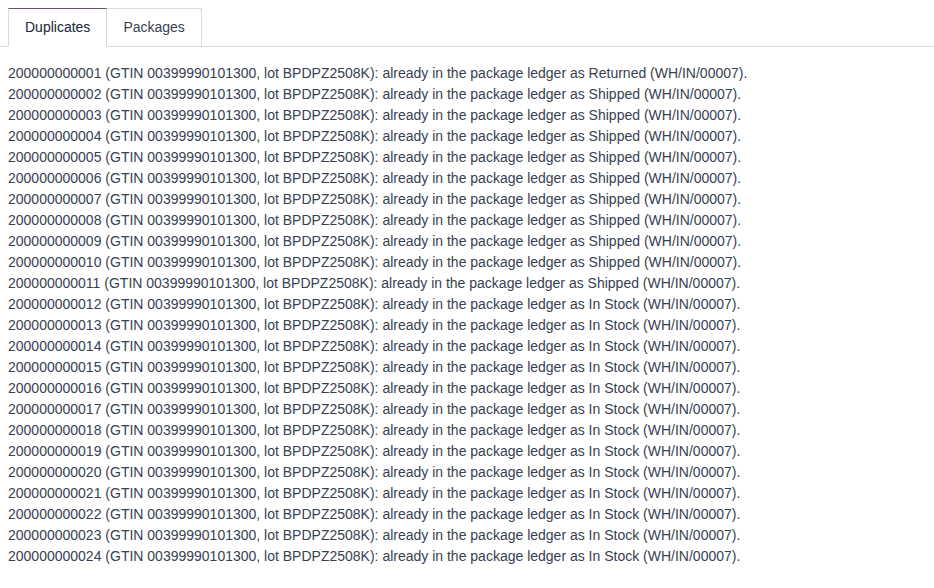
Result: one line per duplicate, for example "200000000001 (GTIN 00399990101300, lot BPDPZ2508K): already in the package ledger as Returned (WH/IN/00007)." The duplicates are not expected on the receipt.
-
Set the units with those serials aside. Scan the other units (Scan units onto a receipt).
Result: if a duplicate is scanned, nothing is registered, and the dialog says "Nothing was registered. Fix these scans and try again:" followed by "Line N: Serial SERIAL is already registered (state: STATE). A duplicate serial is a suspect-product signal: do not receive it until it is investigated."
-
Validate the receipt (IN-05). In the Create Backorder? dialog, select No Backorder, because the duplicates are not received.
Result: the receipt is Done. Its chatter says "N discrepancy(ies): N duplicate serial. Their lots are quarantined; resolve by DATE." Each duplicate is a Duplicate Serial discrepancy, and both lots are quarantined: the lot in the file and the lot of the package already in the ledger.
-
Investigate the suspect product, then resolve the discrepancies (DISC-08).
Result: the duplicate units are not in your stock, and both lots are on hold until a manager releases them. Records: the supplier file with its Duplicates tab, one Duplicate Serial discrepancy per duplicate, and the quarantine in each lot's chatter.
To find every file with duplicates, go to Inventory ‣ Rx Tracking ‣ Supplier EPCIS Files and select the filter With Duplicates.
If it doesn't work
- "Line N: Serial … is already registered (state: …). A duplicate serial is a suspect-product signal: …": you scanned a duplicate. Set it aside and scan the other units. See Error: "… is already registered (state: …). A duplicate serial is a suspect-product signal".
- Validate is refused because every unit in the file is a duplicate: see the Known issue below and Every unit of the file is a duplicate.
Known issue (PF-W06-03): when every unit of a file is a duplicate, the receipt can't be done: the scans are refused, and with a zero quantity Odoo refuses "You cannot validate a transfer if no quantities are reserved …". No Duplicate Serial discrepancy is recorded and no lot is quarantined. The file's Duplicates tab is the record. An Rx Tracking Manager quarantines the lot of the units already in the ledger (Quarantine a lot); then cancel the receipt (DISC-04) so the file stays on record as Cancelled.