Receive with the supplier's EPCIS file
Core module For: Compliance manager, Warehouse staff Checked on 18.0.0.2.0
When the supplier sends its EPCIS (Electronic Product Code Information Services) file for a shipment, import it on the receipt before you scan anything. The file tells Rx Tracking which units to expect, so a sealed case is received with one scan, and validating the receipt keeps the file as the inbound DSCSA document. Abbreviations: SSCC: Serial Shipping Container Code (see the glossary).
Import the supplier's EPCIS file on the receipt
Import the file the supplier sent: it becomes a Supplier EPCIS File record, and every unit it announces becomes an Expected package on the receipt. Nothing is received yet. Background: the modules follow the reading that a buyer may not accept ownership unless the seller provides the transaction information and Transaction Statement, and that FDA recommends GS1 EPCIS for them (FD&C Act § 582(c)(1)(A)(i), § 582(g)(1); FDA interoperable exchange guidance (September 2023); see Compliance background).
Who: Rx Tracking User or Manager
Requires: Rx Tracking (DSCSA). Works in Odoo Community and Enterprise.
Before you start:
- The purchase order is confirmed and its receipt is Ready. See Confirm a purchase of DSCSA product from an authorized supplier.
- The supplier's EPCIS 1.2 XML file (
.xml) is on your computer. - Your company GLN (Global Location Number) is set, and the supplier's GLN is on the supplier's contact. See Set the company GLN and GS1 prefix length and Onboard a trading partner: DSCSA role, GLN and address.
- Every product in the file has its GTIN (Global Trade Item Number) on the product's DSCSA tab. See Set up a DSCSA product.
-
Go to Inventory ‣ Operations ‣ Receipts and open the receipt, for example
WH/IN/00008(source documentP10002, 24 Demoprazole). -
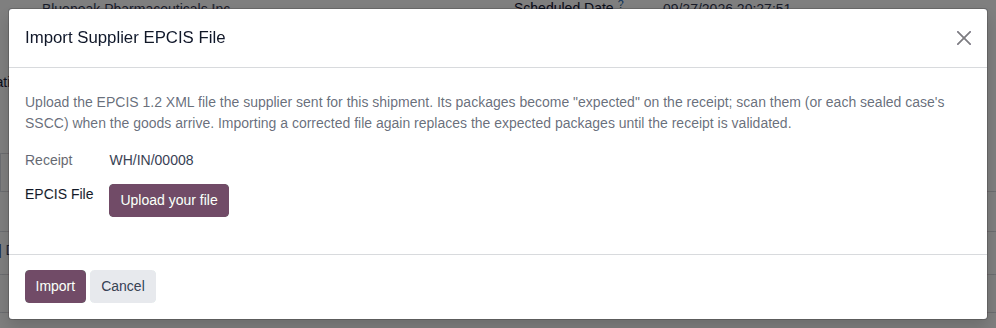
Select Import EPCIS.
Result: the Import Supplier EPCIS File dialog opens, with the receipt in Receipt.
-
Select Upload your file and choose the file, for example
bluepeak_P10002_DEMO-DPZ-20_24ea.xml. -
Select Import.
Result: the new Supplier EPCIS File opens, named after the file, in the Awaiting Receipt state. Its Received / Expected smart button shows
0 / 24, and its Packages list shows each serial with its product, lot, expiration date, SSCC and the state Expected. -
In the breadcrumb at the top, select the receipt's name, for example
WH/IN/00008.Result: the receipt has the smart buttons EPCIS Files (
1) and Expected (24), and a new Expected (EPCIS) tab listing the announced serials. Supplier Document shows the file's despatch advice number, for exampleBP-ASN-20260924-0419.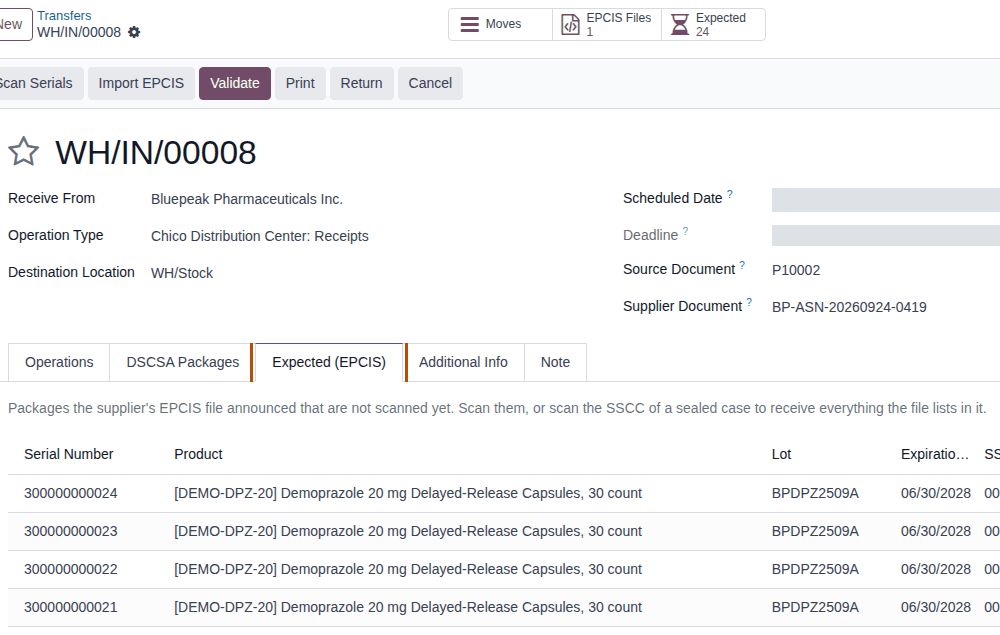
Result: the receipt expects the units the supplier announced. Records: the Supplier EPCIS File (Awaiting Receipt) holding the
supplier's XML, its file hash and the parties' GLNs; one Expected package per announced serial; the lot, created with the file's
expiry date if it is new (for example BPDPZ2509A, 06/30/2028); the receipt's Supplier Document, if it was empty; and a chatter note
on the receipt, "24 package(s) expected from EPCIS file bluepeak_P10002_DEMO-DPZ-20_24ea.xml (24 inferred from sealed cases).".
From the purchase order
A user who has both a Purchase right and an Rx Tracking right sees Import EPCIS on the purchase order too. The dialog then shows the Purchase Order and lets you choose the Receipt when the order has more than one open receipt (for example a backorder). The rest is the same. The button is shown on every confirmed order that has a receipt, even one with no DSCSA product; importing there is refused with "… has no DSCSA products to receive, so there is nothing to import." (PF-W05-01). It also stays on an order whose receipts are all Done, where selecting it shows "… has no open receipt to import a supplier EPCIS file on." (PF-F03-01).
When the file has warnings
Some problems don't stop the import: a missing GLN in the file or in Odoo, a purchase order number that isn't yours, a different number of units than the receipt expects, a Transaction Statement the seller hasn't affirmed. The file is imported, the receipt's chatter says "N warning(s): see the import.", and the file lists them on its Warnings tab. See Read the warnings of an imported supplier EPCIS file.
When the goods arrived before the file
If units were already scanned on the open receipt (IN-08), import the file as above. The scanned units are
matched to the file: its Received / Expected button shows, for example, 12 / 0, and nothing is left to scan.
If it doesn't work
A refused file is not imported at all; one dialog, "FILE-NAME was not imported:", lists every problem found.
- "The buyer in the file has GLN 0614141002115, but Demo Rx Distribution LLC has 0614141000012, 0614141002016. …" (or "The seller in the file has GLN …"): the file is addressed to another company, or the GLN in Odoo is missing or wrong. Ask the supplier for a corrected file; if the file is right, record the GLN. See Error: "The buyer in the file has GLN …".
- "GTIN 00399990107609 (Obscurin, NDC 99990-107-60) is not on any product: set it on the product (Rx Tracking tab) and import again.": no product has that GTIN. Set it on the product's DSCSA tab, then import again. See Error: "GTIN … is not on any product".
- "[DEMO-SMS-40] Samplostatin 40 mg Tablets, 90 count (GTIN 00399990102901) is in the file but not on WH/IN/00017. …": the file ships a product the receipt doesn't have. See Error: "… is in the file but not on …".
- "These serials are already expected on another open receipt: …": the same file (or its serials) is already imported on another open receipt. See Error: "These serials are already expected on another open receipt".
- "FILE-NAME can't be read as an EPCIS 1.2 file: …": the file isn't an EPCIS 1.2 XML file. See Error: "… can't be read as an EPCIS 1.2 file".
- "The file announces no serialized packages (…), so there is nothing to receive against it.": the file is readable but lists no unit serials. Ask the supplier for a file that lists every package; until then receive without it. See Error: "The file announces no serialized packages".
- "P10001 has no open receipt to import a supplier EPCIS file on." (on the purchase order): the order's receipts are all Done or Cancelled. Import on an open receipt, for example a backorder. See Error: "… has no open receipt to import a supplier EPCIS file on".
- There is no Import EPCIS button: the receipt is Draft, Done or Cancelled, has no DSCSA product, or you have no Rx Tracking right. See The Scan Serials or Import EPCIS button isn't shown.
Known issue (PF-A02-05): the unknown-GTIN message says to set the GTIN on the product's "Rx Tracking tab". The tab is called DSCSA on the product form.
Next: Receive a sealed case by scanning its SSCC label, or scan the units one by one: Scan units onto a receipt with Scan Serials, and undo a scan
Receive a sealed case by scanning its SSCC label
When a case arrives with its seal intact, scan its SSCC (Serial Shipping Container Code) label once: every unit the supplier's file puts in that case is received. The software can't see the seal; your procedure decides how staff check it. Background: the modules follow the reading that unit serials may be inferred from the case data only while the case seal is intact, and that a broken seal means the product is treated as suspect (FD&C Act § 582(c)(1)(A)(i), § 582(g)(1); FDA interoperable exchange guidance (September 2023); see Compliance background). Scan the units of an opened case one by one (IN-08).
Who: Rx Tracking User or Manager
Requires: Rx Tracking (DSCSA). Works in Odoo Community and Enterprise.
Before you start:
- The supplier's file is imported on this receipt. See Import the supplier's EPCIS file on the receipt.
- The case seal is intact.
- A scanner that reads the case label, or its label text. See Set up a handheld scanner for Scan Serials.
-
Open the receipt, for example
WH/IN/00008. -
Select Scan Serials.
Result: the Scan DSCSA Serials dialog opens.
-
In the scan box ("Scan here..."), scan the case label on its own line, for example
00003999900000004199(the label's text is(00)003999900000004199).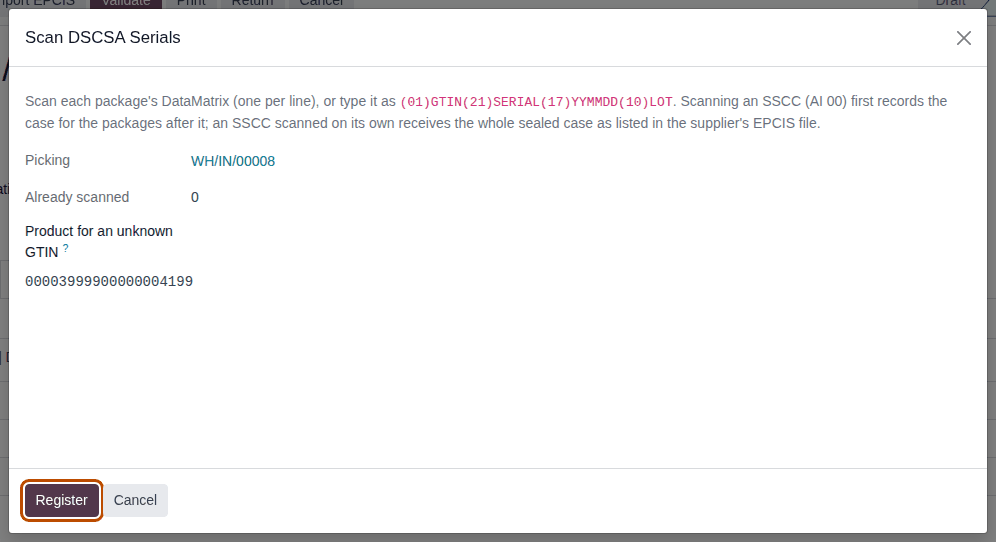
-
Select Register.
Result: the dialog closes. The Expected smart button and the Expected (EPCIS) tab are gone; the DSCSA Packages tab lists the 24 serials of the case in the state Received; the Operations tab shows a Quantity of
24.00.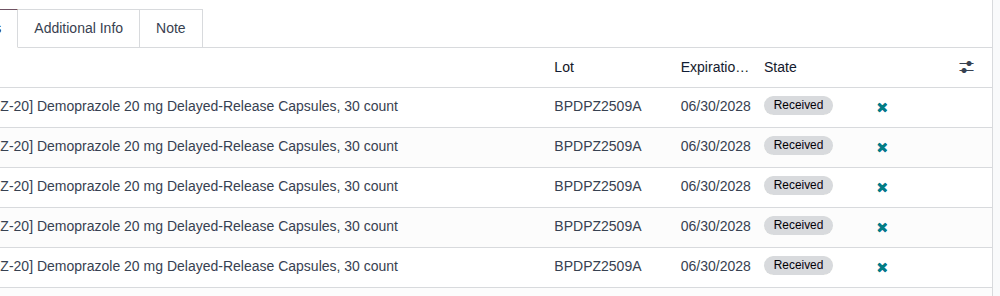
Result: the units in the case are received on the receipt, not yet in stock. Records: each package Received, with the case's SSCC; one picked receipt line per lot; the receipt's chatter note "24 DSCSA package(s) scanned.".
Several cases, or a pallet
Scan each case label on its own line, in one batch or several. A pallet label receives every case the file puts on that pallet. A case label followed by unit lines is not a case receipt: it only records the case of the units after it.
If it doesn't work
- "Nothing was registered. Fix these scans and try again: Line 1: SSCC 003999900000004199 is not a case the supplier's EPCIS file lists for this transfer. Scan the packages inside it one by one.": the file isn't imported on this receipt, or the case isn't in it. Import the file first (IN-03), or scan every unit (IN-08). See Error: "SSCC … is not a case the supplier's EPCIS file lists".
- Other "Nothing was registered" and "Some lines could not be read" messages: see Scan units onto a receipt with Scan Serials, and undo a scan.
Next: Validate a DSCSA receipt
Validate a DSCSA receipt
Validate the receipt once every unit that arrived is scanned. The units go into stock and, when the supplier's file was imported, Rx Tracking compares what arrived with the file and keeps the file as the inbound DSCSA document.
Who: Rx Tracking User or Manager. An Inventory User without an Rx Tracking right can also validate, once the units are scanned.
Requires: Rx Tracking (DSCSA). Works in Odoo Community and Enterprise.
Before you start:
- Every unit that arrived is scanned onto the receipt. See Receive a sealed case by scanning its SSCC label or Scan units onto a receipt with Scan Serials, and undo a scan.
- The supplier is still an authorized trading partner (it is checked again now).
-
Open the receipt and check the DSCSA Packages tab: one row per unit that arrived. On the Operations tab, Quantity equals the number of scanned units.
-
Select Validate.
Result: the receipt is Done. The DSCSA Packages tab shows the units In Stock. With a supplier file, a DSCSA Documents smart button (
1) appears, and the chatter says "EPCIS reconciliation: 24 package(s) received." followed by "Everything matches the supplier's file.". -
To see the document, select DSCSA Documents.
Result: the inbound document opens, for example
DSCSA/IN/2026/00007, in the Posted state, with Direction Inbound (received) and the receipt in Transfer.
Result: the units are in stock. Records: the receipt Done; its packages In Stock; with a file, the inbound DSCSA document
DSCSA/IN/YYYY/NNNNN (Posted, holding the supplier's XML as it was received) and the Supplier EPCIS File in the Received state.
Without a file, no DSCSA document is created (IN-10).
When fewer units arrived
If you scanned fewer units than ordered, Odoo asks Create Backorder? after step 2. See Receive part of a shipment.
When something doesn't match the file
If a scanned unit wasn't in the file, a unit is scanned with another lot or expiry, or a serial is already known, the receipt still becomes Done. The chatter then says "N discrepancy(ies): … Their lots are quarantined; resolve by DATE.", the receipt gets a Discrepancies smart button, and the lots can't be sold until the discrepancies are resolved. See Work a receiving discrepancy to resolution. A file without an affirmed Transaction Statement also holds the lots: see Record the supplier's Transaction Statement before validating.
Receipts with products that are not DSCSA products
Lines of products that are not DSCSA products (for example Adhesive Bandages) need no scan and validate as in standard Odoo, on their own receipt or next to DSCSA lines.
If it doesn't work
- "WH/IN/00009 can't be validated: scan one DSCSA serial for each unit being validated. - [DEMO-SMS-40] Samplostatin 40 mg Tablets, 90 count: 12 expected, 0 scanned. …": the scans and the quantities don't match: before any scan, a receipt's Quantity shows the ordered quantity. Scan the units that arrived (the Quantity follows the scans), or remove extra scans. See Error: "… can't be validated: scan one DSCSA serial for each unit being validated".
- "WH/IN/00030 can't be validated: it moves DSCSA products (…) to or from a trading partner. Granite State Rx Supply LLC (wholesaler) has no valid state license: license DEMO-NH-WHL-3301 expired on DATE.": the supplier is no longer an authorized trading partner (for example, its license expired after the order was confirmed). The receipt keeps its state. Ask an Rx Tracking Manager to record the renewed license (Renew, correct or retire a verified license). See Error: "… can't be confirmed: it contains DSCSA products …".
- "… can't be validated: it moves DSCSA products (…) to or from a trading partner, but no trading partner is set on the transfer.": the receipt has no Receive From. Choose the supplier there and validate again. See Error: "… but no trading partner is set on the transfer.".
- "You need to supply a Lot/Serial number for products …": the Quantity was typed by hand after scanning, which left a line without a lot. Remove one scan and scan it again, then validate. See Error: "You need to supply a Lot/Serial number for products …".
- "DSCSA packages don't match the quantities being validated: …" or "Package … can't be moved here: it is …": see Error: "DSCSA packages don't match the quantities being validated".
Known issue (PF-W05-02): if you type the Quantity of a scanned DSCSA line on the Operations tab and then type it back, Validate is refused with Odoo's "You need to supply a Lot/Serial number for products …", and registering the same scans again doesn't repair it. Remove one scan with the ✖ (Remove this scan) icon, scan that unit again, then validate. Let the scans set the Quantity.
Next: Review supplier EPCIS files and the inbound DSCSA document
Receive part of a shipment
When fewer units arrive than the receipt expects, validate what arrived and tell Odoo whether the rest is still coming.
Who: Rx Tracking User or Manager
Requires: Rx Tracking (DSCSA). Works in Odoo Community and Enterprise.
Before you start:
- The units that arrived are scanned. See Scan units onto a receipt with Scan Serials, and undo a scan. For
example, on the receipt of
P10015, the supplier's file announces 24 Demoprazole and 23 arrived.
-
Open the receipt and select Validate.
Result: the Create Backorder? dialog opens: "You have processed less products than the initial demand."
-
Choose one:
If Select Then the rest is still coming Create Backorder the receipt is Done for what arrived, and a new receipt WH/IN/NNNNN(its Back Order of field names the first one) waits for the restnothing more is coming No Backorder the receipt is Done, and the units the file announced but that didn't arrive become Missing discrepancies you want to scan more first Discard nothing changes Result (Create Backorder): the chatter says "EPCIS reconciliation: 23 package(s) received.", "1 announced package(s) are still expected on the backorder." and "Everything matches the supplier's file.". The inbound DSCSA document is posted now, for the units received. The backorder's Expected (EPCIS) tab lists the missing serial, for example
500000015024.Result (No Backorder): the chatter says "EPCIS reconciliation: 23 package(s) received." and "1 discrepancy(ies): 1 missing. Their lots are quarantined; resolve by DATE." The receipt gets a Discrepancies smart button, and the lot is quarantined.
Result: the receipt is Done for the units that arrived. Records: the inbound DSCSA document for the units received (with a file);
with Create Backorder, the backorder receipt and its still-expected packages; with No Backorder, one Missing discrepancy per
missing serial (DISC/YYYY/NNNNN) and the lot on hold.
Receive the backorder later
When the rest arrives, open the backorder from Inventory ‣ Operations ‣ Receipts, scan the units (IN-08) and validate it (IN-05).
Cancel a backorder that won't arrive
If the supplier confirms the rest won't come, open the backorder, select Cancel, then Ok in the "Are you sure you want to cancel this transfer?" dialog. The backorder is Cancelled, and each serial it still expected becomes a Missing discrepancy, with the chatter note "EPCIS reconciliation: 0 package(s) received." and "1 discrepancy(ies): 1 missing. …".
Without a supplier file
Without a file there is nothing expected: the backorder only needs serials for its own units when you validate it, and no discrepancy is created.
If it doesn't work
- Validating is refused with "… can't be validated: scan one DSCSA serial for each unit being validated.": the Quantity doesn't match the scans. See Error: "… can't be validated: scan one DSCSA serial for each unit being validated".
Next: Work a receiving discrepancy to resolution