Receive without an EPCIS file, or in several steps
Core module For: Administrator, Compliance manager, Warehouse staff Checked on 18.0.0.2.0
Receive DSCSA product when the supplier sends no EPCIS file, or when your warehouse receives goods in two or three steps. In both cases you scan every unit on the receipt itself. Abbreviations: EPCIS: Electronic Product Code Information Services; SSCC: Serial Shipping Container Code; T3: Transaction Report (see the glossary).
Receive without a supplier EPCIS file
Some suppliers send no EPCIS file, or send it after the goods. Without a file there is nothing to expect: scan every unit that arrived and validate. Your procedure decides whether you may receive DSCSA product before you have the supplier's transaction information and Transaction Statement; the software doesn't stop it. Background: the modules follow the reading that a buyer may not accept ownership unless the seller provides them prior to or at the time of the transaction (FD&C Act § 582(c)(1)(A)(i), § 582(g)(1); FDA interoperable exchange guidance (September 2023); see Compliance background).
Who: Rx Tracking User or Manager
Requires: Rx Tracking (DSCSA). Works in Odoo Community and Enterprise.
Before you start:
- The receipt is Ready. See Confirm a purchase of DSCSA product from an authorized supplier.
- The products are DSCSA products with their GTIN (Global Trade Item Number). See Set up a DSCSA product.
- If the file arrives before you validate, import it instead. See Import the supplier's EPCIS file on the receipt.
-
Go to Inventory ‣ Operations ‣ Receipts and open the receipt, for example
WH/IN/00009(source documentP10003, 12 Samplostatin). -
Select Scan Serials, scan every unit's DataMatrix, one per line, and select Register. See Scan units onto a receipt with Scan Serials, and undo a scan, steps 2–5.
Result: the DSCSA Packages tab lists every unit as Received, and the Operations tab's Quantity equals the number of units scanned.
-
Select Validate.
Result: the receipt is Done and its units are In Stock. The receipt has no EPCIS Files and no DSCSA Documents smart button.
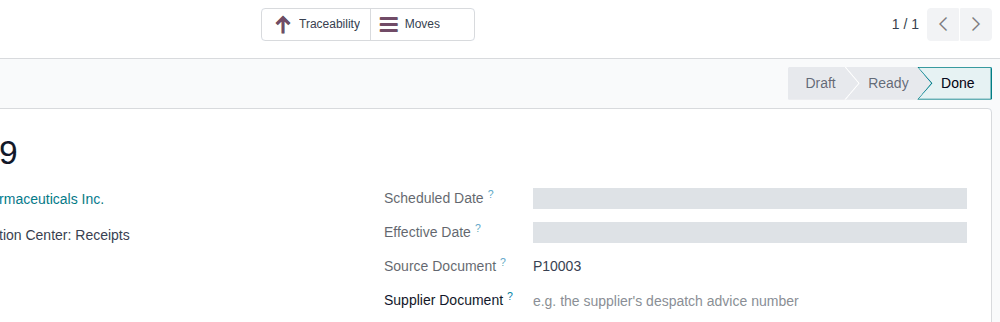
Result: the units are in stock and can be sold. Records: the receipt Done, its packages In Stock with the receipt as their origin. No inbound DSCSA document, no Supplier EPCIS File, no discrepancy and no hold are created. When you later ship these units, their outbound documents name the supplier from this receipt.
A sealed case can't be received from its SSCC label without a file: scan the units inside it one by one. The supplier's number (packing slip, invoice) can still be recorded in Supplier Document (Record or find a receipt by the supplier's document number).
If it doesn't work
- "Nothing was registered. Fix these scans and try again: Line 1: SSCC … is not a case the supplier's EPCIS file lists for this transfer. Scan the packages inside it one by one.": a case label was scanned. Scan the units instead. See Error: "SSCC … is not a case the supplier's EPCIS file lists".
- Validating is refused with "… can't be validated: scan one DSCSA serial for each unit being validated.": see Error: "… can't be validated: scan one DSCSA serial for each unit being validated".
- The file arrives after the receipt is Done: Import EPCIS is no longer offered on a done receipt (known issue below).
Known issue (PF-A02-01): an own receipt has no way to record the supplier's transaction data when there is no EPCIS file: a late file can't be imported once the receipt is Done, and there is no place for a T3 or packing-slip PDF as a DSCSA record (a PDF attached in the chatter is an ordinary attachment). Keep the supplier's documents as your procedure requires until this is resolved. With 3PL, owner receipts do have these paths.
Next: Validate a DSCSA receipt
Receive through a two- or three-step route
A warehouse can receive in two steps (receive into Input, then store) or three (receive, quality control, then store). Rx Tracking works on the first step, the receipt from the supplier: the file import, the scans, the checks and the inbound document all happen there. The later steps are internal moves: nothing to scan.
Who: Inventory Administrator to set the route (part 1); Rx Tracking User or Manager to receive (part 2)
Requires: Rx Tracking (DSCSA). Works in Odoo Community and Enterprise.
Before you start:
- For part 1, Multi-Step Routes is on: Inventory ‣ Configuration ‣ Settings, under Warehouse. See Odoo's receipts in two or three steps.
Set the warehouse's reception steps
-
Go to Inventory ‣ Configuration ‣ Warehouses and open the warehouse, for example
Albany Annex. -
Under Incoming Shipments, select Receive then Store (2 steps) or Receive, Quality Control, then Store (3 steps).
-
Select the ☁ (Save manually) icon next to the warehouse's name.
Result: purchase orders confirmed from now on create a receipt into the warehouse's Input location, followed by the later steps. Receipts that already exist keep their steps.
Receive on a multi-step route
-
Go to Inventory ‣ Operations ‣ Receipts and open the receipt, for example
WH2/IN/00002(source documentP10021, 12 Demoprazole for the Albany Annex). Its Destination Location is the Input location, for exampleWH2/Input. -
Import the supplier's file if there is one (IN-03), scan the units (IN-04 or IN-08) and select Validate (IN-05).
Result: the receipt is Done, with its DSCSA Documents smart button when a file was imported, and a Next Transfer smart button.
-
Select Next Transfer and open the next step, for example
WH2/STOR/00002(Storage, fromWH2/InputtoWH2/Stock). -
Select Validate, without scanning. The step shows a Scan Serials button; you don't need it.
Result: the step is Done.
-
With three steps, repeat steps 3–4 for each remaining step: first Quality Control (for example
WH/QC/NNNNN, fromWH/InputtoWH/Quality Control), then Storage.
Result: the units are in the warehouse's stock location, and their packages are In Stock. Records: the receipt (Done), with the inbound DSCSA document when a file was imported; each later step (Done). The internal steps create no DSCSA document and aren't counted or checked.
If it doesn't work
- The Incoming Shipments choices aren't on the warehouse form: Multi-Step Routes is off. Turn it on (see "Before you start").
- The refusals of the first step are those of a one-step receipt: see Validate a DSCSA receipt.