Scan serial numbers onto a receipt
Core module For: Administrator, Compliance manager, Warehouse staff Checked on 18.0.0.2.0
Scan each unit's DataMatrix into the Scan DSCSA Serials dialog of the receipt, so that every unit you receive is recorded by its serial number. Set up the handheld scanner once, then scan batch by batch; a unit scanned by mistake can be removed until the receipt is Done. Abbreviations: EPCIS: Electronic Product Code Information Services; GTIN: Global Trade Item Number; NDC: National Drug Code; SSCC: Serial Shipping Container Code (see the glossary).
Set up a handheld scanner for Scan Serials
A 2D barcode scanner in keyboard mode types what it reads into the field that has the cursor. Configure it once per device so that each DataMatrix arrives as one line with its GS1 separators intact.
Who: no Odoo right for steps 1–4; Rx Tracking User or Manager for the test on a receipt (steps 5–7)
Requires: Rx Tracking (DSCSA). Works in Odoo Community and Enterprise. A 2D scanner that reads GS1 DataMatrix codes.
Before you start:
- The scanner's configuration guide (the manufacturer's setup barcodes or configuration tool).
- A receipt in the Ready state with a DSCSA product, and one unit of that product with its label, for the test in steps 5–7. See Confirm a purchase of DSCSA product from an authorized supplier.
-
With the scanner's configuration guide, put the scanner in keyboard mode (USB HID keyboard, or Bluetooth HID).
-
Set the scanner to send Enter after each scan (a carriage-return suffix), so each scan ends its own line.
-
Set how the scanner sends the GS1 separator (FNC1, the "group separator" GS): as the control character itself (ASCII 29), or as one of the texts
<GS>,{GS},[GS],\x1dor␝. Don't use#orAlt029: this dialog doesn't read them. -
Scan a unit's DataMatrix into a plain text editor.
Result: one line appears, and its digits match the human-readable text printed next to the code:
01and the 14-digit GTIN,17and the expiry date,10and the lot,21and the serial. -
In Odoo, open the receipt and select Scan Serials.
-
Scan the same unit into the scan box ("Scan here...").
-
Select Register.
Result: the unit is listed on the receipt's DSCSA Packages tab in the Received state. If it isn't part of this shipment, remove it with the ✖ (Remove this scan) icon (see IN-08).
Result: the scanner types each DataMatrix as one readable line. No record is created by the set-up itself; the test scan creates a package that you keep or remove.
The dialog reads these forms of the same unit, each on its own line:
| Form | Example |
|---|---|
| What a scanner sends, with the GS control character | 01003999901013001728073110BPDPZ2509L + GS + 21500000017001 |
| The same, with a text stand-in for GS | 01003999901013001728073110BPDPZ2509L<GS>21500000017001 |
The same, with a GS1 symbology identifier in front (]d2, ]C1, ]Q3, ]e0 or ]J1); it is removed | ]d201003999901013001728073110BPDPZ2509L{GS}21500000017003 |
| The human-readable form, typed by hand | (01)00399990101300(21)500000017002(17)280731(10)BPDPZ2509L |
| A case label (SSCC), on its own line | 00003999900000004199 |
If it doesn't work
- "Some lines could not be read: Line 1: GS1 AI (10) BATCH/LOT must have 1 to 20 characters, got 'BPDPZ2509L#21500000017004' (25) in
'…'.": the separator didn't arrive, or arrived as
#orAlt029, so the lot runs into the serial. Change step 3's setting. See Error: "Some lines could not be read". - "Barcode data '…' is not GS1 data (symbology identifier ']…')": the scanner adds a prefix for a symbology that isn't GS1. Turn the prefix off, or check that the label is a GS1 DataMatrix.
- Two scans end up on one line, or one scan on two lines: the Enter suffix is missing, or the scanner sends Enter in the middle of the code. Repeat step 2.
- Digits are wrong or letters change case: the scanner's keyboard layout doesn't match the computer's. Set the same layout on both.
Known issue (PF-A02-06): the Scan DSCSA Serials dialog refuses # and Alt029 as the separator, although Odoo Enterprise's
Barcode app accepts them. A scanner set up for the Barcode app with # must be changed to ASCII 29 or <GS> for this dialog.
Next: Scan units onto a receipt with Scan Serials, and undo a scan
Scan units onto a receipt with Scan Serials, and undo a scan
Scan every unit that arrived when there is no sealed case to scan: loose units, an opened case, or a shipment without a supplier file. Each scan records the unit's serial, lot and expiry on the receipt.
With Odoo Enterprise's Barcode app, see Receive DSCSA units in the Barcode app.
Who: Rx Tracking User or Manager
Requires: Rx Tracking (DSCSA). Works in Odoo Community and Enterprise.
Before you start:
- The receipt is Ready (a receipt you created by hand is Draft until you select Mark as Todo). See Confirm a purchase of DSCSA product from an authorized supplier.
- The products are DSCSA products with their GTIN. See Set up a DSCSA product, or capture the GTIN with the first scan (IN-09).
- The scanner is set up. See Set up a handheld scanner for Scan Serials.
- If the supplier sent its EPCIS file, import it first. See Import the supplier's EPCIS file on the receipt.
-
Go to Inventory ‣ Operations ‣ Receipts and open the receipt, for example
WH/IN/00009(source documentP10003, 12 Samplostatin). -
Select Scan Serials.
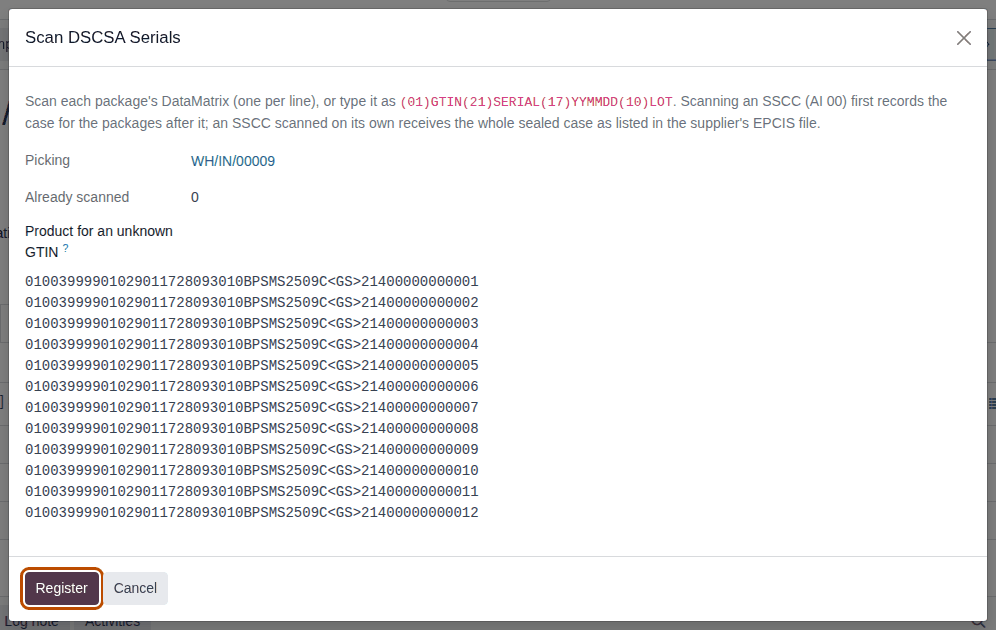
Result: the Scan DSCSA Serials dialog opens. It shows the receipt (in a field labelled Picking), Already scanned (the units scanned so far) and Product for an unknown GTIN, above the scan box "Scan here...".
-
Scan each unit's DataMatrix into the scan box, one per line. You can also paste lines, for example from a file of scans.
-
Select Register.
Result: the dialog closes. The DSCSA Packages tab lists each unit with its Serial Number, Product, Lot, Expiration Date and the State Received; the Operations tab's Quantity equals the number of units scanned; the chatter says "12 DSCSA package(s) scanned.".
-
For the next batch, select Scan Serials again and repeat steps 3–4.
Result: the scanned units are received on the receipt, not yet in stock. Records: one package per unit, Received; the lot, created from the first scan that names it (with that scan's expiry date); one picked receipt line per lot. Validate the receipt when every unit is scanned (Validate a DSCSA receipt).
On the receipt form, Alt+Shift+S also opens Scan Serials.
Scan the same unit twice
Scanning a unit that is already on this receipt, in the same batch or later, changes nothing. When the scan count is off, compare the DSCSA Packages tab with the units in hand.
With a supplier file
When the supplier's file is imported, each scan turns an Expected package into a Received one, and the Expected smart button counts down. A unit that isn't in the file is still received and becomes an Extra discrepancy when you validate (Work a receiving discrepancy to resolution).
Undo a scan
-
On the receipt's DSCSA Packages tab, select the ✖ (Remove this scan) icon at the end of the unit's row.
Result: the row disappears and the Quantity on the Operations tab drops by one. A package created by the scan is deleted; a package the supplier's file announced goes back to Expected, with the file's lot and expiry.
You can remove scans only while the receipt is open; the icon is gone once it is Done.
If it doesn't work
Registering is all or nothing: if one line is wrong, "Nothing was registered. Fix these scans and try again:" lists every wrong line by its number, and none of the lines is registered. Select Close: the dialog keeps your lines, so you can correct or delete the wrong ones and select Register again.

- "Line 2: Serial 400000000002: the scan has no lot number (AI 10)." or "… a package scan needs a GTIN (01) and a serial number (21).": the line misses a part. Scan the label again, or type the missing part. See Error: "the scan has no lot number (AI 10)".
- "… is not on this transfer." or "… (GTIN …) is not a DSCSA product.": the unit is not one of this receipt's products. Set it aside, or add the product to the receipt. See Error: "… is not on this transfer".
- "no DSCSA product has GTIN …": no product has this GTIN yet. See Capture a product's GTIN from the first scan.
- "Serial … is already scanned on WH/IN/00008.": the unit is on another open transfer. See Error: "… is already scanned on …".
- "Serial … belongs to PRODUCT.": the product's NDC or GTIN was changed after its units were received, and the label's GTIN now names another product. Ask an Rx Tracking Manager with a product right to set the identifiers back. See Error: "Serial … belongs to …".
- "Serial … is already registered (state: In Stock). A duplicate serial is a suspect-product signal: do not receive it until it is investigated.": the serial is already in your records. Set the unit aside. See Handle a duplicate serial at receipt.
- "the scan says lot … expires …, but the lot expires …": the label's expiry differs from the lot's. See Error: "the scan says lot … expires …".
- "Some lines could not be read:" or "Scan or paste at least one package DataMatrix.": see Set up a handheld scanner for Scan Serials and Error: "Some lines could not be read".
- There is no Scan Serials button: see The Scan Serials or Import EPCIS button isn't shown.
Next: Validate a DSCSA receipt
Capture a product's GTIN from the first scan
When a DSCSA product has no GTIN yet (for example a new product created without its NDC or GTIN), its first scan can save the GTIN on the product. After that, every scan and supplier file finds the product by its GTIN.
Who: Rx Tracking User or Manager
Requires: Rx Tracking (DSCSA). Works in Odoo Community and Enterprise.
Before you start:
- The product is a DSCSA product without a GTIN, and it is on the receipt; no other product has the GTIN on the label. For example,
Mockacillin on the receipt of
P10009(WH/IN/00014). See Set up a DSCSA product.
-
Open the receipt and select Scan Serials.
-
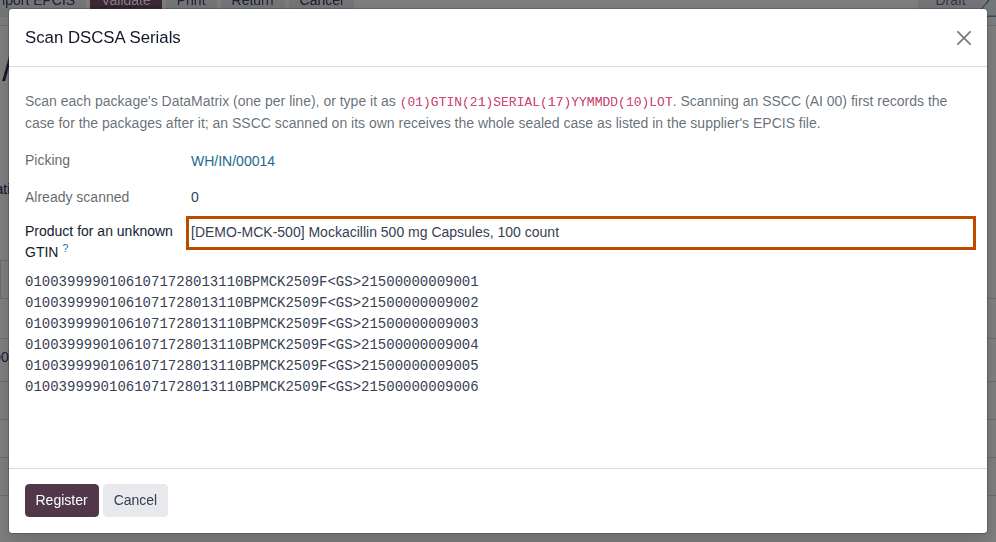
In Product for an unknown GTIN, choose the product, for example
[DEMO-MCK-500] Mockacillin 500 mg Capsules, 100 count. The list offers only DSCSA products. -
Scan the units into the scan box.
-
Select Register.
Result: the units are Received on the receipt. On the product form, the DSCSA tab shows the GTIN, for example
00399990106107, and the product's chatter says "GTIN 00399990106107 captured from a scan on WH/IN/00014.".
Result: the product has its GTIN and the units are scanned. Records: the product's GTIN (with the chatter note naming the receipt); one Received package per unit.
The supplier's EPCIS file doesn't capture GTINs: a file with an unknown GTIN is refused (IN-03). Set the GTIN first, by this procedure or on the product.
If it doesn't work
- "Line 1: no DSCSA product has GTIN 00399990106107. Set the GTIN on the product, or choose the product in the wizard to capture it." (one line per unit): Product for an unknown GTIN was left empty. Choose the product (step 2) and select Register again.
- "Line 1: GTIN 00399990106107 is unknown and [DEMO-DPZ-20] Demoprazole 20 mg Delayed-Release Capsules, 30 count already has GTIN 00399990101300.": the product you chose already has a GTIN. Choose the right product. If the product's GTIN is wrong, correct it on the product's DSCSA tab (Set up a DSCSA product).
- "… is not on this transfer.": the chosen product isn't on the receipt. Add it to the receipt or choose the right product.
See Error: "no DSCSA product has GTIN …".