Review supplier EPCIS files
Core module For: Compliance manager, Warehouse staff Checked on 18.0.0.2.0
Every EPCIS file a supplier sends is kept as a Supplier EPCIS File, with what it says about the seller, the buyer, the Transaction Statement and each package. When you validate its receipt, the file also becomes an inbound DSCSA document. Review them for an audit, a supplier follow-up or a trace request, and read each file's warnings when you import it. EPCIS (Electronic Product Code Information Services) is the GS1 file format suppliers use for the Transaction Information and Transaction Statement; see the glossary for the abbreviations. Abbreviations: GLN: Global Location Number; GTIN: Global Trade Item Number; NDC: National Drug Code (see the glossary).
Review supplier EPCIS files and the inbound DSCSA document
Find a supplier's file, check what it says, download the original, and open the inbound DSCSA document that validating its receipt posted. Nothing on these screens can be edited or deleted: they are the record of what the supplier sent.
Background: the modules follow the reading that a supplier you buy from provides the Transaction Information and the Transaction Statement, before or at the time of the transaction (FD&C Act § 582(c)(1)(A)(i), § 582(g)(1); FDA interoperable exchange guidance (September 2023); see Compliance background).
Who: Rx Tracking User or Manager
Requires: Rx Tracking (DSCSA). Works in Odoo Community and Enterprise.
Before you start:
- At least one supplier file is imported. See Import the supplier's EPCIS file on the receipt.
-
Go to Inventory ‣ Rx Tracking ‣ Supplier EPCIS Files.
Result: the list shows every file, newest first, with Imported On, File Name, Receipt, Supplier, Supplier Document, Ship Date, Packages in File, Inbound Document and State. Superseded and Cancelled files are shown in grey.
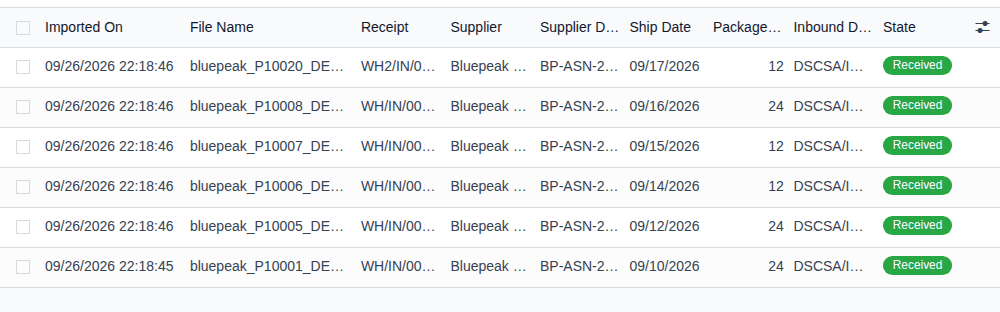
-
To narrow the list, open the search options (the ▾ Toggle Search Panel button at the right of the search box) and select a filter: Awaiting Receipt, Received or With Duplicates. Under Group By, select Supplier or Status. To find the file that announced a unit, enter its serial number in the search box and select Search Serial for: ….
Result: the list shows only the matching files.
-
Open a file.
Result: the file's form opens. The status bar shows Awaiting Receipt or Received (or Superseded or Cancelled). The Received / Expected smart button counts the file's packages, and a received file has an Inbound Document smart button.
-
Read the sections of the form:
Section What it shows Receipt the receipt, purchase order and supplier; Superseded By when a corrected file replaced it File the file (EPCIS File), its File SHA-256 fingerprint, the supplier's Supplier File ID, File Created On, and who imported it and when Transaction Supplier Document, PO References, Invoice References, Despatch Advice References, Shipped At, Ship Date, Direct Purchase Parties (GLN) Seller GLN, Buyer GLN, Ship-from GLN and Ship-to GLN as the file gives them Transaction Statement Has Transaction Statement, Statement Affirmed and the supplier's Legal Notice text Packages Packages in File, Inferred from Cases (units the file lists only inside a sealed case) and Products in File Below them, the tabs: Warnings (only when the file has warnings; see DISC-02), Duplicates (only when serials in the file are already in the package ledger; see DISC-09), Packages (each announced unit and its state) and Discrepancies (only after a validation that found differences).
-
To get the supplier's original file, select its name next to EPCIS File.
Result: your browser downloads the XML file exactly as it was imported. Its SHA-256 equals File SHA-256.
-
On a Received file, select the Inbound Document smart button.
Result: the inbound DSCSA document
DSCSA/IN/YYYY/NNNNNopens, Posted, with Direction Inbound (received), the supplier as Trading Partner, the receipt as Transfer, and the tabs Products, Transaction History, Transaction Statement, Files, Retention and Off-site Archive. -
Select the Transaction Statement tab.
Result: the tab shows the supplier's legal notice, followed by one of these texts:
- "The seller affirmed the DSCSA Transaction Statement in its EPCIS file (gs1ushc:affirmTransactionStatement = true)."
- "The seller's EPCIS file does not affirm the DSCSA Transaction Statement."
- "The seller's EPCIS file contains no DSCSA Transaction Statement."
When the statement was recorded before you validated the receipt (DISC-06), the text continues with "Transaction Statement obtained separately: SOURCE, obtained on DATE, reference REFERENCE (recorded by USER on DATE-TIME UTC, DISC/YYYY/NNNNN)."
-
Select the Files tab.
Result: the supplier's XML file is listed. It is the document's frozen copy of the file.
Result: you have reviewed the file and its document; nothing was changed. Records you looked at: the Supplier EPCIS File, and the
inbound DSCSA document DSCSA/IN/YYYY/NNNNN with the supplier's XML on its Files tab.
The file's states:
| State | Meaning |
|---|---|
| Awaiting Receipt | imported; its units are expected on the open receipt |
| Received | its receipt is Done; the inbound document is posted and any differences are receiving discrepancies |
| Superseded | a corrected file replaced it before validation (DISC-03); it keeps its file |
| Cancelled | its import or its receipt was cancelled (DISC-04); it keeps its file |
In a database with several companies, each file belongs to the company of its receipt: the list shows the files of the companies selected in the company switcher, and a user of another company doesn't see them.
From a receipt or from the documents list
- On a receipt, the EPCIS Files smart button lists the files imported on it.
- Inventory ‣ Rx Tracking ‣ Documents lists the DSCSA documents; the Inbound filter keeps the ones posted from supplier files. Their Transfer field opens the receipt.
If it doesn't work
- There is no Rx Tracking menu: you have no Rx Tracking right. Ask an administrator for Rx Tracking User. See Roles and permissions.
- There is no Delete anywhere for a file or a document: supplier files and DSCSA documents are kept as records. Cancel an import instead (DISC-04). See A supplier file, a discrepancy or its receipt can't be deleted.
Known issue (PF-W06-01): the inbound document shows no Supplier File and no Discrepancies smart button, although the software defines them. To go from the document to its supplier file, select the receipt in Transfer, then the receipt's EPCIS Files smart button. Its discrepancies are on the receipt's Discrepancies smart button.
Next: Read the warnings of an imported supplier EPCIS file
Read the warnings of an imported supplier EPCIS file
After an import, the file's Warnings tab lists what looks wrong in the file without stopping the import: a missing or unaffirmed Transaction Statement, counts that don't match the receipt, missing lot or expiry data, GLNs that could not be checked, and file-format notes. Read them before you receive the goods, because some of them need an action before validation. Your procedure decides which warnings need the supplier's answer before you receive; the software never refuses an import for a warning.
Who: Rx Tracking User or Manager
Requires: Rx Tracking (DSCSA). Works in Odoo Community and Enterprise.
Before you start:
- The supplier's file is imported on the receipt. See Import the supplier's EPCIS file on the receipt.
-
Open the receipt (Inventory ‣ Operations ‣ Receipts) and read its chatter.
Result: the import message says how many warnings the file has, for example "12 package(s) expected from EPCIS file bluepeak_P10018_DEMO-DPZ-20_no-expiry.xml (0 inferred from sealed cases). 1 warning(s): see the import."
-
Select the EPCIS Files smart button and open the file that is Awaiting Receipt. (Right after Import EPCIS, this form is already open.)
Result: the file's form opens with a Warnings tab. A file without warnings has no such tab.
-
Select the Warnings tab.
Result: each warning is one line starting with "-".

-
For each warning, find its condition and act on it:
If the warning is about Then the Transaction Statement ("The seller has not affirmed the DSCSA Transaction Statement in this file. …") record the statement before you validate (DISC-06), or ask the supplier for a corrected file (DISC-03) quantities ("… the file announces N package(s) but the receipt expects M.") or the purchase order number ("The file's purchase order number (…) is not ours (…).") check the purchase order with the supplier; differences found at validation become discrepancies (DISC-08) lot numbers or expiry dates ("N shipped package(s) have no expiry date: …", "Lot … expires … in Odoo but … in the file.") compare with the labels, and ask for a corrected file (DISC-03) GLNs that could not be checked ("… has no GLN in Odoo, so the … in the file (GLN …) could not be checked. …") record the missing GLN on the supplier or on your company, so later files are checked the product master data in the file (NDC) check the product's NDC and GTIN (MD-01) the file format, events or business transactions usually nothing; if units are missing, ask the supplier The full list of warnings, grouped by condition, is in Warnings on the Warnings tab.
Result: you know what the file lacks and have acted on it. Reading changes nothing: the warnings stay on the file for as long as it is kept. Records: none.
If it doesn't work
- There is no Warnings tab: the file has no warnings.
- The import itself was refused (another buyer, an unknown GTIN, a product not on the receipt): that is an import error, not a warning. See Import the supplier's EPCIS file on the receipt and the import errors from Error: "The buyer in the file has GLN …" on.
Known issue (PF-T03b-01): a file without expiry dates warns "N shipped package(s) have no expiry date: …", and a lot it creates gets today's date as its Expiration Date, not an empty one. A corrected file doesn't change it. Before you sell from that lot, correct the lot's expiry date: see Correct a lot's number or expiry.