Record a missing Transaction Statement
Core module For: Compliance manager, Warehouse staff Checked on 18.0.0.2.0
Some supplier EPCIS files carry no Transaction Statement, or don't affirm it. The supplier then gives it another way: on the T3 or packing slip, in its portal, by email or by EDI. Record where you obtained it, with the evidence, before you validate the receipt. If you validate first, every DSCSA lot received on the receipt is quarantined until you record it. Abbreviations: EPCIS: Electronic Product Code Information Services; T3: Transaction Report (see the glossary).
Background: the modules follow the reading that a buyer takes ownership only when the seller provides the Transaction Information and the Transaction Statement, before or at the time of the transaction (FD&C Act § 582(c)(1)(A)(i), § 582(g)(1); FDA interoperable exchange guidance (September 2023); see Compliance background). The software's own texts cite "§581(27)" for the statement; see DSCSA documents.
With Odoo Enterprise and Rx Tracking (DSCSA) - Suspect Product Investigations installed, every lot quarantine, including the one for a missing Transaction Statement, also opens a suspect-product investigation. See Follow the investigation a lot quarantine opens automatically.
Record the supplier's Transaction Statement before validating
The receipt shows a yellow banner when its supplier file has no affirmed Transaction Statement. Record the statement now, and the receipt validates without quarantining anything. Your procedure decides which evidence you accept and who may record it; the software requires a source, a date, your confirmation that the supplier's statement affirms the Transaction Statement, and an evidence file (or, for EDI and Other, a reference).
Who: Rx Tracking User or Manager
Requires: Rx Tracking (DSCSA). Works in Odoo Community and Enterprise.
Before you start:
- The supplier's file is imported on the open receipt, and its Warnings tab says the statement is missing or not affirmed. See Read the warnings of an imported supplier EPCIS file.
- You have the supplier's statement: a T3 or packing-slip PDF, a copy of the portal page, the email, or the reference of the EDI message.
-
Go to Inventory ‣ Operations ‣ Receipts and open the receipt.
Result: a yellow banner says "The supplier's EPCIS file has no (affirmed) Transaction Statement. Record it now, or the DSCSA lots will be quarantined when this receipt is validated." with the button Record Transaction Statement.

-
Select Record Transaction Statement in the banner.
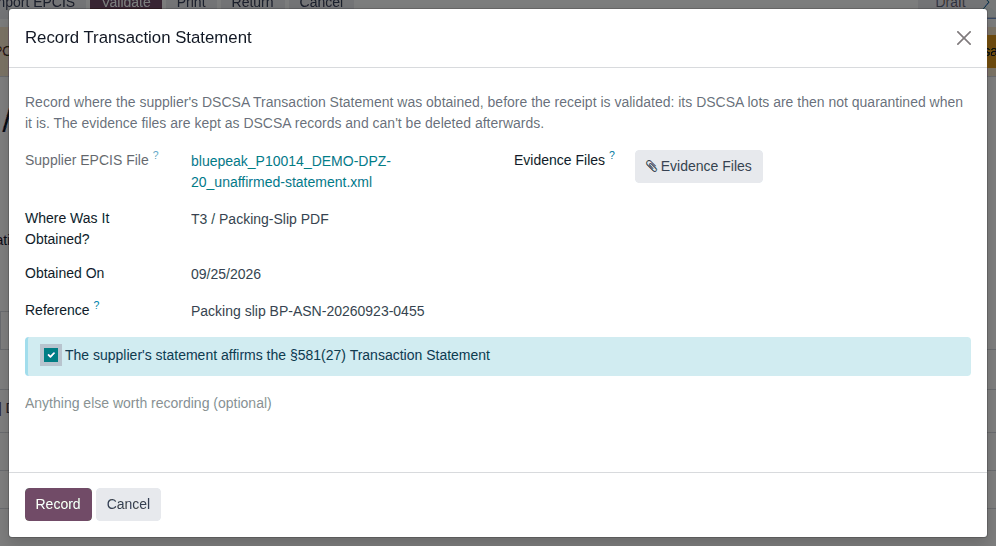
Result: the Record Transaction Statement dialog opens with the file in Supplier EPCIS File and today in Obtained On.
-
Fill in:
- Where Was It Obtained?: T3 / Packing-Slip PDF, Supplier Portal, Email, EDI or Other
- Obtained On: the day you obtained the statement (not a future date)
- Reference: where to find it again, for example
Packing slip BP-ASN-20260923-0455, a portal URL or the email subject
-
Select the checkbox The supplier's statement affirms the §581(27) Transaction Statement, but only when it does.
-
Select Evidence Files and choose the evidence file. With EDI or Other and a Reference, a file is optional.
Result: the file is listed next to Evidence Files.
-
Select Record.
Result: the dialog closes and the yellow banner is gone. The receipt's chatter says "Transaction Statement recorded (SOURCE, reference REFERENCE) for discrepancy DISC/YYYY/NNNNN.", and its Discrepancies smart button shows 1: a Transaction Statement Missing discrepancy that is already Resolved and holds the recording.
-
Scan the units and validate the receipt. See Validate a DSCSA receipt.
Result: the receipt is Done, nothing is quarantined, and the chatter says "EPCIS reconciliation: N package(s) received." and "Everything matches the supplier's file." (when the scans match the file).
Result: the lots of the receipt can be sold. Records:
- the Transaction Statement Missing discrepancy
DISC/YYYY/NNNNN, Resolved, with the source, date, reference, your name, the time and the evidence files; the evidence can't be deleted or changed; - chatter on the receipt and on the supplier file;
- the supplier file's red banner becomes a blue one: "The seller has not affirmed the DSCSA Transaction Statement in this file; it was obtained separately and recorded in DISC/YYYY/NNNNN Transaction Statement Missing.";
- after validation, the inbound DSCSA document's Transaction Statement tab adds "Transaction Statement obtained separately: SOURCE, obtained on DATE, reference REFERENCE (recorded by USER on DATE-TIME UTC, DISC/YYYY/NNNNN)."
From the supplier file
The file's form shows a red banner: "The seller has not affirmed the DSCSA Transaction Statement in this file. Record it now, or the receipt's DSCSA lots will be quarantined when it is validated." Its Record Transaction Statement button opens the same dialog; follow steps 3–7.
When the supplier sends a corrected file instead
Import the corrected file (DISC-03). If it affirms the statement, the banner goes away and there is nothing to record. A statement you recorded for the earlier file also covers the corrected one.
If it doesn't work
- "Invalid fields: Where Was It Obtained?": choose a source in Where Was It Obtained?. See Error: "Invalid fields: Where Was It Obtained?".
- "Confirm that the supplier's statement affirms the §581(27) Transaction Statement. If it doesn't, the discrepancy stays open: ask the supplier for it.": select the checkbox, but only if the supplier's statement affirms it. See Error: "Confirm that the supplier's statement affirms …".
- "Attach the evidence file(s): the T3 or packing slip, a copy of the portal page, or the email." (or, for EDI and Other, "Attach the evidence file(s), or give a reference to the EDI message or record."): attach the file, or give the reference. See Error: "Attach the evidence file(s) …".
- "The date the Transaction Statement was obtained can't be in the future.": correct Obtained On. See Error: "The date the Transaction Statement was obtained …".
- "Upload the evidence files in the Record Transaction Statement window; files that belong to other records can't be used (…).": see the Known issue below and Error: "Upload the evidence files in the Record Transaction Statement window …".
- The banner has no Record Transaction Statement button: you have no Rx Tracking right. Ask an Rx Tracking User to record it. See Error: "Only DSCSA users can …".
- "Supplier file … is no longer awaiting its receipt; …", "… affirms the Transaction Statement already." or "The Transaction Statement of supplier file … is already recorded (…).": the receipt became Done in the meantime, or there is nothing left to record. See Error: "Supplier file … is no longer awaiting its receipt …".
Known issue (PF-W06-02): after Record is refused once in the dialog (for example because the checkbox was not selected), a file you then attach is refused with "Upload the evidence files in the Record Transaction Statement window; files that belong to other records can't be used (FILE)." Select Cancel, open the dialog again, attach the file first, fill in the rest and select Record.
Next: Validate a DSCSA receipt
Record a missing Transaction Statement after validation and release the lots
If you validate a receipt while its supplier file has no affirmed Transaction Statement, the software creates one Transaction Statement Missing discrepancy for the receipt and quarantines every DSCSA lot received on it: the units are in stock but can't be reserved or shipped. Recording the statement resolves the discrepancy and releases the lots, unless something else still holds them.
Who: Rx Tracking User or Manager to record. Rx Tracking Manager to release a lot that something else still holds.
Requires: Rx Tracking (DSCSA). Works in Odoo Community and Enterprise.
Before you start:
- The receipt is Done and shows a red banner. The receiving discrepancies list shows its Transaction Statement Missing discrepancy Open.
- You have the supplier's statement (a file, or the reference of an EDI message).
-
Go to Inventory ‣ Operations ‣ Receipts and open the receipt.
Result: a red banner says "Transaction Statement missing: the supplier's EPCIS file does not affirm it, so the DSCSA lots received here are quarantined. Record where the Transaction Statement was obtained to release them."

-
Select Record Transaction Statement in the banner.
Result: the Record Transaction Statement dialog lists the Discrepancies and the Lots on Hold, and its button is Record and Release.
-
Select Evidence Files and choose the evidence file (optional for EDI or Other with a Reference).
-
Fill in Where Was It Obtained?, Obtained On and Reference, as in DISC-06 step 3.
-
Select the checkbox The supplier's statement affirms the §581(27) Transaction Statement.
-
Select Record and Release.
Result: the red banner is gone. The discrepancy is Resolved and its Resolution Note says "Transaction Statement recorded by USER on DATE-TIME. Source: …; obtained on …; reference: …. Evidence: …. The supplier's statement affirms the §581(27) Transaction Statement." Each lot is Released, and its chatter says "Lot released from quarantine: Transaction Statement recorded on DISC/YYYY/NNNNN by USER (SOURCE, reference REFERENCE)."
Result: the lots can be reserved and shipped again. Records: the discrepancy, Resolved, with the recording and its evidence files (kept; they can't be deleted); the release in each lot's chatter; chatter on the receipt ("Transaction Statement recorded (SOURCE, reference REFERENCE) for discrepancy DISC/YYYY/NNNNN.") and on the supplier file, whose red banner becomes the blue "… it was obtained separately and recorded in DISC/YYYY/NNNNN Transaction Statement Missing." The inbound DSCSA document posted at validation doesn't change; the recording is kept on the discrepancy.
When something else still holds the lot
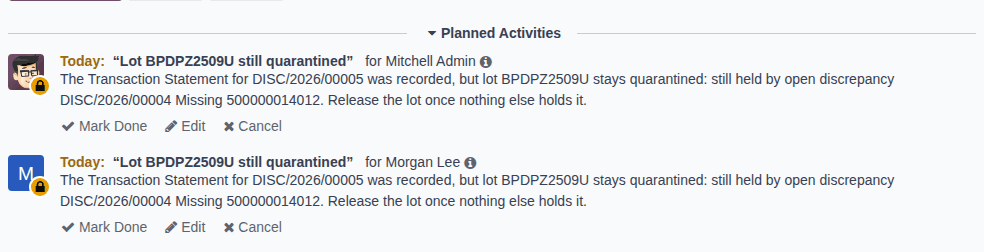
A lot stays quarantined when another open discrepancy is on it (for example a Missing unit of the same receipt), or when a manager quarantined it for another reason (the lot's Quarantine tab then has Held Outside Discrepancies selected). Recording the statement still resolves the Transaction Statement Missing discrepancy, and:
-
Each Rx Tracking Manager gets an activity Lot LOT still quarantined on the lot, with the note "The Transaction Statement for DISC/YYYY/NNNNN was recorded, but lot LOT stays quarantined: still held by open discrepancy …. Release the lot once nothing else holds it."
-
The manager resolves what still holds the lot (DISC-08) and then releases it (Release a lot from quarantine).
Result: the lot is Released and the activities are marked done with "Lot released."
From the discrepancy, or several at once from the list
- On the discrepancy's form, Record Transaction Statement is in the header, next to Mark Resolved.
- Go to Inventory ‣ Rx Tracking ‣ Receiving Discrepancies, open the search options and select the filter Transaction Statement Missing. Select the rows, then Actions ‣ Record Transaction Statement. The dialog also adds the other open Transaction Statement Missing discrepancies of the same supplier file (a receipt and its backorders).
If it doesn't work
- The messages of DISC-06 apply to the dialog in the same way.
- The red banner and the Record Transaction Statement button are gone, but the lot is still Quarantined: the discrepancy was resolved with Mark Resolved (see the Known issue).
- "Choose the discrepancies or the supplier file to record the Transaction Statement for.": in the list, you selected rows that are not open Transaction Statement Missing discrepancies, so the dialog lists no Discrepancies. Select Close and Cancel, and select only open Transaction Statement Missing rows. See Error: "Choose the discrepancies or the supplier file …".
- The lot stays Quarantined after Record and Release: something else still holds it. See When something else still holds the lot and The lot stays quarantined.
Known issue (PF-A02-03): Mark Resolved sits next to Record Transaction Statement on the discrepancy. With a Resolution Note, it resolves the discrepancy without recording the statement: the lot stays quarantined, the red banner and every Record Transaction Statement button disappear, and the list's Actions ‣ Record Transaction Statement ends with "Choose the discrepancies or the supplier file to record the Transaction Statement for." Use Record Transaction Statement. If it happened, ask an Rx Tracking Manager to select Reopen on the discrepancy, then record the statement.