Count DSCSA stock
Core module For: Administrator, Compliance manager, Warehouse staff Checked on 18.0.0.2.0
Count DSCSA products with Odoo's Physical Inventory as usual. When a count changes the quantity of a DSCSA product, the software asks for the DataMatrix of each unit that is gone or found, so the package ledger knows exactly which units they were. A count that confirms the quantity, and any count of a product that isn't a DSCSA product, works as in standard Odoo.
With Odoo Enterprise's Barcode app, see Count DSCSA stock in the Barcode app. For units a 3PL keeps for an owner, see Count an owner's stock and record the units that are gone.
Count stock and record the units that are gone
When fewer units are on the shelf than Odoo shows, apply the count and scan the units that are gone. Their packages become Missing: not destroyed, because nobody saw them destroyed, so a later count can still find them.
Background: the modules keep one package per unit on hand, so the ledger has to learn which serials left stock.
Your procedure decides when to count, who counts, and what to investigate when units are missing; the software requires the Rx Tracking User right and one serial per missing unit.
Who: Rx Tracking User or Manager
Requires: Rx Tracking (DSCSA). Works in Odoo Community and Enterprise.
Before you start:
- The units are known to be gone and you have their DataMatrix (from a label, a picking list or a scanner log), or their serial numbers. Units that were destroyed belong in a scrap: see Scrap DSCSA units.
- Your scanner is set up. See Set up a handheld scanner for Scan Serials.
-
Go to Inventory ‣ Operations ‣ Physical Inventory.
Result: the Inventory Adjustments list opens, filtered on My Counts.
-
Remove the My Counts filter (the × on it), then search for the product, for example
Samplostatin, and pressEnter.Result: one line per location and lot, with On Hand Quantity.
-
On the line of the lot, select the Counted Quantity cell and enter what you counted, for example
10for lotBPSMS2508Bwhere12.00are on hand.Result: Difference shows
-2.00. -
At the end of the line, select Apply.
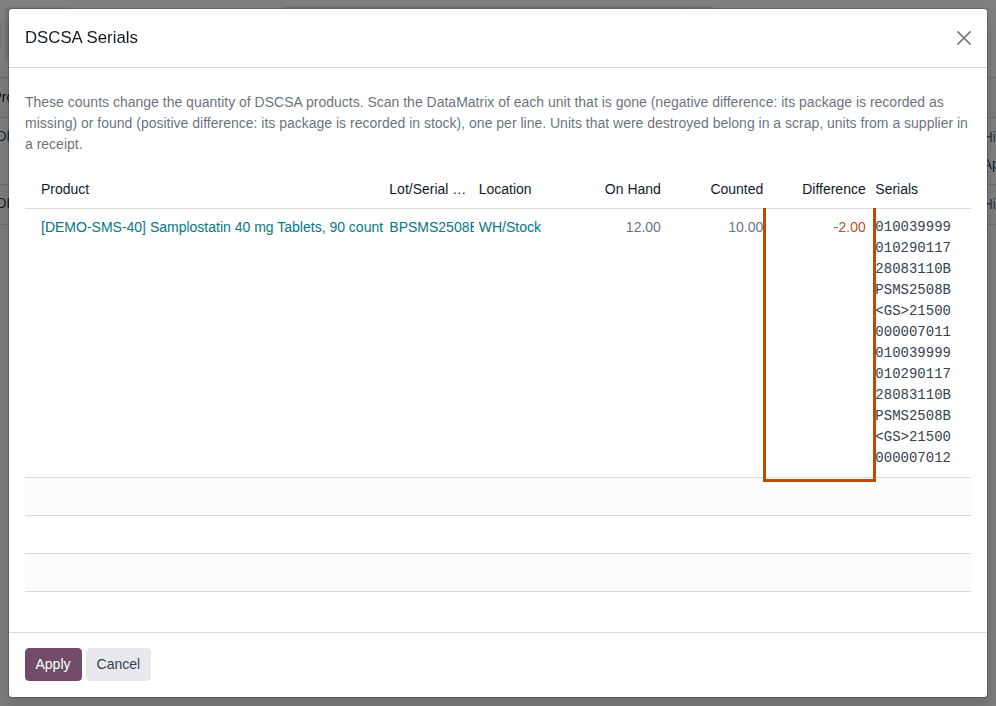
Result: the DSCSA Serials dialog opens with one line per DSCSA count: Product, Lot/Serial Number, Location, On Hand, Counted, Difference (red) and Serials.
-
Select the Serials cell of the line and scan the DataMatrix of each unit that is gone, one per line. You can also paste the lines.
-
Select Apply.
Result: the dialog closes and the line shows the new On Hand Quantity (
10.00), with no counted quantity left.
Result: the stock is lowered and the named packages are Missing; they can't be shipped, scrapped or returned until a count finds them
again. Records: the inventory move from the location to Virtual Locations/Inventory adjustment (reference "Product Quantity Updated", or
your reason, see below), listed in Inventory ‣ Reporting ‣ Moves History; the packages, now Missing (the Missing filter of
Inventory ‣ Rx Tracking ‣ Packages); a note in the lot's chatter: "Inventory count at WH/Stock: 2 package(s) recorded as missing:
500000007011, 500000007012."
Apply several counts at once, with a reason
-
Enter the counted quantities of several lines (steps 1–3), then select the lines' checkboxes.
-
Select Apply at the top of the list (or Apply All for every counted line).
Result: Odoo's Inventory Adjustment dialog opens, with Inventory Reason "Quantity Updated".
-
Enter your reason, for example
Cycle count 2026-09-27, and select Update Quantities.Result: the DSCSA Serials dialog opens with one line per DSCSA count that changes a quantity. Lines of other products are applied without serials.
-
Scan the serials of each line and select Apply.
The reason becomes the reference of the inventory moves and the Registration Note of any package found.
From the product's Update Quantity list
On a product form, Update Quantity opens a list where On Hand Quantity can be edited directly. For a DSCSA product, enter the new quantity and, in the same row, the scans of the units gone in DSCSA Serials, then save. The same checks apply when the row is saved. A count without serials is refused with the same message as in step 6.
Undoing a count
Odoo's Revert Inventory Adjustment (in Inventory ‣ Reporting ‣ Moves History, which needs Inventory Administrator: select the move, then the ⚙ (Actions) menu) is refused for DSCSA products. Count the lot again and name the serials of the units found or gone instead. To drop a count you haven't applied yet, select Clear on its line.
If it doesn't work
- "… : 2 unit(s) counted as gone. Name their serials (DSCSA Serials), or use a scrap, a receipt or the DSCSA opening balance instead.": the Serials cell was empty. Scan the units in step 5. See Error: "… unit(s) counted as gone. Name their serials".
- "… 1 serial(s) named for 2 unit(s) counted as gone.": the number of different serials doesn't match the difference (a repeated scan counts once). See Error: "… serial(s) named for … unit(s)".
- "Line 2: Serial … belongs to …", "Serial … is in lot …, not in lot …" or "Serial … is in …, not at …": that unit isn't a unit of this line. See Error: "Serial … is in lot …, not in lot …" in a count.
- "Only DSCSA users can apply a count that lowers the stock of a DSCSA product …" (an Access Error): you have no Rx Tracking right. Ask an Rx Tracking User to apply the count. See Error: "Only DSCSA users can apply a count that lowers the stock …".
- "Inventory adjustments of DSCSA products can't be reverted …": see Undoing a count and Error: "Inventory adjustments of DSCSA products can't be reverted".
- "… DSCSA stock is tracked by lot …", "… the quantity on hand is negative …" or "… a count can't be negative.": see Error: "… DSCSA stock is tracked by lot. Count it on a line with its lot.".
Known issue (PF-W10-01): the Serials column of the DSCSA Serials dialog is narrow, so each scan wraps over several lines and a long list is hard to check. The scans are read correctly. To check them, paste them from a text editor, where you can see one scan per line.
Next: Record units found in a count
Record units found in a count
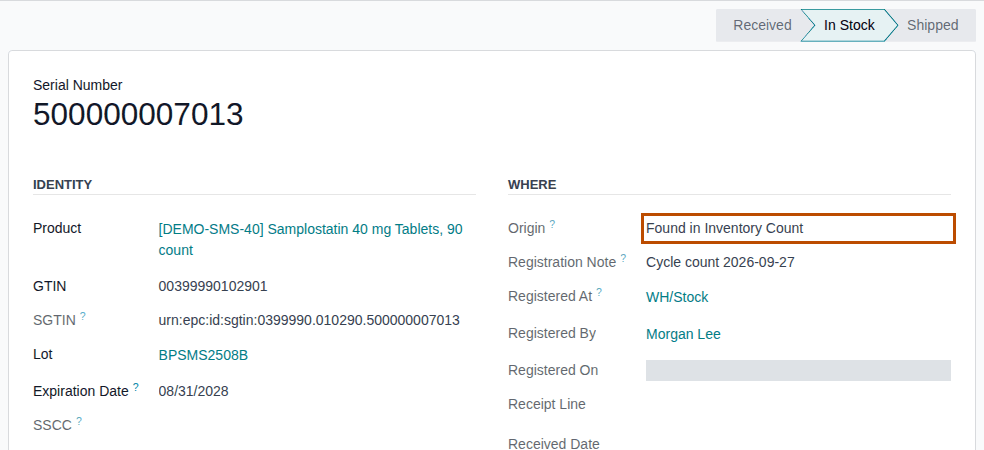
When more units are on the shelf than Odoo shows, apply the count and scan the units found. A unit whose package was recorded Missing comes back In Stock; a unit the ledger has never seen gets a new package with Origin Found in Inventory Count.
This adds packages without a receipt from a trading partner, so only an Rx Tracking Manager can apply it. Your procedure decides how a found unit's origin is investigated before it is put back into stock.
Who: Rx Tracking Manager
Requires: Rx Tracking (DSCSA). Works in Odoo Community and Enterprise.
Before you start:
- You have the DataMatrix of each unit found. Units that arrived from a supplier belong on a receipt, with the supplier's EPCIS file: see Import the supplier's EPCIS file on the receipt.
-
Go to Inventory ‣ Operations ‣ Physical Inventory, remove the My Counts filter and search for the product.
-
On the line of the lot, enter the Counted Quantity, for example
12where10.00are on hand.Result: Difference shows
2.00(green). -
Select Apply at the end of the line (or select the line and Apply at the top of the list, to give a reason, as in Apply several counts at once, with a reason).
Result: the DSCSA Serials dialog opens, with Difference in green.
-
In Serials, scan the DataMatrix of each unit found, one per line, for example a unit recorded Missing (
500000007011) and a unit the ledger has never seen (500000007013). -
Select Apply.
Result: the dialog closes and the line shows the new On Hand Quantity.
Result: the stock is raised, and every unit found has a package In Stock. Records: the inventory move from
Virtual Locations/Inventory adjustment to the location; packages that were Missing back In Stock (their Origin is
unchanged); for new serials, packages with Origin Found in Inventory Count, Registration Note = your reason (or "Inventory
adjustment"), Registered At, Registered By and Registered On, listed under the Found in Inventory Count filter of
Inventory ‣ Rx Tracking ‣ Packages; a note in the lot's chatter: "Inventory count at WH/Stock: 2 package(s) found: 500000007011,
500000007013."
A new serial is checked like an opening-balance scan: its GTIN must be the product's, its lot and expiry those of the line's lot. A lot whose quantity is negative must first be counted to zero.
If it doesn't work
- "Only DSCSA managers can apply a count that raises the stock of a DSCSA product: it adds packages to the ledger without a receipt." (an Access Error): ask an Rx Tracking Manager to apply the count. See Error: "Only DSCSA managers can apply a count that raises the stock …".
- "Serial … is already in the package ledger (In Stock): a count can only find a package recorded as missing.": that unit is already in stock in the ledger; it can't be found twice. Remove its line. See Error: "… a count can only find a package recorded as missing.".
- "… unit(s) counted as found. Name their serials …" or "… serial(s) named for … unit(s) counted as found.": as for a loss, see Error: "… unit(s) counted as gone. Name their serials".
- "GTIN … is not the GTIN of …" or "the scan says lot …": the scan isn't a unit of this line's product or lot. See Error: "Nothing was registered. Fix these scans and try again" (the same checks).
Go-live stock that was entered after its product became a DSCSA product can only be registered this way (Known issue PF-A04-02): the packages then show Found in Inventory Count, not Opening Balance. See Register the opening balance.