Set up the off-site archive
Core module For: Administrator Checked on 18.0.0.2.0
Send a write-once copy of every posted DSCSA document and every retention export to an Amazon S3 bucket that your company controls, so a copy survives even if the Odoo database is lost. The off-site archive (also written offsite) is optional and off by default. Set it up once per company, try it in test mode, then prove it once on the real bucket.
Set up the off-site S3 archive
Switch the archive on and give Odoo the bucket and the access key it writes with. From then on, posting a DSCSA document or creating a retention export queues its files for the archive; a scheduled job sends them, and validating a delivery never waits for S3. Background: the modules follow the reading that transaction information and statements are kept for at least six years after the transaction (FD&C Act § 582, record-keeping provisions; see Compliance background), so the archive keeps a write-once copy in an S3 bucket with Object Lock in compliance mode.
Who: Administrator with Administration: Settings, who is also Inventory Administrator and Rx Tracking Manager
Requires: Rx Tracking (DSCSA). Works in Odoo Community and Enterprise. An Amazon Web Services (AWS) account, or storage that is compatible with S3 and supports Object Lock.
Before you start:
- With your AWS administrator, outside Odoo:
-
Create a bucket for the archive with Object Lock enabled (in the S3 console: Advanced settings ‣ Object Lock ‣ Enable, when you create the bucket). This turns on versioning, which must stay on. Keep Block all public access on.
-
Create an IAM user that only Odoo uses, give it an access key, and give it only this policy (replace
BUCKET-NAMEandKEY-PREFIX):{"Version": "2012-10-17","Statement": [{"Effect": "Allow","Action": ["s3:PutObject", "s3:PutObjectRetention", "s3:PutObjectLegalHold"],"Resource": "arn:aws:s3:::BUCKET-NAME/KEY-PREFIX/*"}]}The user can add objects and set their retention and legal hold. It can't read, list or delete anything.
-
- The Odoo server can open HTTPS connections to S3.
- Your procedure decides the retention period (the setting accepts 6 to 30 years) and who holds the AWS account. Every object stays locked, and billed by AWS, until its retention date: nobody, not even the AWS root user, can delete it or shorten the retention.
- Try the archive in test mode against a test bucket first: see Try the archive in test mode, then switch to compliance mode.
-
Go to Inventory ‣ Configuration ‣ Settings.
Result: the Settings app opens on the Inventory settings.
-
Scroll to the DSCSA (Rx Tracking) block and select Off-site write-once archive (S3).
Result: the archive fields appear. Region is
us-east-1, Key prefix isdscsa, Retention (years) is6, and the line under the secret key reads "No secret key is set.". -
Fill in:
- Bucket: the bucket's name, for example
demo-rx-dscsa-archive - Region: the bucket's AWS region, for example
us-east-1 - Endpoint URL: leave it empty for AWS. Enter an address only for S3-compatible storage or a private endpoint, for example
https://storage.example.com - Key prefix: the folder inside the bucket. Give every Odoo database that writes to the same bucket its own prefix
- Access key ID: the IAM user's access key ID
- Secret access key: the IAM user's secret access key
- Retention (years): how long each object stays locked, from the document's transaction date (for a retention export, from the end of its period)
- Bucket: the bucket's name, for example
-
Select Save.
Result: the page reloads. The Secret access key field is empty again, and the line under it reads "A secret key is set.".
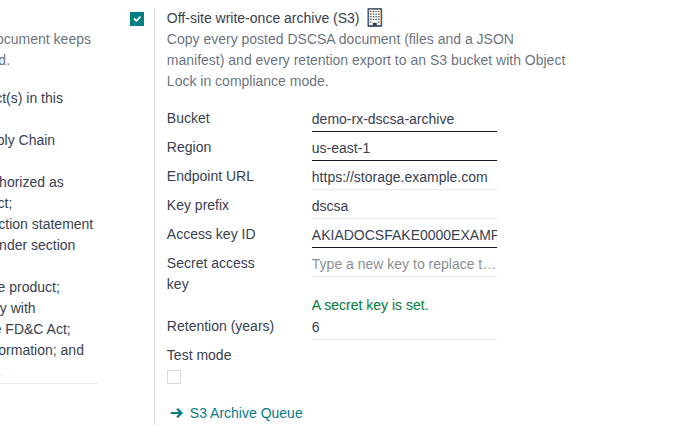
Result: the archive is on for the company selected in the company switcher (the building icon next to the setting means it is kept per
company). Records: the company's archive settings, and the secret key, stored as the system parameter
aglow_rx_tracking.archive_secret_key.COMPANY-ID. From now on each posted document and each retention export appears in the S3 Archive
Queue; see Watch the archive queue and each record's archive state. Documents posted before today are not
queued yet: see Queue records posted before the archive was switched on.
The S3 Archive Queue link at the bottom of the block opens the queue.
Change the secret key, or switch the archive off
- To replace the secret key, type the new one in Secret access key and select Save. Saving with the field empty keeps the stored key; the field never shows it.
- The secret key is kept in Odoo's system parameters, where users with Administration: Settings can read it in developer mode (Settings ‣ Technical ‣ System Parameters). Never edit that parameter by hand: use the settings field.
- To stop sending, clear Off-site write-once archive (S3) and select Save. Jobs already queued stay Pending and are sent when the archive is on again.
- For a second company, select it in the company switcher and repeat the procedure. Each company's objects are kept under
KEY-PREFIX/company-COMPANY-ID/.
If it doesn't work
- "Invalid fields:" with S3 Bucket and S3 Access Key ID: the Bucket or the Access key ID is empty. Fill them in. See Error: "Invalid fields: S3 Bucket, S3 Access Key ID".
- "Invalid S3 bucket name …", "The region may only contain …", an error about the request or endpoint URL, or "The S3 key prefix may only contain …": a value has the wrong format. Correct it. See Error: "Invalid S3 bucket name …", Error: "The region may only contain …", Errors about the endpoint URL and Error: "The S3 key prefix may only contain …".
- "The S3 archive retention must be between 6 years (the DSCSA minimum) and 30 years.": enter a number from 6 to 30. See Error: "The S3 archive retention must be between …".
- The DSCSA (Rx Tracking) block has no archive setting, or the settings page answers "You are not allowed to access 'Config Settings'": you lack one of the rights in the Who line. See The archive settings aren't shown.
Next: Try the archive in test mode, then switch to compliance mode
Try the archive in test mode, then switch to compliance mode
Test mode lets you try the archive against a test bucket without a six-year commitment: uploads get a short, removable lock and go to a
test/ folder. Records archived in test mode don't count as archived. When the test works, point the settings at the production bucket
and switch test mode off.
Who: Administrator with Administration: Settings, who is also Inventory Administrator and Rx Tracking Manager
Requires: Rx Tracking (DSCSA). Works in Odoo Community and Enterprise.
Before you start:
- A test bucket with Object Lock enabled, and its IAM user, set up as in Set up the off-site S3 archive. Never use test mode with the production bucket.
- The archive settings point at the test bucket (ARC-01, steps 1–4).
Switch test mode on
-
Go to Inventory ‣ Configuration ‣ Settings and scroll to Off-site write-once archive (S3).
-
Select Test mode.
Result: Test retention (days) appears, set to
1, with a yellow warning:Archive test mode is on. Uploads use Object Lock governance mode with a retention of a few days, under the test/ folder. Anadministrator with the bypass permission can delete them, so they are not DSCSA-compliant. Use a test bucket only, never inproduction. Records archived in test mode are queued again for a compliance upload after you switch test mode off (Queue UnarchivedRecords).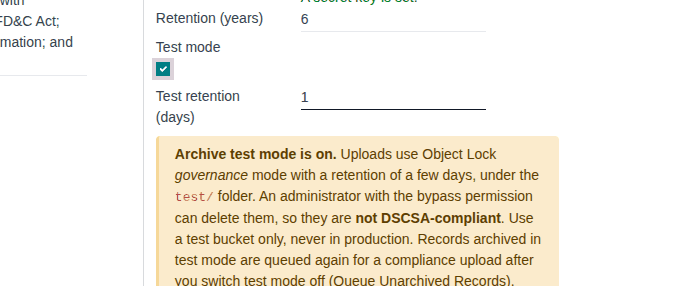
-
In Test retention (days), enter how many days each test upload stays locked, from 1 to 30.
-
Select Save.
Result: the page reloads with Test mode selected and the warning shown.
-
Create something to archive: validate a DSCSA delivery, or select Export Now in Inventory ‣ Rx Tracking ‣ Retention Exports (Get the monthly retention export, or export on demand).
Result: in Inventory ‣ Rx Tracking ‣ S3 Archive Queue the new jobs show Object Lock Mode Governance (test), and their S3 Key starts with
KEY-PREFIX/company-COMPANY-ID/test/. A test job's form shows the banner "Test mode upload. Object Lock in governance mode with a short retention: an administrator can delete it, so it is not a DSCSA-compliant archive copy." -
Wait for the hourly job, or ask the administrator to run DSCSA: send S3 archive queue by hand (Check that a DSCSA job ran, and run it by hand).
Result: the test jobs are Done, or they show a Last Error: see Fix and retry failed archive uploads. Check the objects in the test bucket, outside Odoo.
While test mode is on, only test uploads are sent. Jobs queued earlier in compliance mode wait. A record whose uploads were all made in test mode shows S3 Archive Test archive only, never Archived.
Switch to compliance mode
-
In the archive settings, enter the production bucket's Bucket, Region, Access key ID and Secret access key.
-
Clear Test mode.
Result: Test retention (days) and the warning disappear.
-
Select Save.
Result: test jobs that were not sent become Superseded, and any S3 archive failed activity on them is marked done with "Archive test mode switched off.".
-
Queue again every record that has no compliance upload, including the ones archived only in test mode: Queue records posted before the archive was switched on.
Result: new jobs with Object Lock Mode Compliance, whose keys have no
test/folder.
Result: the archive runs in compliance mode against the production bucket. Records: the company settings (test mode off), the superseded test jobs (kept in the queue), and one new compliance job per file.
Empty and delete the test bucket in AWS once its retention dates have passed, with your own administrator credentials. Never give Odoo's IAM user delete or bypass rights.
If it doesn't work
- "The S3 archive test retention must be between 1 and 30 days.": enter a number from 1 to 30. See Error: "The S3 archive test retention must be between 1 and 30 days.".
- The test jobs stay Pending: nothing sends them until the scheduled job runs. See Archive jobs stay Pending.
Known issue (PF-W11-01): the Queue Unarchived Records button that step 4 of "Switch to compliance mode" needs ends with "Oops! Something went wrong…". Use the workaround in Queue records posted before the archive was switched on.
Prove the archive end to end on the real bucket
Run this once against the production bucket before relying on the archive: it shows that an upload arrives with its compliance lock, that a delete is refused, that a legal hold reaches the object, and that a wrong key is caught.
Not run end to end while this page was written. This runbook needs a real AWS account and credentials, and every object it writes stays locked and billed for at least six years, so it was not performed while this page was written. Its steps follow the module's own real-bucket test.
Who: Administrator with Administration: Settings, who is also Inventory Administrator and Rx Tracking Manager, together with an AWS administrator
Requires: Rx Tracking (DSCSA). Works in Odoo Community and Enterprise. The AWS command line tool (aws) with administrator
credentials, outside Odoo, and Python 3 for step 8.
Before you start:
- The archive is set up against the production bucket, in compliance mode. See Set up the off-site S3 archive and Try the archive in test mode, then switch to compliance mode.
- A small DSCSA delivery you can validate. The objects it writes stay locked for the full retention period. To rehearse first, run the
same steps against a test bucket in test mode, where step 4 shows
GOVERNANCE. - Developer mode, for step 2: go to Settings, scroll to Developer Tools, and select Activate the developer mode.
-
Validate the DSCSA delivery.
Result: its document is posted, and Inventory ‣ Rx Tracking ‣ S3 Archive Queue lists one Pending job per file plus a Document manifest job.
-
Run the sender by hand: in Settings ‣ Technical ‣ Scheduled Actions, open DSCSA: send S3 archive queue and select Run Manually. See Check that a DSCSA job ran, and run it by hand.
-
Open the document (Inventory ‣ Rx Tracking ‣ Documents) and its Off-site Archive tab.
Result: S3 Archive is Archived, with Archived On, S3 Manifest Key, S3 Manifest Version ID and S3 Manifest ETag. In the queue, each of its jobs is Done with a Sent On time.
-
In AWS, run
aws s3api get-object-retention --bucket BUCKET-NAME --key S3-KEYfor one of the keys, then try to delete that object version.Result: the retention shows mode
COMPLIANCEand the retain-until date; the delete is refused. -
Place a legal hold on the document (Place a legal hold on DSCSA documents), run the sender again (step 2), and run
aws s3api get-object-legal-hold --bucket BUCKET-NAME --key S3-KEY.Result: the queue shows Legal hold jobs that are Done, and AWS reports the legal hold
ON. -
Release the hold (Release a legal hold), run the sender again, and check the legal hold in AWS.
Result: AWS reports
OFF. -
In the archive settings, type a wrong Secret access key and save, validate or queue something, and run the sender.
Result: the new jobs stay Pending with a Last Error that starts "HTTP 403 Forbidden: SignatureDoesNotMatch", and the key appears nowhere in Odoo. Enter the correct key again and select Retry on those jobs (Fix and retry failed archive uploads).
-
Get the document of step 1 back from the bucket and check it: follow Get a record back from the off-site archive and check it, parts 1 to 3, with its S3 Manifest Key and S3 Manifest Version ID from step 3.
Result: the script shows Recomputed
OKwith the document's Hash, andOKfor each of its files.
Result: the archive is proven on the real bucket, and a record can be got back from it and checked without Odoo. Records: the delivery's posted document, marked Archived; its Done upload and legal-hold jobs, each with its S3 version ID and ETag; the locked objects in the bucket; the downloaded files and the script's output, kept as your evidence.
If it doesn't work
- A job shows a Last Error: find the message in Troubleshooting: off-site archive and scheduled jobs, fix the cause, and retry.
Keep a staging or restored copy from writing to the archive
A copy of the production database (a staging database, a restored backup) must never write into the production bucket, because every object it sends stays locked for years. When Odoo neutralizes a copy, the module switches the archive off for every company and deletes the stored secret keys.
Who: Administrator with Administration: Settings, who is also Inventory Administrator and Rx Tracking Manager; the person who creates the copy (server or Odoo.sh access)
Requires: Rx Tracking (DSCSA). Works in Odoo Community and Enterprise.
Before you start:
- The copy exists, and it was neutralized when it was created: for example an Odoo.sh staging build, or a copy on which the server
administrator ran
odoo-bin neutralize -d COPY-DATABASE.
-
Log in to the copy and go to Inventory ‣ Configuration ‣ Settings.
-
Scroll to the DSCSA (Rx Tracking) block.
Result: Off-site write-once archive (S3) is cleared. If you select it, the line under the secret key reads "No secret key is set."; the bucket, region and access key ID are still filled in.
-
Leave the setting cleared, or select Discard if you selected it.
Result: the copy can't write to the archive. Records: nothing new; jobs already in the copy's queue stay Pending and are never sent, because the archive is off.
To try the archive from a copy, set it up against a test bucket in test mode, never the production one: Try the archive in test mode, then switch to compliance mode.
A copy made without neutralization (a plain database restore) keeps the archive on and the secret key. Before it runs its scheduled jobs, switch the archive off in the copy's settings, or have the server administrator neutralize it.
If it doesn't work
- The archive is still selected in the copy: the copy was not neutralized. Clear Off-site write-once archive (S3) and select Save before the next hourly run. See A copy of the database still has the archive on.