Run the off-site archive
Core module For: Administrator, Compliance manager Checked on 18.0.0.2.0
Once the off-site archive (also written offsite) is on, every posted DSCSA document and every retention export is queued and sent to the S3 bucket by a scheduled job. Check the queue now and then, fix the uploads that fail, queue the records that were posted before the archive was switched on, and get a record back from the bucket and check it outside Odoo when you need it. To set the archive up, see Set up the off-site archive.
Watch the archive queue and each record's archive state
See what is waiting to be sent, what was sent and what failed, and whether a given document or retention export has its copy in the bucket.
Who: Rx Tracking Manager
Requires: Rx Tracking (DSCSA). Works in Odoo Community and Enterprise.
Before you start:
- The archive is on. See Set up the off-site S3 archive.
-
Go to Inventory ‣ Rx Tracking ‣ S3 Archive Queue.
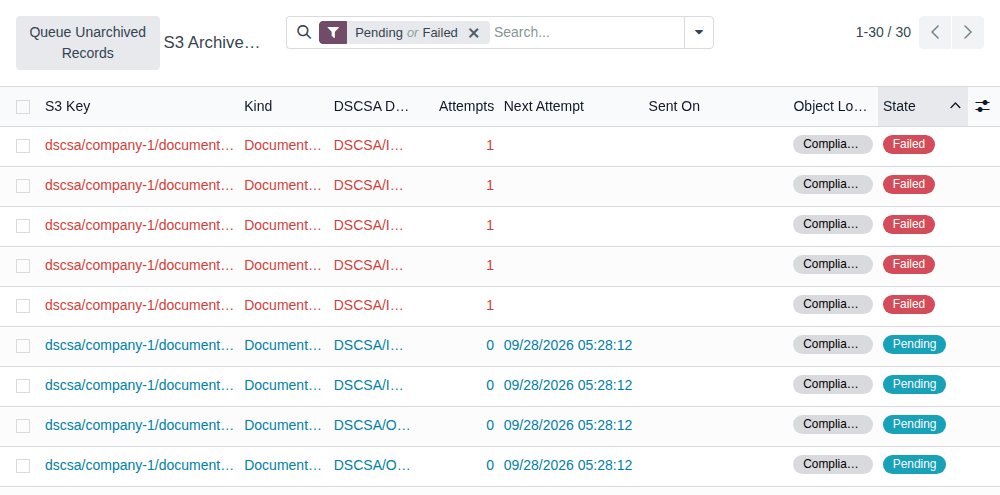
Result: the queue opens with the filters Pending and Failed, newest first. Each row is one object to write: S3 Key, Kind, DSCSA Document, Attempts, Next Attempt, Sent On, Object Lock Mode, Last Error and State. Failed rows are red. With nothing to show, the list reads "Nothing in the S3 archive queue".
-
To keep each row on one line, hide the Last Error column: select the column selector (the icon at the right end of the list heading) and clear Last Error. A failed row's error is long (see the known issue below); you read it on the job's form.
-
To see failed rows first, select the State column heading.
-
To narrow the list, open the search options (the ▾ next to the search box) and choose a filter: Pending, Failed, Done, Documents, Retention Exports, Legal Holds or Test Mode (Governance); or group by Status, Kind or Object Lock Mode. To see every job, remove the Pending or Failed filter.
-
Open a job.
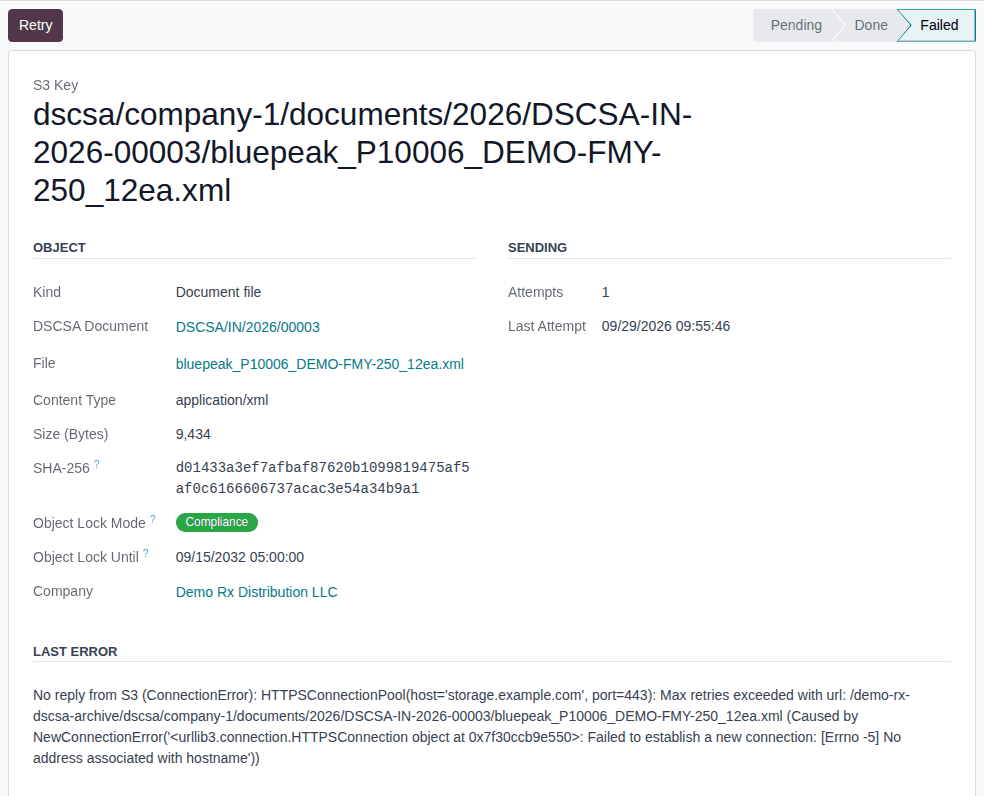
Result: the job form shows the S3 Key, and:
- Object: Kind, the DSCSA Document or Retention Export, the File, Content Type, Size (Bytes), SHA-256, Object Lock Mode and Object Lock Until (the retention date);
- Sending: Attempts, Next Attempt (while pending), Last Attempt, and once sent HTTP Status, Sent On, S3 Version ID and ETag;
- Last Error, when the last attempt failed.
-
To check one document, go to Inventory ‣ Rx Tracking ‣ Documents, open the document and select its Off-site Archive tab.
Result: S3 Archive shows the document's state, with Archived On and the S3 Manifest Key, S3 Manifest Version ID and S3 Manifest ETag once it is archived. Below them, the tab lists the document's jobs.
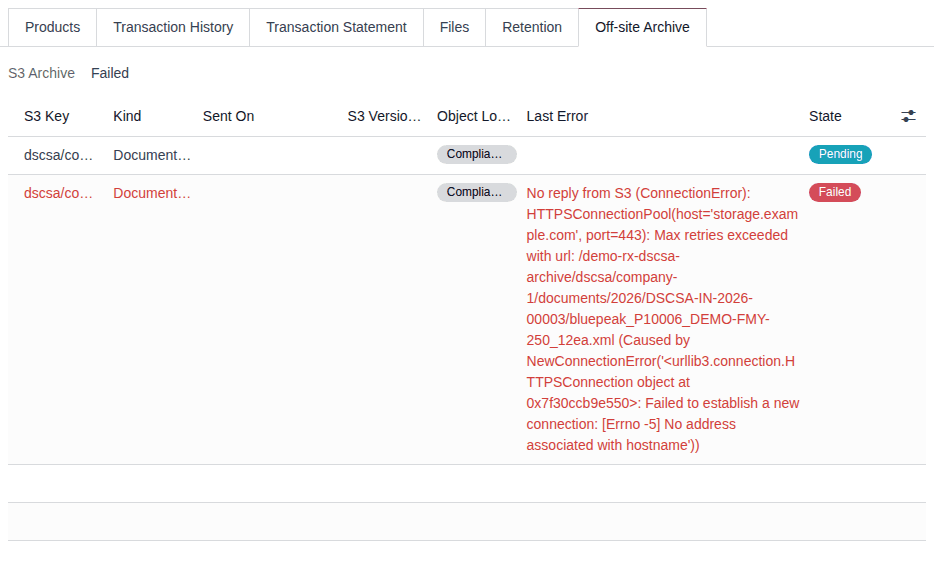
Result: you know what is still to send and what failed. Records: nothing changes; the queue and the tab only show.
To list the documents without a finished copy, open Inventory ‣ Rx Tracking ‣ Documents and choose the filter Not Archived Off-site (or Off-site Archive Failed). The list's optional S3 Archive column shows the state. A retention export shows the same information in its Off-site Archive group, and the Retention Exports list has an S3 Archive column.
What the jobs and states mean:
| Job State | Meaning |
|---|---|
| Pending | Waiting to be sent. After a failed attempt it waits until Next Attempt |
| Done | S3 accepted the object; Sent On, S3 Version ID and ETag are filled in |
| Failed | Sending stopped after the last attempt, or at once for a failure that can't be retried. See Fix and retry failed archive uploads |
| Superseded | Not sent and no longer needed: a test upload when test mode was switched off, or a legal-hold change replaced by a newer one |
| Job Kind | What it writes |
|---|---|
| Document file | one stored file of a posted document: the T3 report (PDF), our EPCIS file, the supplier's original file |
| Document manifest | a JSON file with the document's number, hash, previous hash and the SHA-256 of each file |
| Retention export file | one CSV file of a retention export |
| Legal hold | places or releases the legal hold on an object already in the bucket (sent after its upload is Done) |
| Record S3 Archive | Meaning |
|---|---|
| Not archived | nothing is queued for it: posted before the archive was on, or its test uploads were superseded (see ARC-07) |
| Queued | its uploads are queued or being retried |
| Archived | all its compliance uploads are Done |
| Failed | one of its uploads is Failed |
| Test archive only | its only uploads were made in test mode: it is queued again after test mode is switched off |
Keys follow a fixed pattern: KEY-PREFIX/company-COMPANY-ID/documents/YEAR/DOCUMENT-NUMBER/FILE (plus
DOCUMENT-NUMBER.manifest.json; in keys, each / of the document number is a -, as in DSCSA-OUT-2026-00002), and KEY-PREFIX/company-COMPANY-ID/exports/YEAR/monthly-YYYY-MM/FILE (manual-NN for an on-demand
export). Test uploads have test/ after the company folder.
With the 3PL add-on: documents issued in an owner's name are archived with your company's, under the same prefix and in the same
hash chain: their keys differ only by the owner's code in the document number (…/documents/2026/DSCSA-NWG-OUT-2026-00001/…). There is no
folder per owner (a per-owner prefix is not built), so an owner's records are found by that code. Only DSCSA documents and retention
exports go to the archive: owner notices, owner holds, title transfers and owner exports stay in Odoo. Which 3PL records are kept, and the
owner column of the retention export: 3PL records that are kept and
The owner column of the retention export.
Jobs are written only by the archive itself: nobody can create, change or delete them, and the archive fields of a document can't be edited.
Known issue (PF-W11-04): when S3 can't be reached, Last Error holds a long technical text ("No reply from S3 (ConnectionError): HTTPConnectionPool(…) …") that makes each row several lines tall. Read its first words, or open the job to read it whole; to keep the list compact, hide the Last Error column (step 2).
If it doesn't work
- The S3 Archive Queue menu item isn't shown: you aren't an Rx Tracking Manager. Rx Tracking Users can open a job from a document's Off-site Archive tab but not the queue. See Error: "Only DSCSA managers can manage the S3 archive queue.".
- Everything stays Pending: see Archive jobs stay Pending.
Fix and retry failed archive uploads
When an upload fails, the archive retries it by itself: after 15 minutes, then after twice as long each time, up to once a day. After the eighth attempt the job is Failed, and every Rx Tracking Manager of the company gets an S3 archive failed activity. Find the cause in Last Error, fix it, then select Retry.
Who: Rx Tracking Manager; fixing the archive settings needs an administrator with Administration: Settings who is also Inventory Administrator and Rx Tracking Manager
Requires: Rx Tracking (DSCSA). Works in Odoo Community and Enterprise.
Before you start:
- You have an S3 archive failed activity (summary "N S3 archive upload(s) failed"), or the queue shows Failed rows. See Watch the archive queue and each record's archive state.
-
Go to Inventory ‣ Rx Tracking ‣ S3 Archive Queue and open a Failed job.
Or start from the activity: in the top bar, select the Activities icon (the clock), then DSCSA S3 Archive Job, and open the job listed. Its chatter shows the activity with the first failed key and error, and "Filter the S3 Archive Queue on Failed, fix the cause, then Retry.".
-
Read the Last Error.
-
Fix the cause. The most frequent ones:
Last Error starts with Cause Fix "No reply from S3" the server couldn't reach S3: network, firewall, wrong Endpoint URL, S3 unavailable check the network and the Endpoint URL (empty for AWS) "The S3 archive settings of COMPANY are incomplete:" a setting it names is empty, often the secret key fill it in (ARC-01) "HTTP 403 Forbidden: SignatureDoesNotMatch" wrong secret access key enter the right key (ARC-01) another "HTTP …" message, for example "HTTP 403 Forbidden: InvalidAccessKeyId" wrong access key ID, IAM policy, bucket or region: the text after the status is S3's own error code and message check them with your AWS administrator "S3 already holds an object under this key, and this job never stored one" another database writes to the same key prefix give this database its own Key prefix; the job stays Failed "The content of KEY no longer matches the SHA-256" the stored file changed since it was queued not sent on purpose: run Verify Integrity (REC-10) Every message is explained in Troubleshooting: off-site archive and scheduled jobs.
-
Go back to the queue, keep the Failed filter, and select the failed jobs (the checkbox in the column heading selects all of them).
-
Select Retry (above the list).
Result: the notification "S3 archive" says "N archive job(s) queued again.". The jobs are Pending with Attempts
0, and the S3 archive failed activities on them are marked done with "Retried by USER.". -
Wait for the next hourly run, or ask the administrator to run DSCSA: send S3 archive queue by hand (Check that a DSCSA job ran, and run it by hand).
Result: the jobs are Done. If they fail again, their Last Error says why.
Result: the failed uploads are queued again. Records: the jobs (Pending, then Done), and in the chatter of the job that carried it, the activity marked done with its feedback.
You can also select Retry on one failed job's form, and on Pending jobs, to send them at the next run instead of waiting for Next Attempt.
Known issue (PF-W11-02): the S3 archive failed activity sits on the first job that failed. Retrying only that job marks the activity done for every manager, even when other jobs are still Failed; retrying other jobs leaves it open. Before you mark the work finished, check that the Failed filter shows no rows.
Known issue (PF-V02e-02): the S3 archive failed activity is due on the date of OdooBot, which runs the scheduled job in another time zone. In the United States, a failure in the afternoon or evening shows as Future (due tomorrow) in the Activities menu, not Today. Check the queue's Failed filter each day instead of waiting for the activity to be due.
If it doesn't work
- "Only failed or pending archive jobs can be retried.": the selection has only Done or Superseded jobs. Select Failed or Pending ones. See Error: "Only failed or pending archive jobs can be retried.".
- The same error comes back: the cause isn't fixed. Read the Last Error again and see its troubleshooting entry.
Queue records posted before the archive was switched on
The archive queues each document when it is posted and each export when it is made. Documents and exports that already existed when you switched the archive on, and records archived only in test mode, need to be queued once.
Known issue (PF-W11-01): the queue's Queue Unarchived Records button ends with the dialog "Oops! Something went wrong…" and queues nothing. Until it is fixed, an administrator creates the action below once, and a manager runs it from the Documents list.
Who: part 1: Administrator with Administration: Settings; part 2: Rx Tracking Manager
Requires: Rx Tracking (DSCSA). Works in Odoo Community and Enterprise.
Before you start:
- The archive is on for the company, in the mode you want (for compliance uploads, test mode is off). See Set up the off-site S3 archive.
- For part 1, developer mode: go to Settings, scroll to Developer Tools, and select Activate the developer mode.
Part 1: create the action (once)
-
Go to Settings ‣ Technical ‣ Server Actions and select New.
-
Fill in:
- the name (placeholder "e.g. Mass archive contacts"):
Queue unarchived DSCSA records (S3) - Model:
DSCSA Transaction Document - Type: Execute Code
- the name (placeholder "e.g. Mass archive contacts"):
-
In Code, replace the text with this line:
action = env['dscsa.archive.job'].action_dscsa_queue_unarchived() -
Save the record (the ☁ Save manually icon).
-
Select Create Contextual Action.
Result: the button changes to Remove Contextual Action. The action is now in the ⚙ (Actions) menu of the documents list.
Part 2: queue the records
-
Go to Inventory ‣ Rx Tracking ‣ Documents.
-
Select one document (its checkbox). Which one doesn't matter: the action always looks at every posted document and export.
-
Open the ⚙ (Actions) menu and select Queue unarchived DSCSA records (S3).
Result: the notification "S3 archive" says "N document(s) and M retention export(s) queued.", for example "12 document(s) and 1 retention export(s) queued.".
Result: every posted document and retention export of the selected companies with the archive on that had no compliance upload is queued: new jobs in Inventory ‣ Rx Tracking ‣ S3 Archive Queue, and S3 Archive Queued on those records. In test mode, records never queued get test uploads instead. Running the action again queues nothing new. Records: one Pending job per file and one manifest job per document.
If it doesn't work
- "Enable the off-site S3 archive in the Inventory settings first.": the archive is off for every company selected in the company switcher. Switch it on (ARC-01), or select the right company. See Error: "Enable the off-site S3 archive in the Inventory settings first.".
- "Oops! Something went wrong…" after Queue Unarchived Records: the known issue above. Use part 2. See Error: "Oops! Something went wrong" on Queue Unarchived Records.
- The action isn't in the ⚙ (Actions) menu: part 1 wasn't done.
- "You are not allowed to modify 'DSCSA Transaction Document' (dscsa.document) records.": you aren't an Rx Tracking Manager. Ask a manager to run part 2. See Error: "You are not allowed to access ... records".
Get a record back from the off-site archive and check it
Download a document's files and its manifest from the bucket, and prove outside Odoo that they are the ones Odoo posted: when an auditor or an inspector asks for a record, when Odoo is unavailable, or to test your recovery procedure. Each document's manifest carries its hash and the exact data that was hashed, so you can recompute the hash and follow the chain to the document before it without Odoo. Background: the archive keeps a write-once copy of every document in a bucket you control, and the documents form a hash-chained record. Your procedure decides who may download from the bucket and how often you rehearse this.
Who: Rx Tracking Manager for the keys in Odoo; for the download, a person with read access to the bucket (an AWS user allowed
s3:GetObject and s3:GetObjectVersion, for example your AWS administrator). The checks themselves need no access.
Requires: Rx Tracking (DSCSA). Works in Odoo Community and Enterprise. The off-site archive, set up as in Set up the off-site S3 archive. For the checks, a computer with Python 3.
Before you start:
- The record's uploads are Done: its S3 Archive is Archived. See Watch the archive queue and each record's archive state. (To rehearse parts 3 and 4 before that, see part 3.)
- You know the document number, for example
DSCSA/OUT/2026/00002, or the retention export.
Part 2 was not run end to end while this page was written: the example database has no real bucket. Parts 1, 3 and 4 were performed on the example database, with the manifest copied from its archive job and the files downloaded from the document (the rehearsal in part 3's first paragraph).
Part 1: find the keys
-
Go to Inventory ‣ Rx Tracking ‣ Documents and open the document.
-
In the Integrity group, note the Chain Position and the Hash, for example position
8and$1$efd60579345ae3afac3277bf61aa11fafb911ca66648e7da2de66338acee6ed8. -
Select the Off-site Archive tab.
Result: S3 Manifest Key and S3 Manifest Version ID name the manifest object. The list below shows one job per file with its S3 Key and S3 Version ID, for example
dscsa/company-1/documents/2026/DSCSA-OUT-2026-00002/T3-DSCSA-OUT-2026-00002.pdf.
Without Odoo, build the keys from the pattern of ARC-05: KEY-PREFIX/company-COMPANY-ID/documents/YEAR/NUMBER/, where
NUMBER is the document number with each / replaced by - (DSCSA-OUT-2026-00002) and YEAR the year of its Document Date.
The folder holds the files and NUMBER.manifest.json. The archive never writes a key twice, so each key has one version.
Part 2: download the files and the manifest by version
Choose one:
-
AWS console: open the bucket, go to the document's folder, select Show versions, select each object's version and Download.
-
AWS command line: for the manifest and then for each file, run
aws s3api get-object --bucket BUCKET-NAME --key S3-KEY --version-id VERSION-ID FILE-NAMETo list the versions of a folder:
aws s3api list-object-versions --bucket BUCKET-NAME --prefix FOLDER-KEY/.
Save each file under its name in the manifest (files[].name, for example T3-DSCSA-OUT-2026-00002.pdf) and the manifest as
NUMBER.manifest.json, all in one folder.
Result: you have the document's files and its manifest, each exactly as it was sent.
Part 3: check the files and the hash
To rehearse without a bucket, or while the upload is still Pending, take the same data from Odoo: download the files from the
document's Files tab, and copy the manifest from the job Document manifest on the Off-site Archive tab (its Manifest
field shows only in developer mode: add ?debug=1 after /odoo in the browser's address bar). Save the text as NUMBER.manifest.json.
-
Save this script as
check-manifest.pyin the folder:import hashlib, json, sysmanifest = json.load(open(sys.argv[1], encoding="utf-8"))doc = manifest["document"]payload = json.loads(doc["hash_payload"])recomputed = "$1$" + hashlib.sha256((doc["previous_hash"] + doc["hash_payload"]).encode("utf-8")).hexdigest()print("Document: ", doc["number"], "- chain position", doc["chain_index"])print("Stored hash: ", doc["hash"])print("Recomputed: ", recomputed, "OK" if recomputed == doc["hash"] else "MISMATCH")print("Previous hash:", doc["previous_hash"] or "(none: first document of the company)")for path in sys.argv[2:]:name = path.replace("\\", "/").rsplit("/", 1)[-1]actual = hashlib.sha256(open(path, "rb").read()).hexdigest()expected = payload["files"].get(name)print("File: ", name, "OK" if actual == expected else "MISMATCH (or not in this manifest)") -
In a terminal in that folder, run it with the manifest and the files (on Windows,
pyinstead ofpython3):python3 check-manifest.py DSCSA-OUT-2026-00002.manifest.json T3-DSCSA-OUT-2026-00002.pdf EPCIS-DSCSA-OUT-2026-00002.xmlResult:
Document: DSCSA/OUT/2026/00002 - chain position 8Stored hash: $1$efd60579345ae3afac3277bf61aa11fafb911ca66648e7da2de66338acee6ed8Recomputed: $1$efd60579345ae3afac3277bf61aa11fafb911ca66648e7da2de66338acee6ed8 OKPrevious hash: $1$f1c9e50b1850aabddf4eaa820a6c34f659416e99b31186b127cccf69e53f09b9File: T3-DSCSA-OUT-2026-00002.pdf OKFile: EPCIS-DSCSA-OUT-2026-00002.xml OK -
Compare the Stored hash with the Hash you noted in part 1 step 2, when Odoo is available.
Result: they are the same.
The script applies the manifest's hash_rule: the hash is $1$ followed by the SHA-256 (hex) of previous_hash and hash_payload
joined together. hash_payload is the exact text Odoo hashed when it posted the document: the number, direction, company, chain position,
the frozen document data and each file's SHA-256. A file can be checked without the script too: its SHA-256 (sha256sum FILE on Linux,
shasum -a 256 FILE on macOS, certutil -hashfile FILE SHA256 on Windows) must equal the file's sha256 in the manifest.
Part 4: follow the chain to the document before
-
Get the manifest of the document at the chain position one lower, for example
DSCSA/OUT/2026/00001at position7. In Odoo, it is the company's document posted just before: open the documents posted around the same time and read Chain Position (inbound and outbound documents share one chain). Without Odoo, look in the downloaded manifests for"chain_index": 7. -
Run the script on it (part 3, step 2).
Result: its Stored hash,
$1$f1c9e50b…, is the Previous hash of the document you checked first, and its Recomputed line saysOK. Repeat down to the document you want to reach; the first document of a company has no previous hash.
Result: the document you downloaded is the one Odoo posted, unaltered, and it sits in the company's chain where Odoo put it. Records: nothing changes in Odoo or in the bucket; keep the files and the script's output as your evidence.
For a retention export
A retention export has no manifest. Its two CSV files are under KEY-PREFIX/company-COMPANY-ID/exports/YEAR/monthly-YYYY-MM/
(manual-NN for an on-demand export), each with the SHA-256 recorded when it was queued.
-
Download the file by version (part 2).
-
Run
aws s3api head-object --bucket BUCKET-NAME --key S3-KEY --version-id VERSION-ID --checksum-mode ENABLED.Result:
Metadatashowsdscsa-sha256(hex) andChecksumSHA256shows the same digest in base64, as S3 checked it on upload. (Not run end to end while this page was written.) -
Compute the file's SHA-256 (see part 3) and compare it with
dscsa-sha256, and, when Odoo is available, with Package Ledger SHA-256 or License Register SHA-256 on the export's form.Result: the three are the same, for example
715838b9fbafedb16cfb1a95712f9ef4f84dfe08025251305350a6ef8e5983b6forpackage_ledger_2026-09-01_2026-09-28.csvon the example database.
If it doesn't work
- Recomputed says
MISMATCH: the manifest text was changed after it was written (a copy edited by hand, or a line ending changed by a text editor). Download the manifest again by its version ID and don't open it in an editor before the check. If the object from the bucket still doesn't match, keep it and tell your compliance manager: it isn't what Odoo posted. - A File line says
MISMATCH (or not in this manifest): the file is saved under another name than itsfiles[].name, it belongs to another document, or it was altered. Rename it, or download it again by version. - The previous document's hash isn't the Previous hash: you took the wrong document (another company has its own chain), or a document is missing. In Odoo, run Verify the integrity of the DSCSA documents.
AccessDeniedfrom AWS: the AWS user can't read the bucket or its versions. Ask your AWS administrator fors3:GetObjectands3:GetObjectVersion.- The S3 Manifest Key is empty: the document isn't Archived yet. See Watch the archive queue and each record's archive state.
What each manifest field holds: The document manifest.