Register the opening balance
Core module For: Administrator, Compliance manager Checked on 18.0.0.2.0
Give every DSCSA unit that was already on your shelves a package in the package ledger, so it can be shipped, scrapped and counted like a received unit. Then check that the ledger and the stock agree.
Register the opening balance for stock that predates the package ledger
Register the serials of units that are on hand in Odoo but have no package yet: stock that was there before a product became a DSCSA product. You scan each unit's DataMatrix (the 2D barcode on the package) once, one lot at a time. This is step 3 of going live with stock you already have.
Background: the modules track every unit by its own serial number in a package ledger, so units that entered stock before the ledger existed need their serials recorded once. See Packages and the serial ledger.
Who: Rx Tracking Manager
Requires: Rx Tracking (DSCSA). Works in Odoo Community and Enterprise.
Before you start:
- The units are on hand in Odoo, in the right lot and at an internal location of your company, entered while the product was not yet a DSCSA product. The opening balance never creates stock. See Go live with stock and records you already have.
- The product is a DSCSA product, with its NDC or GTIN. See Set up a DSCSA product.
- Every unit carries a DataMatrix with the GTIN (01), serial number (21), expiry (17) and lot (10), and your scanner is set up. See Set up a handheld scanner for Scan Serials. Units without a serialized DataMatrix can't be registered.
For units a 3PL keeps for an owner, see Register an opening balance of units held for an owner.
-
Go to Inventory ‣ Rx Tracking ‣ Opening Balance.
Result: the DSCSA Opening Balance dialog opens. Location shows your first warehouse's stock location, for example
WH/Stock. -
In Product, choose the product, for example Placebrin. Only DSCSA products are offered.
-
If the units are somewhere else, change Location. Units in its sublocations count too.
-
In Lot, choose the lot, for example
BPPLB2507A.Result: the right-hand side shows On Hand (units in stock at the location), Already Registered (units that already have a package) and Units Without Package (how many serials you can still register here), for example
20.00,0and20. -
Optional: in Reference, enter where the count comes from, for example
Go-live count 2026-09-27. It is stored on each package. -
In the scan box (Scan here...), scan the DataMatrix of each unit of the lot, one per line. You can also paste the lines, or type a unit as
(01)GTIN(21)SERIAL(17)YYMMDD(10)LOT.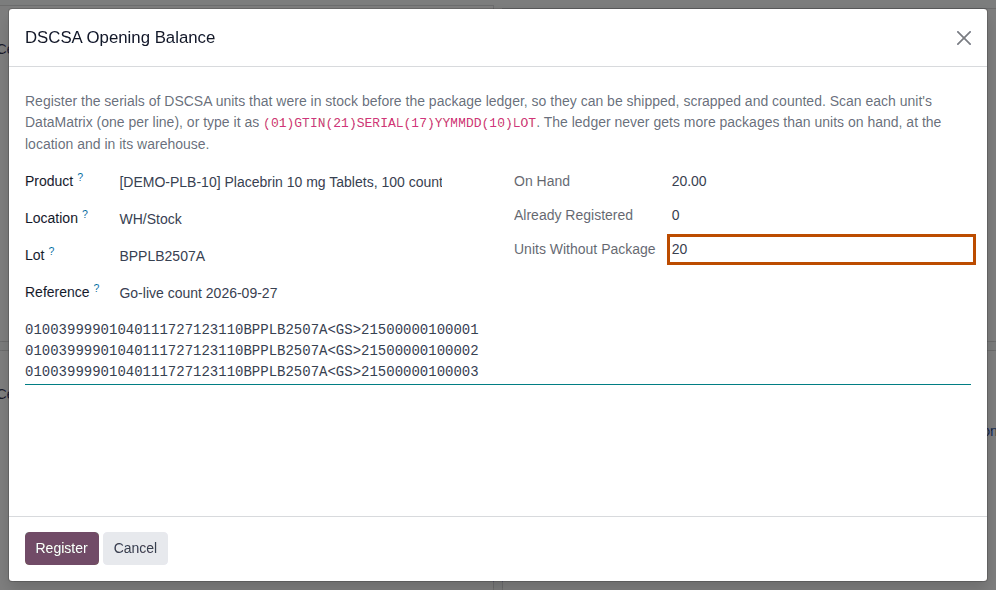
-
Select Register.
Result: the dialog closes and a green notification says "20 DSCSA package(s) of lot BPPLB2507A registered as opening balance."
-
For the next lot, go back to step 1: the dialog registers one lot at a time.
Result: each scanned unit has a package in the ledger, In Stock (Quarantined if its lot is on hold), and can be shipped, scrapped and counted. Records: one package per unit with Origin Opening Balance, the Registration Note (your reference), Registered At (the location), Registered By and Registered On; a note in the lot's chatter: "Opening balance: 20 DSCSA package(s) registered at WH/Stock by Morgan Lee.", followed by the reference and the serials. The packages are listed under the Opening Balance filter of Inventory ‣ Rx Tracking ‣ Packages.
Registering is all or nothing: if any line is wrong, nothing is registered, and the message lists every problem. You can register a lot in several goes (for example one shelf at a time): Already Registered and Units Without Package follow.
Without choosing the lot
Leave Lot empty and scan: the software takes the lot from the scans (AI 10). All scans must then name the same lot, and the lot must already exist for the product. The counters stay hidden until a lot is chosen.
When the product or the lot has no GTIN or expiry yet
- A DSCSA product without a GTIN takes the GTIN of the scans; its chatter logs "GTIN … captured from a scan (Opening Balance)."
- A lot without an expiration date takes the expiry of the scans. All scans must then show the same expiry. A lot has no expiration date only if its product didn't track expiration dates when the lot was created; otherwise Odoo gave the lot one (see the known issue below).
If it doesn't work
- "Scan or paste at least one package DataMatrix.": the scan box is empty. Scan the units, then select Register again. See Error: "Scan or paste at least one package DataMatrix.".
- "Nothing was registered. Fix these scans and try again:" with lines such as "Line 1: Serial … : the scan says lot …, not lot …", "GTIN … is not the GTIN of …" or "the scan says expiry … but lot … expires …": those units don't belong to the product, lot or expiry you chose. Remove them, or choose the right lot. See Error: "Nothing was registered. Fix these scans and try again".
- "… serial(s) scanned, but only … unit(s) of … have no package yet …": more scans than units without a package at that location. Check the location and the lot, and whether the units are on hand in Odoo at all. See Error: "… serial(s) scanned, but only … unit(s) … have no package yet".
- "Serial … is already in the package ledger (In Stock).": that unit is registered already (by a receipt or an earlier opening balance). Remove its line. See Error: "Serial … is already in the package ledger".
- "Choose the lot, or scan packages of one lot (AI 10).": no lot is chosen and the scans name several lots, or none. See Error: "Choose the lot, or scan packages of one lot (AI 10).".
- There is no Opening Balance menu item: you aren't an Rx Tracking Manager. Ask one to register the opening balance.
- The product isn't offered in Product: it isn't a DSCSA product yet. Ask an administrator to select DSCSA Product on it.
Known issue (PF-A04-02): the opening balance can't create stock. If a product was made a DSCSA product before its stock was entered
in Odoo, Units Without Package stays 0 and every scan is refused. Record those units with a count instead, which registers them
with Origin Found in Inventory Count, not Opening Balance: see
Record units found in a count.
Known issue (PF-W29-01): a lot created while its product tracks expiration dates gets the moment it was created as its Expiration Date. Every scan is then refused ("… the scan says expiry … but lot … expires …"). Before you scan, open the lot (Inventory ‣ Products ‣ Lots / Serial Numbers) and correct its date on the Dates tab. See Go live with stock and records you already have.
The monthly retention export lists package movements only, so opening-balance registrations don't appear in its package ledger file. The packages and the lot's chatter keep the record. See Get the monthly retention export, or export on demand.
Next: Check the package ledger against the stock (Ledger vs Stock)
Check the package ledger against the stock (Ledger vs Stock)
Compare the packages in the ledger with the units on hand, lot by lot and warehouse by warehouse. Do it after registering an opening balance, and whenever you want to confirm that every DSCSA unit on hand has exactly one package.
Who: Rx Tracking Manager
Requires: Rx Tracking (DSCSA). Works in Odoo Community and Enterprise.
-
Go to Inventory ‣ Rx Tracking ‣ Ledger vs Stock.
Result: when every DSCSA lot matches, the list is empty and says "The package ledger matches the stock". Otherwise it lists one row per product, lot and warehouse that differ.

-
Read each row:
- On Hand: the units in stock (internal and transit locations of the warehouse). Location is filled only for stock outside any warehouse.
- Packages: the packages in the ledger for that lot in the warehouse that are In Stock, Returned or Quarantined.
- Packages - On Hand: the difference. Red (negative) rows have units without a package; orange (positive) rows have packages without a unit.
-
Optional: to see one kind only, open the search options (the ▾ next to Search...) and select Units Without Package or Packages Without Unit. You can also group by Product or Warehouse.
-
Resolve each row (see the table below), then go to Inventory ‣ Rx Tracking ‣ Ledger vs Stock again.
Result: the list is empty: "The package ledger matches the stock". The report creates and changes nothing; it is computed each time you open it, for the companies selected in the company switcher.
| Row | What it usually means | What to do |
|---|---|---|
| Negative (Units Without Package), after go-live | Units on hand that were never registered | Register the opening balance for that lot and warehouse |
| Negative, later | Units that came into stock without their serials (for example a quantity entered by hand while the product was not a DSCSA product) | Register them, or count the lot if the units aren't really there |
| Positive (Packages Without Unit) | Units that left stock without their packages, for example a lot-level delivery to an exempt small dispenser shipped without scanning serials | Find the units (Look up a unit in the package ledger) and count the lot, naming the units that are gone |
Your procedure decides how often the ledger is checked and who resolves the differences; the software requires the Rx Tracking Manager right to open the report.
If it doesn't work
- There is no Ledger vs Stock menu item: you aren't an Rx Tracking Manager.
- A lot you expected isn't listed: the report follows the company switcher; select the other company too. See Error: "… belongs to another company".
- A row stays after you registered the lot: the packages were registered in another warehouse, or at a location without all the units. See The Ledger vs Stock report lists a lot.