Look up units in the package ledger
Core module For: Compliance manager, Warehouse staff Checked on 18.0.0.2.0
Find out where a unit is, where it came from and who it was shipped to, from its serial number or lot. Correct a lot that was captured wrongly without breaking the documents that already name it.
Look up a unit in the package ledger
The package ledger has one package per serialized unit: its identity (product, GTIN, serial, lot, expiry), its state, how it entered the ledger, the receipt it came in on, the delivery it left on and every stock move it took part in. Use it to answer "where is serial X?", "who did we ship lot Y to?" and audit questions.
Background: the modules' package-level ledger keeps each unit's serial while it still belongs to its lot. See Packages and the serial ledger.
Who: Rx Tracking User or Manager
Requires: Rx Tracking (DSCSA). Works in Odoo Community and Enterprise.
-
Go to Inventory ‣ Rx Tracking ‣ Packages.
Result: the DSCSA Packages list opens with the In Stock filter on: Serial Number, Product, Lot, Expiration Date, Pending Transfer, Shipped To and State.
-
Remove the In Stock filter (the × on it), unless you are only looking for units in stock. With the filter on, a search finds only units in stock.
-
Choose one:
- To find one unit: type its serial number, for example
200000000003, and pressEnter. The search also offers SGTIN, Product, Lot, GTIN, SSCC, Shipped To and Pending Transfer. - To see where a lot's units are: open the search options (the ▾ next to Search...) and, under Group By, select Status (or Lot, Product, Shipped To).

- To find one unit: type its serial number, for example
-
Optional: under Filters, narrow the list: In Stock, Expected (Supplier File), Scanned, Not Received, Shipped, Returned (to verify), Quarantined, Missing, Opening Balance, Found in Inventory Count, On an Open Transfer.
-
Open a package.
Result: the package form opens, read-only. The status bar shows its state. Identity gives Product, GTIN, SGTIN, Lot, Expiration Date and SSCC (the case it came in). Where gives its Origin and, as they apply, Receipt Line, Received Date, Delivery Line, Shipped Date and Shipped To. The Movement History tab lists every stock move of the unit (Date, Reference, From, To, Lot/Serial Number, Line Quantity, Contact).
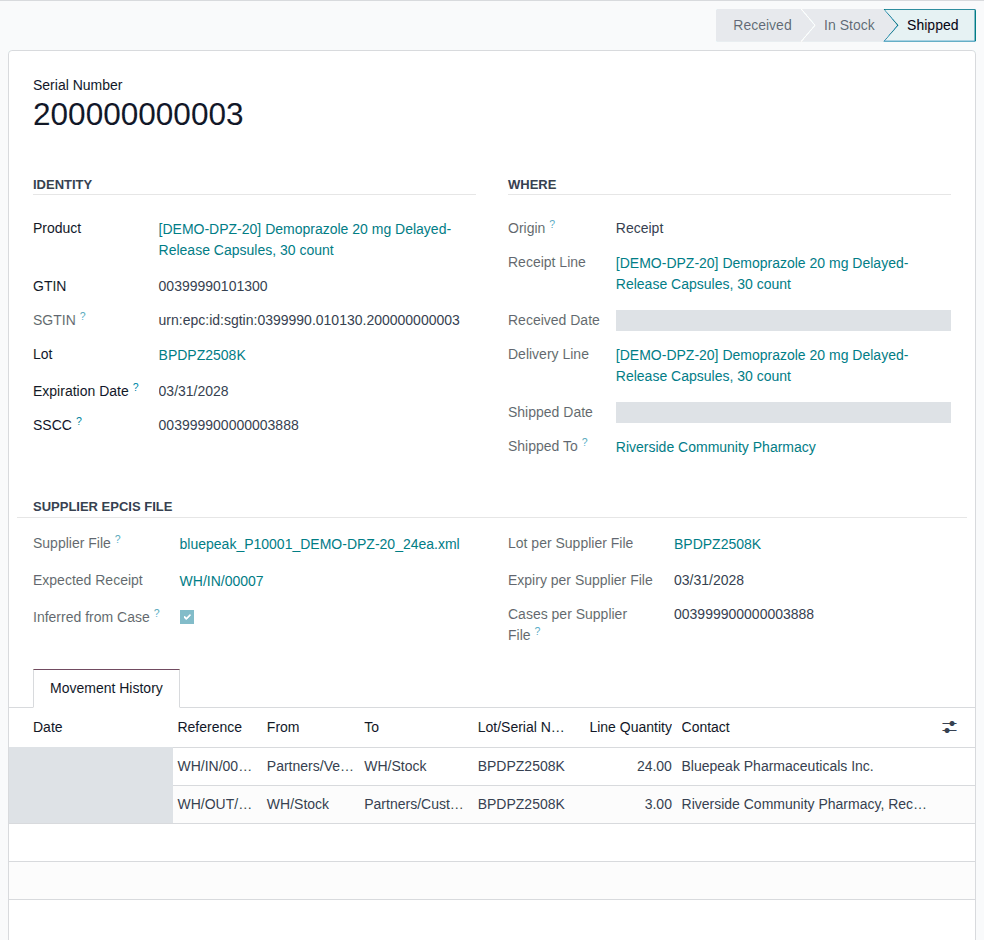
Result: you know the unit's state, where it came from and where it went. Nothing is changed: packages are never created, edited or deleted by hand (there is no New or Edit button); the ledger's own operations change them.
Other ways in:
- A lot's form (Inventory ‣ Products ‣ Lots / Serial Numbers, or the lot link on a package): the Packages smart button lists that lot's packages.
- A DSCSA document or a trace request: its Packages smart button.
- A receipt or delivery: its DSCSA Packages tab.
- The lot form's Traceability smart button opens Odoo's own up- and downstream report (lot level).
Package states
| State | Meaning |
|---|---|
| Expected | Listed in a supplier's EPCIS file, not scanned yet |
| Received | Scanned on a receipt that isn't done yet |
| In Stock | In your stock |
| Shipped | Delivered to a customer (or returned to a supplier) |
| Returned | Sent back by a customer, waiting in Returns to Verify |
| Quarantined | Its lot is on hold |
| Destroyed | Scrapped, or rejected on return |
| Missing | Counted as gone; a later count can find it |
Origin is Receipt (scanned on a receipt), Opening Balance or Found in Inventory Count. The full field list is in Fields and statuses the core module adds.
Known issue (PF-A04-05): the Filters menu has no Destroyed filter. To list scrapped or rejected units, group by Status (step 3) and open the Destroyed group.
Known issue (PF-W10-02): with the In Stock filter on, a search for a unit that isn't in stock shows "No serialized packages yet", as if the ledger were empty. Remove the filter (step 2) and search again.
To export the list (select the packages, then the ⚙ (Actions) menu, Export), your user needs Odoo's Access to export feature right; Rx Tracking rights alone don't give it.
If it doesn't work
- The search finds nothing: the In Stock filter is still on (step 2), or the serial was typed with a leading or trailing character. See The Packages list finds no package for a serial.
- There is no Packages menu item: you have no Rx Tracking right. Ask an administrator for Rx Tracking User.
- "DSCSA packages are registered only by the package ledger's own operations …" or "DSCSA packages change only through the package ledger's own operations …": an import or an integration tried to create or change packages. See Error: "DSCSA packages change only through the package ledger's own operations".
Correct a lot's number or expiry after documents were posted
A lot number or expiry date was captured wrongly. Once a lot appears in a posted DSCSA document, the documents keep the lot number, product and expiry they were posted with. You can still correct the expiry date on the lot; the lot number and product can't change.
Who: any user who can edit lots (Inventory User or above). The rule on posted documents applies to every user, the administrator included.
Requires: Rx Tracking (DSCSA). Works in Odoo Community and Enterprise.
Correct the expiry date
-
Go to Inventory ‣ Products ‣ Lots / Serial Numbers, search the lot, for example
BPSMS2508B, open its group (the list is grouped by location; here WH/Stock) and open the lot. -
In Expiration Date, enter the correct date.
-
Select the save icon.
Result: the lot is saved. Its chatter says "Expiration date changed from 2028-08-31 to 2028-09-30. The posted DSCSA documents DSCSA/IN/2026/00004 keep the date that was frozen when they were posted."
Result: the lot has the new expiry; new documents use it. Records: the lot's chatter note, which names the posted documents that keep the old date. The posted documents and their files don't change.
When the lot number itself is wrong
Changing Lot/Serial Number (or Product) of a lot that appears in a posted DSCSA document is refused when you save:
These lots appear in posted DSCSA documents, which froze their lot number and product, so their name and product can't be changed:
BPSMS2508B: DSCSA/IN/2026/00004
If the lot number was captured wrongly, create the correct lot instead.
Select Discard changes. Use a new lot with the right number for the units from now on; your procedure decides how the wrong lot number is recorded (for example in the lot's chatter) and whether the units must be counted out of the old lot and into the new one.
Lots of products that aren't DSCSA products, and DSCSA lots that appear in no posted document, can be renamed as in standard Odoo.
If it doesn't work
- "These lots appear in posted DSCSA documents …": the lot number is frozen, as above. See Error: "These lots appear in posted DSCSA documents …".
- The lot form is read-only: your Inventory right doesn't allow editing lots. Ask an Inventory Administrator.