Keep, export and verify DSCSA records
Core module For: Administrator, Compliance manager Checked on 18.0.0.2.0
DSCSA documents are never deleted, so there is nothing to "keep" by hand. These procedures record that documents are needed for a legal matter, give you a copy of the package ledger and the license register outside Odoo, and prove that no document was altered. What is kept and for how long is described in Records that are kept.
With the 3PL add-on: documents issued in an owner's name are placed on and released from a legal hold like your own
(REC-07), and the hold reaches their archived copies. Once your company has its first owner profile, the package ledger file of
the retention export (REC-09) gets a last column, owner: see
The owner column of the retention export. Which 3PL records are kept, and for how long:
3PL records that are kept.
Place a legal hold on DSCSA documents
Mark documents as needed for litigation, an investigation or a subpoena. The hold is logged in each document's chatter and, when the off-site archive is on, carried to the archived copies.
Background: the modules add a legal hold next to the six-year retention and the off-site archive.
Your procedure decides when a hold is placed, who approves it and which documents it covers; the software requires the Rx Tracking Manager right and a reason.
Who: Rx Tracking Manager
Requires: Rx Tracking (DSCSA). Works in Odoo Community and Enterprise.
Before you start:
- You have the reference of the matter (case, investigation or subpoena number).
-
Go to Inventory ‣ Rx Tracking ‣ Documents.
-
Select the checkbox of each document the hold covers, for example
DSCSA/OUT/2026/00002andDSCSA/OUT/2026/00003. Use the search (trading partner, number, transfer) or the Filters to find them. -
Select the ⚙ (Actions) menu, then Legal Hold.
Result: the Legal Hold dialog opens, with Place on legal hold selected and the documents listed in Documents.
-
In Reason, enter the matter, for example
Subpoena SB-2026-0412 (Doe v. Demo Rx Distribution).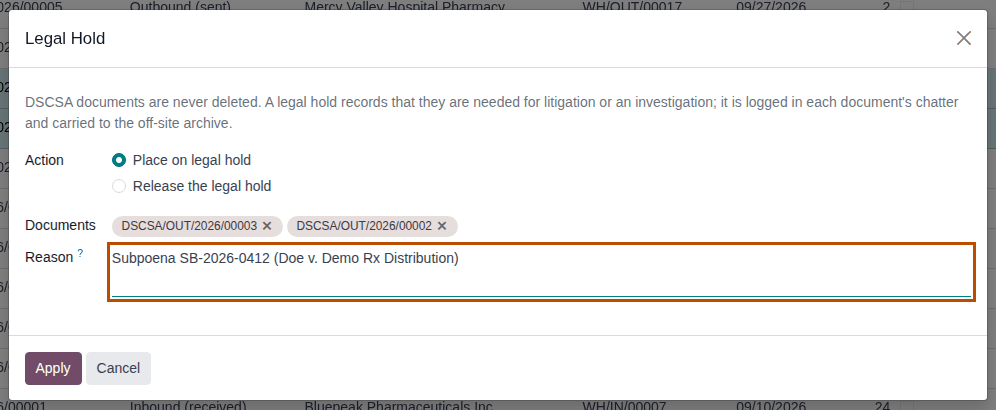
-
Select Apply.
Result: the dialog closes.
Result: each document is on legal hold. Records, on each document: a yellow Legal Hold ribbon on the form; on the Retention tab, Legal Hold selected, Hold Placed By, Hold Placed On and the reason; a chatter note "Legal hold placed by Morgan Lee. Reason: Subpoena SB-2026-0412 (Doe v. Demo Rx Distribution)" and the tracked change. The documents are listed under the On Legal Hold filter of the Documents list. The documents' content and hash don't change, so Verify Integrity still passes. With the off-site archive on, a legal-hold job is queued for each archived copy (see Watch the archive queue and each record's archive state).
From one document
Open the document and select Place on Legal Hold in its header; the same dialog opens for that document. Enter the Reason and select Apply.
If it doesn't work
- "Invalid fields: Reason" (a notification), or "Give the reason for placing or releasing the legal hold." (an Invalid Operation dialog): Reason is empty or only spaces. See Error: "Give the reason for placing or releasing the legal hold.".
- There is no ⚙ (Actions) menu, or no Legal Hold in it, and no Place on Legal Hold button: you aren't an Rx Tracking Manager. See Error: "Only DSCSA managers can place or release a legal hold.".
Known issue (PF-A04-01): a document that is already on hold is skipped without a message: a second hold for another matter doesn't store its reason or write a chatter note, and releasing the first matter releases the document for both. Before you place a hold, check the Legal Hold column (or the On Legal Hold filter). For a document already on hold, add the second matter as a note in its chatter (Log note), and don't release it until every matter is closed. See A second legal hold isn't recorded.
Next: Release a legal hold
Release a legal hold
Release the hold when the matter is closed. The documents stay kept as before; only the hold is removed.
Who: Rx Tracking Manager
Requires: Rx Tracking (DSCSA). Works in Odoo Community and Enterprise.
-
Go to Inventory ‣ Rx Tracking ‣ Documents and open the document, for example
DSCSA/OUT/2026/00003. To release several, select them in the list and use ⚙ (Actions) ‣ Legal Hold instead. -
Select Release Legal Hold in the header.
Result: the Legal Hold dialog opens with Release the legal hold selected.
-
In Reason, enter why the hold ends, for example
Subpoena SB-2026-0412 withdrawn for Hillcrest's records. -
Select Apply.
Result: the ribbon disappears and the header shows Place on Legal Hold again.
Result: the document is no longer on hold. Records: the chatter note "Legal hold released by Morgan Lee. Reason: …" and the tracked change keep the history; the Retention tab's hold fields are cleared. With the off-site archive on, a job releasing the hold is queued for each archived copy. Documents in the selection that weren't on hold are skipped.
If it doesn't work
- As for placing a hold: see Place a legal hold on DSCSA documents.
Get the monthly retention export, or export on demand
Every month the software exports the package ledger and the license register to two CSV files and keeps them in Odoo, so you have a copy you can read without Odoo. You can also make an export of the current month so far.
Background: the modules follow the reading that DSCSA records are kept at least six years, and a business may need an export of its data (FD&C Act § 582, record-keeping provisions; see Compliance background).
Who: Rx Tracking Manager
Requires: Rx Tracking (DSCSA). Works in Odoo Community and Enterprise.
Download a monthly export
-
Go to Inventory ‣ Rx Tracking ‣ Retention Exports.
Result: the list shows each export: Name, Kind (Monthly or On demand), Period Start, Period End, Ledger Rows, Licenses, Created On and S3 Archive.

-
Open the export of the month, for example
2026-08(Kind Monthly, Period Start08/01/2026, Period End08/31/2026). -
Under Files, select a file to download it:
package_ledger_2026-08.csvorlicense_register_2026-08.csv.
Result: you have the two CSV files. The export form also shows the Package Ledger SHA-256 and License Register SHA-256 of the files (to check a copy later) and, when the archive is on, its off-site archive state.
The monthly export is made by the scheduled job DSCSA: monthly retention export on the first day of each month (at 02:00 UTC), for the month before, for every company. It catches up months it missed (at most twelve back) and never makes a second export for a month. See Scheduled jobs.
Export now
-
Go to Inventory ‣ Rx Tracking ‣ Retention Exports.
-
Select Export Now.
Result: a new export opens, named for example
2026-09-01 to 2026-09-27 (on demand), Kind On demand, with the filespackage_ledger_2026-09-01_2026-09-27.csvandlicense_register_2026-09-01_2026-09-27.csv.
Result: an export of your current company from the first of the month to today. Records: the export and its two files, kept for good; with the off-site archive on, both are queued for the archive. An on-demand export never replaces the monthly one.
What the files contain
- Package ledger (
package_ledger_…csv): one row per package per done stock move in the period (dates in UTC):date_utc,movement(for examplereceipt,shipment,customer_return,supplier_return,internal),reference,dscsa_document,source_location,destination_location,partner,partner_gln,product,ndc,gtin14,serial,sgtin,lot,expiry_date,sscc,package_state. - License register (
license_register_…csv): every license of the company and the shared ones, archived included, as of the export:partner,partner_gln,dscsa_role,license_type,number,jurisdiction,issue_date,expiry_date,status,verified_on,verified_by,source,active,evidence_files,evidence_kept_until,company.
Known issue (PF-A04-04): in the package ledger file, a scrap and a count loss both show movement removal, a count gain shows
inventory_to_internal, and package_state is the package's state when the file was made, not after that move. To tell them apart, use
the reference (a scrap's SP/… number, or the count's reason) and the package's form in Odoo. Opening-balance registrations aren't moves
and aren't in the file.
Known issue (PF-W10-04): two on-demand exports made on the same day have the same name and file names; tell them apart by Created On, and rename the files when you save them.
If it doesn't work
- "You are not allowed to access 'DSCSA Retention Export' (dscsa.retention.export) records." (an Access Error), or no Retention Exports menu item: you aren't an Rx Tracking Manager. See Error: "Only DSCSA managers can export the package ledger and license register.".
- No export for last month: the scheduled job didn't run. See A scheduled job didn't run.
Verify the integrity of the DSCSA documents
Check that no posted document was changed, removed or had its files replaced. Each document is linked to the one before it by a hash (the hash chain), and its files were frozen when it was posted; the check recomputes both for every document of your current company.
Background: the modules keep the transaction record as a hash chain, so that a changed record can be detected.
Your procedure decides how often you verify, and what you do if the check fails; the software offers no repair.
Who: Rx Tracking Manager
Requires: Rx Tracking (DSCSA). Works in Odoo Community and Enterprise.
-
In the company switcher, select the company to check (one at a time).
-
Go to Inventory ‣ Rx Tracking ‣ Verify Document Integrity.
Result: a green notification titled "DSCSA document integrity" says "12 DSCSA documents verified: the hash chain and the stored files are intact." (with your number of documents).

Result: you know the current company's documents are intact. Nothing is changed or recorded. You can also run it from the Documents list: ⚙ (Actions) ‣ Verify Integrity.
When the check fails, the notification is red and stays until you close it. It names the first problem found, for example:
Document DOCUMENT-NUMBER (position N): its content does not match its hash: it was altered.
The problem can also be "the chain skips from position A to B: a document is missing.", "its link to the previous document does not match.", "its stored files are not the ones frozen at posting.", "file FILE-NAME was altered." or "its transaction history no longer matches what was frozen at posting: it was altered.", or the whole message can be "The chain should hold N documents but M were found: a document is missing." See Verify Integrity reports a problem.
Known issue (PF-A04-08): ⚙ (Actions) ‣ Verify Integrity in the Documents list or on a document checks the whole chain of the current company, not the selected documents, and the notification doesn't name the company. With several companies selected in the switcher, only the current one is checked. Check each company on its own (step 1).
If it doesn't work
- There is no Verify Document Integrity menu item: you aren't an Rx Tracking Manager.
- Posting a new document is refused with "The DSCSA hash chain of COMPANY is broken: position N is missing. Run Verify Integrity.": see Error: "The DSCSA hash chain of … is broken".