Scan and ship deliveries
Core module For: Compliance manager, Warehouse staff Checked on 18.0.0.2.0
Scan the serial number of every DSCSA unit that leaves the warehouse, then validate the delivery. Validating checks the customer, the scans and the units once more, marks the units Shipped in the package ledger and posts the delivery's DSCSA document.
Scan the serials of a delivery and validate it
Scan each unit's DataMatrix into the delivery's Scan DSCSA Serials dialog, then select Validate. Background: the modules follow the reading that the transaction information of a sale includes the product identifier of each package (GTIN, the Global Trade Item Number, serial number, lot and expiry) (FD&C Act § 582(c)(1)(A)(ii)–(iii), § 582(g)(1)(A)–(B); § 581(22), (24), (26), (27); see Compliance background).
With Odoo Enterprise's Barcode app, see Ship DSCSA units in the Barcode app. For units that a 3PL holds for an owner, see Pick, scan and ship an owner order.
Who: Rx Tracking User or Manager
Requires: Rx Tracking (DSCSA). Works in Odoo Community and Enterprise.
Before you start:
- The sales order is confirmed, and its delivery is Ready. See Confirm a sales order for DSCSA products.
- The units are in the package ledger: they were received with their serial numbers (Scan units onto a receipt with Scan Serials) or registered when you went live (Register stock you already hold).
- The customer is still an authorized trading partner. See Check whether a partner is an authorized trading partner.
- Our company and the customer have a GLN (Global Location Number, see the glossary) and a complete address (street, city, ZIP code, state), and the products have an NDC (National Drug Code); otherwise the document gets no EPCIS (Electronic Product Code Information Services) file. See Complete the company's name and address and Fix a missing GLN before shipping.
- The scanner is set up. See Set up a handheld scanner for Scan Serials.
-
Go to Inventory ‣ Operations ‣ Deliveries and open the delivery, for example
WH/OUT/00012(source documentS00025, 12 Demoprazole and 2 Adhesive Bandages).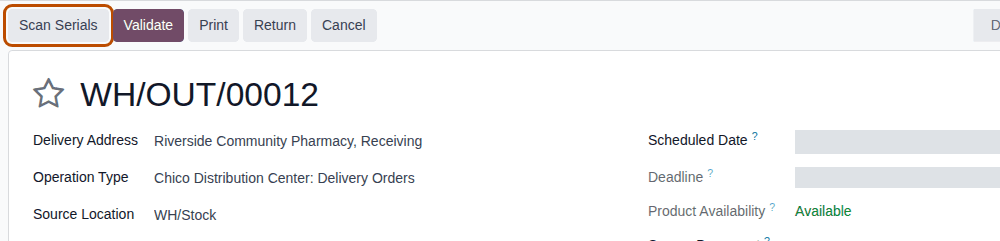
-
Select Scan Serials.
Result: the Scan DSCSA Serials dialog opens. It shows the delivery (in a field labelled Picking), Already scanned (the units scanned so far) and Product for an unknown GTIN, above the scan box "Scan here...".
-
Scan the DataMatrix of each unit you ship into the scan box, one per line. You can also paste lines.
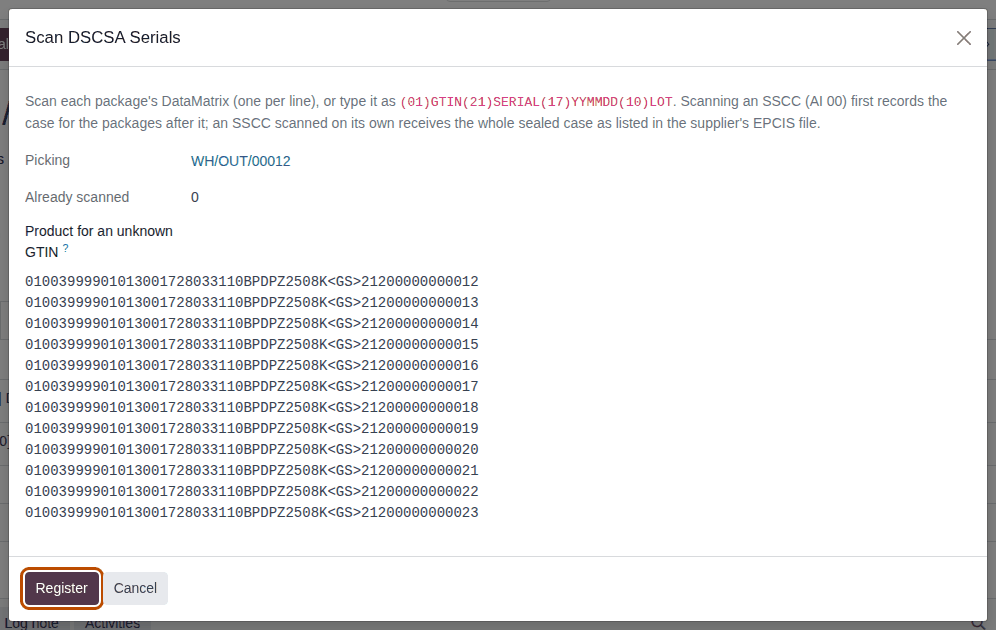
-
Select Register.
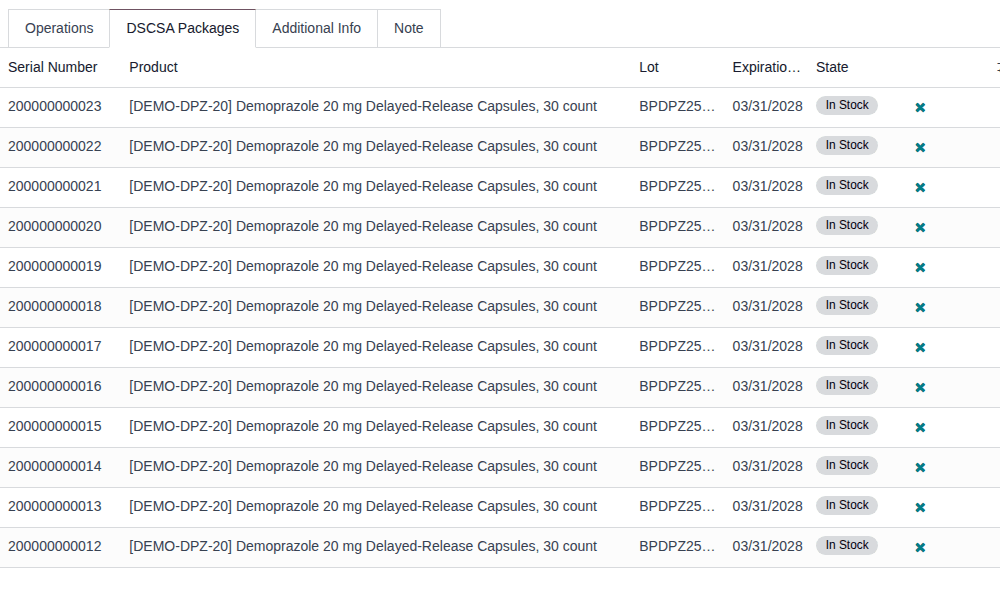
Result: the dialog closes. The DSCSA Packages tab lists each unit with its Serial Number, Product, Lot, Expiration Date and the State In Stock (the unit stays in stock until the delivery is Done). On the Operations tab, the Quantity of the product counts the units scanned. When you scan units of the lot Odoo reserved, as here, it equals the number of units scanned; lines of another lot that Odoo reserved stay on the tab and are counted too, but only the scanned units ship (Ship part of a delivery). The chatter says "12 DSCSA package(s) scanned.".
-
For the next batch, select Scan Serials again and repeat steps 3–4.
-
When every DSCSA unit is scanned, select Validate.
Result: the delivery is Done. The chatter says "DSCSA document DSCSA/OUT/2026/NNNNN posted for this transfer.", and the DSCSA Documents smart button appears.
Result: the DSCSA units are shipped and documented. Records: the delivery WH/OUT/NNNNN (Done); one package per unit, now
Shipped to the company of the delivery address; one outbound DSCSA document DSCSA/OUT/YYYY/NNNNN (Posted) with its T3 report
(Transaction Report) and EPCIS file (Open the DSCSA document a delivery posted). Lines of non-DSCSA products (the bandages) need no scan
and ship as in standard Odoo. If the delivery email option is on, the confirmation email carries the two files
(Send the DSCSA files with delivery confirmation emails).
On the delivery form, Alt+Shift+S also opens Scan Serials. Scanning a unit that is already on this delivery changes nothing.
Sealed cases (Known issue PF-F04-01): a sealed case can't be shipped from its case (SSCC, Serial Shipping Container Code) label. Open the case and scan every unit in it; a case label scanned on a delivery is refused. The EPCIS file of the delivery's document lists the units, not the case (The outbound EPCIS 1.2 file). A case label is accepted only when you receive the case with the supplier's EPCIS file (Error: "SSCC … is not a case the supplier's EPCIS file lists for this transfer").
An Inventory User without an Rx Tracking right sees neither Scan Serials nor the DSCSA Packages tab; they can validate the delivery once a colleague with the right has scanned the units, and the document is posted all the same.
If it doesn't work
Registering is all or nothing: if one line is wrong, "Nothing was registered. Fix these scans and try again:" lists every wrong line by its number, and none is registered. Select Close: the dialog keeps your lines, so you can correct or delete the wrong ones and select Register again.
-
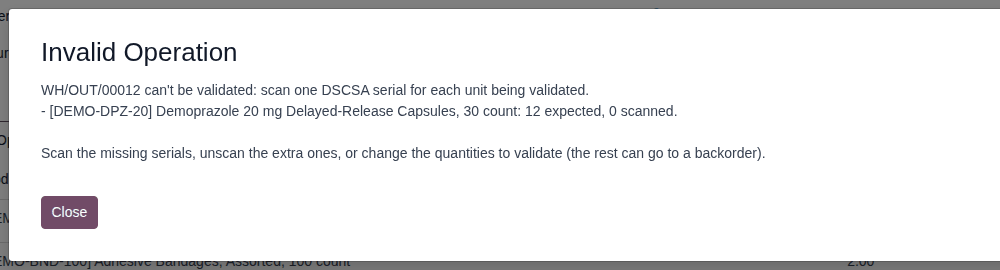
"WH/OUT/NNNNN can't be validated: scan one DSCSA serial for each unit being validated." with "- PRODUCT: 12 expected, 0 scanned.": units aren't scanned yet (in Odoo 18 the Quantity shows the reserved units before anything is scanned). Scan them (steps 2–5). See Error: "… can't be validated: scan one DSCSA serial for each unit being validated".
-
"Line 1: Serial 200000000002 can't be used here: it is Shipped." (or Returned, Quarantined, Destroyed, Missing): the unit isn't available to ship. Set it aside and scan another unit. See Error: "Serial … can't be used here: it is …".
-
"Serial … is not in the package ledger, so it can't be shipped or moved.": the unit was never received or registered. See Error: "Serial … is not in the package ledger …".
-
"Serial …: the scan says lot … but the ledger has lot …." (or "… the scan says expiry …"): the label and the ledger disagree. See Error: "the scan says lot … but the ledger has lot …".
-
"PRODUCT: 13 packages scanned but only 12.0 ordered.": more units than the delivery asks for. See Error: "… packages scanned but only … ordered.".
-
"Line 1: SSCC … is not a case the supplier's EPCIS file lists for this transfer. Scan the packages inside it one by one.": you scanned a case label. Open the case and scan each unit (see Sealed cases above). See Error: "SSCC … is not a case …" on a delivery.
-
"Serial … is already scanned on WH/OUT/NNNNN.": the unit is on another open transfer. See Error: "… is already scanned on …".
-
"… is not on this transfer.", "no DSCSA product has GTIN …" or "Some lines could not be read": see Troubleshooting: receiving (the same scan errors as on a receipt).
-
"WH/OUT/NNNNN can't be validated: it moves DSCSA products (…) to or from a trading partner." with a reason line: the customer isn't an authorized trading partner any more, or the delivery address was changed to a company that isn't. See Error: "… can't be confirmed: it contains DSCSA products …". When the message ends "… but no trading partner is set on the transfer.", the Delivery Address is empty: fill it in. See Error: "… but no trading partner is set on the transfer.".
-
A yellow banner on the delivery form says "The DSCSA document of this shipment will have no EPCIS file: …": our company or the buyer has no GLN. Validating isn't stopped, but add the GLN first. See Warning: "The DSCSA document of this shipment will have no EPCIS file …".
-
"These lots are quarantined and can't be shipped …": ship another lot, or ask an Rx Tracking Manager to release the lot. See Troubleshooting: quarantine, scrap and trace requests.
-
Scan Serials or the DSCSA Packages tab isn't shown: see The Scan Serials or Import EPCIS button isn't shown (the same causes on a delivery).
-
The delivery is Done, but its document has no EPCIS file although no banner warned you. Known issue (PF-A03-01): before validation, only a missing GLN is announced; a missing street, city or ZIP code, or a product without an NDC, shows up only on the posted document, and the file can't be added later. See Handle a document posted without an EPCIS file.
Next: Open the DSCSA document a delivery posted
Ship part of a delivery, or ship in pick, pack and ship steps
Only the units you validate now need a scan. Ship what is ready and leave the rest for a backorder; or, in a warehouse with several delivery steps, scan on the first step and validate each step in turn.
Who: Rx Tracking User or Manager
Requires: Rx Tracking (DSCSA). Works in Odoo Community and Enterprise.
Before you start:
- The delivery is Ready or partly available. See Confirm a sales order for DSCSA products.
- For pick, pack and ship: the warehouse ships in three steps. See Odoo's three-step delivery documentation.
Ship part of a delivery
-
Open the delivery, select Scan Serials, scan only the units you ship now, and select Register (OUT-03 steps 1–4).
Result: the DSCSA Packages tab lists the units scanned. The Quantity on the Operations tab can still count units that Odoo reserved from another lot (for example
2.00after one scan, for a Demand of 3 reserved from two lots). They aren't shipped: validating moves only the scanned units. -
Select Validate.
Result: Odoo asks "Create Backorder?": "You have processed less products than the initial demand."
-
Choose one:
- Create Backorder: the rest ships later on a new delivery.
- No Backorder: the rest is cancelled.
Result: the delivery is Done and its DSCSA document lists the units shipped. With a backorder, the chatter says "The backorder WH/OUT/NNNNN has been created."
-
When the rest is ready, open the backorder in Inventory ‣ Operations ‣ Deliveries and ship it as in OUT-03.
Result: the backorder is Done and gets its own DSCSA document.
Don't lower the Quantity on the Operations tab by hand: a typed quantity has no scans, and validating is refused with "… 1 expected, 0 scanned." before the backorder question. What ships is what the DSCSA Packages tab lists: a typed quantity and lines of other lots stay on the Operations tab after you scan, but validating moves only the scanned units.
Ship in pick, pack and ship steps
In a three-step warehouse (in the example database, the Albany Annex, WH2), confirming the order creates the Pick transfer. The next
step is created when the previous one is Done.
-
Go to Inventory ‣ Operations ‣ Internal and open the pick, for example
WH2/PICK/00001. The Inventory ‣ Overview card Pick of the warehouse lists it too. -
Select Scan Serials, scan the units you pick, and select Register (OUT-03 steps 2–4).
-
Select Validate.
Result: the pick is Done. The pack transfer (
WH2/PACK/NNNNN, also in Internal) is Ready, and its DSCSA Packages tab already lists the scanned units. -
Open the pack transfer and select Validate.
Result: the pack is Done. The ship step (
WH2/OUT/NNNNN, in Inventory ‣ Operations ‣ Deliveries) is Ready, with the same units. -
Open the ship step and select Validate.
Result: the ship step is Done, and the chatter says "DSCSA document DSCSA/OUT/2026/NNNNN posted for this transfer.".
The pick and pack steps are moves inside the warehouse: they post no document and check neither the customer nor the serial count. The ship step, which sends the units to the customer, does all three.
Result: the units shipped are documented. Records: each delivery (or ship step) you shipped, Done, with one DSCSA document each;
with a partial delivery, the backorder WH/OUT/NNNNN (Ready or Waiting) and, once shipped, its own document; the units
Shipped.
If it doesn't work
- "… can't be validated: scan one DSCSA serial for each unit being validated." with "… 1 expected, 0 scanned.": a quantity was typed instead of scanned. Scan the units you ship, then select Validate again. See Error: "… can't be validated: scan one DSCSA serial for each unit being validated".
- "PRODUCT: only 0 more unit(s) of lot … are available in WH2/Stock, but 1 were scanned.": the scanned unit isn't in this warehouse's stock (for example a unit of the Chico warehouse scanned on an Albany Annex pick). See Error: "… only … more unit(s) of lot … are available in …".
Known issue (PF-V02d-01): after a scan, the Quantity on the Operations tab still counts the lines of other lots that Odoo reserved, and a quantity typed by hand, so it can be higher than what ships. Check the DSCSA Packages tab instead: validating ships exactly the units it lists, and the DSCSA document lists the same units.
Correct the scans of an open delivery
Remove a unit scanned by mistake, or scan another one instead, as long as the delivery isn't Done. Cancelling the delivery releases every scanned unit.
Who: Rx Tracking User or Manager
Requires: Rx Tracking (DSCSA). Works in Odoo Community and Enterprise.
Before you start:
- The delivery has scans and is still open (Ready or Waiting). See Scan the serials of a delivery and validate it.
-
Open the delivery and select the DSCSA Packages tab.
-
At the end of the unit's row, select the ✖ (Remove this scan) icon.
Result: the row disappears, and the Quantity on the Operations tab drops by one. The unit stays In Stock and can be scanned on another delivery.
-
To ship another unit instead, select Scan Serials, scan it and select Register (OUT-03 steps 2–4).
Result: the delivery lists only the units that ship. Records: the delivery's scans (DSCSA Packages tab); the removed unit's package, In Stock and free. The chatter keeps the earlier "N DSCSA package(s) scanned." lines.
Cancel the delivery
-
On the delivery, select Cancel.
Result: "Are you sure you want to cancel this transfer?"
-
Select Ok.
Result: the delivery is Cancelled, and every unit scanned on it is released: it stays In Stock and can be scanned on another delivery.
If it doesn't work
- The ✖ icon isn't shown: the delivery is Done (a shipped unit comes back only through a return, see Receive a customer return with its serials), or you have no Rx Tracking right.
- "PRODUCT: 13 packages scanned but only 12.0 ordered.": remove the extra scans first. See Error: "… packages scanned but only … ordered.".
- "Only DSCSA users can remove scanned DSCSA packages from a transfer.": see Error: "Only DSCSA users can ...".
Ship at lot level to an exempt small dispenser
A customer flagged as a small business dispenser may receive lot-level transaction information until the company's exemption end date. You can validate its deliveries without scanning, and the document lists lots and quantities instead of serial numbers. Background: FDA's letter of 2026-08-06 exempts small business dispensers and their trading partners from certain requirements until 2027-11-27 (FD&C Act § 582(g)(1); FDA exemption letters of 2024-10-09 and 2026-08-06; see Compliance background).
Your procedure decides which customers are flagged and whether their deliveries are scanned anyway; the software requires the flag, an attestation date and an exemption end date in the future.
Who: Rx Tracking User or Manager
Requires: Rx Tracking (DSCSA). Works in Odoo Community and Enterprise.
Before you start:
- The customer is flagged, and its DSCSA tab shows Exemption in Effect selected. See Flag a small-dispenser customer and record its attestation.
- The exemption end date is in the future. See Set the small-dispenser exemption end date.
- The sales order is confirmed and its delivery is Ready. See Confirm a sales order for DSCSA products.
-
Go to Inventory ‣ Operations ‣ Deliveries and open the delivery, for example the delivery of 2 Demoprazole to
Hillcrest Family Pharmacy. -
Without scanning, select Validate.
Result: the delivery is Done. The chatter says "DSCSA document DSCSA/OUT/2026/NNNNN posted for this transfer.".
-
Select the DSCSA Documents smart button.
Result: the document has Lot Level selected, and only Download T3 (no EPCIS file, and no warning about it). The Products tab lists each product with its Lot and Quantity.
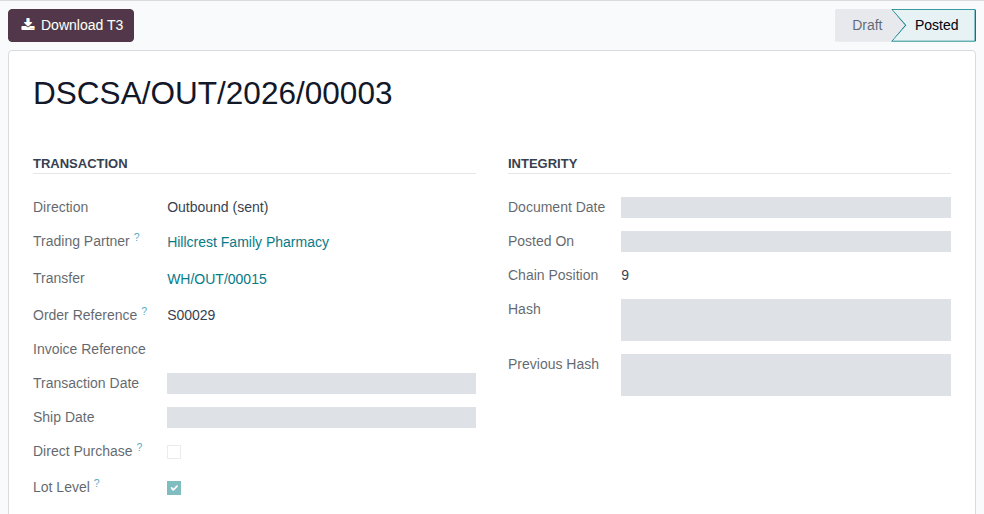
Result: the delivery is shipped with lot-level information. Records: the delivery (Done); one outbound DSCSA document with Lot Level selected, whose T3 report lists lots and quantities without serial numbers and has no EPCIS file by design. The units shipped without a scan stay In Stock in the package ledger.
Scan anyway
You may scan the units of a small dispenser's delivery. Once you scan one unit of a product, scan all the units of that product: the serial count then applies to it. The scanned units become Shipped, and the document is still lot level.
If it doesn't work
- "… can't be validated: scan one DSCSA serial for each unit being validated." with "… 2 expected, 0 scanned.": the exemption isn't in effect for this delivery, so every unit needs a scan. See A small dispenser's delivery asks for serial numbers.
Known issue (PF-A03-02): units shipped at lot level without a scan stay In Stock in the package ledger. A search by Serial in Documents or a trace request by serial doesn't find the lot-level sale, and the ledger shows the units as in stock. Search and trace such units by Lot. To keep the ledger in step, scan the units anyway (see Scan anyway).