Find and send DSCSA documents
Core module For: Administrator, Compliance manager, Warehouse staff Checked on 18.0.0.2.0
Every delivery of DSCSA products posts one outbound DSCSA document: the transaction information of the sale, frozen when the delivery became Done, with its T3 report (Transaction Report, PDF) and EPCIS (Electronic Product Code Information Services) file (XML). Open it from the delivery or from the Documents list, download or print its files, and send a customer the link to it.
Open the DSCSA document a delivery posted
Open the document from the delivery it belongs to, and read what was recorded: the buyer, the references, the products and lots, and the files.
Who: Rx Tracking User or Manager
Requires: Rx Tracking (DSCSA). Works in Odoo Community and Enterprise.
Before you start:
- The delivery is Done. See Scan the serials of a delivery and validate it.
-
Go to Inventory ‣ Operations ‣ Deliveries and open the delivery, for example
WH/OUT/00014(2 Demoprazole to Riverside Community Pharmacy's Receiving address). -
Select the DSCSA Documents smart button at the top of the form.

Result: the document opens, for example
DSCSA/OUT/2026/00002, in the Posted state, with Download T3 and Download EPCIS in its header. An Rx Tracking Manager also sees Place on Legal Hold (Place a legal hold on DSCSA documents).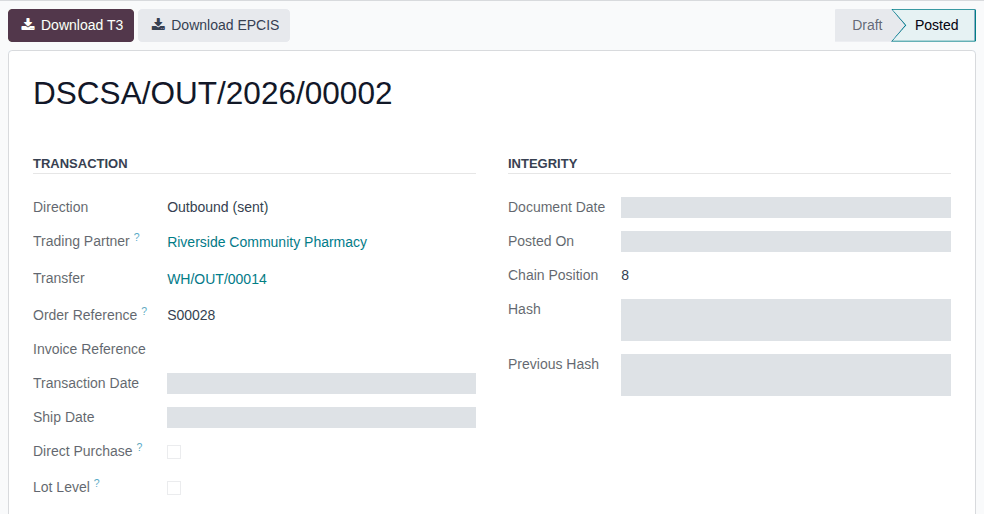
-
Read the Transaction group:
Field What it shows Direction Outbound (sent) for what we ship; Inbound (received) for a supplier's file Trading Partner the buyer: the company of the delivery address Transfer the delivery Order Reference the order's Customer Reference (the customer's PO number), or else the sales order number Invoice Reference the customer invoices of the order that were posted before the delivery became Done; usually empty, because invoices are posted after shipping Transaction Date, Ship Date the day the delivery became Done Direct Purchase selected when the units came straight from their manufacturer Lot Level selected for a lot-level document to an exempt small dispenser (OUT-06) -
Select the tabs you need:
- Products: each product with its Lot and Quantity.
- Transaction History: the chain of sales of these units, one row per sale, ours first (This Document's Transaction), then the supplier's (Received from Trading Partner).
- Transaction Statement: the statement as it was when the document was posted.
- Files:
T3-DSCSA-OUT-YYYY-NNNNN.pdfandEPCIS-DSCSA-OUT-YYYY-NNNNN.xml. - Retention and Off-site Archive: how long the document is kept and whether it has an off-site copy (Keep, export and verify DSCSA records).
-
To see the units, select the Packages smart button.
Result: the DSCSA Packages list shows each unit of the document with its Serial Number, Lot, Shipped To and the State Shipped.
Result: you see what was sent. Nothing changes: a posted document can't be edited or deleted by anyone, and the list and form have no New or Edit. Records: none. The document's chatter says "Document posted and added to the hash chain (position N).".
The Integrity group (Document Date, Posted On, Chain Position, Hash, Previous Hash) links the document to the previous one, so that an Rx Tracking Manager can check that no document was changed or removed (Verify the integrity of the DSCSA documents). For how the T3 report, the EPCIS file and the transaction history are built, see the DSCSA documents reference.
If it doesn't work
- There is no DSCSA Documents smart button: the delivery isn't Done, it had no DSCSA products, or you have no Rx Tracking right. See The DSCSA Documents smart button isn't shown.
Known issue (PF-A03-03): the Trading Partner is the company of the delivery address. For an order shipped to another company, the document names that company as the buyer, not the customer who ordered, and the ordering customer doesn't see the document in its customer portal. Send it the T3 report yourself if it needs it (OUT-09).
Find, view, download and print DSCSA documents
Find a document by its number, partner, order, serial number or lot, and download its stored files. The files are the ones frozen when the document was posted; downloading or printing never generates them again.
Who: Rx Tracking User or Manager
Requires: Rx Tracking (DSCSA). Works in Odoo Community and Enterprise.
Before you start:
- Nothing to prepare.
-
Go to Inventory ‣ Rx Tracking ‣ Documents.
Result: the DSCSA Documents list, newest first, with Number, Direction, Trading Partner, Transfer, Transaction Date, Package Count, Legal Hold and State. Supplier documents (Inbound (received)) are in the same list.
-
To search, type a value in the search box and choose what it is: Search Number for, Trading Partner, Transfer, Order Reference, Prior Owner (a seller or buyer in a document's transaction history, by name or GLN), Serial (an exact serial number) or Lot. For example, type
200000000004and choose Search Serial for: 200000000004.Result: the list shows the documents that carry that unit: our outbound document and the supplier's inbound one.
-
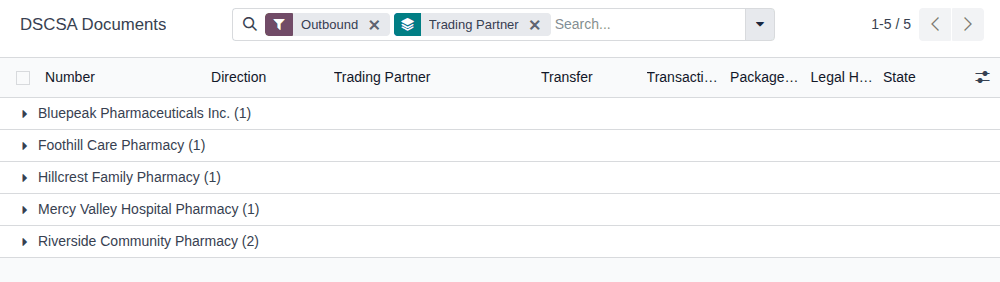
To narrow or group the list, open the search options (the ▾ at the end of the search box) and choose filters: Outbound, Inbound, EPCIS Missing, Transaction Date; or group by Trading Partner, Direction or Month.
-
Open a document.
-
Select Download T3 to download the T3 report, or Download EPCIS to download the EPCIS file.
Result: the browser downloads
T3-DSCSA-OUT-YYYY-NNNNN.pdforEPCIS-DSCSA-OUT-YYYY-NNNNN.xml. Each download is the same file, byte for byte. -
To print the T3 report instead, open the ⚙ (Actions) menu and select T3 Report (DSCSA).
Result: the browser downloads the same stored
T3-DSCSA-OUT-YYYY-NNNNN.pdf.
Result: you have the document's files. Records: none; nothing is created or changed.
A lot-level document has no EPCIS file, so it has no Download EPCIS. The Files tab lists the same files; an Rx Tracking Manager also sees Verify Integrity in the ⚙ (Actions) menu.
If it doesn't work
- A search by Serial doesn't find a unit shipped at lot level: lot-level documents list lots, not serials. Search by Lot instead (Known issue PF-A03-02, see Ship at lot level to an exempt small dispenser).
- "DSCSA document … has no stored T3 report. Run Verify Integrity.": the stored file is missing. See Error: "DSCSA document … has no stored T3 report.".
Known issue (PF-A03-04): on a supplier's (Inbound (received)) document, ⚙ (Actions) ‣ T3 Report (DSCSA) shows "The T3 report of DSCSA document … was frozen when it was posted and is never generated again. Download the stored file from the document; if it is missing, run Verify Integrity." An inbound document has no T3 report of ours: the supplier's files are on its Files tab. See Error: "The T3 report of DSCSA document … was frozen when it was posted …".
Handle a document posted without an EPCIS file
A delivery isn't stopped when the data its EPCIS file needs is missing (a GLN, Global Location Number; an address field; an NDC, National Drug Code): the document is posted with its T3 report only, and says why. Nothing can add the file to that document later. Fix the master data so that the next deliveries get their file, and give the customer the T3 report.
Your procedure decides how a customer that needs the EPCIS data of that shipment gets it; the software keeps the document as it was posted.
Who: Rx Tracking User or Manager to find the documents; the fix depends on the reason (see the table).
Requires: Rx Tracking (DSCSA). Works in Odoo Community and Enterprise.
Before you start:
- Nothing to prepare.
-
Go to Inventory ‣ Rx Tracking ‣ Documents, open the search options and select the filter EPCIS Missing.
Result: the list shows the package-level documents that have no EPCIS file.
-
Open a document.
Result: a yellow banner says why, for example "No EPCIS file was generated: the buyer Foothill Care Pharmacy has no GLN". The header has Download T3 only. The chatter has the same reason: "No EPCIS file was generated for DSCSA document DSCSA/OUT/2026/00004: the buyer Foothill Care Pharmacy has no GLN. The T3 report was stored as usual. Complete the master data so that the next deliveries get their EPCIS file; this document can't be changed any more."

-
Fix the cause the banner names:
The banner says Fix "the buyer NAME has no GLN" Fix a missing GLN before shipping "our company NAME has no GLN" Set the company's address, GLN and GS1 prefix length "receiver.street is required." (or receiver.name,receiver.city,receiver.zip,receiver.country,receiver.state)complete the address of the buyer's company: Onboard a trading partner "sender.street is required." (or sender.name,sender.city,sender.zip,sender.country,sender.state)complete our company's address: Complete the company's name and address (part of CFG-02) "PRODUCT has no NDC", "… NDC … does not match GTIN …" Set up a DSCSA product "the GS1 company prefix length of PRODUCT (GTIN …) is unknown" Set the company's address, GLN and GS1 prefix length "the document has no transaction statement" Review the Transaction Statement and the EPCIS legal notice "… contains a control character that XML cannot carry." remove the character from the named field (for example a lot name or an address) -
Select Download T3 and send the T3 report to the customer, or send it the link (OUT-11).
Result: the document stays without its EPCIS file; the next deliveries to that customer get theirs. Records: none new; the document keeps its banner and stays under EPCIS Missing.
A lot-level document never has an EPCIS file and never shows the banner. For every message the banner can show, see Warning: "No EPCIS file was generated: …".
Known issue (PF-A03-01): only a missing GLN is announced before the delivery is Done (the yellow banner on the delivery and the GLN missing activity). A missing address field, NDC or GS1 prefix length shows up only on the posted document. Complete the customers' addresses and the products' codes before their first delivery.
Send one document's link to a customer
Send a customer a link to one document, for example when it has no customer portal account. The link opens the document's page, with its T3 and EPCIS downloads, without a login. Background: the modules follow the reading that a distributor's customer portal is an accepted way to give dispensers their transaction data (FD&C Act § 582(c)(1)(A)(ii)–(iii), § 582(g)(1)(A)–(B); § 581(22), (24), (26), (27); see Compliance background).
Who: Rx Tracking Manager
Requires: Rx Tracking (DSCSA). Works in Odoo Community and Enterprise.
Before you start:
- The document's Trading Partner (the customer's company contact) has an email address.
- Odoo can send email (an outgoing mail server). See Odoo's outgoing mail server documentation.
-
Open the document (OUT-09 steps 1–4).
-
In the chatter (below the form, or at its right on a wide screen), select Send message.
-
Select the ⤢ (Full composer) icon at the right of the message box.
Result: the Compose Email dialog opens, with the document number as Subject.
-
In To, select "Add contacts to notify..." and choose the document's Trading Partner itself, for example
Riverside Community Pharmacy(not a contact person of it). To already lists the document's followers, for example the user who validated the delivery; each gets a copy. Remove them if the message is for the customer only. -
Write your message and select Send.
Result: the message is in the document's chatter. The email to the customer has a View DSCSA Transaction Document button.
Result: the customer opens the link without logging in and sees the document's page ("Stored when the shipment was validated; never
regenerated."), with T3 (PDF) and EPCIS (XML) buttons. Records: the message in the document's chatter, and the email in Odoo's
outgoing mail. The link opens only this document. A link from the email with a changed or missing character opens only the sign-in page.
The page the link opens has the address /my/dscsa/documents/ID?access_token=…; with a changed character in that address, the page says
"Error 404" ("We couldn't find the page you're looking for!").
If it doesn't work
- Send message is greyed out: Rx Tracking users can read documents but not post on them. See Send message is greyed out on a DSCSA document.
- The customer's button asks for a login: the email went to a contact person (for example
Riley Chen), not to the trading partner itself. Only the trading partner's email gets the link that works without a login. Send it again to the company. - The email never arrives: see An email or a reminder never arrived.
Known issue (PF-A03-05): DSCSA documents have no Share action (sales orders have one). Sending a message from the document's chatter, as above, is the only way to create the link. Customers with a portal account find all their documents in the portal: see Your DSCSA documents in the customer portal.