Sell DSCSA products
Core module For: Administrator, Sales and purchasing Checked on 18.0.0.2.0
Confirm sales of DSCSA products in the Sales app as usual. Before an order with DSCSA products is confirmed, by you or by the customer online, Rx Tracking checks that the customer is an authorized trading partner. Orders with only other products are never checked.
Confirm a sales order for DSCSA products
Create and confirm the quotation. If the customer's company (or the company of the delivery address) isn't an authorized trading partner today, confirming is refused and the reason is shown. Background: the modules follow the reading that a distributor may only buy from and sell to authorized trading partners, and that the license each needs depends on its role (FD&C Act § 582(c)(3), § 581(2); see Compliance background).
Who: Sales User (any level); no Rx Tracking right needed
Requires: Rx Tracking (DSCSA) and Odoo's Sales app. Works in Odoo Community and Enterprise.
Before you start:
- The customer's company has a DSCSA role and a verified license that is in force. See Onboard a trading partner and Record and verify a trading partner's license. A user with an Rx Tracking right can check it first: Check whether a partner is an authorized trading partner.
- The products are DSCSA products. See Set up a DSCSA product.
-
Go to Sales ‣ Orders ‣ Quotations and select New.
-
In Customer, choose the customer's company, for example
Riverside Community Pharmacy. -
On the Order Lines tab, select Add a product, choose the product (for example
Demoprazole) and enter the Quantity. -
If the customer gave you a purchase order number, go to the Other Info tab and enter it in Customer Reference, for example
RCP-PO-4471. The DSCSA document of the delivery shows it as the order reference. -
Select Confirm.
Result: the order is a Sales Order, and the chatter says "Sales Order created". Odoo creates the order's delivery, which the warehouse finds in Inventory ‣ Operations ‣ Deliveries.
Result: the order is confirmed. Records: the sales order S0NNNN (Sales Order) and its delivery WH/OUT/NNNNN. Rx Tracking
creates no DSCSA record yet: the DSCSA document is posted when the delivery becomes Done
(Scan the serials of a delivery and validate it).
If our company or the buyer has no GLN (Global Location Number, see the glossary), the order is still confirmed, but its chatter gets an internal note that starts "DSCSA warning: the delivery of this order …" and says its DSCSA document gets no EPCIS (Electronic Product Code Information Services) file, and an Rx Tracking Manager gets a GLN missing activity. See Fix a missing GLN before shipping and the GLN-missing warning.
If it doesn't work
Confirming is refused with an Invalid Operation dialog that names the order and its DSCSA products (the first five, then "and N more"), then one line per reason. The quotation stays a Quotation.
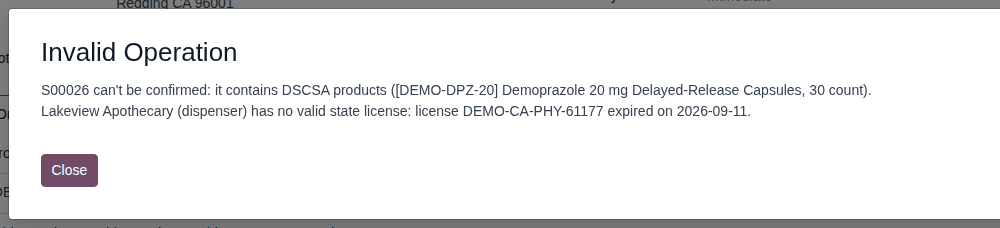
- "S0NNNN can't be confirmed: it contains DSCSA products (…)." then "… has no valid state license: license … expired on …." (or "… is unverified.", "none on file", "… has no DSCSA role set, so it is not an authorized trading partner."): the customer's company isn't an authorized trading partner. Ask an Rx Tracking Manager to renew, record or verify the license, or to set the role; then select Confirm again. See Error: "… can't be confirmed: it contains DSCSA products …".
- A reason line that starts "Delivery address …:": the delivery address belongs to another company, which isn't authorized. See Error: "Delivery address …: …".
- You have no Rx Tracking right, so you can't see the partner's DSCSA tab: the dialog is your only information. See Error: "… not an authorized trading partner" when you have no Rx Tracking right.
Next: Scan the serials of a delivery and validate it
An order with DSCSA and other products
Only the DSCSA products count. An order with only non-DSCSA products (for example Adhesive Bandages, Assorted, 100 count) confirms as in
standard Odoo, whatever the customer's status. An order that mixes both is refused as a whole, and the dialog lists only the DSCSA
products. Remove the DSCSA lines to sell the rest now, or wait for the fix.
Ship to another company
The quotation shows Invoice Address and Delivery Address under Customer when Customer Addresses is selected in Invoicing ‣ Configuration ‣ Settings (under Customer Invoices). When the Delivery Address belongs to another company, that company must be an authorized trading partner too; otherwise the refusal has a reason line such as "Delivery address Lakeview Apothecary: Lakeview Apothecary (dispenser) has no valid state license: …". The delivery then goes to that company, and its DSCSA document names that company as the buyer.
Known issue (PF-A03-03): for an order shipped to another company, the DSCSA document's Trading Partner is the company of the delivery address, not the customer who ordered. The ordering customer doesn't see that document in its customer portal. Send the customer the document's T3 report (Transaction Report) yourself if it needs it (Find, view, download and print DSCSA documents).
Let a customer accept or pay an order online
A customer can accept a quotation online with a signature, pay it online, or pay it through a payment link. The same check as in OUT-01 runs first: a quotation with DSCSA products for a customer that isn't an authorized trading partner can't be confirmed or paid online.
Who: Sales User (any level) sends the quotation or the link; the customer signs or pays (a portal user, or anyone with the link). Settings and payment providers: Administrator (Administration: Settings).
Requires: Rx Tracking (DSCSA), Odoo's Sales app and, for payments, a payment provider. Works in Odoo Community and Enterprise.
Before you start:
- In Sales ‣ Configuration ‣ Settings, under Quotations & Orders, Online Signature or Online Payment (or both) is selected. They are the defaults of each new quotation, which shows them as Online signature and Online payment on its Other Info tab.
- For payments, a payment provider is enabled in Sales ‣ Configuration ‣ Payment Providers. See Odoo's payment providers documentation. A test database can use the Demo provider: select Install on its card; it is then in Test Mode and needs no account.
- The customer's company contact has an email address.
-
Open the quotation in Sales ‣ Orders ‣ Quotations.
-
Select Send by Email.
Result: an email dialog opens, addressed to the customer, with the quotation as a PDF.
-
Select Send.
Result: the quotation is Quotation Sent. The customer's email has a link to the quotation.
-
The customer opens the link (a portal user also finds it in My Account, under Quotations to review) and selects Accept & Sign (signature only) or Sign & Pay (signature and payment).
Result: the Validate Order window opens: "By signing, you confirm acceptance on behalf of CUSTOMER for the AMOUNT quote."
-
The customer signs (Auto, Draw or Load) and selects Accept & Sign.
Result: without online payment, the order is a Sales Order. With online payment, the page says "Your order has been signed but still needs to be paid to be confirmed." and the Validate Order window asks for a payment method.
-
With online payment, the customer chooses the payment method, enters the payment details and selects Pay.
Result: "Thank you! Your payment has been successfully processed." The order is a Sales Order.
Result: the order is confirmed by the customer. Records: the sales order (Sales Order, with "Order signed by CUSTOMER" and the signed PDF in its chatter), the payment transaction when the customer paid, and the order's delivery.
If it doesn't work
- After Pay, a "Payment processing failed" window says "This order can't be paid online yet." followed by the refusal of OUT-01, for example "S00035 can't be confirmed: it contains DSCSA products (…)." and "Lakeview Apothecary (dispenser) has no valid state license: license DEMO-CA-PHY-61177 expired on 2026-09-11.": the customer's company isn't an authorized trading partner. Nothing is paid; the quotation stays Quotation Sent (a signature given in step 5 is kept). See Error: "This order can't be paid online yet.".
- After Accept & Sign, the button keeps spinning and nothing else happens: the same refusal, which the page doesn't show. See the known issue below and The customer's Accept & Sign button keeps spinning.
Known issue (PF-W07-01): when a customer that isn't an authorized trading partner selects Accept & Sign on a quotation without online payment, the page shows no message: the button keeps spinning (first reported from the code as PF-A03-08). The quotation stays Quotation Sent, unsigned. When a customer reports this, check the customer's authorization (MD-05); after the fix, ask the customer to sign again, or confirm the order yourself (OUT-01). Before you send a quotation of DSCSA products for online signature, check that the customer is authorized.
Pay through a payment link
-
On the quotation, open the ⚙ (Actions) menu and select Generate a Payment Link.
-
Select Generate and Copy Payment Link, and send the link to the customer.
Result: the customer's link opens a payment page; after Pay, the order is confirmed as in step 6. For a customer that isn't authorized, the same "Payment processing failed" window appears and nothing is paid.
Sell DSCSA product by dropship
In a dropship, your vendor ships the units straight to your customer: they never enter your warehouse. Rx Tracking checks the customer and the vendor, but asks for no serial scan and posts no DSCSA document, because the vendor that ships sends the transaction data. Background: the modules follow the reading that in a drop shipment the party that physically ships sends the transaction information and statement directly to the dispenser and lists the non-handling wholesaler's contact information on it (FD&C Act § 582(c)(1)(A)(i), § 582(g)(1); FDA interoperable exchange guidance (September 2023); see Compliance background). This is how the modules read the law; it has not been reviewed by counsel. See the disclaimer.
Your procedure decides whether you drop-ship DSCSA products, and how you make sure the vendor sends the customer its transaction information and statement; the software keeps no DSCSA document or package record of a dropship.
Who: Sales User (any level) confirms the sales order and, with Purchase User, the vendor's purchase order; an Inventory User validates the dropship (no Rx Tracking right needed). Turning on Dropshipping: Administrator (Administration: Settings).
Requires: Rx Tracking (DSCSA), Odoo's Sales, Purchase and Inventory apps, and Odoo's Dropshipping feature. Works in Odoo Community and Enterprise.
Before you start:
- Dropshipping is on: in Inventory ‣ Configuration ‣ Settings, under Logistics, select Dropshipping ("Request your vendors to deliver to your customers"), then Save. Odoo installs its Drop Shipping module; the example database doesn't have it until you do this. See Odoo's dropshipping documentation.
- The product has the vendor on its Purchase tab, for example Demoprazole with Bluepeak Pharmaceuticals.
- The customer and the vendor are authorized trading partners. See Check whether a partner is an authorized trading partner.
- Multi-step routes are on (Inventory ‣ Configuration ‣ Settings, under Warehouse, Multi-Step Routes), so that an order line can take the Dropship route. Without them, select Dropship under Routes on the product's Inventory tab instead: every order of that product is then drop-shipped.
-
Create the quotation as in OUT-01 steps 1–3, for example 2 × Demoprazole for
Riverside Community Pharmacy. -
On the Order Lines tab, select the sliders icon at the right end of the column titles (it lists the optional columns), select Route, and in the line's new Route cell choose Dropship.
-
Select Confirm.
Result: the order is a Sales Order, with a Purchase smart button and no delivery. Odoo has created a request for quotation to the product's vendor, with Deliver To
Dropshipand the customer's delivery address in Dropship Address.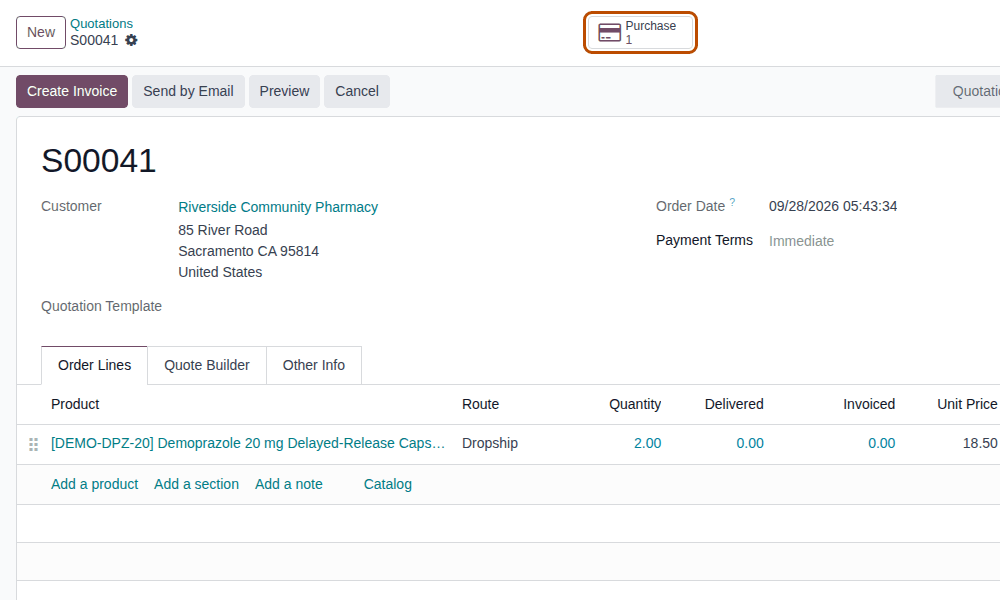
-
Select the Purchase smart button, and on the request for quotation select Confirm Order.
Result: the purchase order is a Purchase Order. Odoo has created the dropship transfer
DS/NNNNN(Ready), from Partners/Vendors to Partners/Customers. -
When the vendor tells you it has shipped, go to Inventory ‣ Operations ‣ Dropships and open the transfer, for example
DS/00001(Source Document the purchase order). -
On the Operations tab, select the list icon at the right end of the product's line, and in the Open: Stock move window enter the vendor's lot number in Lot/Serial Number (for example
BPDPZ2510D, from the vendor's shipping notice). Select Save. Don't scan anything (see the known issue below). -
Select Validate.
Result: the dropship is Done. It has no DSCSA Documents smart button, its DSCSA Packages tab is empty, and its chatter has no DSCSA line.
Result: the vendor's shipment to the customer is recorded. Records: the sales order S0NNNN (Sales Order), the purchase order
P0NNNN (Purchase Order) and the dropship DS/NNNNN (Done). Rx Tracking creates no DSCSA document and no package record: the
units are not in your package ledger, and the customer gets its transaction information and statement from the vendor. The lot you
entered is created in Odoo if it didn't exist.
If it doesn't work
- At step 3: "S0NNNN can't be confirmed: it contains DSCSA products (…)." with a reason line: the customer isn't an authorized trading partner, as in OUT-01. See Error: "… can't be confirmed: it contains DSCSA products …".
- At step 4: "P0NNNN can't be confirmed: it contains DSCSA products (…)." with a line such as "Granite State Rx Supply LLC (wholesaler) has no valid state license: license DEMO-NH-WHL-3301 expired on …": the vendor isn't an authorized trading partner. Ask an Rx Tracking Manager to renew or verify the vendor's license, or choose an authorized vendor in Vendor. See Error: "… can't be confirmed: it contains DSCSA products …".
- At step 7: "DS/NNNNN can't be validated: it moves DSCSA products (…) to or from a trading partner." with a line such as "Customer of S0NNNN: Riverside Community Pharmacy (dispenser) has no valid state license: none on file …": since the orders were confirmed, the customer (or the vendor) stopped being an authorized trading partner. Both are checked again at validation. Ask an Rx Tracking Manager to fix the license, then select Validate again. See Error: "… can't be confirmed: it contains DSCSA products …".
- At step 7: "You need to supply a Lot/Serial Number for product: …": Odoo needs the lot of the units the vendor shipped. Do step 6.
Known issue (PF-F04-02): the dropship shows Scan Serials, and it accepts a unit that is in your own stock. Validating then marks that unit Shipped to the vendor in the package ledger, although it is still on your shelf and in Odoo's stock. Don't use Scan Serials on a dropship. If it happened, ask an Rx Tracking Manager to check the unit in Look up a unit in the package ledger.